
- Build in the crate
- 2.0.05
- Made by the team at
- LightBurn Software
- Menu languages offered
- English
- How you pay for it
- Included
- macOS it plays on
- macOS 10.13 or later
- CPU it runs on
- Intel 64-bit
Screenshots
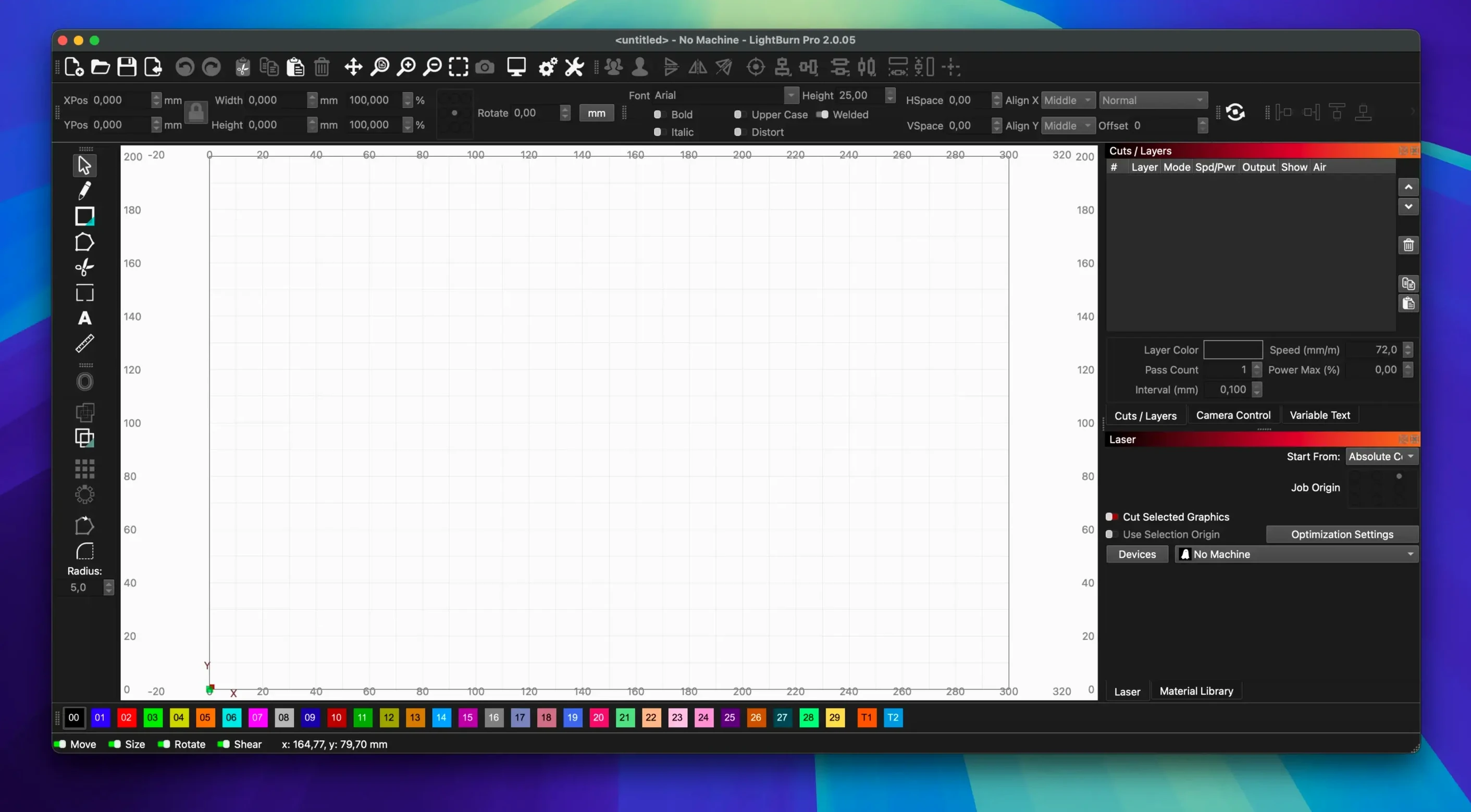
You are setting up a new laser cutter in your workshop. You have the machine, the materials, and a stack of ideas. What you need is software that can take a sketch from screen to cut without jumping between half a dozen programs. LightBurn for macOS is built for exactly that.
What LightBurn Does
- Direct connection to lasers and most GCode, DSP, and Galvo controllers.
- Built-in vector editor with boolean operations, offset, and weld tools.
- Image tools for vectorization, masking, and edge enhancement.
- Full control over power, speed, pass count, and cut order.
No extra software needed to start cutting
LightBurn is a complete package: editor, layout tools, and direct laser control in one place, so you do not need extra software to get going. It is aimed at both hobbyists and professionals, and the current version 2.0.05 runs on Intel Macs. If you have an Apple Silicon Mac, Rosetta is required. The download page lists older versions too, and users on macOS 11 should go for 2.0.05. Once installed, you can start drawing, importing images, and tweaking settings like brightness and dithering before your first cut. It is the kind of tool that makes the machine feel like an extension of your desk.
Drops right in with your existing Mac tools
LightBurn does not try to replace everything on your Mac. It sits alongside the tools you already use. For example, you can draw a shape in Affinity Designer or Inkscape, export it as an SVG or PDF, and drop it straight into LightBurn. The same goes for raster images: a PNG or JPG from Photoshop or even a screenshot can be imported, vectorised, and cut. No conversion middlemen needed.
On the macOS side, the app works with the standard file dialogues, so you can drag files from Finder into the workspace or use the Recent Items menu to get back to yesterday's job. The DMG installer is the same as any other Mac app, and once it is in the Applications folder, it behaves like a native citizen. The Dark Mode option introduced in version 2.0 matches the system appearance if you prefer it, though the interface stays clean either way.
If you use a shared workflow with a Windows or Linux machine in the workshop, LightBurn's project files and presets transfer across platforms without trouble. The material library you build on your Mac can be copied to the other computer. That matters when you have a laser cutter that is connected to a dedicated PC but you do the design work on your laptop.
Lighter and more polished than the free alternatives
If you look at what else is available for macOS, a few names come up: LaserGRBL, RDWorks, and K40 Whisperer. Each has its own approach.
LaserGRBL is lightweight and free, and it handles basic GCode control well. But it is limited to GRBL-based controllers, and its editing tools are minimal. You end up doing most of the design work in a separate vector app. LightBurn brings the editor and the controller together, so you spend less time switching windows.
RDWorks is the official software for Ruida controllers. It is powerful for production runs, but the interface feels dated, and the Mac version is a Wine wrapper rather than a native app. That means occasional odd behaviour with file paths and window placement. LightBurn is native to macOS and supports Ruida controllers directly, plus it handles DSP and Galvo controllers too.
K40 Whisperer is a free option for K40 machines. It is simple to use, but it lacks vector editing entirely. You must prepare your designs elsewhere and only use it for sending the job. LightBurn gives you a full editor and the ability to tweak settings on the fly, which saves a step every time you need to adjust a cut.
None of these alternatives match the range of controller support or the integrated editing that LightBurn offers. That is the main reason people move to it after starting with a free tool.
Adjust the material library for your specific laser
When you first open LightBurn, a few settings can save you time and material right away.
- Material Library defaults. The built-in library has presets for common materials like plywood, acrylic, and leather. But your machine and your specific batch of material might need slightly different power or speed. Create a new entry with your own numbers so you do not have to tweak the same job twice.
- Cut order. By default, the software cuts shapes in the order they were drawn. If you have a design with small details next to large cuts, change the cut order to do the small ones first. That stops the material shifting when the big cut finishes.
- Camera calibration. If you have a camera mounted on your laser, run the calibration routine from the Camera Calibration option. It aligns the camera view with the workspace, so you can place designs over existing material or engraved areas.
- Rotary axis setup. If you plan to engrave cylinders, set up the rotary axis parameters before your first job. The settings are in the device configuration, and getting them right avoids wasted test runs on tumblers or bottles.
SVG files that lose shapes on import
Even with straightforward software, a few things trip people up. Here is what to watch for.
File import problems. SVG and DXF files that look fine in Illustrator or Inkscape sometimes come in with missing shapes or extra lines. The usual cause is ungrouped elements or nested layers. Before importing, flatten the file: select all, ungroup, and merge layers. The 2.0.05 fix for SVG files with ungrouped DEF shapes helps, but it is still good practice to clean up the source file.
Connection dropouts. If the laser disconnects mid-job, check the USB cable and the port. A long or low-quality cable can cause interference. Also, macOS might put the USB port to sleep if the computer goes to sleep. Disable automatic sleep in Energy Saver while running jobs.
Rosetta performance questions. On Apple Silicon Macs, LightBurn runs under Rosetta. Some users wonder if it will be slow. In practice, the software is not computationally heavy: vector editing and GCode generation are lightweight tasks. The only moment you might notice a delay is when processing a large, high-resolution image for dithering, but it is still well within usable time.
Rotary jogging direction. The 2.0.05 release fixed a bug where rotary jogging went the wrong way in CCW mode. If you are on an older version and see that issue, update to 2.0.05. The fix is already in the download page.
Window position oddities. After switching between monitors or waking from sleep, the window title bar might appear off-screen. The 2.0.05 release also fixes that by correcting stored offsets. If it happens, reset the window layout from the Window menu.
Most of these snags have simple fixes, and the developer is active with updates. The download page lists both the current version and older ones, so you can roll back if a new release ever introduces an issue, though that is rare.
- Fixes window title bar placement when stored offsets are incorrect.
- Fixes rotary jogging direction in CCW mode.
- Fixes a crash when importing SVG files with ungrouped DEF shapes.
- macOS 10.13 or later
- Intel 64-bit architecture
- Rosetta required on Apple Silicon Macs
Kit check at a glance
| System | macOS 10.13 or later |
| Chip | Intel 64-bit |
| Download | 67 MB |


Chat from the booth
Sign in or grab a free account to leave a comment.
Nobody has said a word in the booth yet. If you played a set with this build, tell the next person how it went.