
- Build in the crate
- 13.0.20-All-in-One
- Made by the team at
- Steinberg
- Menu languages offered
- English
- How you pay for it
- Included
- macOS it plays on
- macOS 12 or later
- CPU it runs on
- Apple Silicon, Intel 64-bit
Screenshots
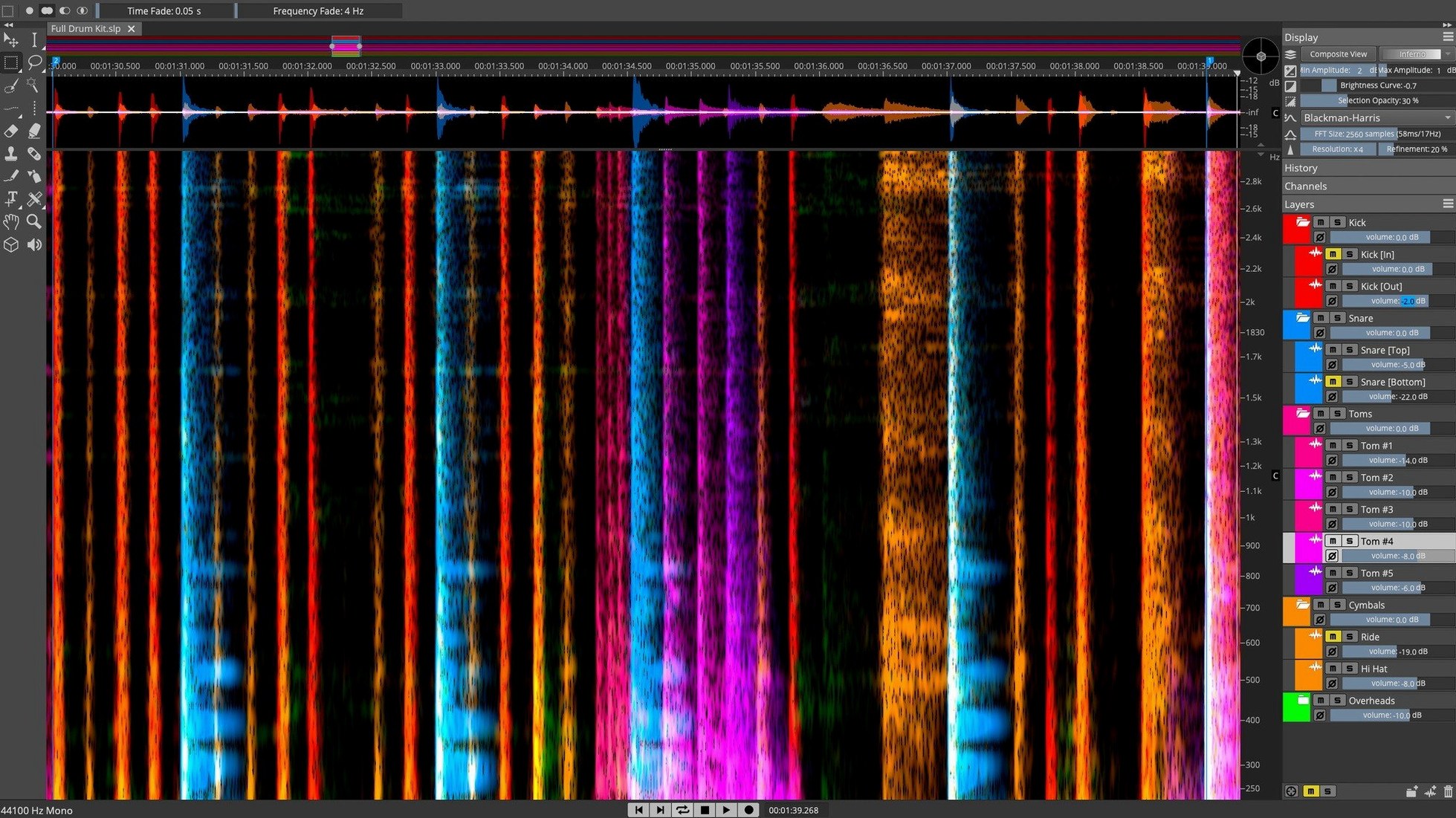
SpectraLayers Pro 13 brings AI-based component unmixing to the foreground, letting you isolate vocals, drums or other instruments from a mix with a single pass. The visual 3D spectral display turns sound into a landscape you can directly edit — removing a cough, a click or a frequency clash becomes as simple as selecting a shape.
Edit the sound itself
Instead of working on a waveform, you paint on the spectral view. Need to pull out a ringing resonance? Lasso it and drop the level. The AI track-to-stems unmixing handles the rough separation; the manual tools let you finesse it. ARA 2 integration with Nuendo and Cubase keeps the workflow inside your DAW, so you never leave the session.
Built for music and post
Whether you restore an old recording or rebalance a stem mix, SpectraLayers Pro gives you control at the frequency level. The current version 13.0.20 runs on macOS 12 and later, Intel and Apple Silicon.
ARA 2 integration with Cubase and Nuendo
SpectraLayers Pro 13 is not a DAW — it is a spectral editor that hands its results back to one. If you use Cubase or Nuendo, the ARA 2 integration means you can open a clip, edit it spectrally and close the window without bouncing audio. The changes appear in the DAW timeline as if you had made them there. For anyone working in Logic Pro, Ableton Live or Pro Tools, the workflow is slightly different: you process audio in SpectraLayers, export the cleaned or separated file and import it back. A batch export of stems saves time when you are separating a whole session.
macOS features like Quick Look work with the native audio formats SpectraLayers reads, so you can preview files before importing. The app also respects the system audio routing — if you use an aggregate device or a multi-output setup, it picks it up without extra configuration. For voiceover or dialogue editors, the Voice Denoiser can be combined with a short automation script in Shortcuts or Keyboard Maestro to process multiple files in sequence, though SpectraLayers itself handles one file at a time.
Compared with similar tools
iZotope RX 11 is the closest competitor. Both offer spectral editing and AI-based repair. RX leans heavily on its module-based workflow — each repair is a separate step with its own window. SpectraLayers Pro keeps everything in the same spectral view, which feels more direct for people who prefer visual editing over dialog boxes. RX also has a wider range of repair modules (mouth de-click, breath control) that SpectraLayers does not match directly, but SpectraLayers' Pattern Finder and manual de-essing tools cover some of the same ground.
Acon Digital Extract Dialogue is a simpler option. It focuses on dialogue isolation and does not offer the full spectral editing canvas or the AI unmixing of SpectraLayers. Extract Dialogue is faster to learn if you only need one thing, but it cannot handle music separation or detailed frequency repair. For a music producer who also does post-production, SpectraLayers Pro is the more versatile choice.
Then there is Melodyne, which is a pitch and timing editor rather than a spectral repair tool. It works well for tuning vocals and adjusting timing, but it cannot remove a dog bark from a mix or separate drums from a full track. SpectraLayers and Melodyne complement each other — you could use SpectraLayers to clean the source, then Melodyne to polish the performance.
Avoiding thin results from oversized selections
The most common one is trying to select too much at once. Beginners drag a wide rectangle across the spectral display and wonder why the result sounds thin or phasey. The AI unmixing does a good job with broad separation, but manual editing works best when you select only the exact frequency range and time region of the unwanted sound. A tight selection around a click or a resonance leaves the rest of the audio untouched.
Another mistake is forgetting to check the output format. After separating stems, users sometimes export in a compressed format and lose the quality they worked to preserve. Stick to WAV or AIFF at the same sample rate as the original. Also, beginners often skip the preview step before applying a process. The Voice Denoiser and de-esser have adjustable parameters, and listening before committing saves rework.
Over-relying on the AI unmixing is a third pitfall. The AI is impressive, but it is not perfect — it can leave artifacts or miss subtle details. Use it as a starting point, then go in with the manual tools to clean up edges and restore harmonics that the AI might have removed. The real power of SpectraLayers Pro is the combination of automatic and manual editing, not the AI alone.
Try AI track-to-stems unmixing first
Start with a simple task: take a full mix, use the AI track-to-stems unmixing to pull out vocals, and listen to the result. Then try the component unmixing to separate just the snare or the bass. This shows you what the AI can handle and where it struggles.
Next, open a recording with a single unwanted noise — a chair creak, a plosive or a sibilant "s". Use the manual selection tool to draw around it in the spectral view and lower the gain. This builds your confidence with the visual editing approach. The 3D display can be rotated and zoomed, which helps you see the exact shape of the sound.
Spend an hour with the Pattern Finder. Load a recording of a snare drum and let the tool find all similar hits. It is a good way to understand how the app groups spectral events and how you can edit them together. After that, try the Voice Denoiser on a dialogue clip with background hum — adjust the threshold until the noise drops but the voice stays natural.
Finally, set up a test project in Cubase or Nuendo with ARA 2. Open a clip in SpectraLayers Pro from the DAW, make a small edit, and close the window. See how the change appears in the DAW timeline. This integration is the fastest way to work once you are comfortable with the spectral tools.
- Installer release notes available for version 13.0.20.
- macOS 12 or later
- Intel or Apple Silicon
- English interface language
Kit check at a glance
| System | macOS 12 or later |
| Chip | Apple Silicon, Intel 64-bit |
| Download | 3.9 GB |
| Older pressings | 17 in the crate |


Chat from the booth
Sign in or grab a free account to leave a comment.
Nobody has said a word in the booth yet. If you played a set with this build, tell the next person how it went.