

- Build in the crate
- 8.24
- Made by the team at
- Eltima Software
- Menu languages offered
- English, German, Spanish, Italian, Chinese (Simplified), Korean, Dutch, Polish, French, Czech, Swedish, Japanese
- How you pay for it
- K'ed by TNT team
- macOS it plays on
- macOS 10.12 or later
- CPU it runs on
- Apple Silicon, Intel 64-bit
Screenshots
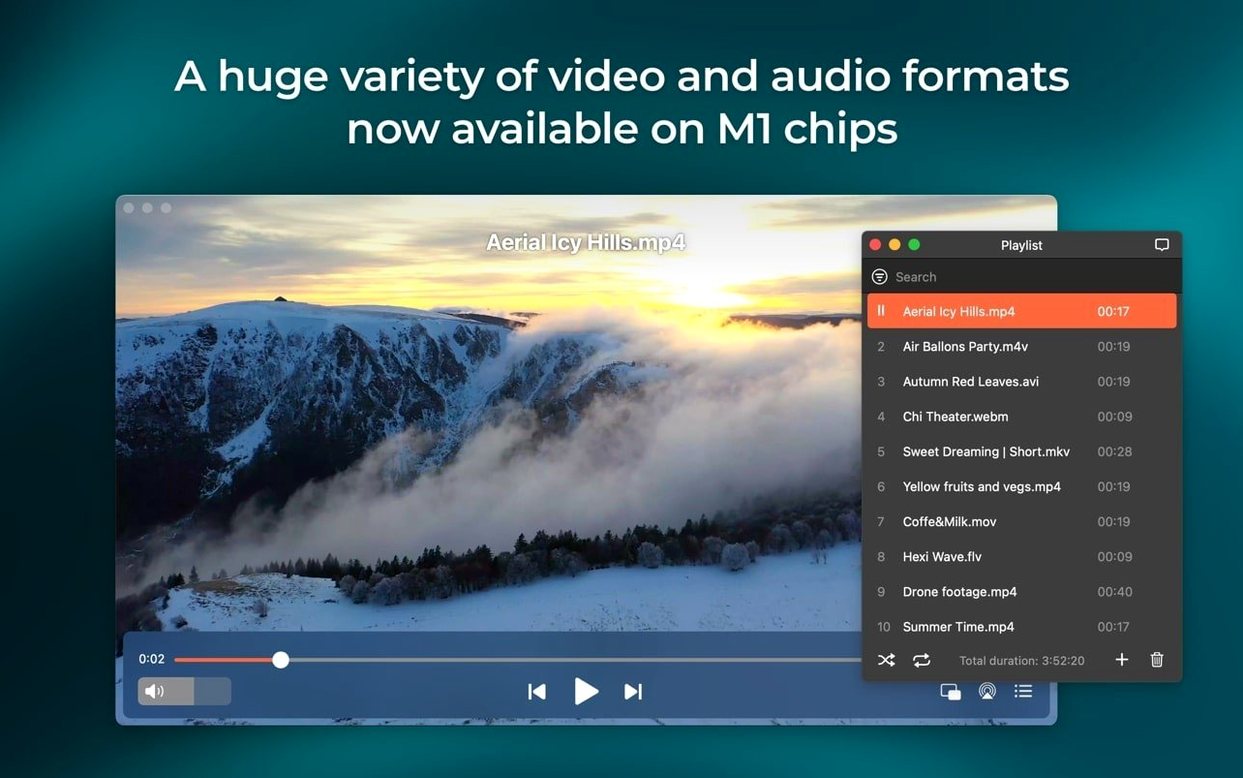
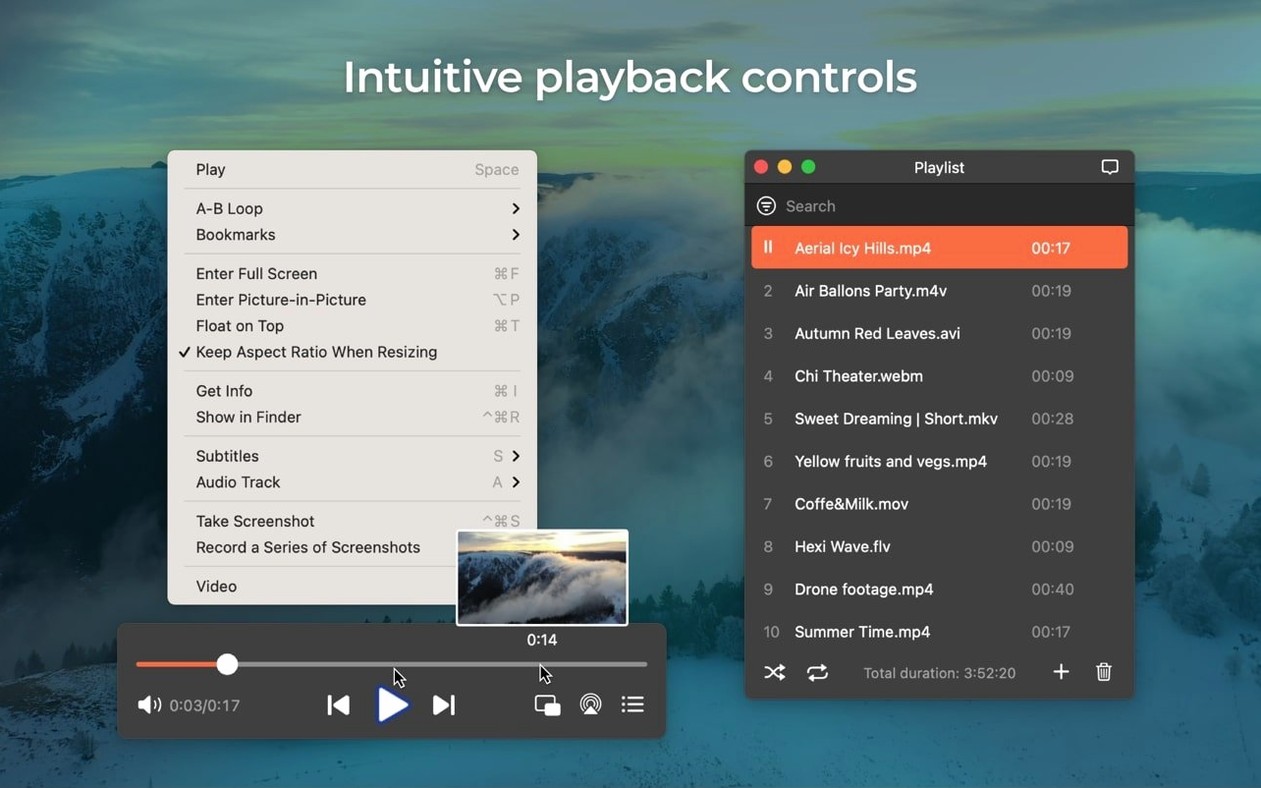
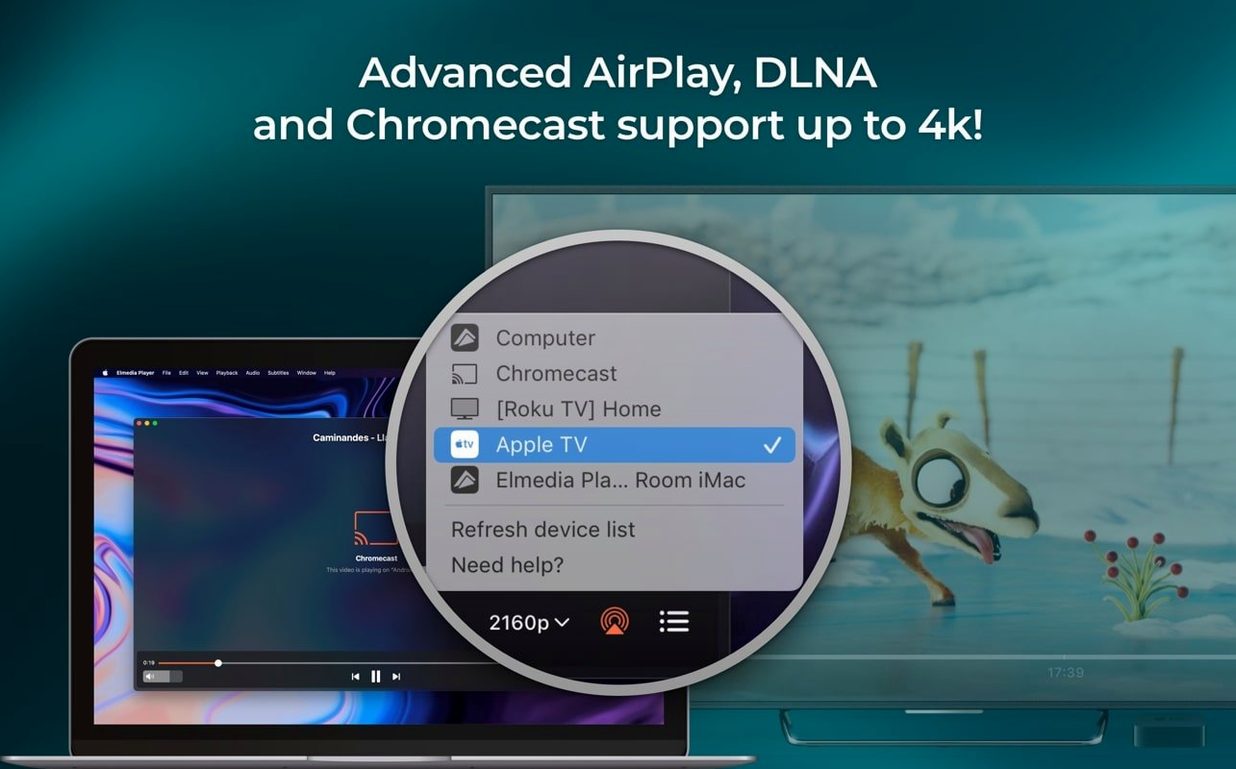
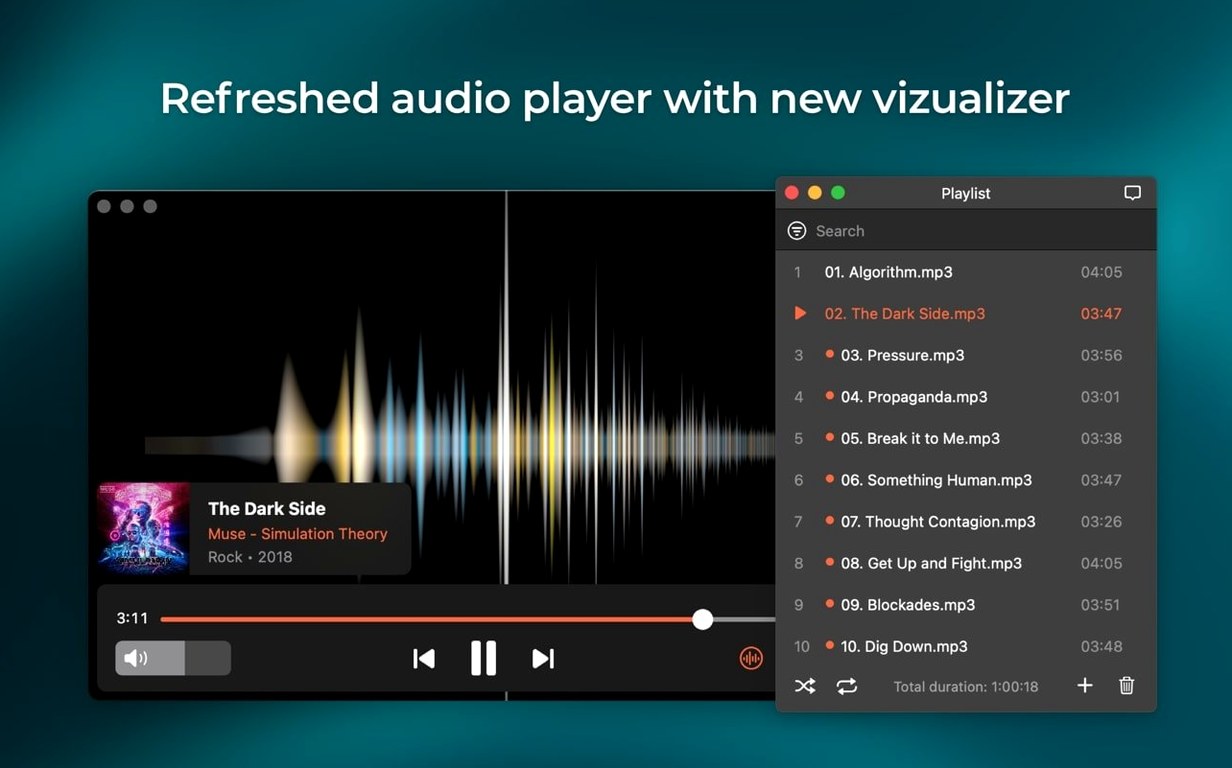
Elmedia Player Pro is a media player for macOS that handles video and audio files without needing extras. Where other apps stop at basic playback, Elmedia keeps going — it streams to AirPlay devices, includes a built-in browser for online video, and even converts Flash EXE files to SWF. For someone who already has a solid set of Mac tools, it fills the gaps without getting in the way.
- Hardware-accelerated decoding for smooth HD playback, even on older Macs.
- Built-in web browser for playing online video directly inside the player.
- AirPlay streaming between your Mac, AirPlay devices, or other Macs running Elmedia.
- Passthrough for AC-3 and DTS-encoded DVDs when your audio path supports S/PDIF or HDMI.
- Controls audio output per device — headphones, speakers, or anything else connected.
- Version 8.24 adds M4B audiobook support and improves compatibility with macOS 26.
If you already keep a few media utilities on your Mac, Elmedia Player Pro is the one that ties them together — no fuss, just playback where you need it.
Elmedia Player Pro sits in a part of the Mac media landscape where the choices are few but the needs are varied. Here is how it compares with two other players you might consider.
Elmedia vs VLC for Mac
VLC is the open‑source staple that most Mac users install first. It plays almost anything you throw at it, and it does so for free. Elmedia Player Pro covers similar ground with format support — both handle MKV, FLV, AVI, MOV, and the rest. The difference shows in the extras. VLC has a network stream option, but Elmedia’s built‑in browser makes browsing and playing online video feel more like using a separate app inside the player. Elmedia also includes AirPlay streaming out of the box, while VLC needs a bit of configuration or a third‑party tool to do the same. If you want a player that also downloads video and audio from streams, Elmedia does that natively — VLC does not.
Elmedia vs IINA for Mac
IINA is a newer player built specifically for modern macOS. It uses mpv as its engine and looks like a native Mac app — clean interface, touch bar support, picture‑in‑picture mode. IINA handles most formats well and is free. Elmedia Player Pro goes further in a few directions. It supports SWF and Flash‑based files, which IINA does not. It includes the browser for online content, and its audio routing lets you pick which device gets which channel setup — two, four, or eight channels. IINA is great if you want a lightweight player that follows macOS design conventions. Elmedia is better if you need to work with older Flash content, stream to AirPlay, or download video from a URL.
Set up audio output and surround passthrough
After installing, take a few minutes to set up the audio output. Go into the preferences and choose your default device — headphones, speakers, or external DAC. If you watch movies with surround sound, enable passthrough for AC‑3 or DTS if your system supports S/PDIF or HDMI. This saves you from digging into settings mid‑film.
Test the built‑in browser by opening a video URL. The player handles the playback inside its own window, which keeps your browser tabs free. If you find a video you want to keep, use the download option — it saves the file locally. This works for RTMP streams too, so if you watch live events or recorded streams, you can grab a copy.
Try AirPlay streaming early. Make sure the target device is on the same network, then select it from the streaming menu. If you have another Mac with Elmedia installed, you can stream between them. The latest version fixes a few device‑detection errors, so the list should populate without trouble.
Workflow: watch and save a lecture video
Imagine you have a recorded lecture in MKV format and you want to watch it while also saving the audio track for later listening. Here is a straightforward workflow from start to finish.
- Open the MKV file in Elmedia Player Pro. The hardware‑accelerated decoding handles the video without stutter, even if the file is high‑resolution.
- During playback, take a screenshot if you need a slide or a diagram. The screenshot tool saves as TIFF, PNG, or GIF — choose PNG for clean slides.
- If the lecture is streamed live via RTMP, open the stream URL in the built‑in browser and let the player load it. Use the download option to save the video file to your Mac.
- To extract the audio, play the file and route the output to your headphones or speakers. The audio device settings let you switch between outputs without stopping playback.
- If you prefer to keep only the audio, download the audio track separately using the online video audio download feature. The saved file is ready for transfer to a phone or portable player.
- When you are done, close the player. The app prevents your Mac from sleeping during streaming, so if you left a stream running, it stays active until you stop it.
This workflow works for any video that Elmedia can open — local files, online streams, or Flash content. The player becomes a single window for watching, capturing, and archiving media.
- Added support for M4B audiobook files.
- Improved compatibility with macOS 26.
- Improved preventing the Mac from sleeping while streaming.
- Fixed streaming to certain devices.
- Fixed errors when opening the list of devices for streaming.
- macOS 10.12 or later (version 8.24 requires 10.13 or later)
- Intel or Apple Silicon Mac
- Interface languages: English, German, Spanish, Italian, Chinese (Simplified), Korean, Dutch, Polish, French, Czech, Swedish, Japanese
Kit check at a glance
| System | macOS 10.12 or later |
| Chip | Apple Silicon, Intel 64-bit |
| Download | 157 MB |








Chat from the booth
Sign in or grab a free account to leave a comment.
Nobody has said a word in the booth yet. If you played a set with this build, tell the next person how it went.