

- Build in the crate
- 3.8
- Made by the team at
- Aiarty
- Menu languages offered
- English, German, Chinese (Traditional), Chinese (Simplified), Japanese
- How you pay for it
- K'ed by TNT team
- macOS it plays on
- macOS 11 or later
- CPU it runs on
- Apple Silicon, Intel 64-bit
Screenshots
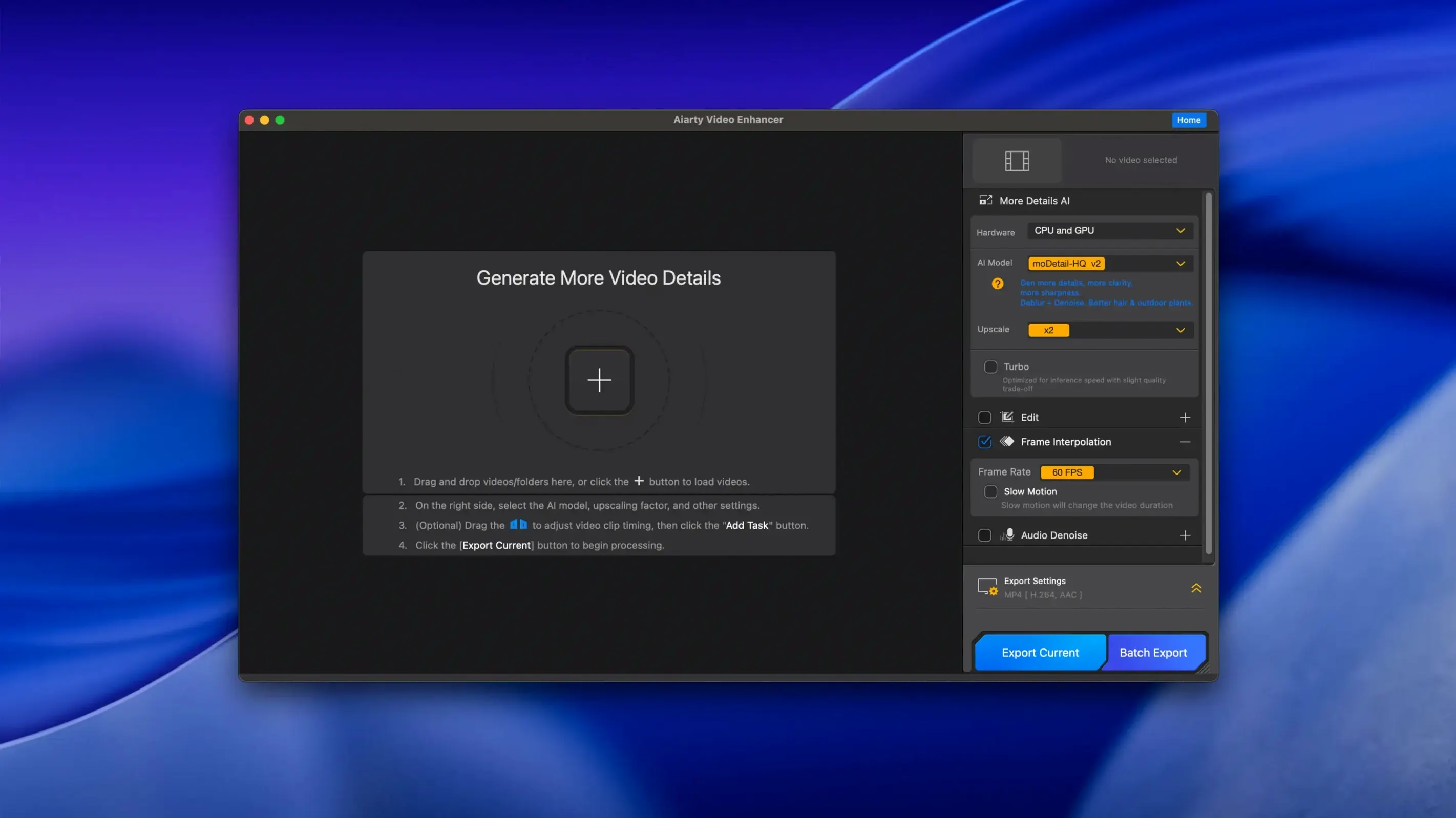
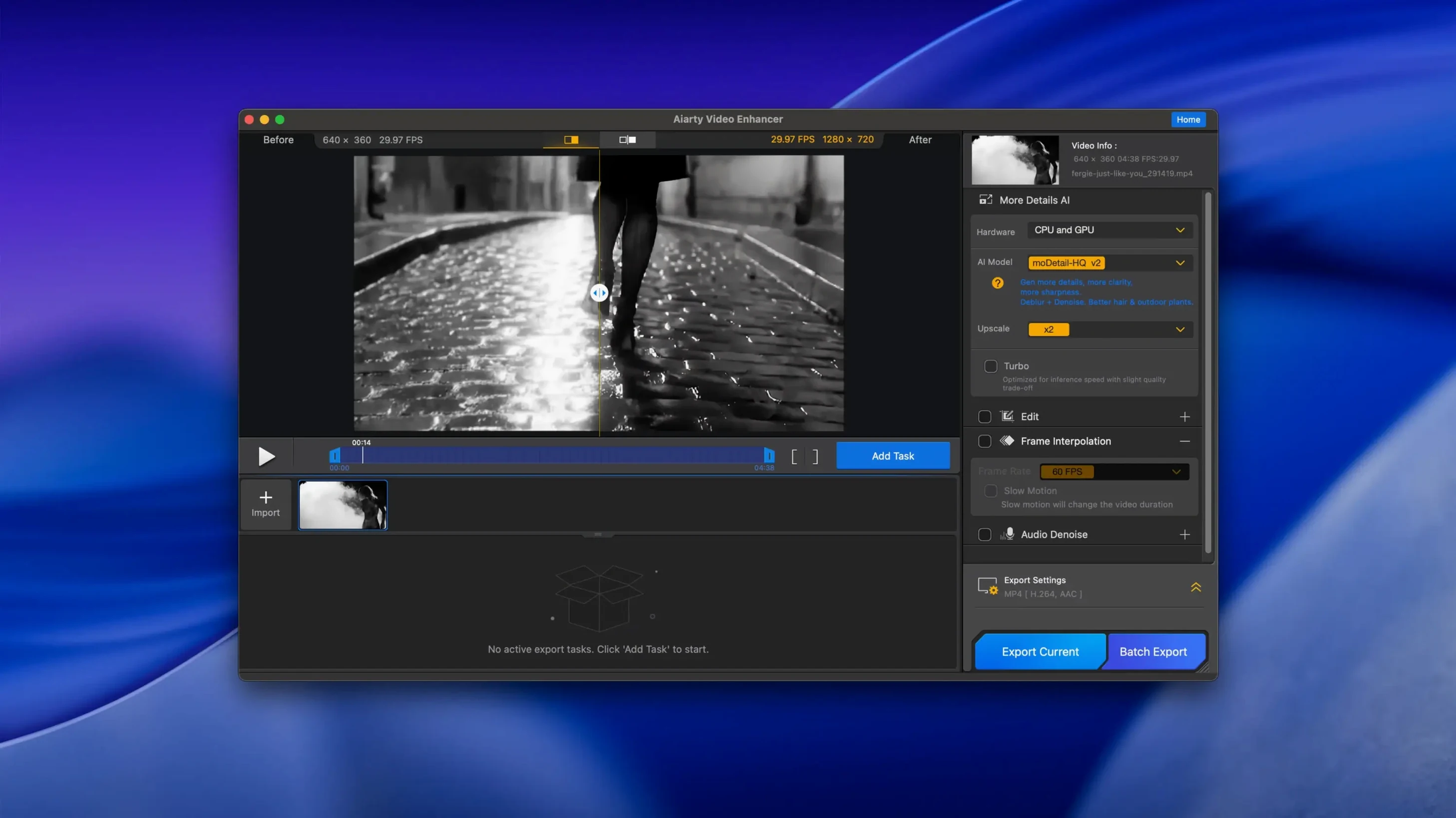
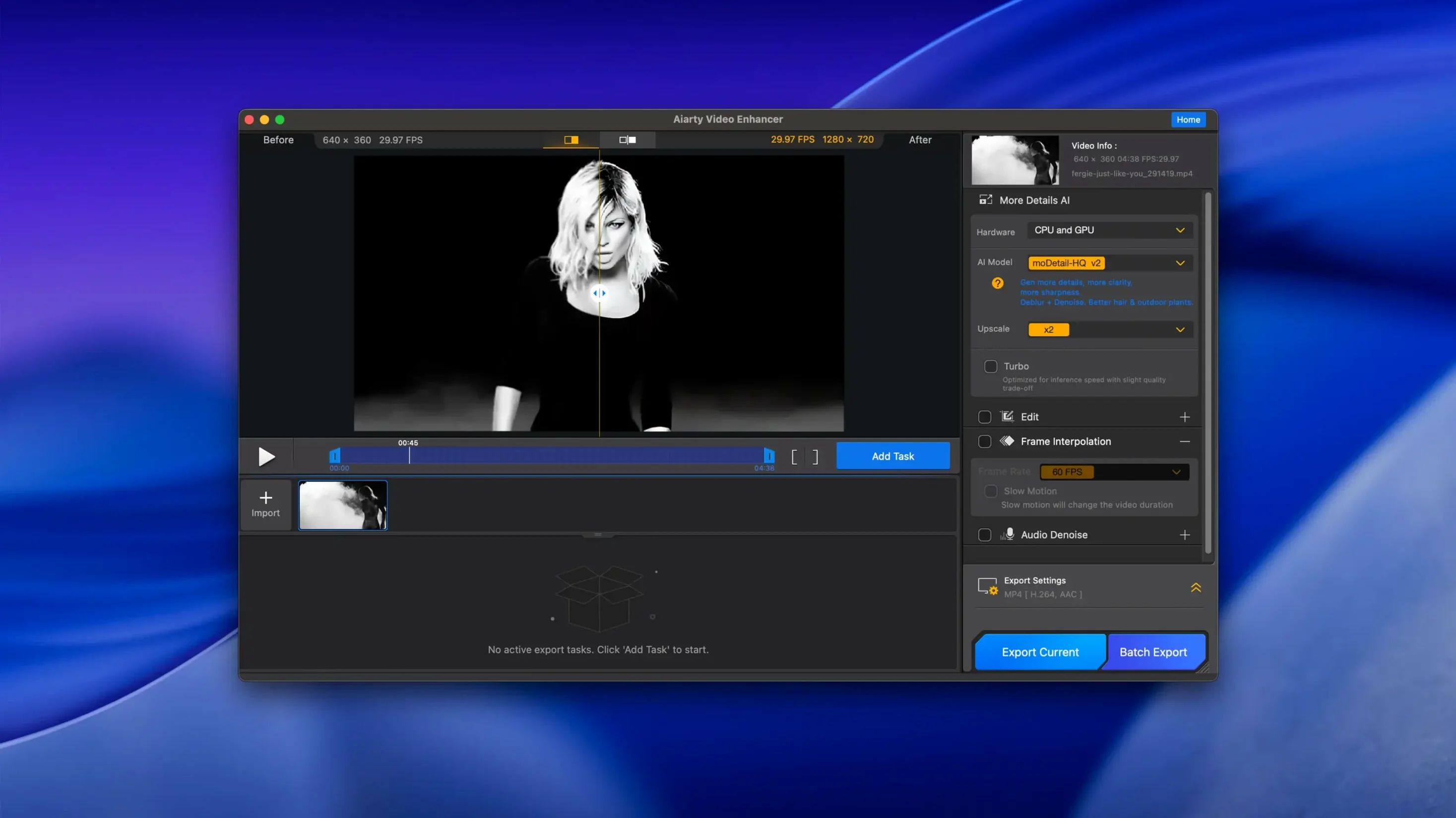
Old footage looks soft. Grainy night shots, shaky phone videos, upscaled clips that turn into blurry messes — the usual fixes take forever and rarely help. Aiarty Video Enhancer tackles that directly. It is an AI video upscaler, denoiser, detailer and enhancer in one desktop app for macOS.
You feed it a clip, pick what you want fixed, and it works through the frames. Upscaling adds real detail instead of just stretching pixels. Denoising cleans up grain, deblurring sharpens motion, and a one-click Audio Denoise cuts background noise while keeping voices clear. Frame interpolation goes up to smooth 8X and 16X slow motion, which is handy for turning quick action into dramatic shots.
It is a separate tool from Aiarty's image enhancer line, so you are getting something built specifically for video. Version 3.8 brings resumable exports — useful when a long render gets interrupted — plus MKV support and CUDA memory optimisations on the Windows side. The Mac version needs macOS 13.0 or higher, 8 GB of RAM and a decent GPU on Intel machines; Apple Silicon runs it natively.
If you work with archival footage, home videos or footage that needs rescuing, this is worth a look. The Mac app is straightforward to set up, and the improvements in 3.8 make long jobs less painful.
A weekend editing session with Aiarty Video Enhancer
Picture this: it is Saturday afternoon and a friend sends you a 15-year-old clip from a family party. The original camera was nothing special — a compact digital camcorder that maxed out at 720p. The footage is dark, the colours are muddy, and every time someone moves fast the image turns into a blurry smear. You want to clean it up and surprise the family with something they can actually watch on a modern screen.
This is exactly the kind of project where Aiarty Video Enhancer earns its place. Drop the clip in, select the denoising and deblurring models, and let the AI do the heavy lifting. The frame interpolation is the real trick here: you can take a short, shaky moment — a kid running across the garden — and turn it into a smooth slow-motion sequence at 8X. The audio denoise module cleans up the hiss and wind noise from the camcorder's built-in mic in one click. What comes out is watchable, shareable, and a lot closer to how you remember the moment.
For DJ sets or music performance videos, the same workflow works well. Stage lights create noise, crowd sounds muddy the audio, and handheld footage is never steady. Run it through the enhancer, apply the audio cleanup, and the final clip looks like it was shot with proper gear.
Start with short test clips
Getting started with Aiarty Video Enhancer does not need a deep manual. Still, a few habits save time early on.
- Start with short clips. Pick a 30-second test file first. Run it through each model — upscale, denoise, deblur, frame interpolation — so you see how each one behaves with your footage. That way you know what works before committing to a longer render.
- Check your export folder early. The app saves output to a default location. Change it to somewhere you can find easily, especially when testing multiple versions of the same clip.
- Use resumable exports for long jobs. Version 3.8 added this feature. If you are upscaling a 20-minute video or applying frame interpolation to a whole event, the export can pick up where it left off if something stops it. Worth using from day one.
- Keep an eye on disk space. The system requirements list 512 GB or more, and processed video files can eat through that quickly. Make sure you have room before starting a batch.
Adjust output format for old files
Out of the box, Aiarty Video Enhancer works fine. But a couple of adjustments make it fit your workflow better from the start.
- Output format. If your source is an old AVI or MOV, the app lets you choose the export format. MKV support in version 3.8 is useful for keeping multiple audio tracks or subtitles. Set it to something that matches how you plan to share or edit the result.
- Resolution target. The upscaling goes to 4K, but not every clip needs that. If you are working with low-quality webcam footage or old phone videos, upscaling to 1080p might give a cleaner result with shorter render times. Test both and see what looks right for your material.
- Frame interpolation mode. You can choose between 8X and 16X slow motion. 8X is smoother for most casual footage; 16X works best when you want a dramatic, dreamy effect. Start with 8X for your first few projects.
- Audio denoise toggle. The module runs separately from the video enhancements. If the audio track is already clean, leave it off to save processing time. If there is background noise, one click fixes it without touching the video settings.
Small tweaks like these make the first few projects go faster. Once you know how the models respond to your footage, the app becomes a tool you reach for automatically when a clip needs rescuing. Aiarty Video Enhancer download improves video clarity using AI, ideal for upscaling old footage on modern Macs.
- Resumable exports added
- MKV support added
- CUDA memory optimisations added
- macOS 13.0 or higher
- Apple Silicon or Intel Mac
- 8 GB RAM or more
- 512 GB disk space or more
- Dedicated GPU with 4 GB VRAM or more on Intel Macs
Kit check at a glance
| System | macOS 11 or later |
| Chip | Apple Silicon, Intel 64-bit |
| Download | 182 MB |
| Older pressings | 2 in the crate |






Chat from the booth
Sign in or grab a free account to leave a comment.
Nobody has said a word in the booth yet. If you played a set with this build, tell the next person how it went.