
- Build in the crate
- 8.13
- Made by the team at
- Digiarty Software
- Menu languages offered
- English, German, Spanish, Italian, Chinese (Traditional), Chinese (Simplified), Korean, French, Japanese
- How you pay for it
- K'ed by TNT team
- macOS it plays on
- macOS 10.15 or later
- CPU it runs on
- Apple Silicon, Intel 64-bit
Screenshots
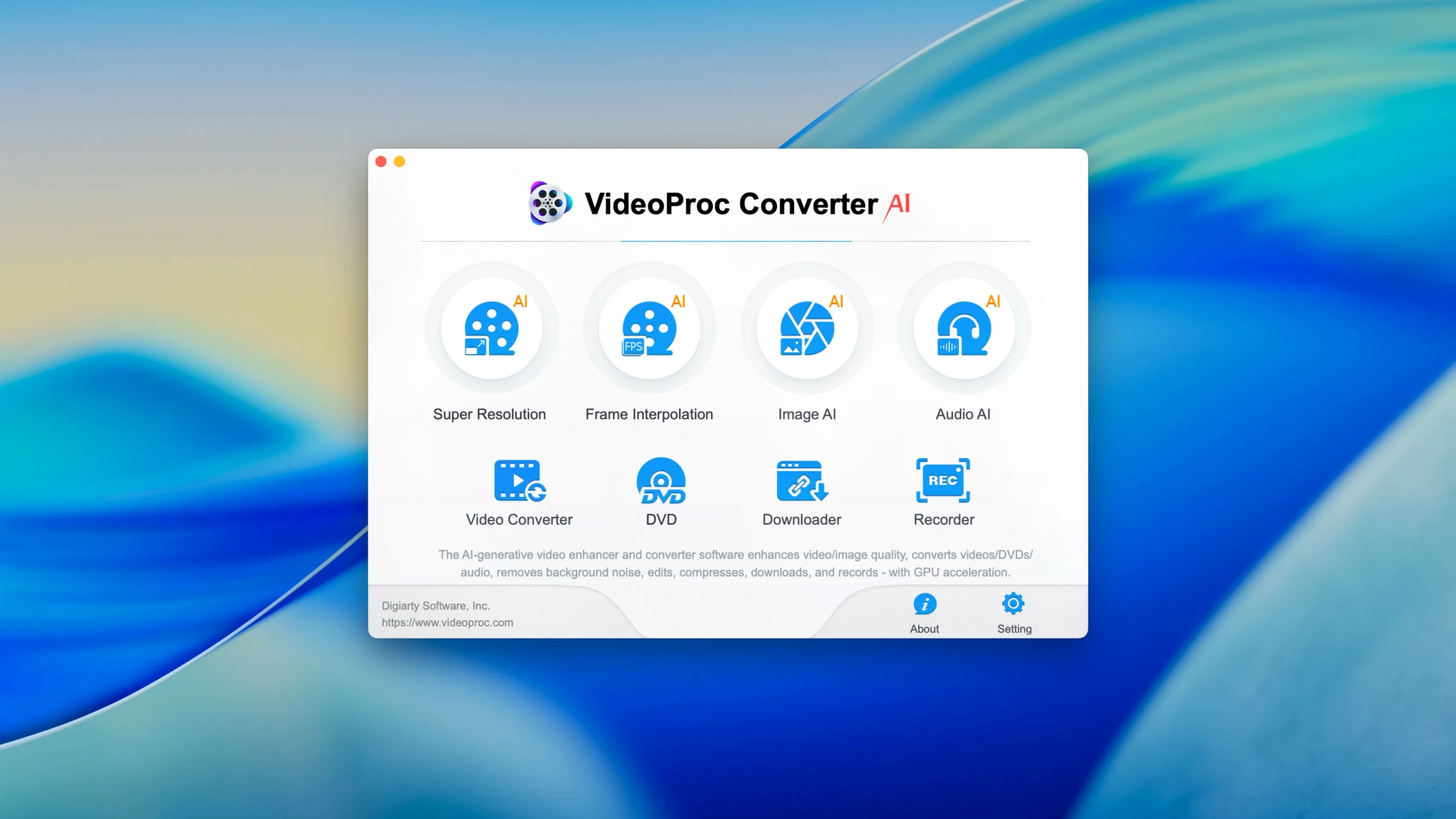
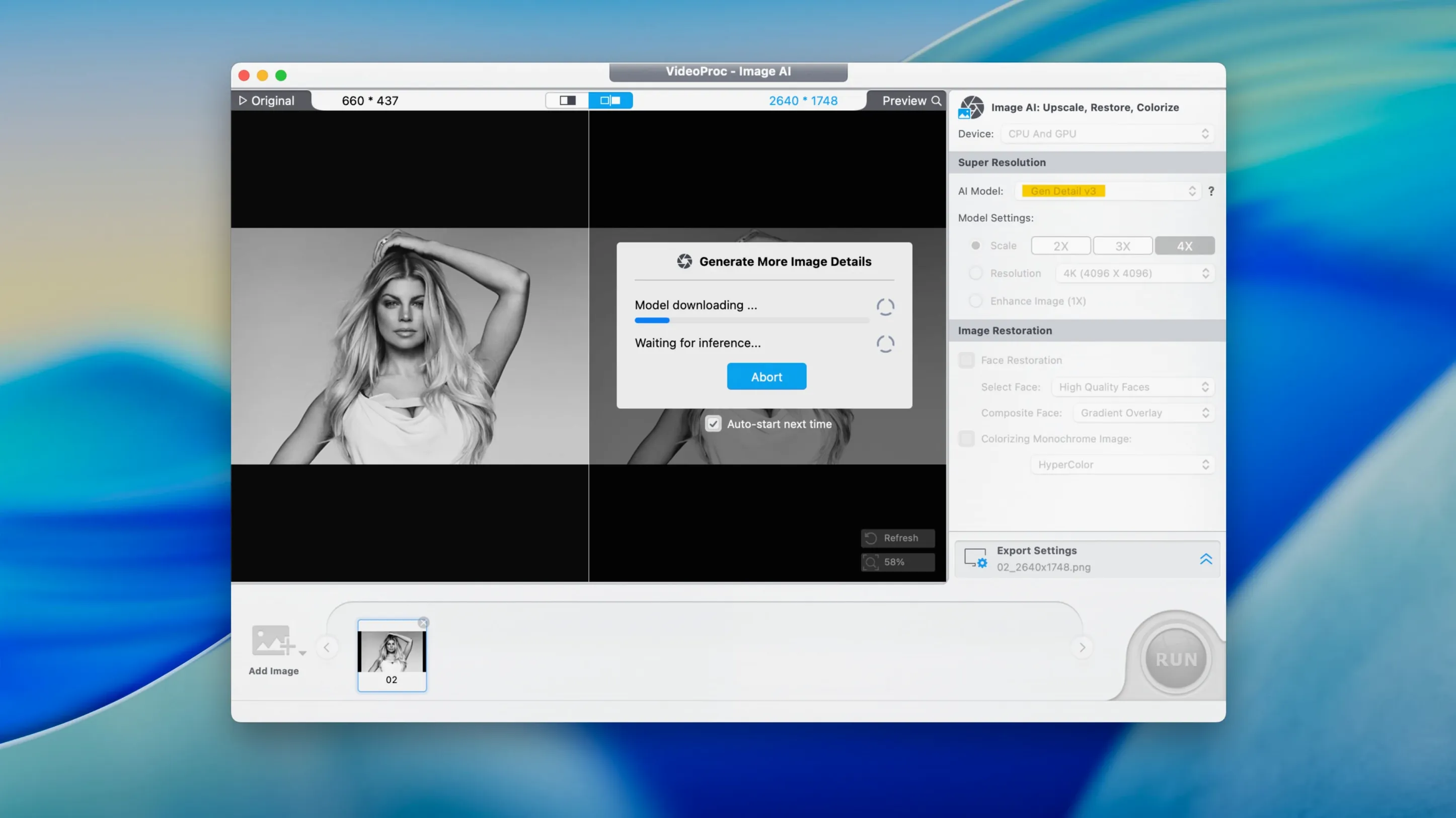
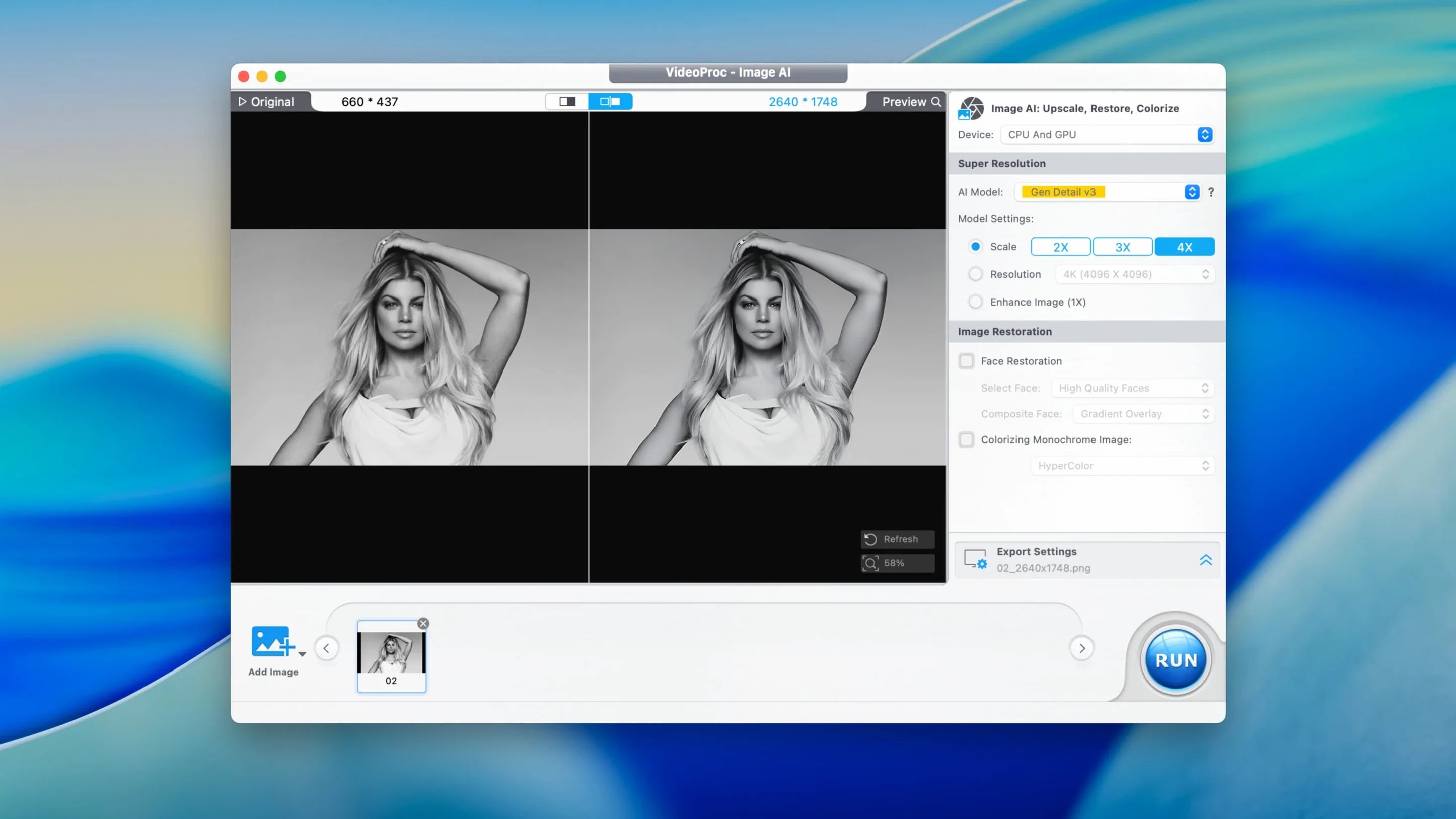
VideoProc Converter AI 8.12 is a Mac utility that handles video conversion, compression, editing, downloading, and AI enhancement in one app.
Video conversion — converts between formats, with hardware acceleration via Metal, Intel, and Apple M1/M2 for fast results.
Compression — shrinks large files without wrecking quality, handy when you're out of drive space or need to send something quick.
AI upscaling — takes footage up to 4K or 8K, useful for older clips you want to bring back to life.
Editing tools — trim, merge, split, and adjust speed from 0.1x to 2x without quality loss.
Screen recording — capture the Mac screen, with voice commentary for walkthroughs or lectures.
Camera recording — record direct from a webcam or connected camera.
Downloader — grab online media; version 8.12 improves performance.
macOS 27 support — the latest update also adds iPhone 18 support and a smaller installer.
Little things that add up
Beyond the headline features, there are smaller conveniences that make a difference day to day.
Subtitle and watermark handling — you can add subtitles to a video or place a watermark on it. Useful when you're preparing clips for a client and need to keep a logo visible, or when you're translating content for a friend.
Colour, brightness, contrast — these adjustments are built in, so you don't need to open a separate editor for quick corrections. If a clip comes out too dark or a photo looks washed out, you fix it in the same window.
Audio extraction — pull the soundtrack from a video and save it as MP3, AAC, or FLAC. Handy when you want the dialogue from a recording without the visuals, or the music from a YouTube download.
Volume, bitrate, sampling rate — audio adjustments are available for each export. If you're preparing a podcast clip or a voiceover, you can match the audio specs to your project.
Device presets — the app includes profiles for iPhone, iPad, Apple TV, Sony, GoPro, and others. No guesswork on the right format; pick the device and go.
Instagram, YouTube, TikTok optimisation — separate presets for social platforms, so you're not manually setting resolution and codec each time you export a short.
Runs on macOS 10.15+ for Intel and Apple Silicon
The app runs on macOS 10.15 or later, and it's a 64‑bit binary that works on both Intel and Apple Silicon Macs. It's written in English, German, Spanish, Italian, traditional and simplified Chinese, Korean, French, and Japanese — so the interface is available in a range of languages.
Version 8.12 itself ships with a smaller installer, which means less time waiting for the download and less space used before you even start working. The installer is a disk image; you mount it, run a terminal command to bypass Gatekeeper, drag the app to Applications, and launch it.
Hardware acceleration uses Metal, Intel Quick Sync, and Apple's M‑series chips, which is what you'd expect from a modern video tool. The app handles 4K, 8K, HDR, HEVC, ProRes, MP4, MOV, MKV, and AVI — a wide range of source formats for someone working with mixed media.
A scenario: cleaning up old family footage
A friend of mine — let's call her Marta — has a MacBook Air M2 and a hard drive full of VHS transfers and DV tapes from the 90s. The clips are grainy, shaky, and shot at standard definition. She's not a video professional, but she wants to get them into a state she can share with the family.
She opens VideoProc Converter AI, imports a few DV clips, and runs the AI denoising to clean up the grain. Then she applies the video stabilisation, which smooths out the handheld wobble. The footage is still SD, so she uses the AI upscaling to push it to 4K — it's not a magic fix, but it makes a visible difference on a modern TV.
Once the clips look better, she trims the dead space at the start and end, merges several short takes into one longer file, and adjusts the brightness because the original tape was underexposed. She exports the result as an MP4 for easy sharing, using the compression feature to keep the file size manageable. The whole process stays inside one app, and she doesn't need to learn separate tools for each step.
For someone like Marta, who has a specific project and limited time, the combination of AI cleanup, stabilisation, and simple editing in one place is what makes the app worth having.
- Added iPhone 18 support
- Reduced installer size
- Improved Downloader performance
- Added support for macOS 27
- macOS 10.15 or later
- Intel or Apple Silicon
- 64-bit app
Kit check at a glance
| System | macOS 10.15 or later |
| Chip | Apple Silicon, Intel 64-bit |
| Download | 254 MB |
| Older pressings | 2 in the crate |




Chat from the booth
Sign in or grab a free account to leave a comment.
Nobody has said a word in the booth yet. If you played a set with this build, tell the next person how it went.