
- Build in the crate
- 2023.1
- Made by the team at
- Tuxera
- Menu languages offered
- Russian, English, German, Arabic, Hungarian, Vietnamese, Greek, Danish, Hebrew, Indonesian, Spanish, Italian, Catalan, Chinese (Simplified), Korean, Malay, Dutch, Norwegian, Polish, Portuguese, Romanian, Slovak, Thai, Turkish, Ukrainian, Finnish, French, Croatian, Czech, Swedish, Japanese
- How you pay for it
- Included
- macOS it plays on
- OS X 10.9 or later
- CPU it runs on
- Apple Silicon, Intel 64-bit
Screenshots
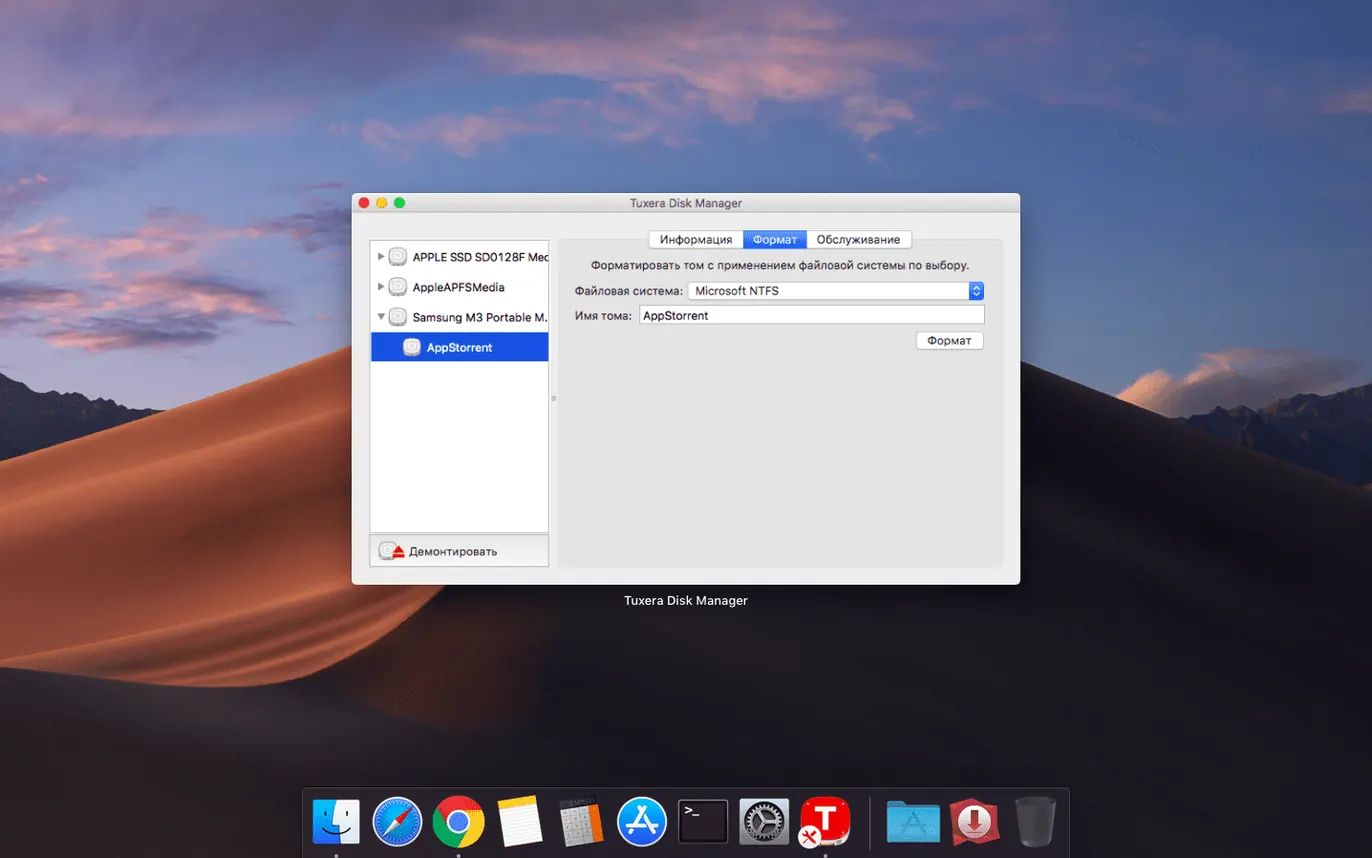
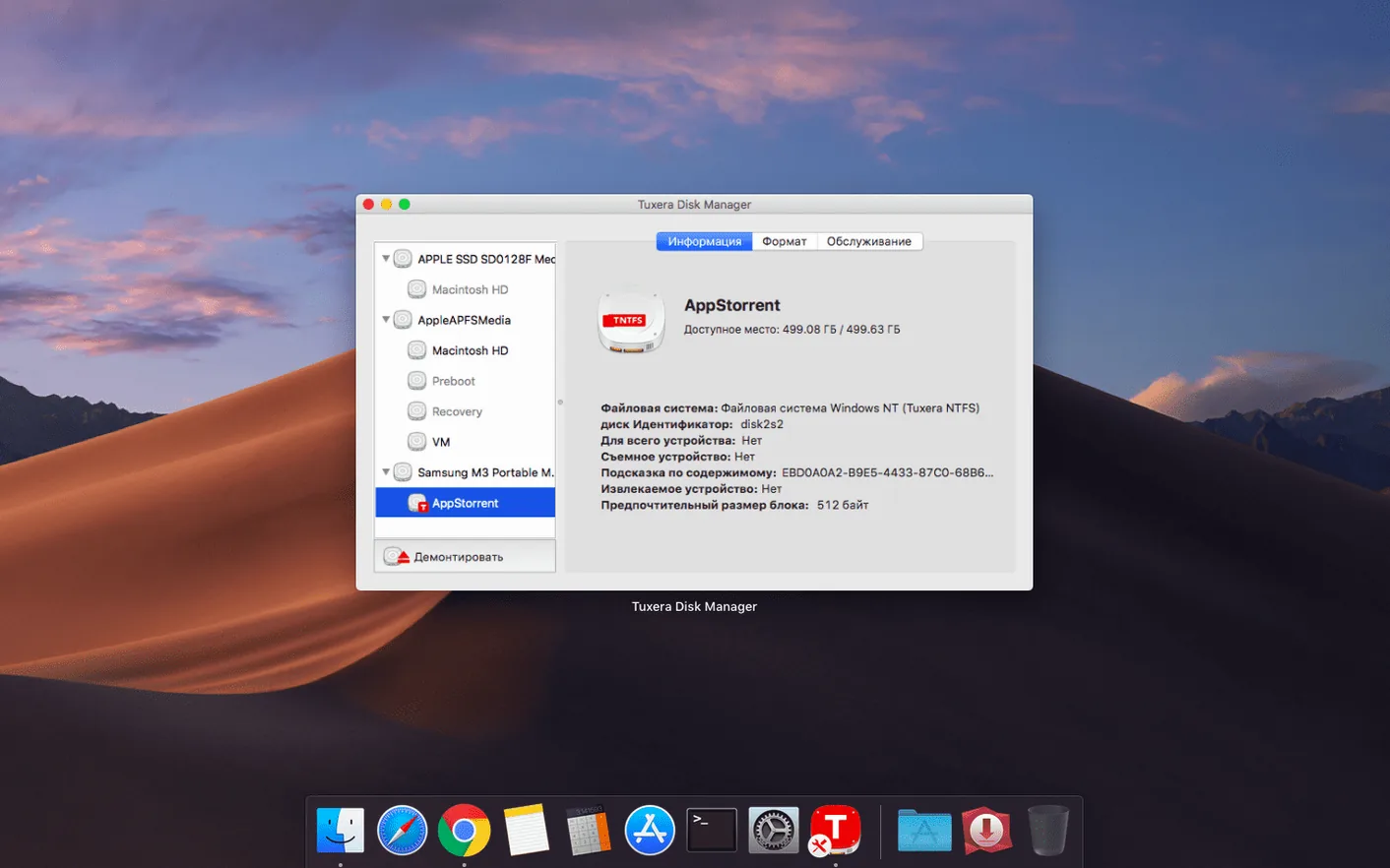
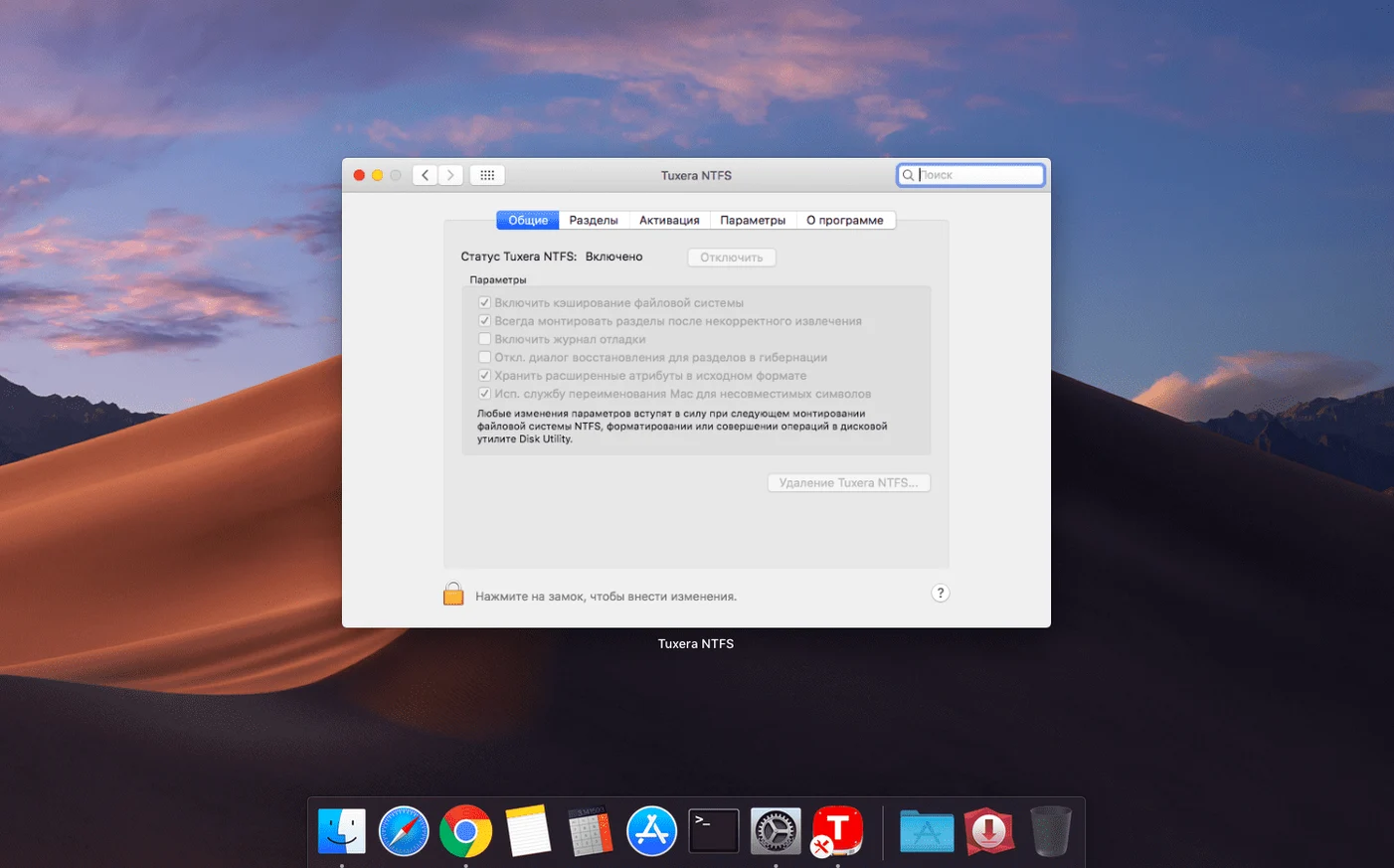
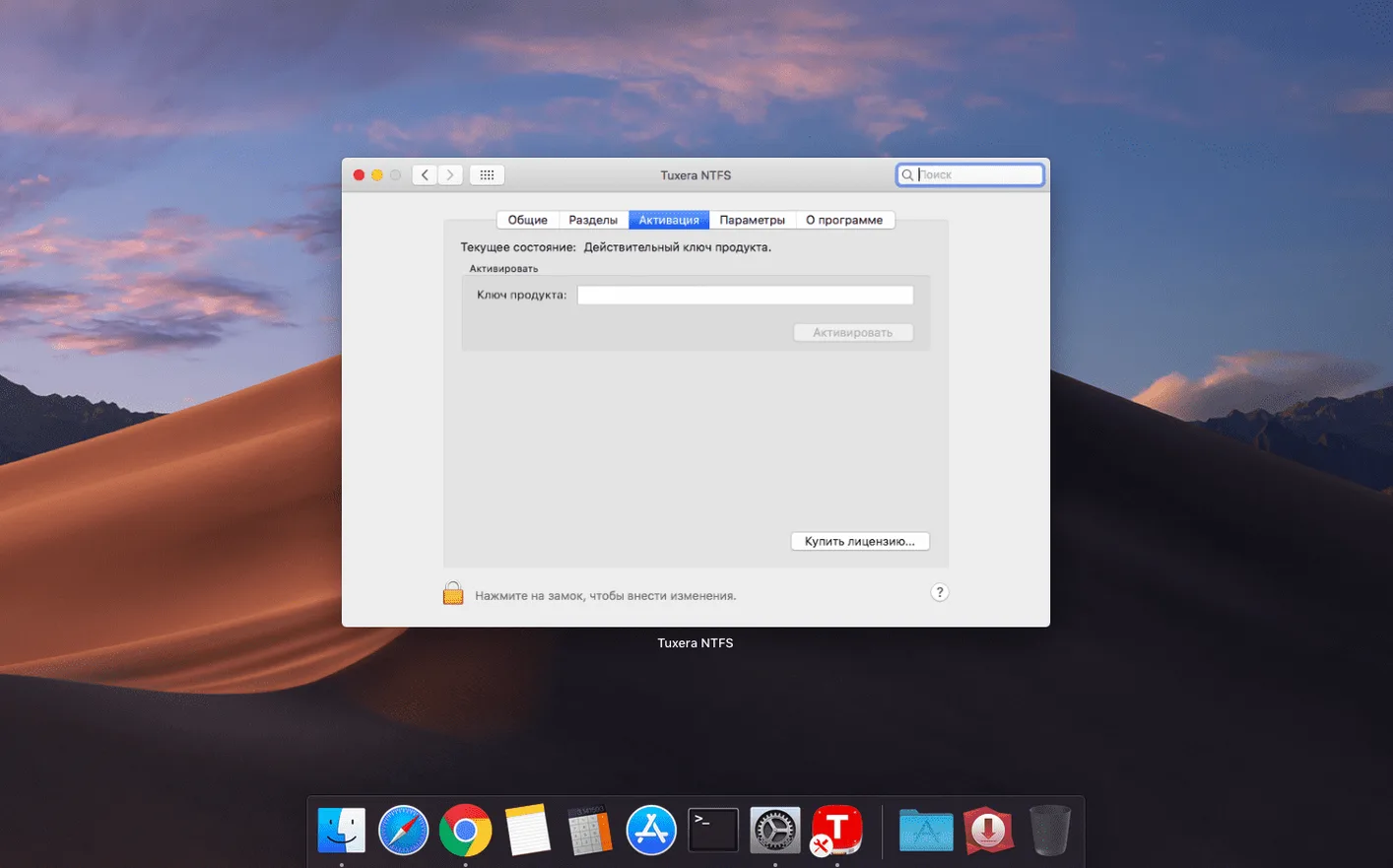
Tuxera NTFS is a driver that lets your Mac read and write to Windows NTFS drives without a second thought.
Read and write access — open, edit, copy, move, and delete files on NTFS-formatted USB drives and other Windows volumes.
Create NTFS volumes — format drives and disk images as NTFS right from your Mac, handy when you need to hand a drive to a Windows machine.
Virtual machine support — work with files on NTFS volumes even when Windows is running in a VM, so you can switch between macOS and Windows without a file transfer dance.
All NTFS versions — supports every version of NTFS, from older Windows setups to the latest.
For Mac–Windows drive swappers
If you regularly swap a USB drive between a Mac and a Windows PC, you are the main audience. The Mac reads the drive fine, but without a driver like this one, you cannot write a single file to it. That gets old fast when you are moving project files, video exports or backups between machines.
People who dual-boot Windows and macOS on the same Mac also benefit. Your Windows partition uses NTFS, and while macOS can see it, it locks write access by default. Tuxera NTFS removes that barrier, so you can edit files in either OS without rebooting into Windows just to save a change.
The same goes for anyone running Windows inside a virtual machine — Parallels, VMware Fusion, VirtualBox. Files on NTFS volumes become editable from the Mac side, which saves you from launching the VM every time you need to tweak a document or move a folder.
Video editors and audio engineers who collaborate with Windows users find it useful too. External drives formatted as NTFS are common in production workflows, and being able to write to them directly on a Mac means no extra steps when you bring a drive home from a studio or a client’s office.
Test copying a file after install
Once the driver is in, plug in an NTFS drive and check that macOS mounts it as usual. Open the drive in Finder and try copying a small file to it. If it works, you are set. If the drive does not appear, disconnect it, reconnect, and give it a few seconds.
It is a good idea to test with a drive you do not mind tinkering with first. Copy a folder, rename a file, delete something unimportant. That builds confidence before you start moving real work data across.
If you have multiple NTFS drives, test each one. Most work the same way, but occasionally a drive with a quirky partition table or old formatting behaves differently. Better to know early.
Keep the disk image you downloaded handy in case you need to reinstall later. The registration key is also worth storing somewhere safe, like a notes file or a cloud folder.
Format NTFS drives on a Mac
You can create NTFS volumes and disk images from within macOS using the driver. That means you can format a fresh USB stick as NTFS without ever touching a PC. Useful if you are preparing a drive for a Windows-using colleague or for a bootable backup that needs to work on both systems.
The verification and repair tool is another feature that does not get much attention. If a drive starts acting oddly — files not showing, slow access, strange errors — you can check the volume and attempt repairs without leaving macOS. No need to hunt down a Windows machine to run chkdsk.
Support for all NTFS versions means older drives from Windows 7 or even XP-era machines are handled the same as drives formatted on Windows 11. No compatibility worries if you work with legacy hardware.
Drive may stay read-only after install
A common one is assuming that once the driver is installed, every NTFS drive will work automatically. Most do, but drives that are not properly ejected from a Windows machine sometimes mount as read-only anyway. Always eject drives safely from Windows before unplugging them.
Another mistake is forgetting that the driver only affects NTFS. If you plug in a drive formatted as exFAT or FAT32, Tuxera NTFS does nothing for it — those already work with macOS anyway. People sometimes expect it to fix all cross-platform drive problems, but its job is strictly NTFS.
Some users try to use the driver with internal drives that are part of a Boot Camp setup. That works, but only if the drive is not the active Boot Camp partition while macOS is running. If Windows is hibernated or fast-startup is enabled, the NTFS volume may be locked to prevent data corruption. Make sure fast startup is off in Windows before you rely on writing to that partition from macOS.
Fix missing drives with First Aid
If a drive does not appear on the desktop after installing, open Disk Utility. If the drive shows up there but not in Finder, it may need a quick repair. Select it in Disk Utility and run First Aid. That often resolves mounting issues.
Slow write speeds are sometimes reported. The usual cause is a cheap USB cable or a USB hub that does not deliver enough power. Connect the drive directly to the Mac if possible, or use the cable that came with the drive. If speeds are still poor, the drive itself may be an older model with slower hardware — nothing the driver can change.
Files that show incorrect date or time stamps after copying are a known issue that version 2023.1 specifically addresses. If you see this, make sure you are running the latest version. The fix is included, so updating should stop it from happening again.
If the driver stops working after a macOS update, reinstall it. Apple occasionally changes how kernel extensions are handled, and a fresh install of Tuxera NTFS usually sorts things out. No need to uninstall first — just run the installer again.
Version 2023.1 also fixes a quirk where files copied to NTFS volumes could end up with incorrect date or time stamps.
- Fixed an issue that could result in incorrect date or time stamps for files copied to NTFS volumes.
- macOS OS X 10.9 or later
- Intel or Apple Silicon Mac
Kit check at a glance
| System | OS X 10.9 or later |
| Chip | Apple Silicon, Intel 64-bit |
| Download | 111 MB |







Chat from the booth
Sign in or grab a free account to leave a comment.
Nobody has said a word in the booth yet. If you played a set with this build, tell the next person how it went.