

- Build in the crate
- 2.105
- Made by the team at
- Tunabelly Software
- Menu languages offered
- English
- How you pay for it
- K'ed by TNT team
- macOS it plays on
- macOS 10.13 or later
- CPU it runs on
- Intel 64-bit
Screenshots
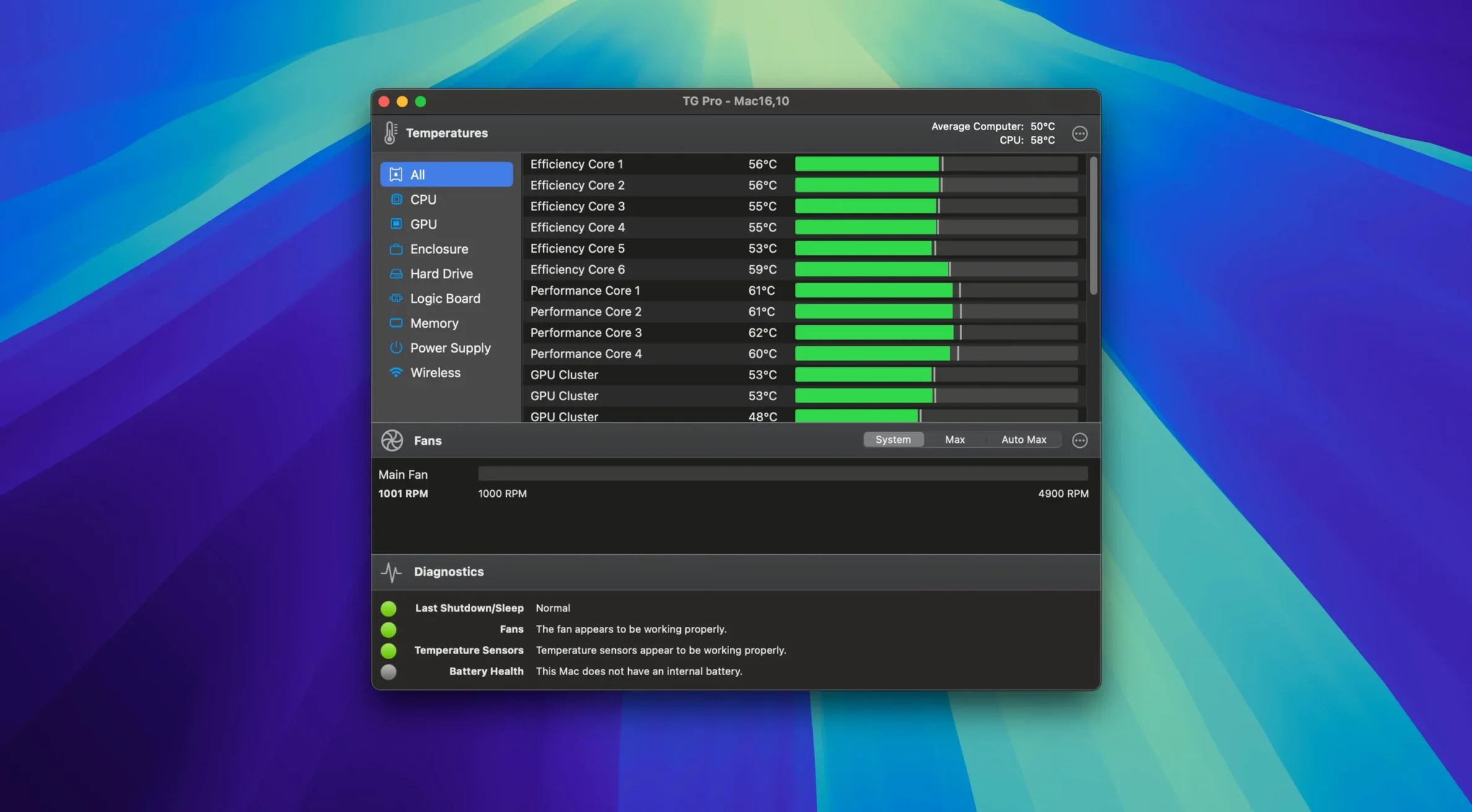
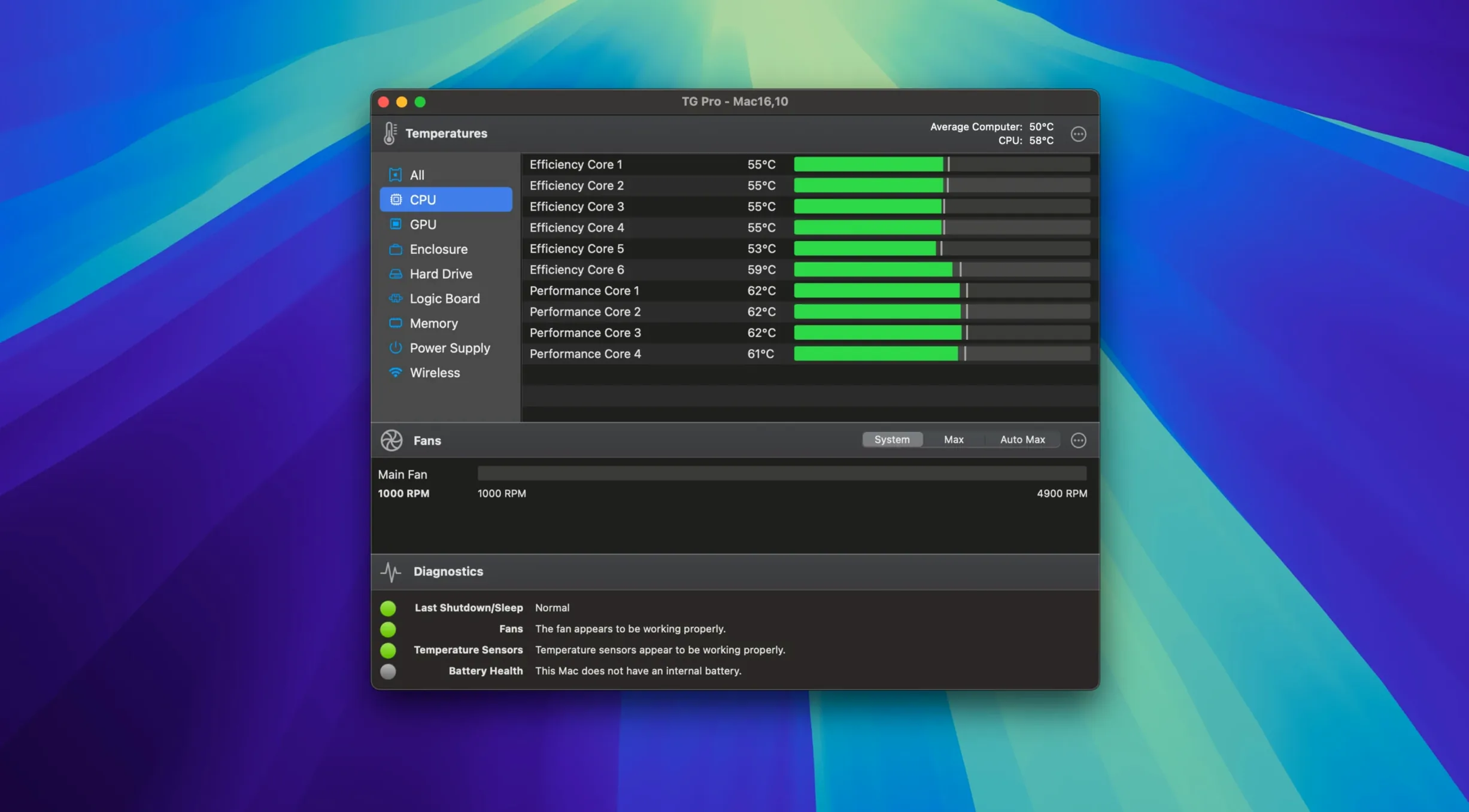
Before you set any of that up, though, you want to know it will run on your Mac.
- Supports macOS 10.13 High Sierra through macOS 26, so most Macs from the last decade are covered.
- Runs on both Intel and Apple Silicon, with no separate build to hunt for.
- Includes a preference toggle for Hackintosh systems, which is a rare courtesy.
- Shows fan speed and temperature data straight from the menu bar, no window needed.
Menu bar icon shows fan speed and temperature
TG Pro does its job without demanding attention, and that’s the point. But a few details make it easier to live with day to day.
- The menu bar icon shows current fan speed and temperature at a glance. You don’t have to open the main window just to check if the fans are spinning faster than usual.
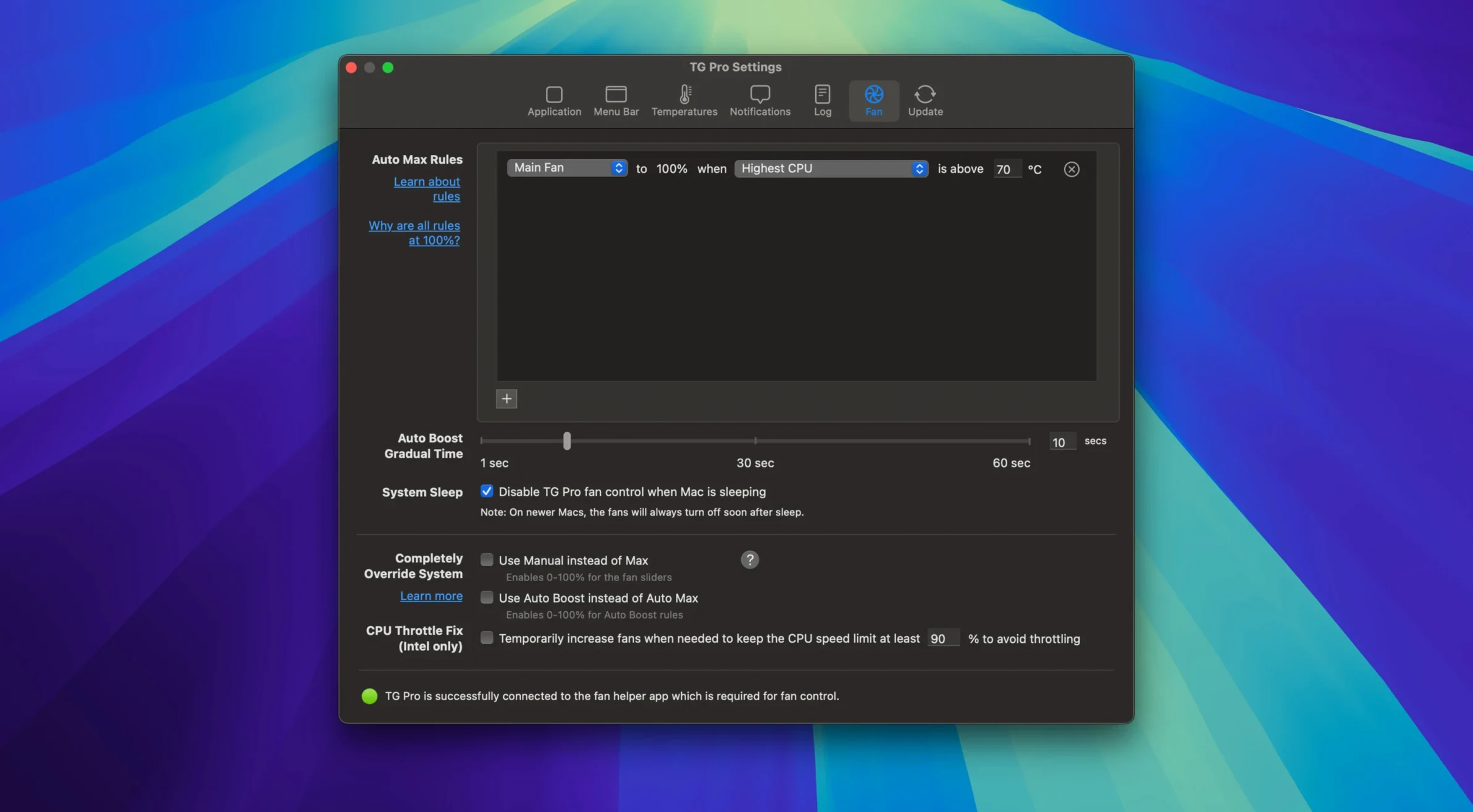
- When you set up custom fan rules, they apply automatically as soon as the temperature sensor you picked crosses the threshold. No need to toggle anything yourself once the rules are saved.
- Logging runs quietly in the background. If you want to know whether your Mac got warm during a long export or a gaming session, the log is there without you having to remember to start it.
- Alerts can be set for specific temperature events. That way you are only interrupted when something actually needs attention, not every time the CPU bumps up a few degrees.
- The preference toggle for Hackintosh systems means you do not have to hunt for workarounds or extra config files. It is just a switch in the settings.
None of these are flashy, but they add up to a tool that stays out of your way until you need it.
Complete fan control for M4, M4 Pro, and M4 Max Macs
Version 2.103 arrived with a few fixes that affect everyday use, especially if you own a newer Mac or use Siri regularly.
- Complete fan control for M4, M4 Pro, and M4 Max Macs. If you have one of the latest Apple Silicon machines, TG Pro now handles their fans fully. That means manual and automatic adjustments work the same way they do on older models.
- Fan control restored after Siri or voice dictation. Before this fix, using Siri or dictation could leave the fans stuck at whatever speed they were running. Version 2.103 makes sure they go back to normal after voice input finishes.
- Auto Boost rules no longer fail when switching power sources. If you have a laptop and use a rule that kicks in when you unplug or plug in, it should now trigger reliably every time.
- Improved startup flow for new installations. The first launch feels a bit more straightforward now, especially if you are setting it up on a fresh Mac.
These are small corrections, but they remove a few nagging issues that could make the app feel unreliable.
Runs in background, open window only to check specifics
I keep TG Pro running in the background most of the time. It starts when I log in, and I only open the main window when I want to check something specific.
On a normal day, I glance at the menu bar icon now and then. If I am rendering audio or running a heavy plugin chain, I might notice the temperature climb. That is when I open TG Pro to see which sensor is reading high. Usually it is the CPU or the GPU. If the fans are still quiet, I nudge them up manually for a few minutes until the temperature drops again.
Other times I set an Auto Boost rule so the fans speed up automatically when the CPU hits a certain temperature. That way I do not have to think about it. The rule stays active until I change it or delete it.
Once a week I check the log to see if any temperature spikes happened while I was away from the Mac. If I see a pattern, I adjust the fan curve or add a new rule. That is about it. Most of the time TG Pro just sits there and does its job without me touching it.
Setting up a fan rule for a long render
Say you are about to export a video or bounce a large multitrack project. You know the CPU will get hot, and you want the fans to react before things get noisy. Here is how you can set that up in TG Pro.
- Open TG Pro and go to the Fan Control section.
- Find the temperature sensor you want to base the rule on. For most CPU-heavy tasks, that is the CPU or GPU sensor.
- Set a threshold temperature.
- Choose a fan speed for when the threshold is crossed. I usually set it to around 4000 RPM on a MacBook, enough to keep the temperature from climbing much further without making too much noise.
- Save the rule and enable it. The fans will stay at their normal speed until the sensor reading hits your threshold, then they ramp up automatically.
- Start your render or export. The rule handles the rest.
After the task finishes and the temperature drops, the fans go back to their normal behaviour. You do not have to disable the rule unless you want to remove it entirely.
With a rule in place, the Mac stays cooler and the fans only spin up when they need to.
If your Mac meets those bars, you get alerts and logging for temperature events on top of the fan control.
Version 2.105 arrived with a quiet update — mostly under-the-hood tweaks and compatibility refinements rather than big new features.
- macOS 10.13 or later
- Intel 64-bit
Kit check at a glance
| System | macOS 10.13 or later |
| Chip | Intel 64-bit |
| Download | 15 MB |
| Older pressings | 2 in the crate |








Chat from the booth
Sign in or grab a free account to leave a comment.
Nobody has said a word in the booth yet. If you played a set with this build, tell the next person how it went.