
- Build in the crate
- 20.1.7 (9559)
- Made by the team at
- Micromat Inc.
- Menu languages offered
- English
- How you pay for it
- Included
- macOS it plays on
- macOS 10.13 or later
- CPU it runs on
- Apple Silicon, Intel 64-bit
Screenshots
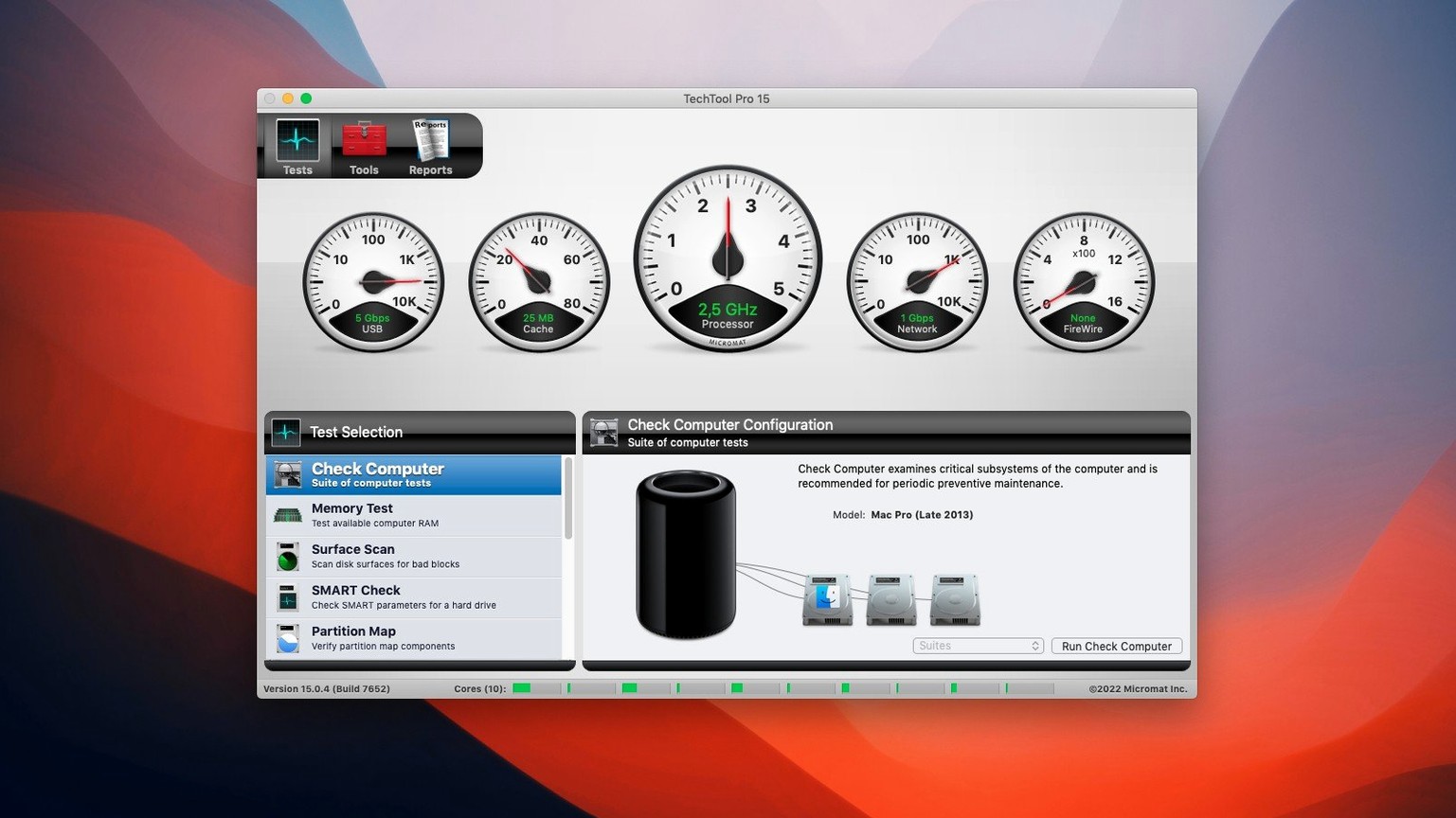
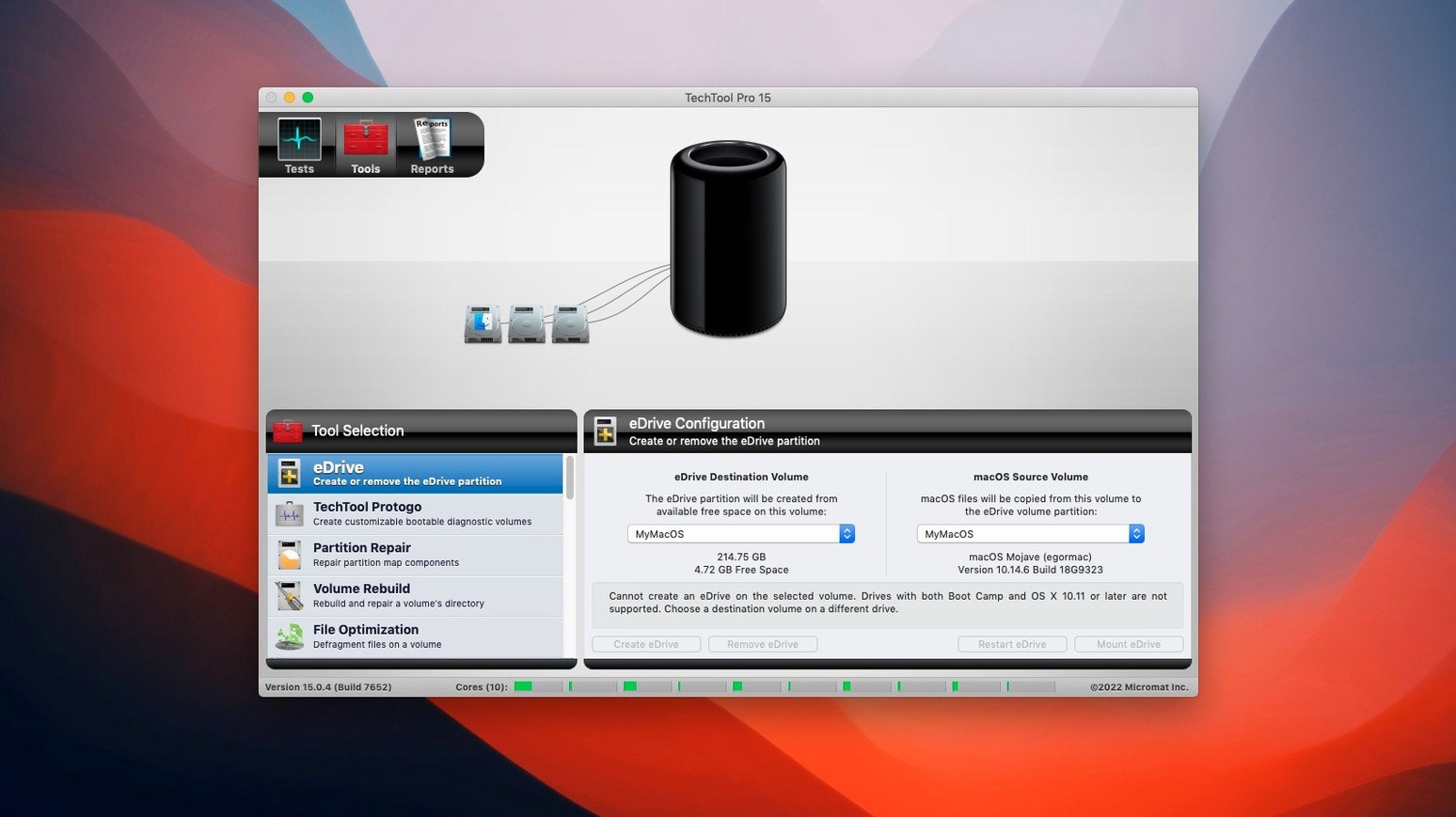
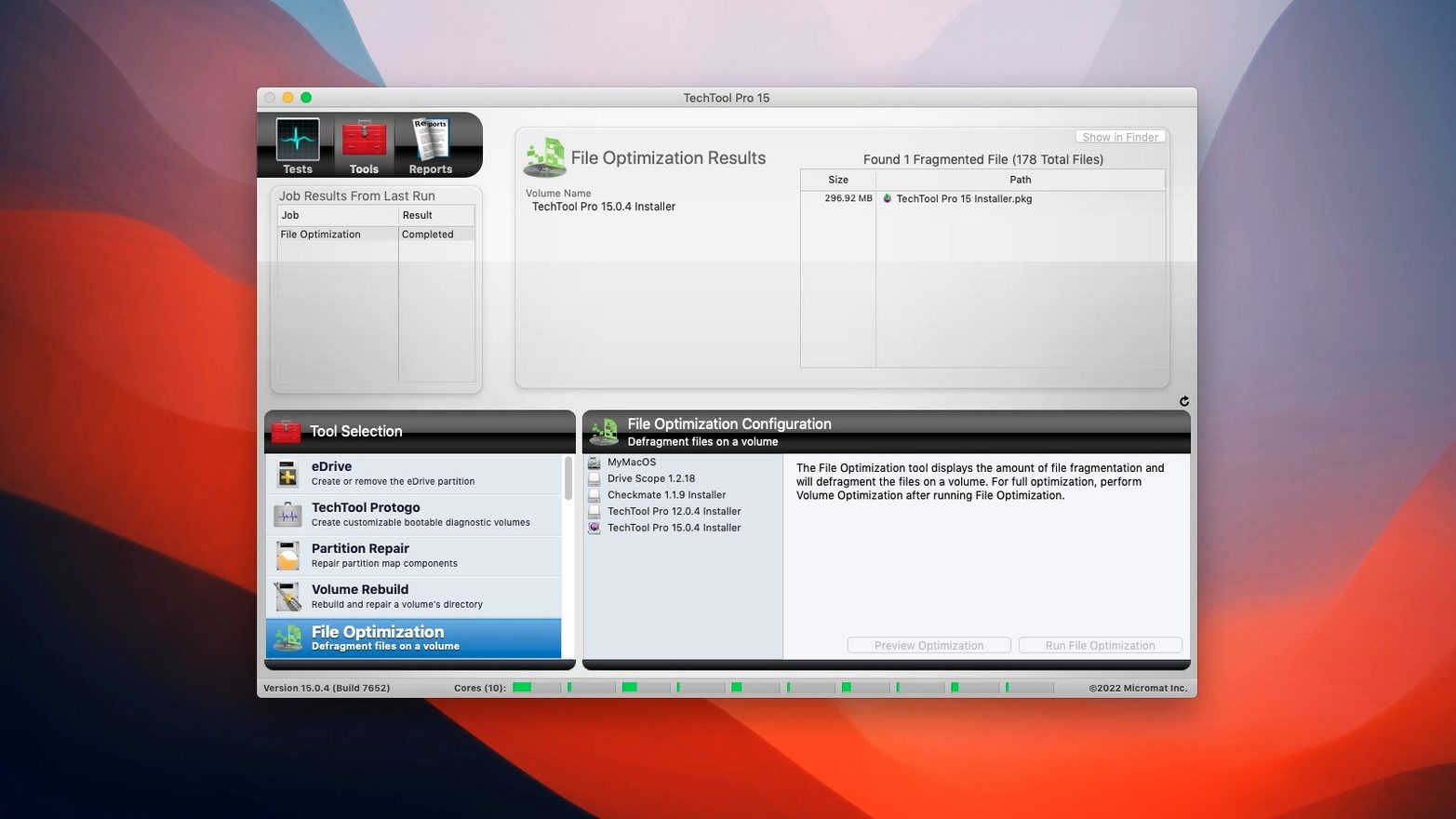
When your Mac starts acting up — slow boot, odd kernel panics, a volume that won't mount — you want one tool that can check everything and fix what's broken. That's where TechTool Pro earns its keep.
| Detail | Info |
|---|---|
| Developer | Micromat Inc. |
| Version | 20.1.7 (build 9559) |
| Category | Utilities |
| macOS Support | 10.13 High Sierra and later |
| Architecture | Intel & Apple Silicon |
| Language | English |
If you're a newcomer, start with the volume repair tools — they handle damaged volumes, including SSDs. Then run a SMART test on your drives to catch a failing disk before it dies. The integrated Protogo lets you build a custom test drive, handy for diagnosing a machine that won't boot normally. And when you're in a bind, the emergency boot partition creation saves you from hunting for a DVD.
Free Disk Utility versus paid TechTool Pro
TechTool Pro shares the field with a few other heavy-hitters, and each has its own angle. Disk Utility comes free with macOS and handles basic volume repairs and First Aid checks. It works fine for a quick fix, but it doesn't do SMART monitoring, file recovery, or hardware-level diagnostics. If your problem is deeper than a permissions glitch, Disk Utility leaves you guessing.
DriveDx focuses almost entirely on drive health. Its SMART monitoring and detailed reporting are excellent — arguably better than TechTool Pro's for pure drive stats. But DriveDx doesn't repair volumes, recover deleted files, or clone drives. It tells you something is wrong but doesn't give you the tools to fix it yourself.
Onyx is another popular free utility, great for clearing caches, running maintenance scripts, and toggling hidden system settings. It's fast and lightweight, but it has no hardware diagnostics, no volume repair, and no emergency boot creation. TechTool Pro covers that whole spectrum in one interface — diagnosis, repair, cloning, monitoring, and recovery. For a home user or a technician, that means fewer apps to juggle.
Fixing curveball issues with TechTool Pro
Even a solid tool can throw a curveball. Here are a few issues people run into and what usually fixes them.
Protogo won't create a bootable drive
This often happens when the target USB drive isn't formatted properly. Make sure it uses a GUID Partition Table and macOS Extended (Journaled) format. If it still fails, try a different USB port or a different drive — some older USB sticks cause problems with Protogo's creation process.
Volume repair fails or takes forever
If TechTool Pro can't repair a volume, especially an SSD, the drive might have physical bad blocks. Run the bad block detection tool first — it can locate and isolate the damaged areas. Once that's done, try the volume repair again. If the repair still stalls, boot from your emergency partition or Protogo drive and run the repair from there. The system volume being in use can block the repair.
TechTool Protection alerts are overwhelming
By default, the protection feature monitors a lot of things. If you're getting too many notifications, open the TechTool Protection settings and dial back what you track. You can disable free space monitoring, stop tracking removed files, or only get email alerts for SMART failures. Tune it to your actual workload.
Boot-volume repair mistakes to avoid
TechTool Pro is powerful, but it's easy to trip over the basics. Here are the most common missteps.
- Running repairs on the boot volume without a restart. TechTool Pro can repair the active system volume, but it works best from an emergency boot or Protogo drive. If you run a repair while the system is using that volume, you might get partial results. Always reboot into the emergency partition for full repairs.
- Skipping the SMART test. Beginners often jump straight to volume repair when they see disk errors. A SMART test takes two minutes and can tell you if the drive itself is dying. If it is, no amount of volume repair will save your data — clone or recover files first.
- Ignoring the Protogo feature. It's easy to treat TechTool Pro as just another app you launch when something breaks. But Protogo creates a bootable diagnostic drive that works even if your Mac won't start. Set it up once and keep it handy. You'll thank yourself the first time your system hangs on the grey Apple logo.
- Not checking the SN.txt file before installing. The activation step is straightforward, but a few people skip the included serial number and then wonder why the app runs in demo mode. Mount the disk image, open the SN.txt file, and paste it in during setup. Saves a headache later.
- macOS 10.13 High Sierra or later
- Intel or Apple Silicon
Kit check at a glance
| System | macOS 10.13 or later |
| Chip | Apple Silicon, Intel 64-bit |
| Download | 318 MB |
| Older pressings | 3 in the crate |







Chat from the booth
Sign in or grab a free account to leave a comment.
Nobody has said a word in the booth yet. If you played a set with this build, tell the next person how it went.