
- Build in the crate
- 1.9.8
- Made by the team at
- Lemke Software GmbH
- Menu languages offered
- English, German, French
- How you pay for it
- K'ed by TNT team
- macOS it plays on
- macOS 10.13 or later
- CPU it runs on
- Apple Silicon, Intel 64-bit
Screenshots
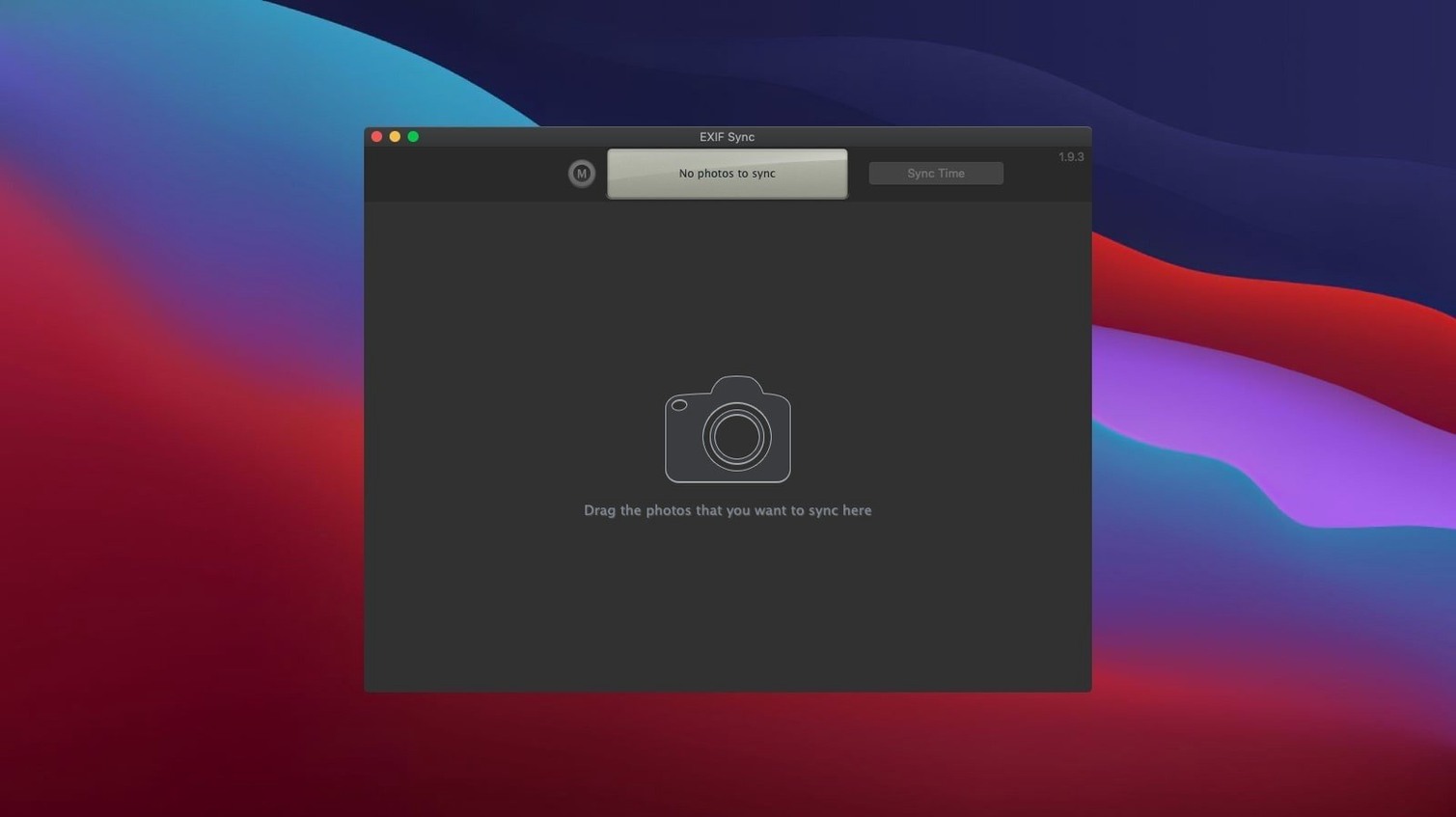
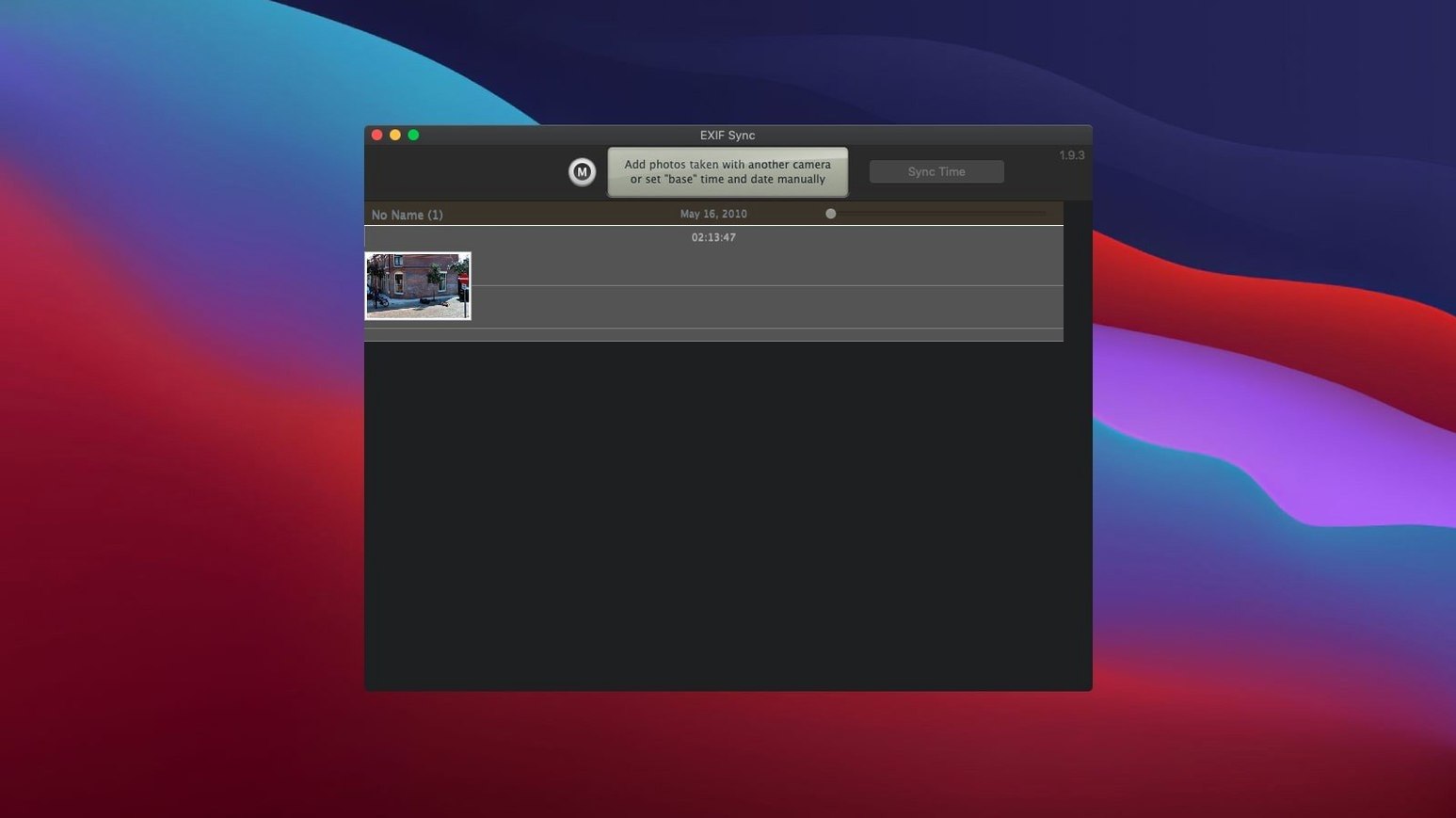
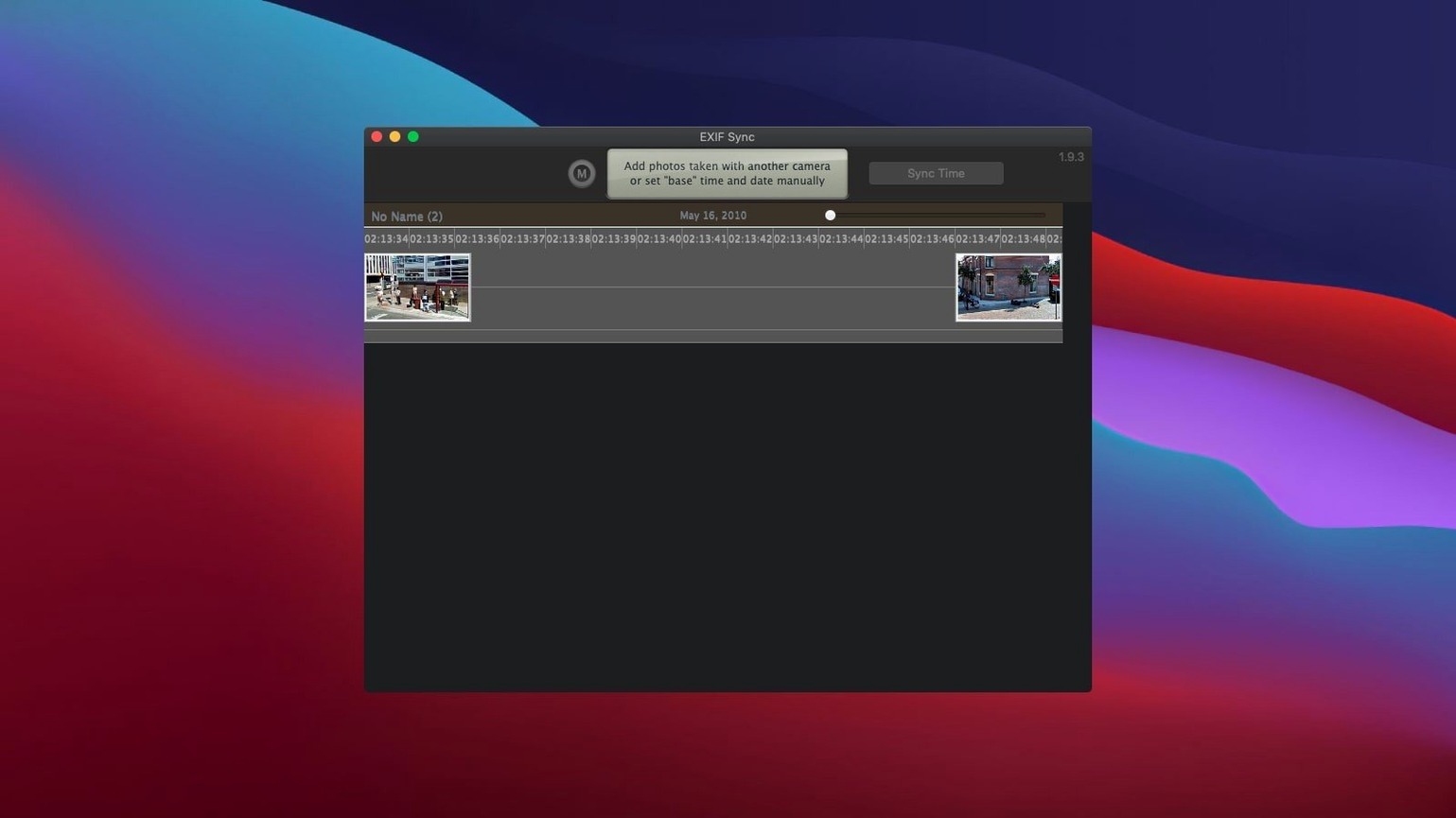
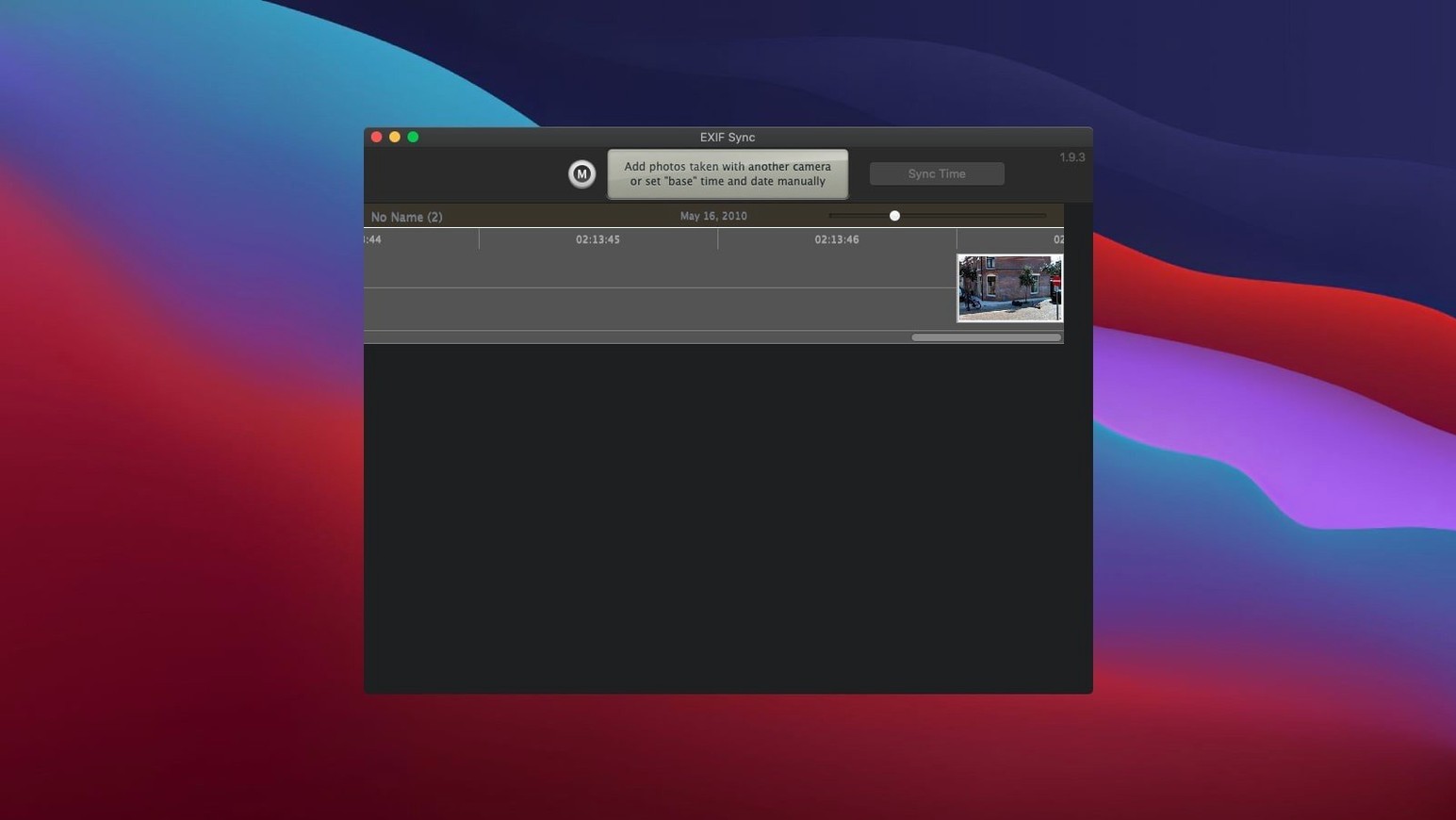
Version 1.9.8 handles date and time data inside image files, which sounds small until you've got shots from three cameras and a phone that all disagree on the moment a moment happened.
Sort by the time it was taken
Once the data is corrected, Finder and photo apps can sort by the actual capture time. That turns a messy memory card into a reliable timeline without renaming a single file.
Align different cameras
If your DSLR clock drifts and your compact is an hour fast, EXIF Sync brings them into line. The corrected timestamps match across every source, so a wedding or a weekend trip sequences correctly.
In-app tutorial for batch corrections
The current release keeps the same core approach but refines how it handles batches. The tutorial is now included in the app, so you can jump straight into a correction without hunting for a separate manual. For anyone syncing photos from multiple cameras on a regular basis, that saves a few minutes of head-scratching the first time you open it.
Multilingual support in English, German and French means the interface stays in your language without extra downloads. The app remains under 30 MB, so it sits on the drive without eating into space for raw files or libraries.
A workflow for syncing two cameras after a shoot
Here is a straightforward way to use EXIF Sync after a day of shooting with two bodies that were set to different times.
- Copy all images from both cameras into one folder on your Mac.
- Open EXIF Sync and load that folder. The app reads the EXIF data from every file.
- Pick a reference image from the camera you trust most. Check its capture time against the real moment (a clock in the frame or a note you made).
- Set the correct time for that reference shot in the app. EXIF Sync calculates the offset for every other photo from the same camera.
- Apply the same step for the second camera's images, using a different reference shot if needed.
- Run the correction. The app rewrites the date and time fields inside each file.
- Open the folder in Finder or your photo app and sort by date. The timeline now shows the actual order, regardless of which camera took each shot.
This approach works for any number of cameras, as long as you have one reference image per device. The built-in tutorial covers the same steps with examples if you prefer a guided start.
Focused time alignment vs. bundled editors
EXIF Sync focuses on one task: correcting time data. Other tools like GraphicConverter or Adobe Bridge can edit EXIF fields too, but they bundle it inside a larger set of image management features. If all you need is time alignment, EXIF Sync keeps the process direct — load, set offset, apply.
For photographers who shoot with multiple bodies regularly, a dedicated tool means fewer clicks and less menu hunting. Apps that handle general EXIF editing often require you to locate the timestamp field manually each time. EXIF Sync treats time correction as its main job, so the interface is built around that from the start.
There are also command-line tools like exiftool that offer the same capability, but they require terminal work. EXIF Sync gives you a visual interface and a tutorial, which suits users who prefer not to script their photo workflow. The trade-off is flexibility: exiftool can edit almost any EXIF tag, while EXIF Sync stays focused on date and time fields only.
The app runs on both ARM and 64-bit x86 Macs, and speaks English, German or French. A built-in tutorial walks you through the first correction.
- macOS 10.13 High Sierra or later
- ARM or 64-bit x86 architecture
- Approximate size: 30 MB
Kit check at a glance
| System | macOS 10.13 or later |
| Chip | Apple Silicon, Intel 64-bit |
| Download | 15 MB |
| Older pressings | 6 in the crate |



Chat from the booth
Sign in or grab a free account to leave a comment.
Nobody has said a word in the booth yet. If you played a set with this build, tell the next person how it went.