
- Build in the crate
- 5.6.4
- Made by the team at
- Naarak-Studio
- Menu languages offered
- English, German, French
- How you pay for it
- k'ed by CORE
- macOS it plays on
- macOS 10.15 or later
- CPU it runs on
- Apple Silicon, Intel 64-bit
Screenshots
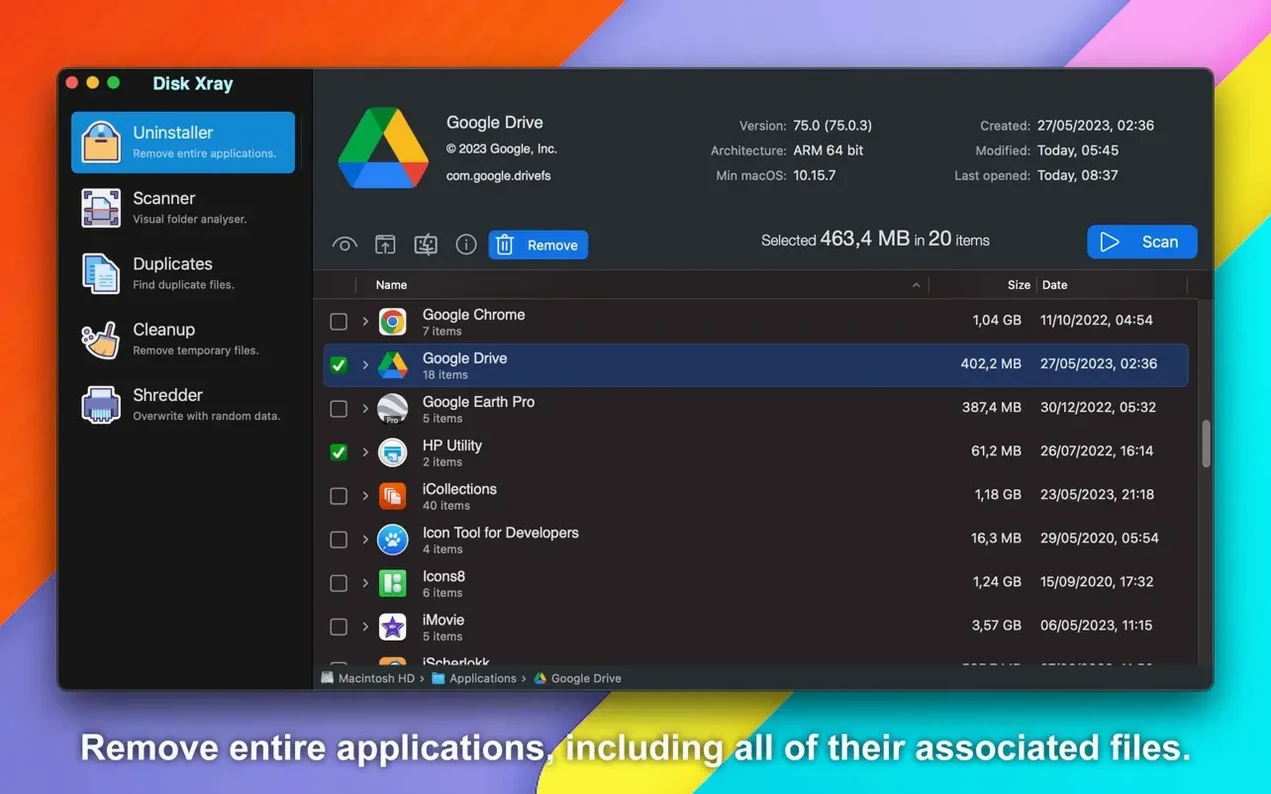
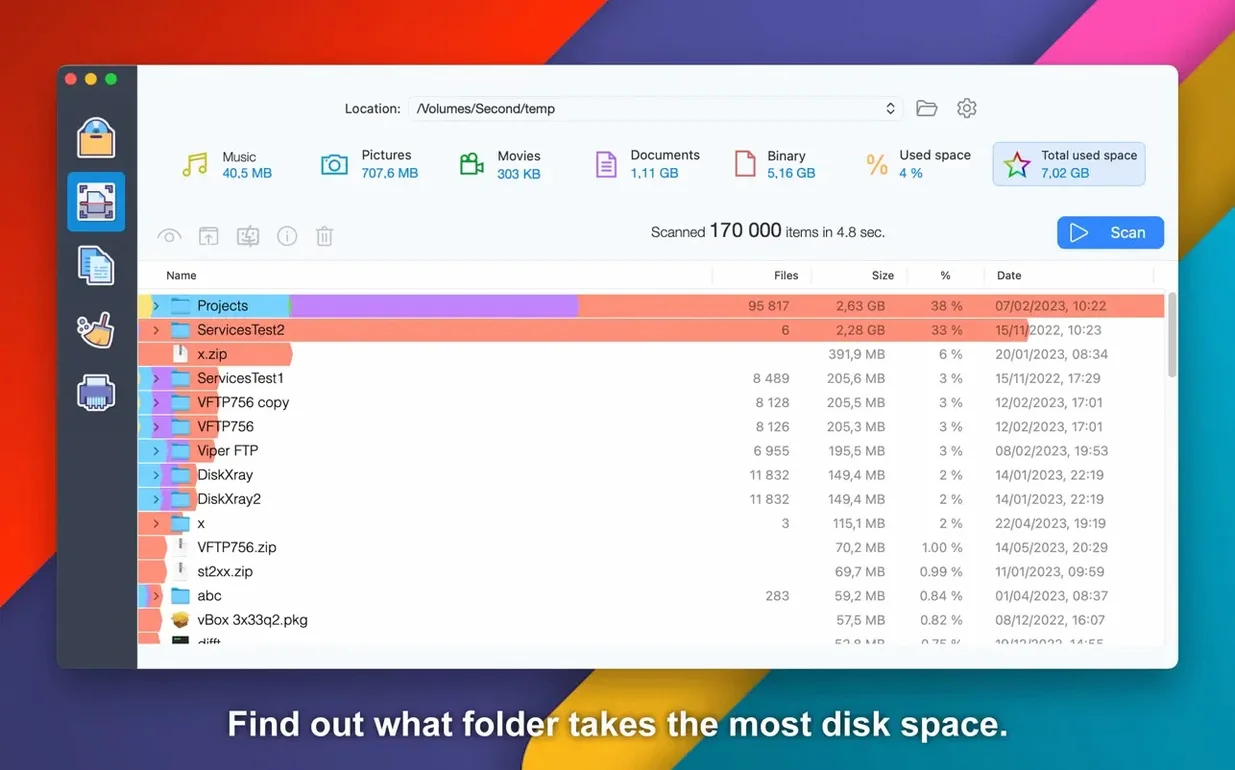
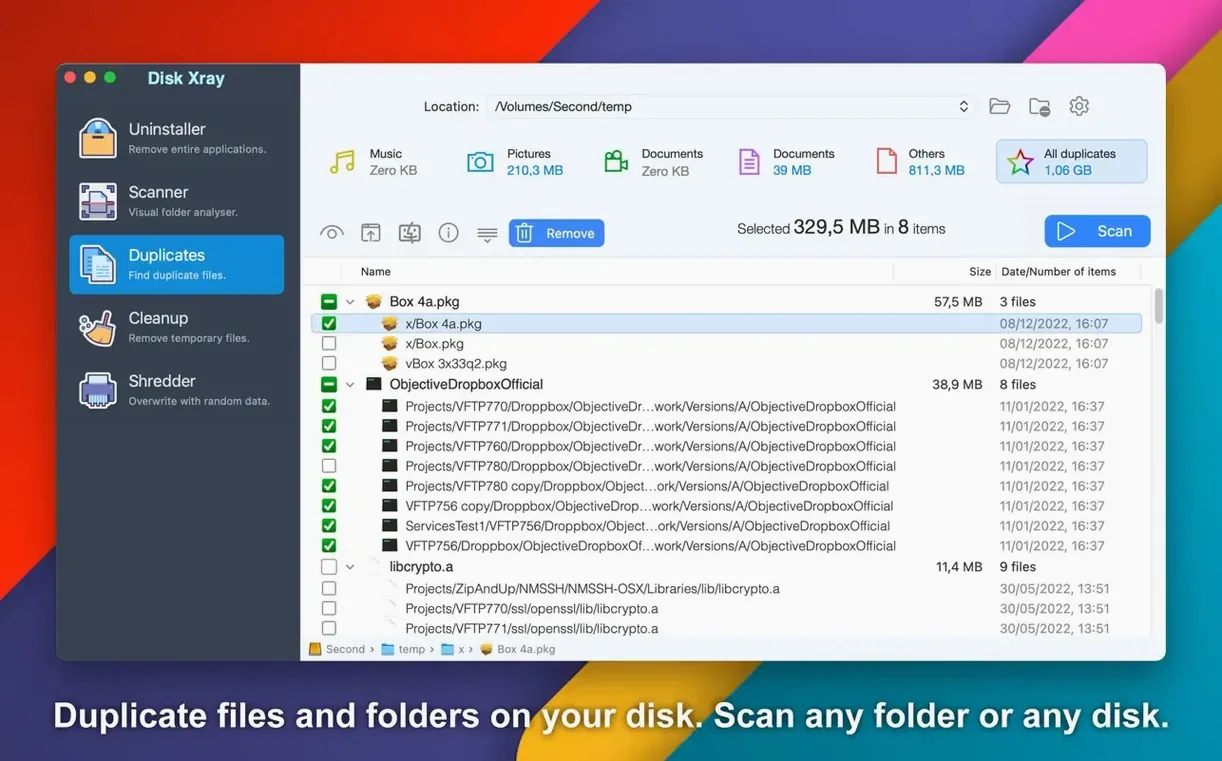
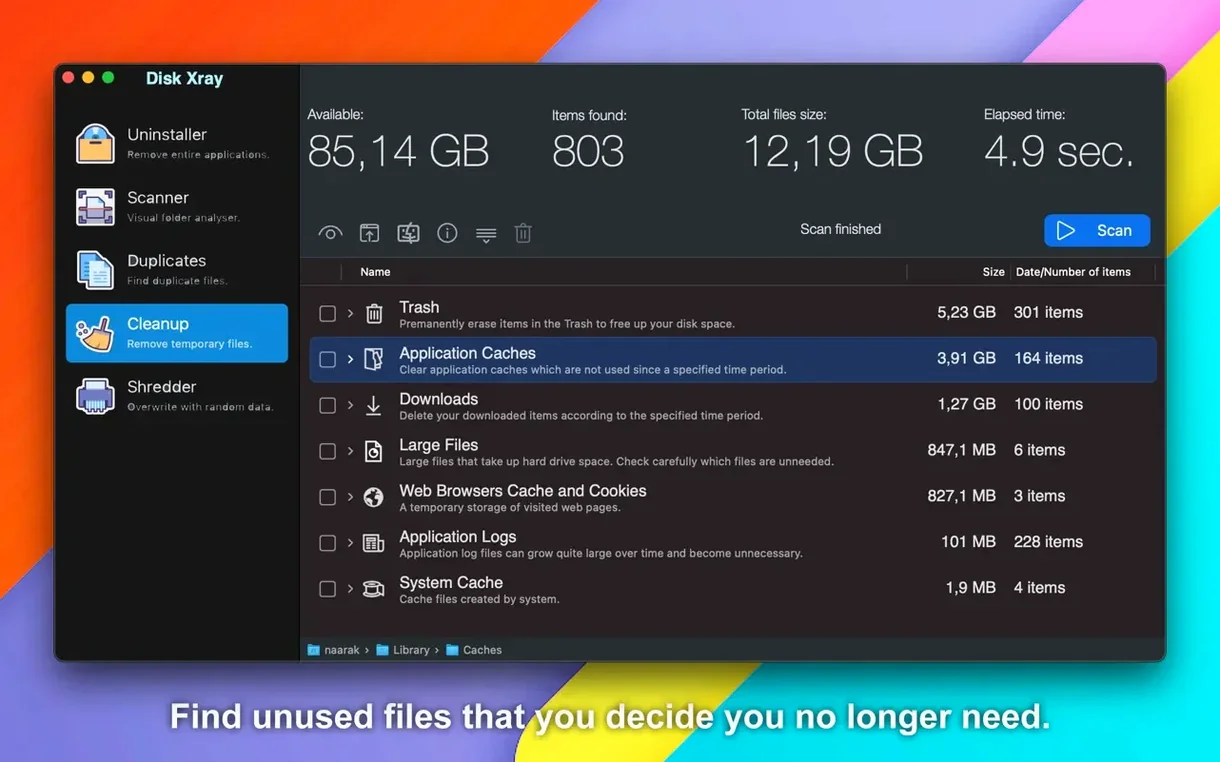
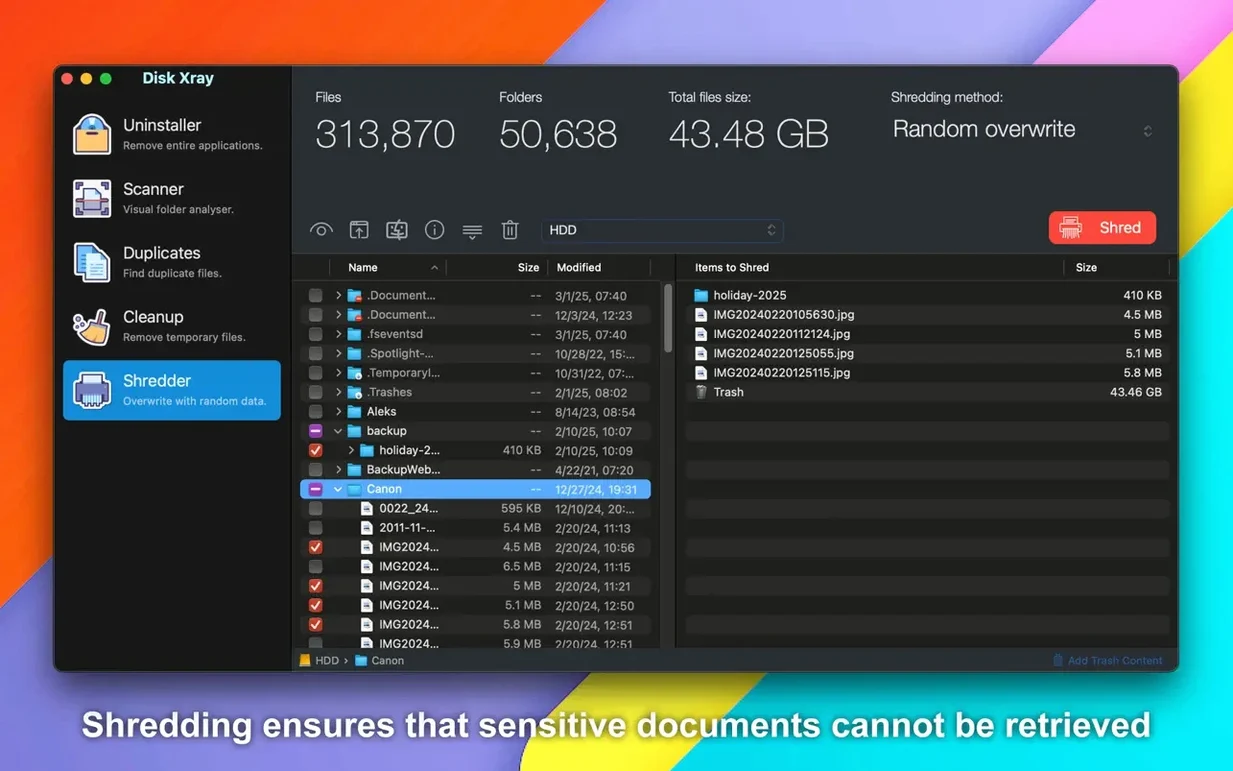
Disk Xray shows you exactly where space has gone. Say you want to clear out the biggest files and duplicates before a holiday trip. Here is one realistic task from start to finish.
- Open Disk Xray and choose the Disk Usage scan. Pick your main drive or a specific folder.
- Results group by file type. Sort by size to spot the largest files—old movies, archives, or downloads you forgot about.
- Switch to Duplicate Finder. Scan the same location. Disk Xray finds duplicate files and folders, so you can remove copies you don't need.
- Select items and move them to Trash. If you change your mind, use the Undo option in the menu.
- Finally, use the Cleaner tool. It clears application logs, browser cache, cookies, app cache, and local email attachments. Empty Trash and Downloads from here too.
That is one session: scan, find, clean. Disk Xray groups everything by type, so you see what takes up space without guessing. The undo option gives you safety if you delete something important.
Run the Disk Usage scan first
Run the Disk Usage scan on your system drive right away. This gives you a baseline of where space sits before you start cleaning. Note the big folders—usually Downloads, Desktop, and Documents—and then scan them individually with the Duplicate Finder.
Set the Cleaner to move items to Trash rather than delete them outright. That way, if you clear browser cache or old logs and later need something, you can restore it. The undo option in the menu works after you move files to Trash, so check that before emptying the Trash itself.
Try the file type grouping in Disk Usage. It shows you whether video files, archives, or application data eat up the most space. That helps decide what to tackle first.
Scan takes long with small files
- Scan takes a long time. A full drive scan can be slow, especially with many small files. Start with specific folders rather than the whole disk.
- Duplicates found are system files. Disk Xray checks byte by byte, so it catches real copies. Be careful with files in
/Systemor/Library—stick to your user folders unless you know what you are doing. - Cleaner options are greyed out. Some cleanup categories require permission. Open System Preferences > Privacy & Security and grant Disk Xray the access it needs.
- Undo does not appear. The undo option is only available right after you move items to Trash. If you emptied the Trash or closed the app, it is gone.
Change the interface language
The interface switches between English, German, and French. If you prefer another language, change it in the preferences.
Disk Xray works on both Apple Silicon and Intel 64-bit Macs running macOS 10.15 or later. That means the same app runs on newer and older machines.
The duplicate finder handles folders as well as individual files. If you have two folders with the same content, it flags them. That saves time compared to checking each file manually.
- macOS 10.15 or later
- Intel or Apple Silicon
Kit check at a glance
| System | macOS 10.15 or later |
| Chip | Apple Silicon, Intel 64-bit |
| Download | 3 MB |
| Older pressings | 3 in the crate |


Chat from the booth
Sign in or grab a free account to leave a comment.
Nobody has said a word in the booth yet. If you played a set with this build, tell the next person how it went.