

- Build in the crate
- 5.3 + NON CS
- Made by the team at
- Apple
- Menu languages offered
- English, German, Spanish, Chinese (Simplified), French, Japanese
- How you pay for it
- K'ed by Antibiotics x TEAM EDiSO
- macOS it plays on
- macOS 15.6 or later
- CPU it runs on
- Apple Silicon, Intel 64-bit
Screenshots
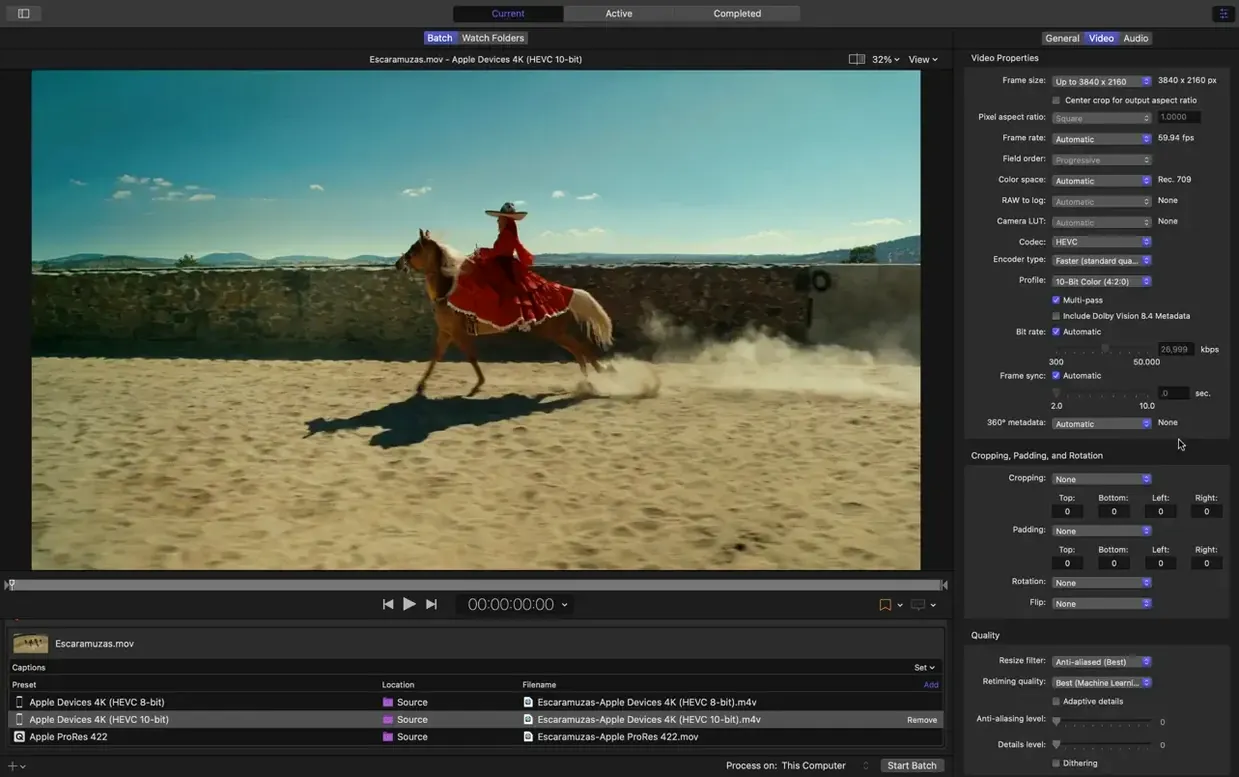
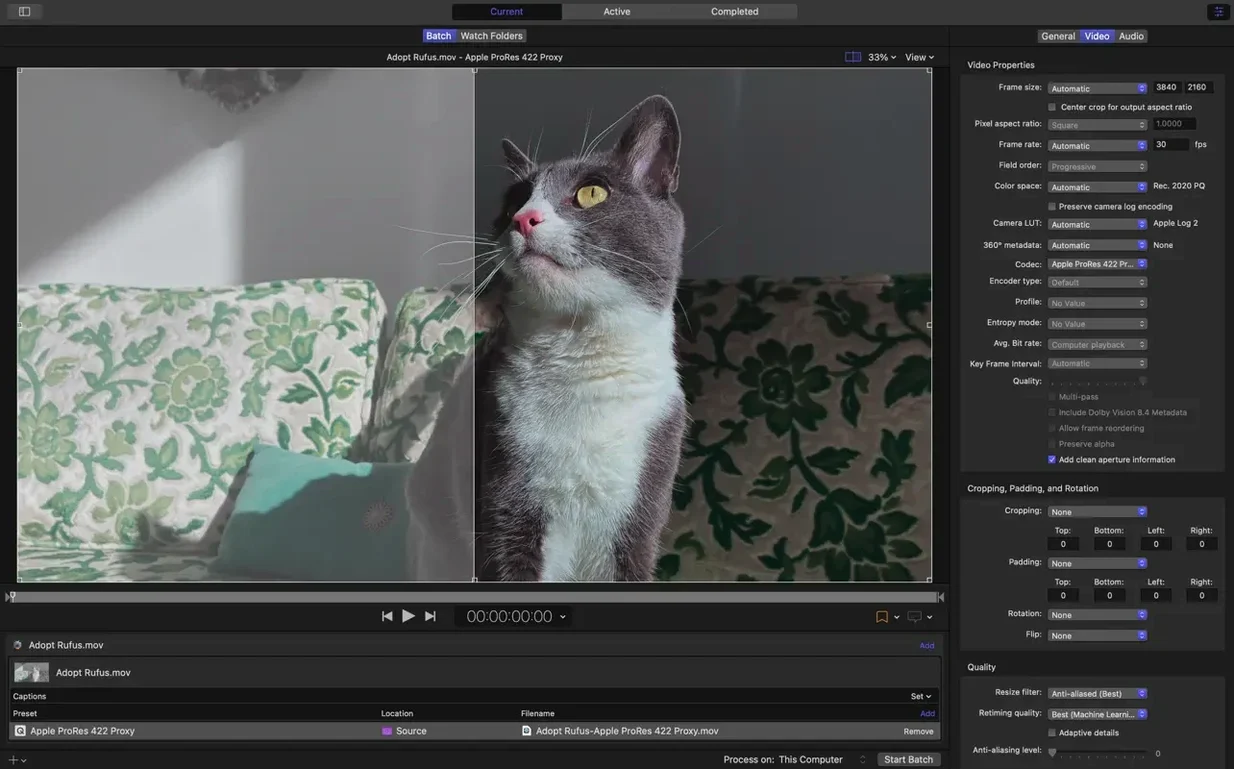
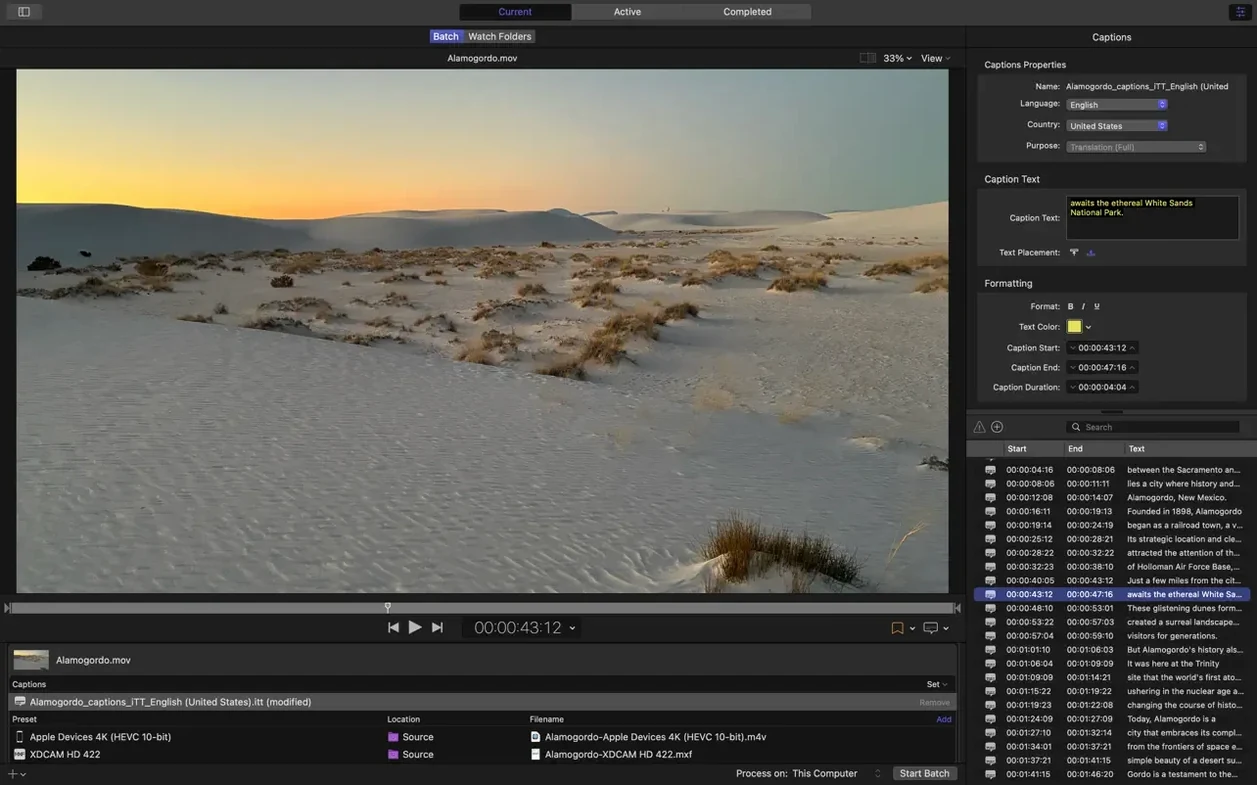
You've just finished a multicam edit in Final Cut Pro and need to deliver HDR masters for broadcast, 360° versions for a client review, and HEVC files for the web. Compressor handles all three from the same source, with custom output settings for each format.
- Drop your project into the batch window.
- Choose a destination (Apple Devices, broadcast MXF, or a custom HDR preset).
- Add a second target — say, a 360° video output with anaglyph preview for stereoscopic check.
- Turn on distributed encoding to spread the work across multiple Macs on your network.
- Start the batch. The app renders using the same engine as Final Cut Pro and Motion, so the output matches your timeline.
Compressor 5.3 adds an immersive metadata viewer before encoding, 180° Apple Projected Media Profile output, and 5.1 AAC in Apple Device exports. It supports HEVC data rate limits on Apple Silicon and can transcode immersive sources without WAV files to Apple Immersive outputs. The interface runs in English, German, Spanish, Simplified Chinese, French, and Japanese. For a pro video workflow, it pairs with Motion to build custom presets or apply filters and timecode overlays.
Start with a 30-second test clip
Start with a single short clip, not your whole feature. Drag a 30-second test file into the batch window and apply one of the built-in presets — Apple Devices, for example. Watch the inspector panel to see how the audio and video properties change when you switch from HDR to SDR or add a 360° tag. You want to understand what each setting does before you queue up a long encode.
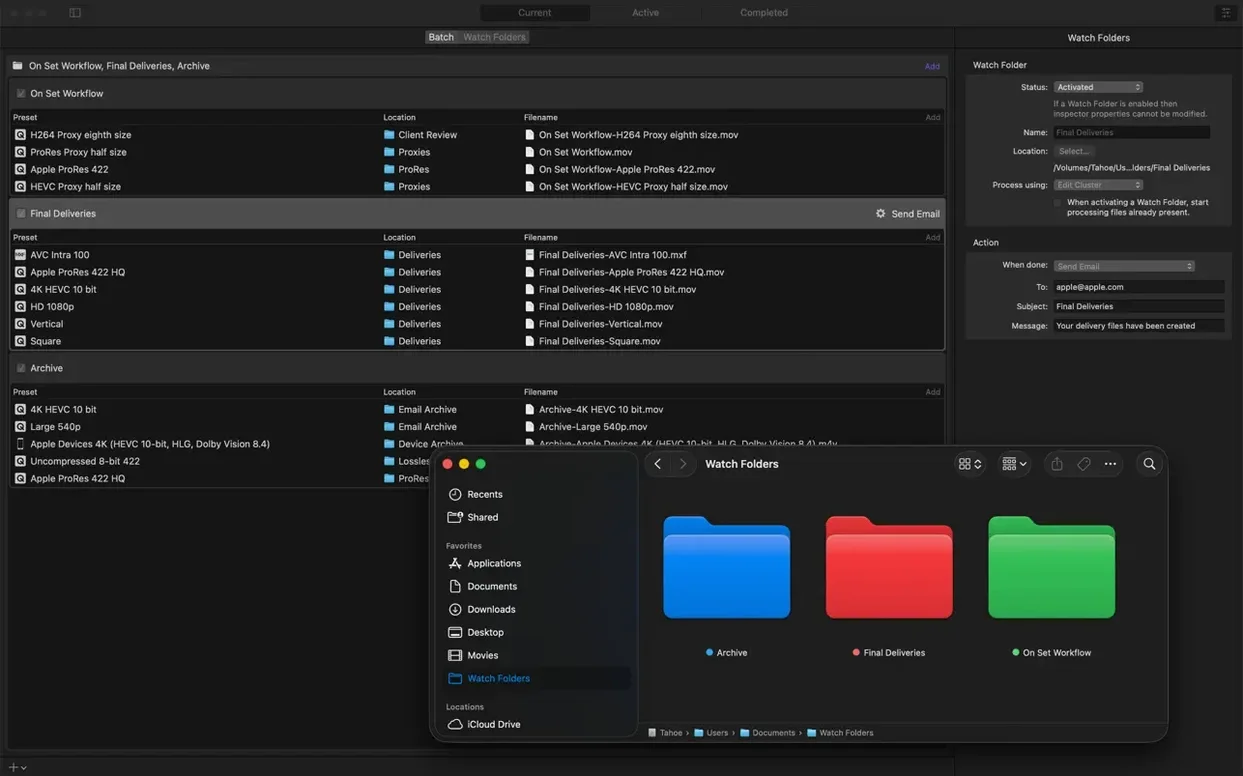
Set up a post-encode action early. In the inspector, you can tell Compressor to copy the finished file to a shared folder or run a custom script. If you move files to a watch folder for your delivery platform, you save a manual step every single time.
Test distributed encoding with two Macs on the same network before you rely on it. Add a second Mac in the distributed encoding pane, run a small batch, and check that both machines pick up frames. It works well when it's set right, but the first configuration sometimes needs a network permissions tweak.
Built for Final Cut Pro editors
Video editors working in Final Cut Pro are the obvious fit. Compressor sits right next to the timeline export, so you can send a project straight to a custom preset without re-rendering. If you deliver to broadcast, web and archival formats from the same source, you save hours per project.
Post-production teams with multiple Macs benefit from distributed encoding. One person sets up the batch, the rest of the network helps crunch through it. That matters when you're turning around a long-form doc or a multi-camera event overnight.
Motion users who build titles, generators or effects can use Compressor to apply those Motion templates during export. You add a Motion preset in the settings panel, and the rendered output includes the animation, filter or timecode overlay you designed. It keeps the look consistent without extra passes.
Anyone delivering 360° video or immersive content gets features that most transcoders skip. The anaglyph preview lets you check stereoscopic depth before encoding, and the new 180° Apple Projected Media Profile matches the format Apple devices expect. If you work with immersive audio from ambisonic microphones or spatial audio tools, Compressor can handle those sources without extra WAV conversion.
Ignoring the inspector panel
The most common one is ignoring the inspector. New users drag a file into the batch window, pick a preset and hit start, assuming the default settings are fine. If your output looks wrong, the answer is usually in there.
Another mistake is forgetting to check the destination folder. Compressor lets you set a custom output location per job, but the default might be a temporary folder you never find again. Set the destination before you start the batch, or enable the post-encode action that copies the file somewhere obvious.
Beginners also tend to queue every job as a single batch instead of splitting them. If you have ten clips going to two different formats, run two separate batches. That way, if one target fails, you don't lose the other encode progress. The batch window makes it easy to add multiple targets per source, but keeping them separate gives you more control.
Distributed encoding is another area where people skip the setup. They turn it on and expect it to work instantly, then wonder why only one Mac is rendering. You need to add each Mac's address in the preferences and make sure the same version of Compressor is installed on every machine. Test with a small job first.
Finally, new users sometimes assume Compressor only works with Final Cut Pro. It doesn't. You can drag in any media file — MP4, MOV, MXF, even image sequences — and transcode it to any supported format. The 1178 compressor crowd who look for compressor torrent downloads often miss that it's a standalone tool, not just a Final Cut add-on. If you search for apple compressor free download or compressor mac torrent, you're after the same app that editors use for batch transcoding. It works fine on its own, with or without a timeline project.
- Immersive metadata viewer before encoding.
- 180° Apple Projected Media Profile output.
- Anaglyph preview option for stereoscopic video.
- 5.1 AAC option added to Apple Device export settings.
- HEVC data rate limits supported on Apple silicon devices.
- Transcoding immersive sources without WAV files to Apple Immersive outputs.
- macOS 15.6 or later
- 8 GB memory
- 1.2 GB available disk space
- Intel or Apple Silicon
Kit check at a glance
| System | macOS 15.6 or later |
| Chip | Apple Silicon, Intel 64-bit |
| Download | 122 MB |
| Older pressings | 13 in the crate |






Chat from the booth
Sign in or grab a free account to leave a comment.
Nobody has said a word in the booth yet. If you played a set with this build, tell the next person how it went.