

- Build in the crate
- 2027.0.1
- Made by the team at
- TechSmith Corporation
- Menu languages offered
- English, German, Spanish, Chinese (Simplified), Portuguese, French, Japanese
- How you pay for it
- K'ed by TNT team
- macOS it plays on
- macOS 15 or later
- CPU it runs on
- Apple Silicon, Intel 64-bit
Screenshots
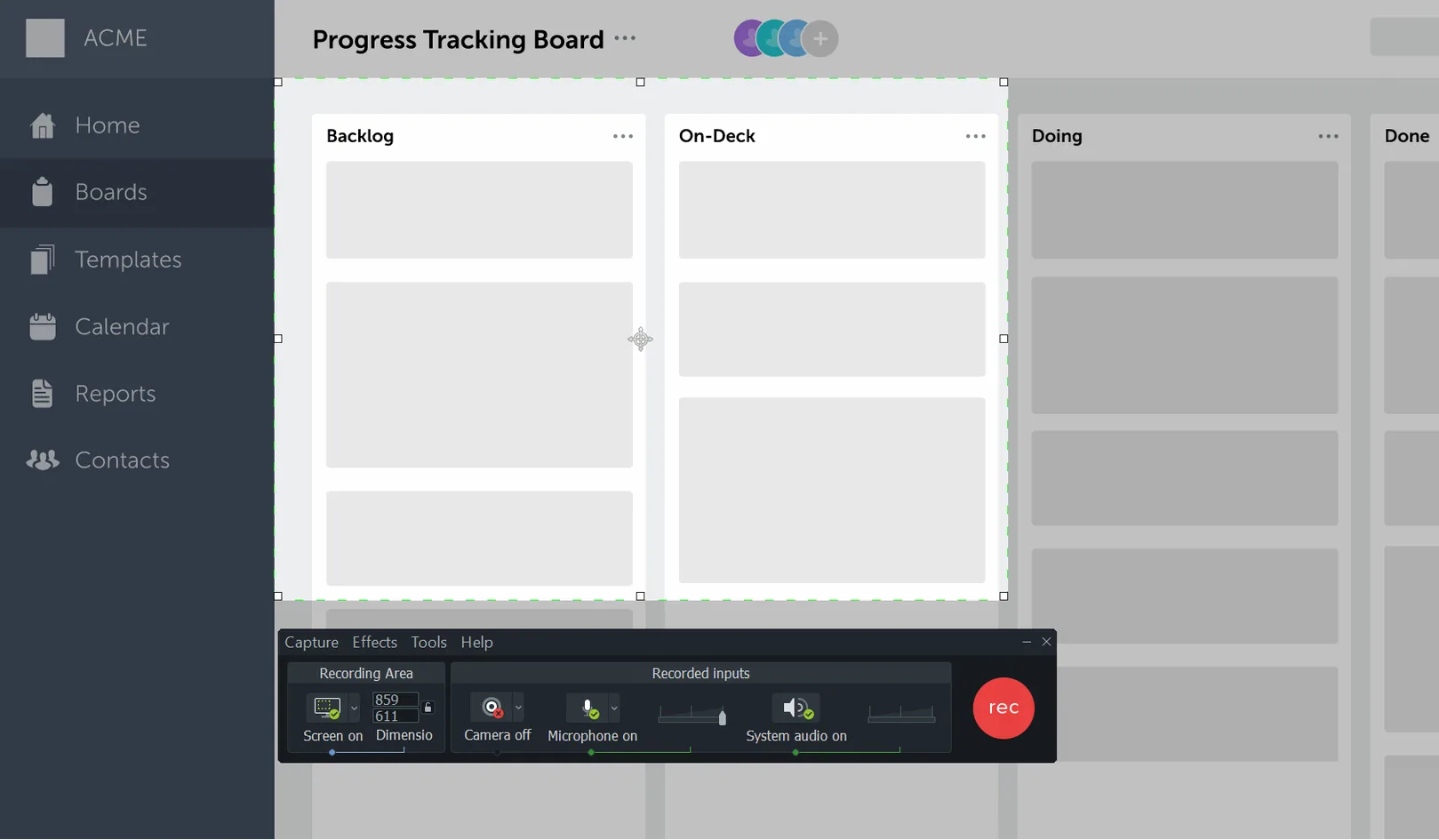
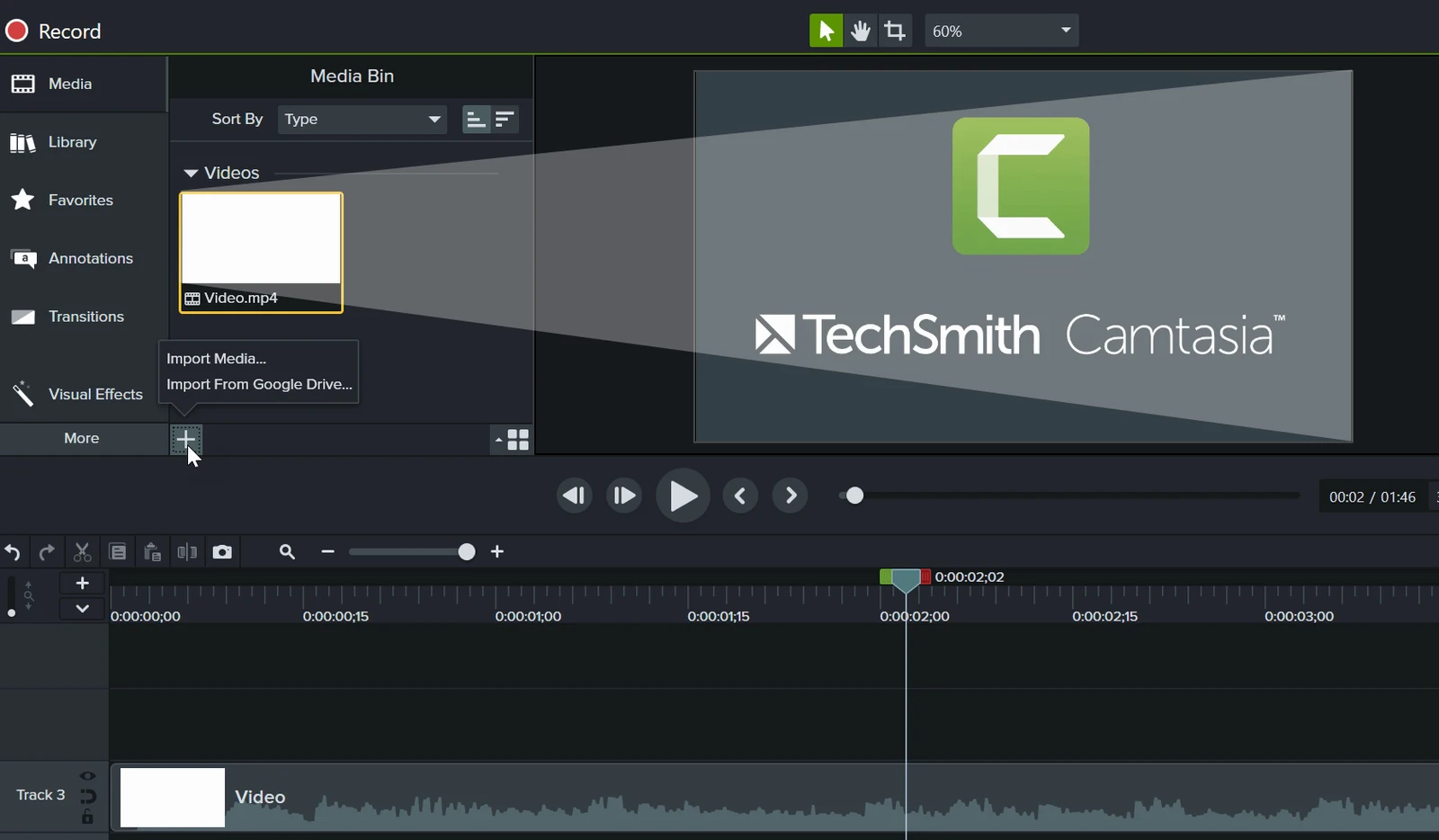
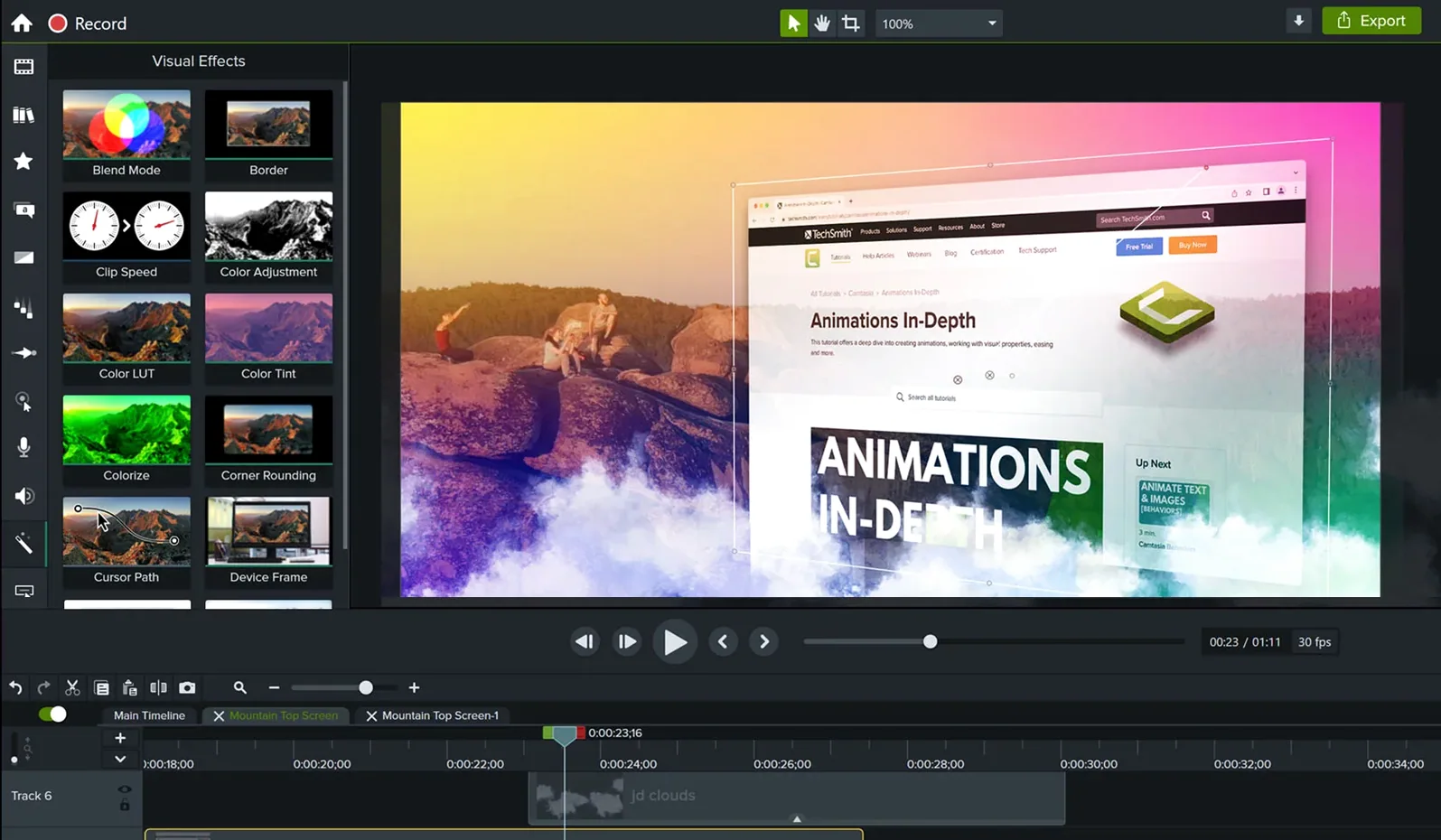
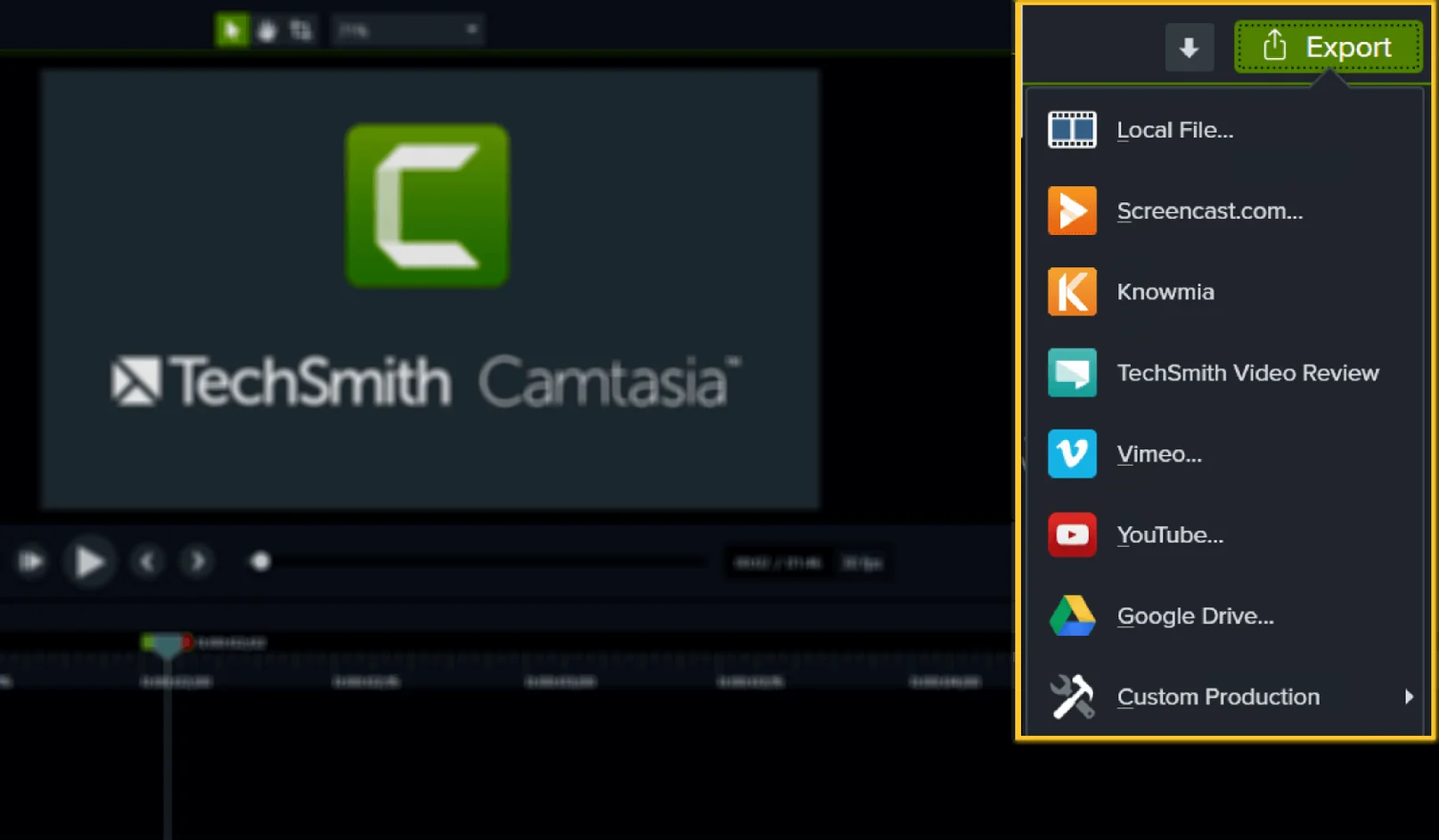
The Smart Focus feature is the kind of thing you don’t notice until you need it — zooming into cursor actions during a software demo or coding walkthrough, automatically. That’s the layer of Camtasia that keeps experienced editors coming back.
Workflow for Adding External Recordings
- Open an existing project or start a new one from a template.
- Drag a pre-recorded video file from Finder straight onto the timeline. Camtasia reads common formats without conversion.
- Use the media bin to import clips you shot on a phone, a separate screen recorder, or even an older project export.
- Apply the Smart Focus behaviour to any clip that needs automatic zoom-to-action. You control the speed and intensity.
- Add transitions, annotations, or voice-over from the built-in audio recorder — no need to leave the timeline.
- Export or share directly with collaborators via the Share button. The app remembers your last export settings.
It runs natively on Apple Silicon and Intel Macs, with interface language options including English, German, Spanish, and French. The current release fixes a startup crash and includes general stability improvements. For someone who edits tutorials, presentations, or training material regularly, Camtasia stays out of your way while giving you the controls that matter.
Media bin keeps imported files after reopening
Camtasia has a few quiet touches that don’t announce themselves. The media bin, for instance, keeps a history of every file you’ve imported into the current project — so if you close and reopen, your clips are still there, ready to drag back onto the timeline. No need to hunt through Finder again.
The built-in audio recorder is another one. It sits inside the app, which means you can record a voice-over while watching the timeline play. That synchronises the narration to the visuals without a separate recording session. For quick fixes, it saves time.
Then there’s the way Camtasia handles PowerPoint imports. You bring in the slides, and each one lands as a separate clip on the timeline. That makes it easy to trim, reorder, or replace individual slides without rebuilding the whole presentation inside the editor.
Adjust capture area before your first recording
If you are new to Camtasia, a couple of defaults are worth adjusting before you start your first project. The recording settings let you pick the capture area — full screen, a custom region, or a specific window. Setting this to a fixed region early on avoids awkward cropping later.
The cursor highlight is another one to check. It adds a coloured ring around the mouse pointer, which helps viewers follow clicks and drags. You can turn it on in the recording preferences and adjust the colour and size. For tutorials, it makes a real difference.
Export presets are worth configuring, too. Camtasia remembers your last export settings, but if you regularly output for YouTube, a local archive, and a client, saving each as a named preset means you don’t have to re-select resolution, format, and quality every time.
Set a recording region to avoid huge files
The most common one is recording the whole screen when only a small area is needed. That produces a huge file and forces you to crop or zoom in post-production. Set a recording region from the start — it keeps the file size down and the focus tight.
Another frequent slip is forgetting to enable system audio. By default, Camtasia captures microphone input, not the sound coming from your Mac. If you are recording a walkthrough of a website or software, you want system audio on so the clicks, alerts, and playback are audible. Check this before you hit record.
New users also tend to leave the timeline zoomed out too far. Editing at a high zoom level makes it harder to trim clips precisely. Zoom into the timeline so you can see individual frames, especially when cutting out silences or fixing timing.
Finally, people often skip the Smart Focus setup. They leave it on the default speed and let it auto-detect every cursor move. That can result in constant zooming in and out, which is distracting. Adjust the sensitivity and set a minimum time between zooms — it makes the final video much calmer to watch.
Startup and export crash fixed in latest release
Version 2026.2.3 is a maintenance release, so the changes are under the hood rather than flashy new features. The headline fix is a crash that could happen on startup or during export. For anyone who works on longer projects, that is a welcome stability improvement — nothing worse than losing progress because the app quits unexpectedly.
The miscellaneous bug fixes and improvements that come with this release also affect day-to-day editing. Small glitches — like timeline playback stuttering after a long recording session or the media bin not refreshing after importing a new file — have been addressed. The app feels a bit more predictable as a result.
For users on macOS 14 or later, these fixes are especially relevant because newer system versions introduced tighter permissions for screen capture and microphone access. Camtasia’s updates keep it working smoothly with those changes, so you don’t run into permission errors mid-recording.
If you are still on an older build of Camtasia, updating to 2026.2.3 removes a few small annoyances that built up over time. It is not a rewrite of the app, but it makes the everyday experience a little more solid.
Camtasia 2027.0.1 has landed with quick motion graphics via drag-and-drop templates, a new background removal tool that works without a green screen, and an audio cleanup feature that strips out room tone and hums in one pass. The timeline got a rework too — snapping and trimming feel tighter, especially on longer projects.
- macOS 15 or later
- Apple Silicon or Intel 64‑bit Mac
Kit check at a glance
| System | macOS 15 or later |
| Chip | Apple Silicon, Intel 64-bit |
| Download | 421 MB |
| Older pressings | 8 in the crate |



Chat from the booth
Sign in or grab a free account to leave a comment.
Nobody has said a word in the booth yet. If you played a set with this build, tell the next person how it went.