

- Build in the crate
- 2 1.0
- Made by the team at
- Canopy
- Menu languages offered
- English
- How you pay for it
- Included
- macOS it plays on
- macOS 26 or later
- CPU it runs on
- Apple Silicon, Intel 64-bit
Screenshots
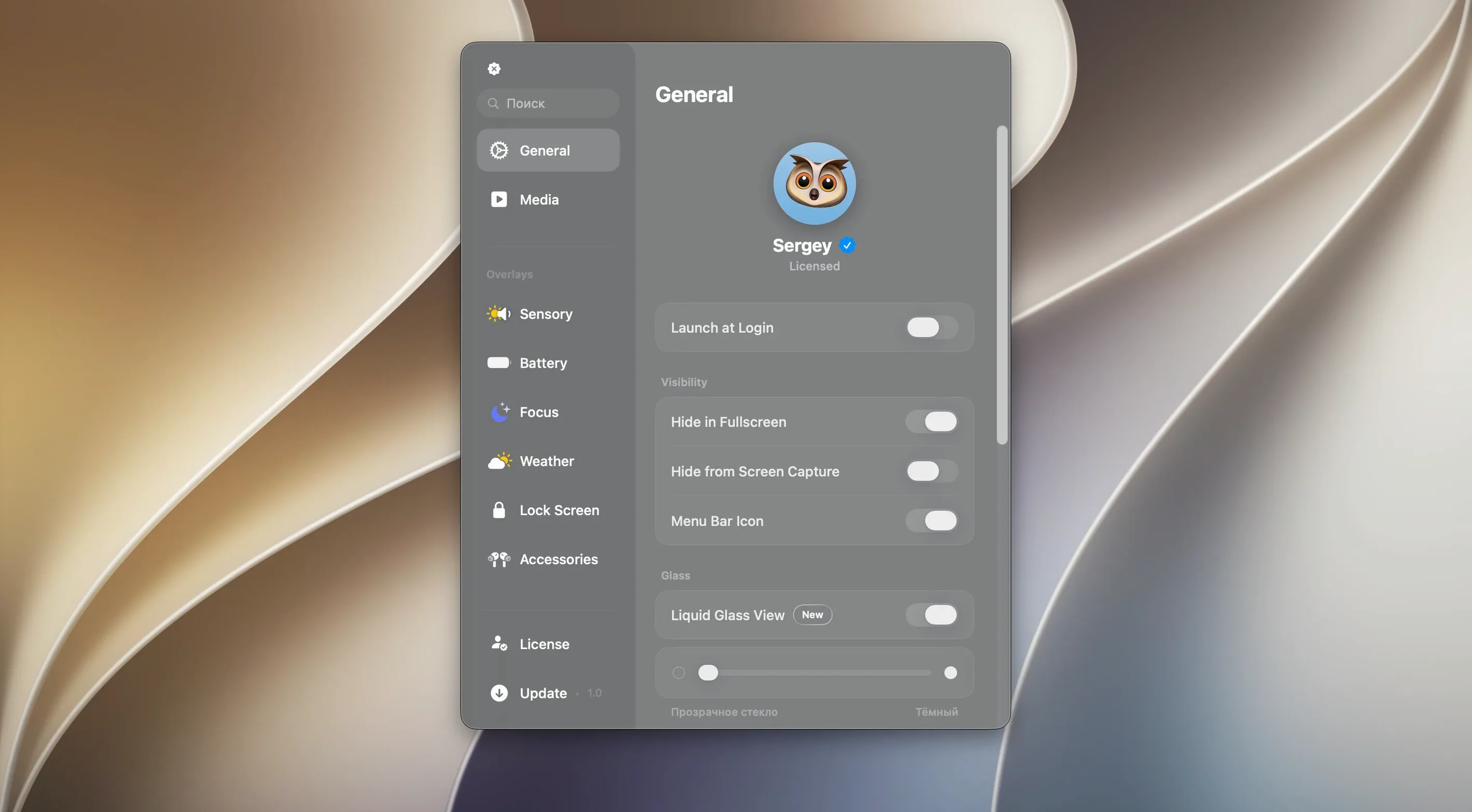
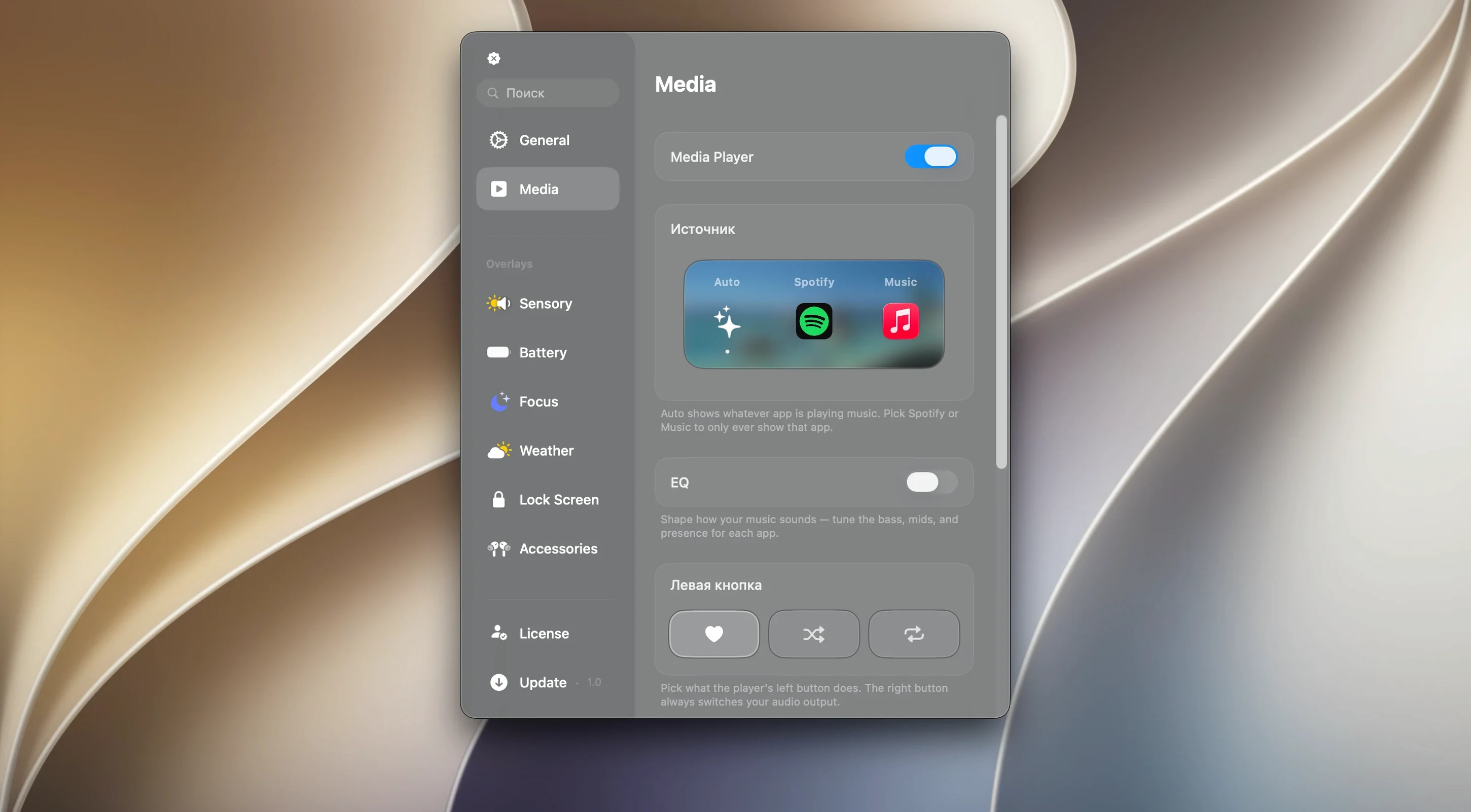
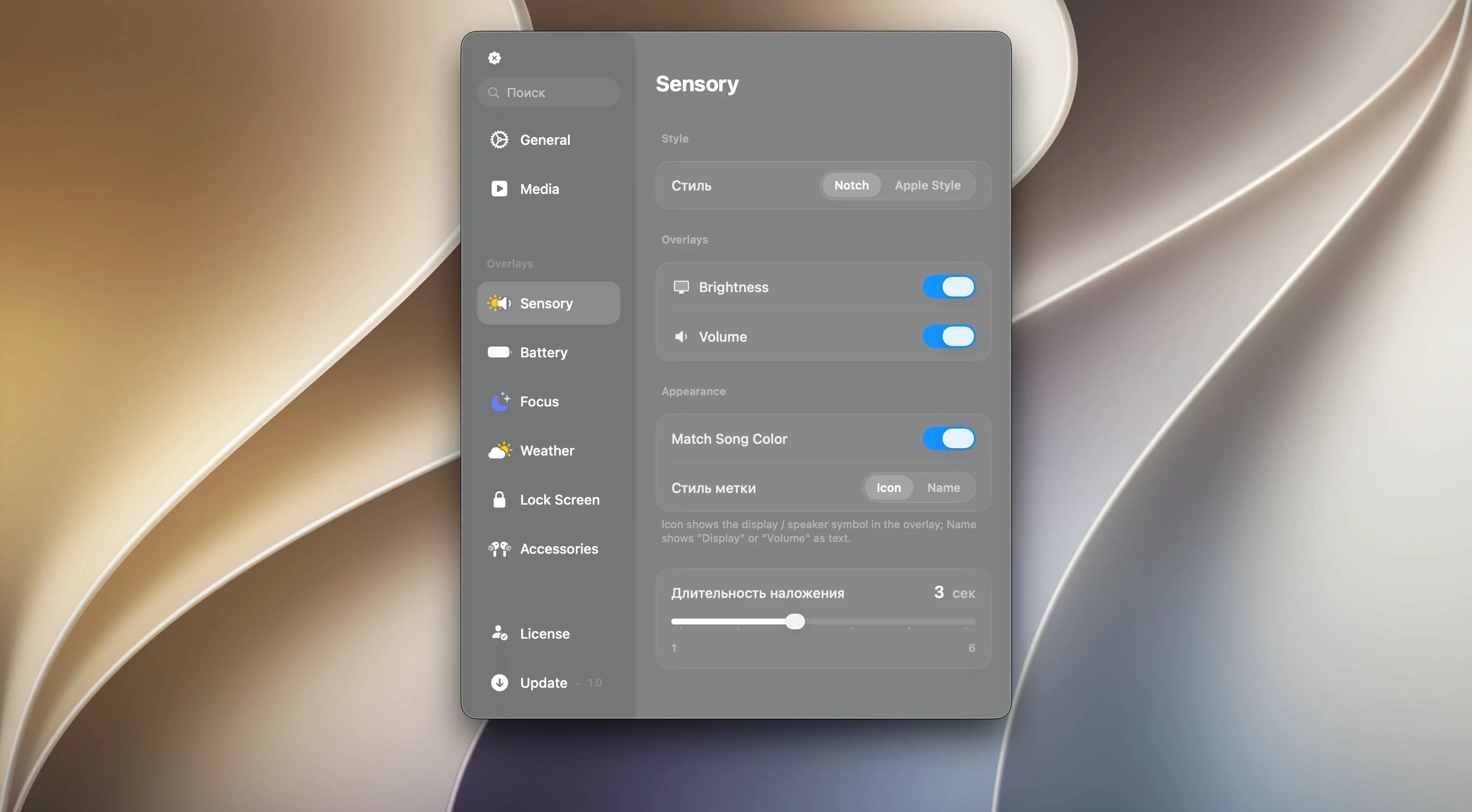
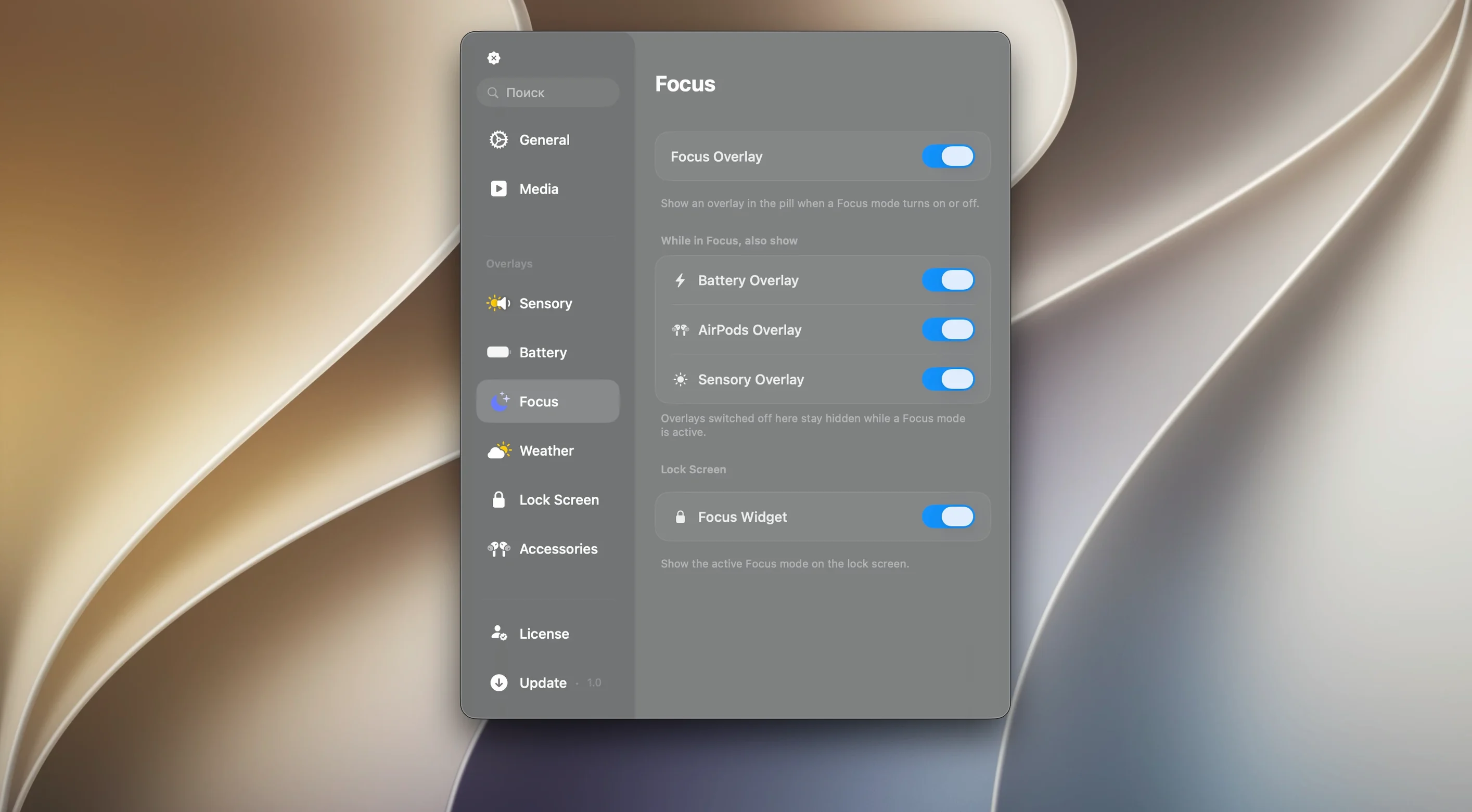
Macs with notches get a little extra screen real estate, but that cutout mostly just sits there. Canopy turns it into something useful: a Dynamic Island-style panel that shows notifications, music controls, timers and live activities.
Good for:
- Quick media controls without opening Music or Spotify
- Timers and live updates visible at a glance
- Any Mac — with a notch it tucks into the notch; without one it becomes a floating widget at the top of the screen
Keep in mind:
- Requires macOS 26 — earlier versions won’t run it
- Supports both Apple Silicon and Intel 64-bit Macs
- Interface is in English only
- Version 2.1.0 keeps the same features as the previous release; no new additions here
Maintenance release keeps panel unchanged
Version 2.1.0 doesn't introduce new features — it's a maintenance release. What that means day to day is that the panel behaves the same way it did before. Notifications still pop into the notch or floating widget, media controls work the same, and timers and live activities show up in the same spots.
The practical difference is stability. If you've used an earlier version and noticed occasional quirks — a notification that didn't dismiss properly, or the panel taking a moment to respond — those are the kind of things a maintenance release typically irons out. It's worth updating even if you already have Canopy installed, because the everyday experience is smoother without any new buttons to learn.
App waits silently for notifications
When you first launch Canopy, it sits in your menu bar or notch and waits. Nothing much happens until a notification comes in or you start playing music. That can feel a bit uneventful, but it's intentional — the app stays out of your way until it has something to show.
A good way to get a feel for it early on: start some music in any player that supports Now Playing on macOS. The media controls appear automatically. Swipe or click to skip tracks, pause, or adjust volume without switching apps. Once you see how that works, try setting a timer — the live countdown sits right in the panel, so you don't need to keep the Timer app open.
If you're on a Mac without a notch, Canopy creates a floating widget near the top of the screen. You can reposition it by dragging. Take a moment to find a spot where it doesn't overlap with browser tabs or your menu bar icons. A little adjustment upfront saves annoyance later.
You'll also want to check which apps send notifications through Canopy. By default it picks up system notifications, but you can fine-tune that in macOS settings so only the important ones appear in the panel.
Expecting a notification centre replacement
The most frequent mistake is expecting Canopy to work like a full notification centre. It's not that. It shows live activities and alerts in a compact panel, but it doesn't replace the Notification Center or give you a history of past notifications. If you swipe away something, it's gone.
Another one: forgetting that the panel only shows content when there's something to show. New users sometimes think it's not working because the notch or widget stays blank. That's normal. Play a song or trigger a timer and it lights up.
People on Intel Macs sometimes assume the app won't run well because it looks like a modern Apple Silicon thing. Support for both architectures is included in version 2.1.0, meaning Intel 64-bit machines function properly. Just make sure you're on macOS 26 or later — that's the real gatekeeper, not the chip.
Finally, some users drag the app out of the disk image and try to run it from there. That won't work properly. Double-click the disk image, move the program into the Applications folder, and start it using Launchpad; the process is simple. Running it from the disk image causes odd behaviour and missing features.
Glanceable info for full-screen workers
Canopy is most useful for people who keep a lot of windows open and want glanceable info without switching contexts. If you're a writer, developer, or designer working in full-screen apps, the panel lets you see what's playing or when a timer ends without leaving your main window.
Music listeners benefit heavily. Anyone who uses Apple Music, Spotify, or any Now Playing-compatible app gets quick controls that don't require clicking out of what they're doing. That's useful during long listening sessions, podcasts, or background music while working.
People with notched Macs get the most natural fit — the panel tucks right into that space and makes the cutout feel purposeful. But the floating widget on non-notched Macs works well too; it just sits at the top of the screen and behaves the same way.
Users who rely on timers and live activities — cooks, freelancers tracking billable hours, or anyone doing Pomodoro-style work — benefit from having a persistent countdown that doesn't need its own window. And because the panel is always visible from the menu bar or notch, it's harder to forget a timer is running.
If you rarely play music, don't use timers, and dismiss notifications quickly, Canopy probably won't change your workflow much. But for the people it suits, it becomes one of those small tools you notice most when it's not there.
- macOS 26
- Apple Silicon or Intel 64-bit
- English
Kit check at a glance
| System | macOS 26 or later |
| Chip | Apple Silicon, Intel 64-bit |
| Download | 11 MB |
| Older pressings | 3 in the crate |







Chat from the booth
Sign in or grab a free account to leave a comment.
Nobody has said a word in the booth yet. If you played a set with this build, tell the next person how it went.