
- Build in the crate
- 4.0.4
- Made by the team at
- waydabber
- Menu languages offered
- Russian, English, German, Hungarian, Vietnamese, Spanish, Italian, Chinese (Simplified), Korean, Polish, Portuguese, Romanian, Turkish, Ukrainian, French, Swedish, Japanese
- How you pay for it
- K'ed by Antibiotics
- macOS it plays on
- macOS 13.3 or later
- CPU it runs on
- Apple Silicon, Intel 64-bit
Screenshots
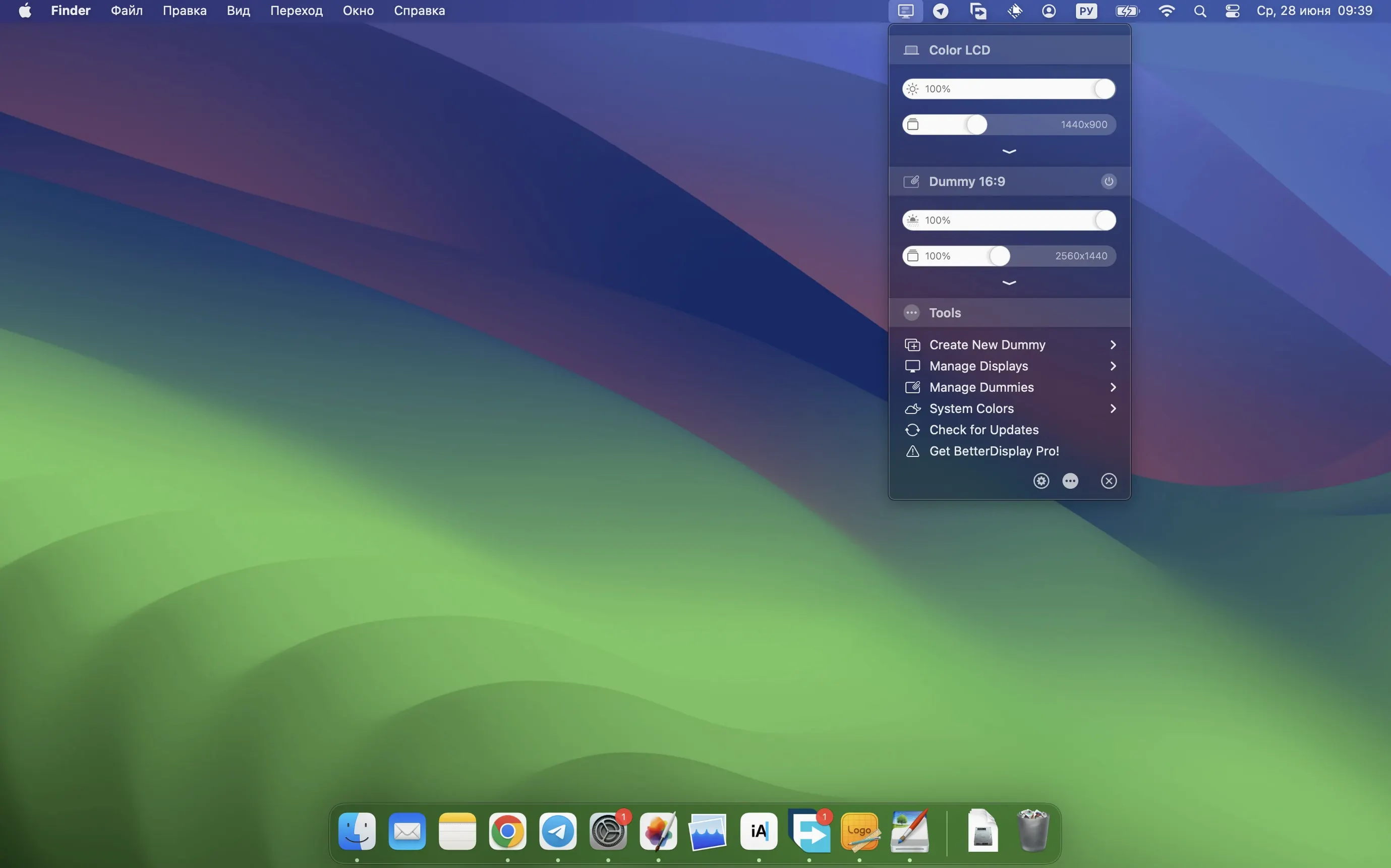
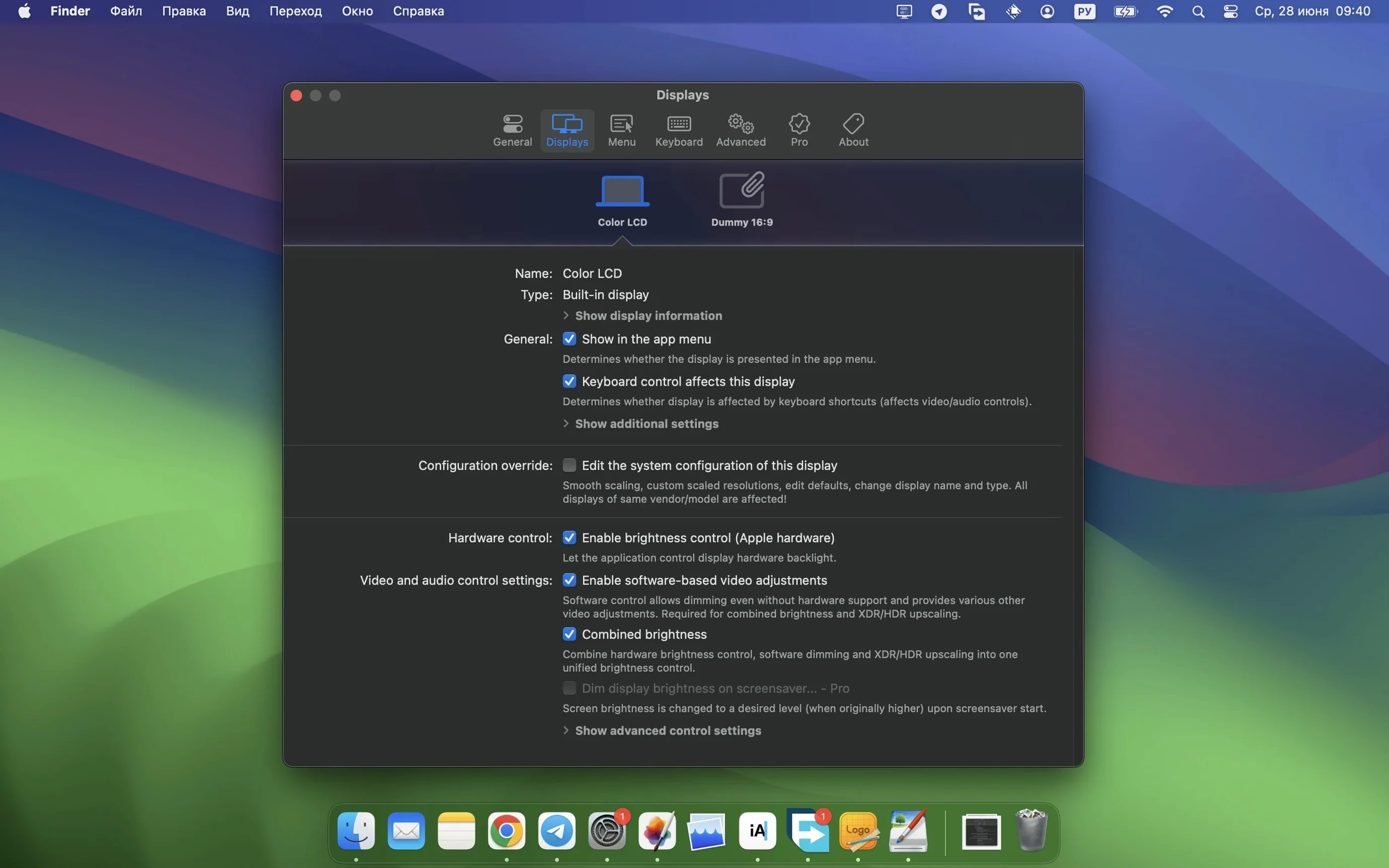
If you have ever wished your Mac’s display settings went further than the standard System Preferences, BetterDisplay Pro for Mac is the app that fills those gaps. It turns any monitor into a fully scalable screen and adds DDC and HDMI-CEC control for brightness and colour. Version 5.0.6 works on macOS 26 and supports both Intel and Apple Silicon machines.
Scale a non-retina monitor to a usable resolution
Connect an old 1080p monitor and the Mac often shows only a few blurry scaling options. With BetterDisplay applied, you override the EDID to add HiDPI resolutions. The screen becomes sharper and text readable — the same panel now looks like a Retina display for everyday work.
Create a virtual display for a headless Mac mini
When you run a Mac mini without a physical monitor, remote desktop apps can’t give you full resolution. BetterDisplay creates a virtual display at any size and refresh rate you choose. That virtual screen appears in VNC or Remote Desktop as if a real monitor were plugged in.
Adjust brightness and volume with a keyboard shortcut
External displays often lack hardware buttons within arm’s reach. BetterDisplay uses DDC over the connected cable to change brightness, contrast and volume. Assign a hotkey, and the app sends the command directly to the panel — no OSD menus needed.
Asks for accessibility permissions on first launch
Once BetterDisplay is in your Applications folder and you open it for the first time, the icon appears in the menu bar. Click it to see your connected displays listed. The app asks for accessibility permissions the first time you try to control brightness or volume via DDC — grant that in System Settings > Privacy & Security > Accessibility. Without it, the keyboard shortcuts won’t reach the monitor.
Spend a few minutes in the per-display settings panel. Each screen gets its own configuration page where you can name it, set a scaling override, or enable virtual display features. If you have a headless Mac, create a virtual display straight away: pick a resolution and refresh rate that matches what your remote desktop client expects.
For brightness control, test DDC first. Open the menu bar dropdown for your display and slide the brightness bar. If nothing happens, the monitor might not support DDC over the current cable — try HDMI instead of DisplayPort, or the other way around. HDMI-CEC is an alternative for compatible TVs, but it is slower and less precise.
No section text provided — use original
Scaling override doesn’t stick after reboot
Some monitors reset their EDID when they power off. In BetterDisplay, check the option to re-apply the override on wake. If the problem persists, create a virtual display that mirrors the physical screen — the override lives in the virtual layer and survives sleep cycles.
DDC brightness stops working after the display goes to sleep
This happens with older monitors or long cable runs. Open BetterDisplay’s device control configuration (simplified in version 5.0.6) and enable periodic DDC polling. The app sends a keep-alive signal that re-establishes the control channel after the monitor wakes. The faster multi-display DDC control in this version helps when you have several screens doing the same thing.
Sharpening effect looks too aggressive
Version 5.0.6 introduced stronger sharpening effects. If text starts looking harsh, dial the sharpness down per display in the image adjustments section. You can also load a custom 3D LUT that softens the output while keeping the scaling benefits.
Lightweight menu-bar tool for macOS 26+ on ARM and Intel
BetterDisplay runs on macOS 26 or later and works on both ARM and 64-bit Intel Macs. The app itself is lightweight — it sits in the menu bar and uses system frameworks for display management rather than a heavy render pipeline. Virtual displays are created as software-only screens, so they add no extra load to the GPU beyond what the resolution demands. DDC and HDMI-CEC control send commands over the existing cable, so no USB dongle or second connection is needed.
Languages are built in for Russian, English, German, Hungarian, Vietnamese, Spanish, Italian, Simplified Chinese, Korean, Polish, Portuguese, Romanian, Turkish, Ukrainian, French, Swedish, and Japanese. The interface adapts to whatever system language you use, but you can switch it in the app preferences if you prefer a different one.
Activation is not required — the app opens and works immediately after you drag it into Applications.
Modern menu-bar alternative to SwitchResX for EDID overrides
SwitchResX has been the go-to for custom resolutions and EDID overrides on Mac for years. It covers similar ground: forced HiDPI, rotation, refresh rate changes. The difference is that BetterDisplay wraps those features in a modern menu bar interface and adds DDC brightness and virtual display creation. SwitchResX relies on a preference pane and a separate daemon, which feels older. For users who only need scaling overrides, SwitchResX still works, but BetterDisplay offers more control from one place.
Lunar focuses on brightness and contrast adjustment, mostly through DDC and the ambient light sensor. It does not create virtual displays or override EDID for HiDPI. If your only goal is smooth brightness control without touching monitor buttons, Lunar is a clean choice. But if you also need scaling, virtual screens, or PiP windows, BetterDisplay bundles all of that in the same app.
MonitorControl is another free option for DDC brightness and volume. It is simpler than BetterDisplay and lacks the scaling engine, virtual displays, and 3D LUT support. For a single monitor where you only want hardware-level brightness keys, MonitorControl works fine. For anything beyond that — headless Mac setups, custom sharpening, or stream video filter automation — BetterDisplay goes further.
- macOS 26 or later
- Intel or Apple Silicon
- Activation not required
Kit check at a glance
| System | macOS 13.3 or later |
| Chip | Apple Silicon, Intel 64-bit |
| Download | 16 MB |
| Older pressings | 3 in the crate |





Chat from the booth
Sign in or grab a free account to leave a comment.
Nobody has said a word in the booth yet. If you played a set with this build, tell the next person how it went.