
- Build in the crate
- 7.0.4
- Made by the team at
- Surtees Studios Ltd
- Menu languages offered
- English
- How you pay for it
- Included
- macOS it plays on
- macOS 27 or later
- CPU it runs on
- Apple Silicon, Intel 64-bit
Screenshots
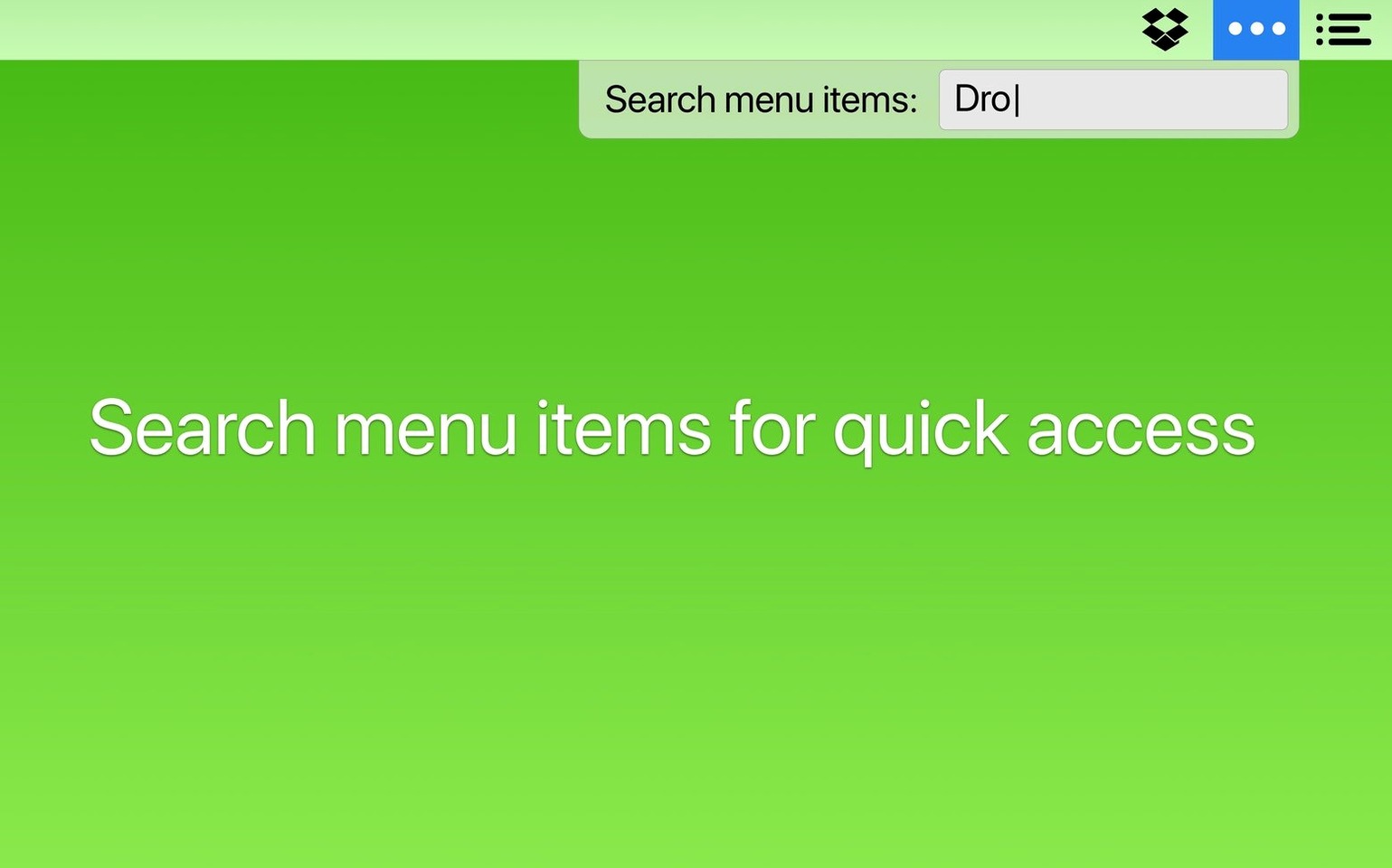
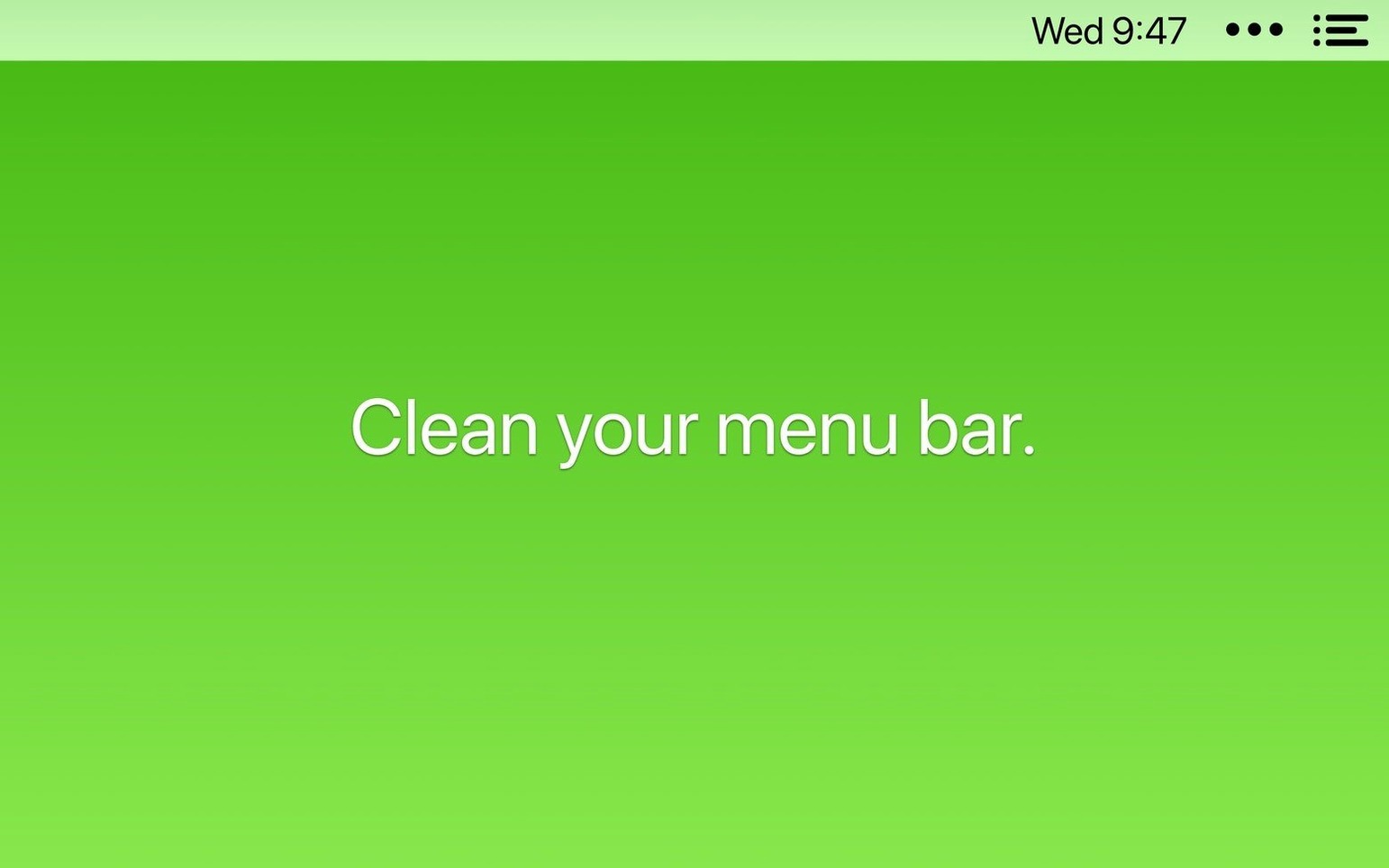
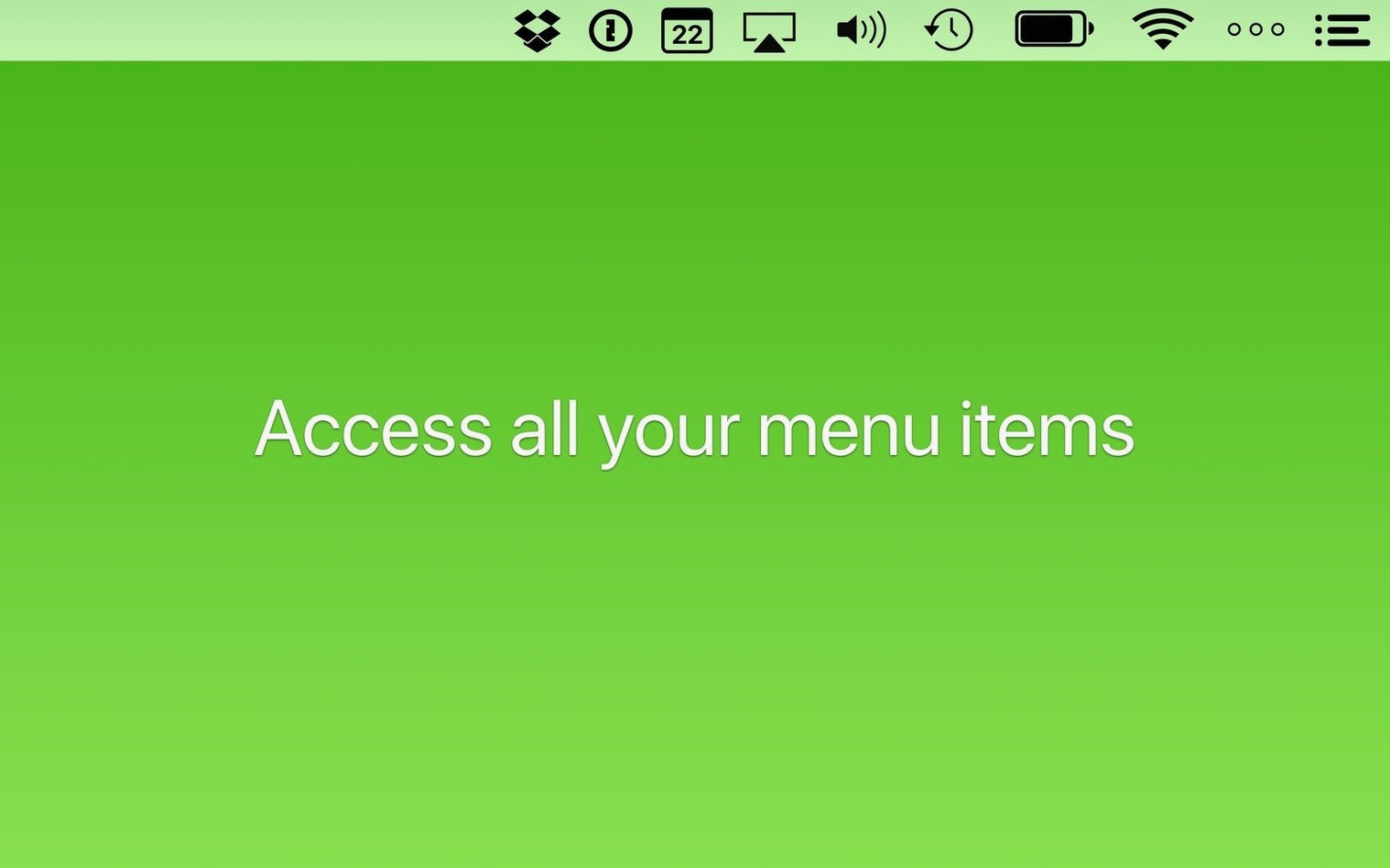
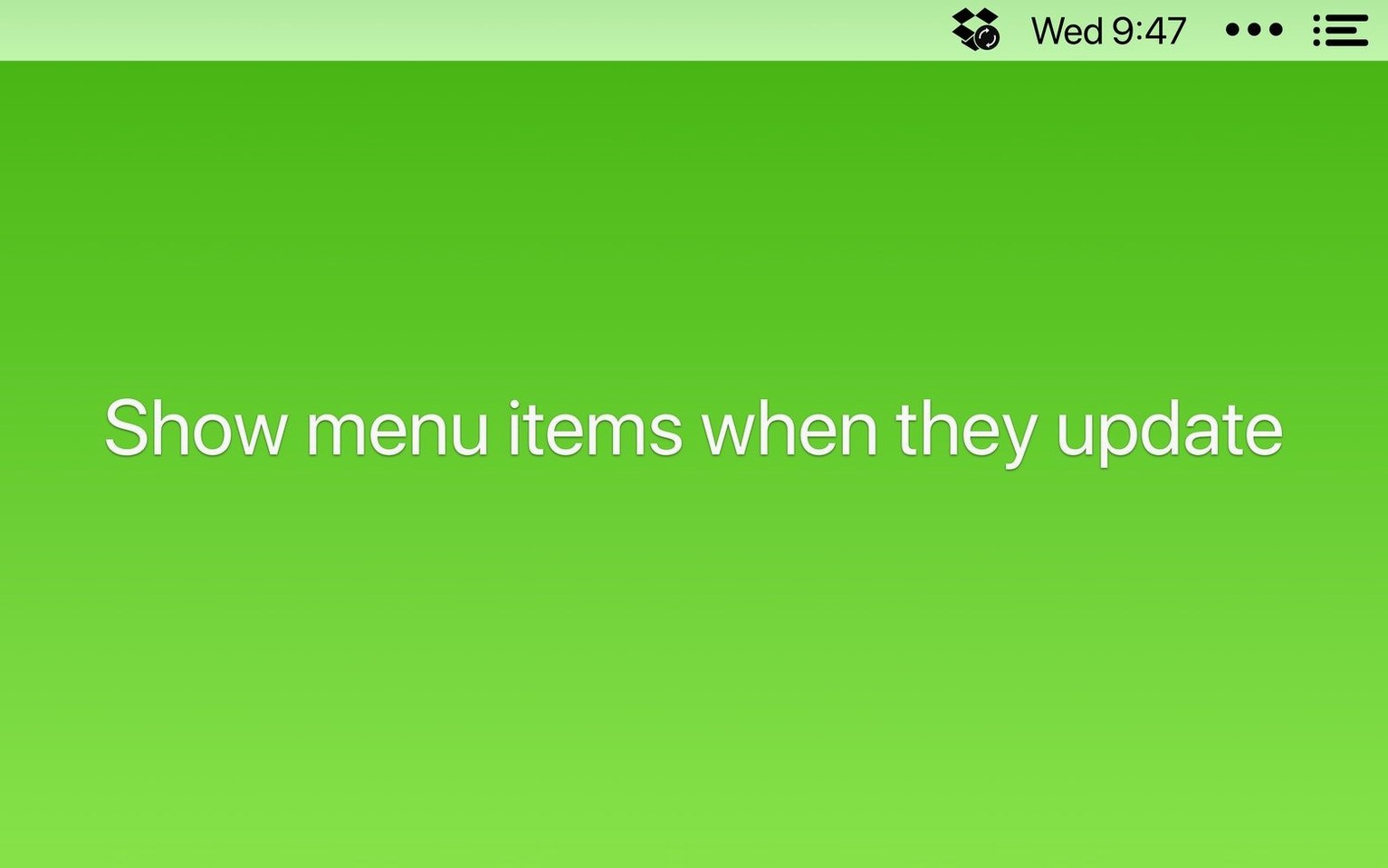
The Mac menu bar fills up fast. Bartender gives you control over what shows and what stays hidden until you need it. It is a menu manager for macOS that keeps the bar tidy without removing functionality.
Hides less-used menu bar icons
- Hiding less-used menu bar icons so only essentials stay visible.
- Showing app icons when they update, sync, or throw errors.
- Searching for any menu bar item quickly.
- Keyboard navigation with arrow keys and Enter, plus custom shortcuts to open the menu.
- Hiding Bartender’s own menu bar icon if you prefer a cleaner look.
No screen recording permissions needed
- Bartender 7 works without requiring screen recording permissions.
- Version 7.0.4 fixes items shifting around after a restart, especially spacers, and fixes items failing to appear.
- The clipboard helper in the Command Bar sees an update in this version.
- The app runs on macOS 27, both Intel and Apple Silicon.
- Interface is in English.
Taming a crowded Tuesday afternoon menu bar
Imagine it is a Tuesday afternoon. You have your usual apps running: Messages, Slack, Fantastical, a VPN client, Dropbox, and a few utilities like iStat Menus and a clipboard manager. By 3pm the menu bar is crowded. Icons overlap or get pushed off the edge. You know you have a calendar alert coming, but you cannot see the Fantastical icon anymore.
You open Bartender for the first time that day. The main menu bar already looks cleaner — the app has remembered your layout from the last session. You press your assigned keyboard shortcut to bring up the Bartender Bar. There, in a separate row, sit the icons you chose to hide: Dropbox (idle), the VPN status, and the clipboard manager. The main bar only shows Messages, Slack, Fantastical, and the clock. No overlap.
Now a file finishes syncing in Dropbox. The icon briefly appears in the main bar, then returns to the Bartender Bar. You do not have to watch it constantly — the trigger handled that.
Later you need to check the VPN connection. Instead of clicking through the Bartender Bar, you hit the keyboard shortcut, arrow down to the VPN icon, and press Enter. The menu drops open. You toggle the connection, arrow back to the main bar, and carry on. No mouse movement needed.
After the work session you close Slack and Messages. Their icons disappear from the main bar automatically, and the remaining ones rearrange themselves. You do not have to do anything. That is the point — you set the rules once, and Bartender follows them.
Runs on macOS 27 or later, Intel and Apple Silicon
Bartender 7 runs on macOS 27 or later. It works on both Intel Macs and Apple Silicon machines, so it does not matter which chip your Mac uses. The installer is a standard disk image: open it, drag the app into the Applications folder, launch it from Launchpad. No extra permissions required for the basic menu bar management — screen recording is not needed, which simplifies setup compared to older menu bar tools.
The app itself keeps a minimal interface. The Bartender Bar appears when you trigger it, either by keyboard shortcut or by clicking the Bartender icon if you keep it visible. You can hide the Bartender icon entirely if you prefer a completely clean menu bar. All configuration — which items to show, which to hide, which triggers to use — lives inside the app preferences. Version 7.0.4 includes fixes for items that failed to appear or got stuck while moving, and it stops spacers from shifting after a restart. Those were the kind of small annoyances that could break a tidy layout, so the update addresses them directly.
Sits on top of the existing menu bar
Bartender does not replace any macOS feature. It sits on top of the existing menu bar and lets you decide what lives there. It works with any app that puts an icon in the menu bar — whether it is a first-party utility like Wi-Fi or Bluetooth, or a third-party app like Dropbox, 1Password, or a time tracker. The triggers let you show icons during updates or syncing, so you are not guessing whether a file uploaded or a backup finished.
If you use Shortcuts, Bartender supports app intents. That means you can trigger menu bar actions from within a Shortcut workflow — for example, showing the Bartender Bar when you start a focus mode, or hiding it when you leave. It is a small integration, but it makes sense if you already automate parts of your day.
The Command Bar includes a clipboard helper, updated in 7.0.4. That is useful if you often copy and paste between apps and want quick access to clipboard history without leaving the keyboard. It is not a full clipboard manager, but it works well as a complement to one.
For keyboard-driven users, Bartender slots in alongside apps like Keyboard Maestro, BetterTouchTool, or Alfred. Those tools handle window management, text expansion, and launchers. Bartender handles the menu bar. Together they cover most of what you do without touching the trackpad.
More than Hidden Bar: keyboard navigation and triggers
Hidden Bar. A free and open-source option. It hides menu bar items behind a simple toggle, but it lacks keyboard navigation, triggers, and the Command Bar. You cannot reorder items or set rules for when icons appear. It is fine if you just want to collapse a few icons, but it does not give you the same level of control.
Dozer. Another open-source menu bar hider. It works similarly to Hidden Bar — click to show, click to hide. No keyboard shortcuts, no search, no triggers. It is lightweight and does one thing, but that one thing is very basic. If you need more than show/hide, you outgrow it quickly.
Vanilla. A commercial alternative with a simpler interface. It offers a basic hide/show bar and lets you drag items between sections. It does not include keyboard navigation, triggers, or the Command Bar. Vanilla is easier to set up, but it trades features for simplicity. Bartender gives you more ways to customise behaviour without adding much complexity.
Each of these tools works for a specific need. Bartender sits at the more capable end — it is built for people who want mouse-free control, triggers, and the ability to search across all menu bar items. The others are fine for casual use, but they lack the depth that makes Bartender useful in a daily workflow.
- macOS 27
- Intel or Apple Silicon
Kit check at a glance
| System | macOS 27 or later |
| Chip | Apple Silicon, Intel 64-bit |
| Download | 31 MB |
| Older pressings | 9 in the crate |


Chat from the booth
Sign in or grab a free account to leave a comment.
Nobody has said a word in the booth yet. If you played a set with this build, tell the next person how it went.