

- Build in the crate
- 2.20.2.2629
- Made by the team at
- Adguard Software Limited
- Menu languages offered
- Russian, English, German, Amharic, Arabic, Bengali, Bulgarian, Hungarian, Vietnamese, Greek, Gujarati, Danish, Hebrew, Indonesian, Spanish, Italian, Catalan, Chinese (Traditional), Chinese (Simplified), Korean, Latvian, Lithuanian, Malay, Malayalam, Marathi, Dutch, Norwegian, Persian, Polish, Portuguese, Romanian, Serbian, Slovak, Slovenian, Swahili, Thai, Tamil, Telugu, Turkish, Ukrainian, Filipino, Finnish, French, Hindi, Croatian, Czech, Swedish, Estonian, Japanese
- How you pay for it
- Included
- macOS it plays on
- macOS 10.15 or later
- CPU it runs on
- Apple Silicon, Intel 64-bit
Screenshots
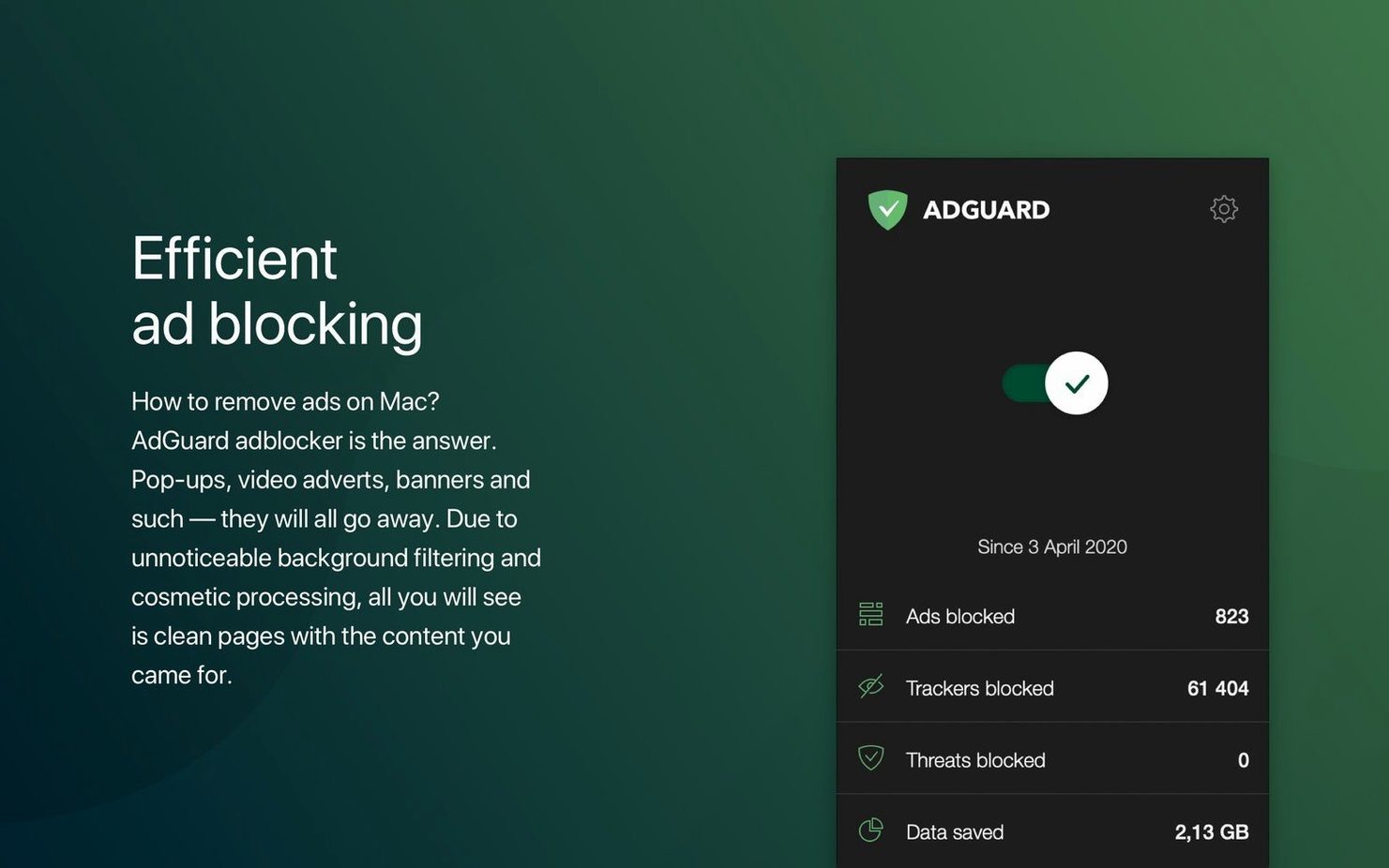
AdGuard is for anyone tired of ads, trackers, and phishing attempts following them around the web. If you’re a newcomer, here are the first things to try after you get it running.
Blocks ads in every browser without extensions
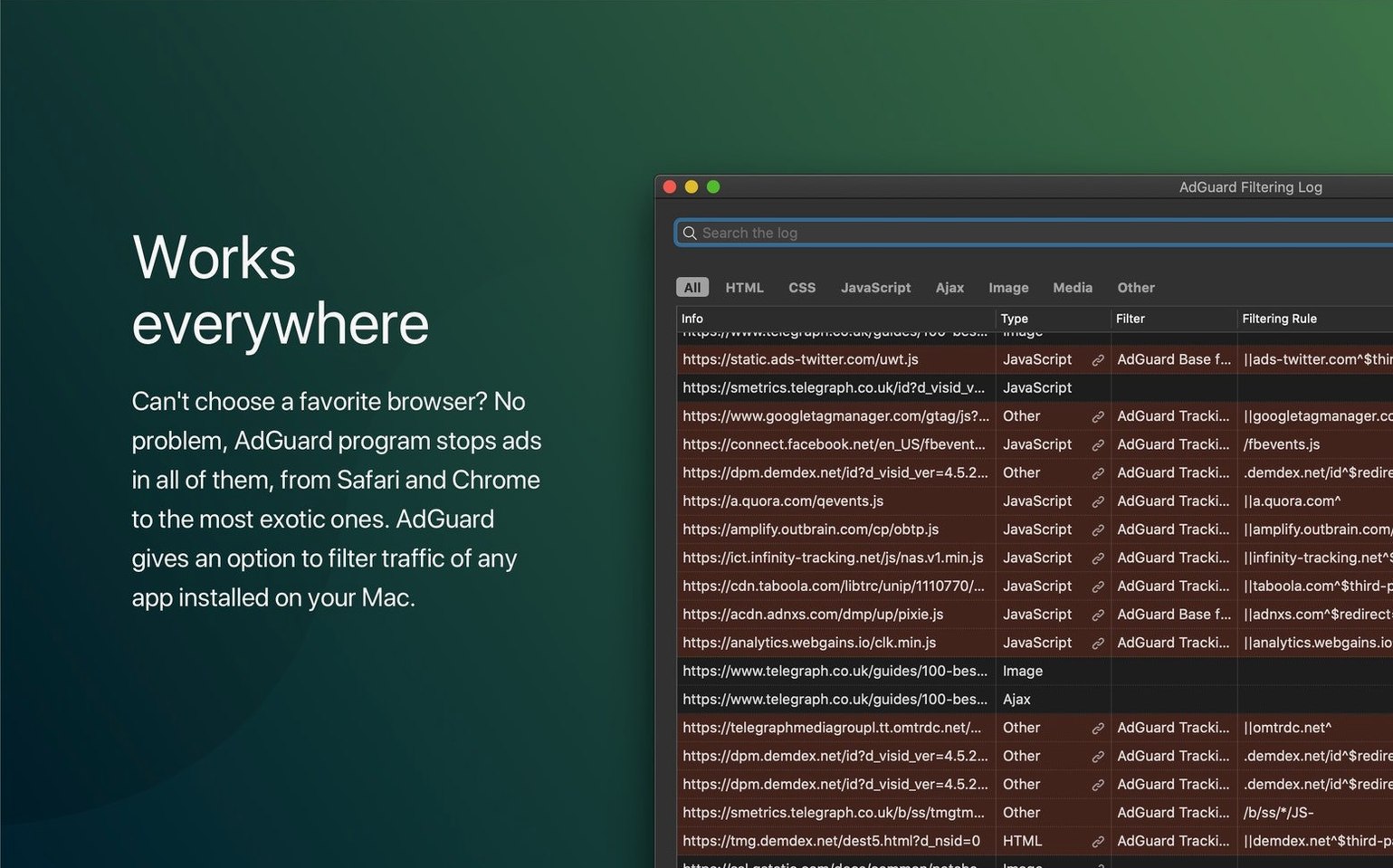
- System-wide ad blocking. Works in every browser — Safari, Chrome, Firefox, all of them. No extensions needed.
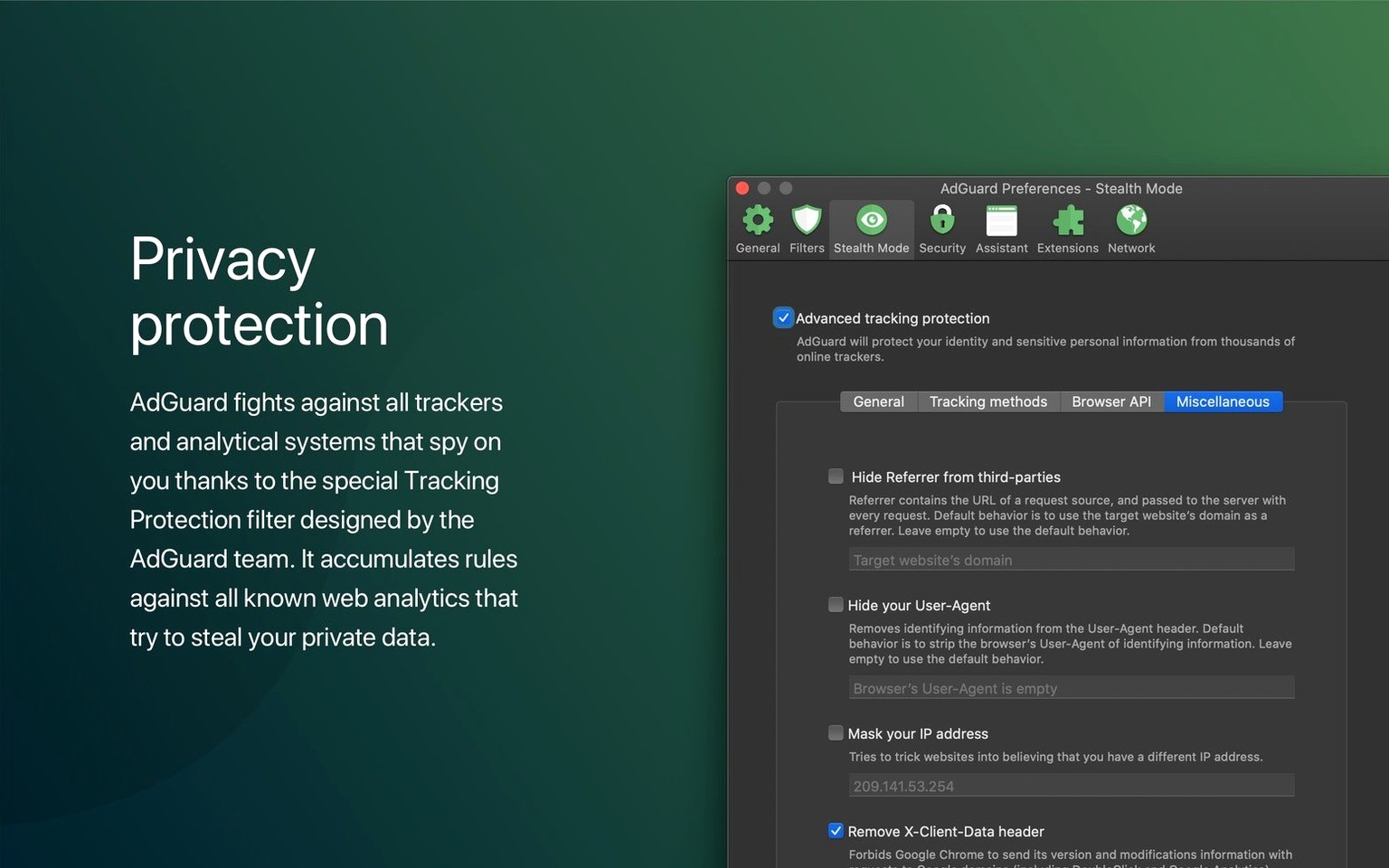
- Anti-tracking and spyware protection. It hides your data from analytics systems and blocks known spyware domains.
- Manual element blocking. If something slips through, you can block it by selecting it on the page.
- Dark mode. Matches your system appearance automatically.
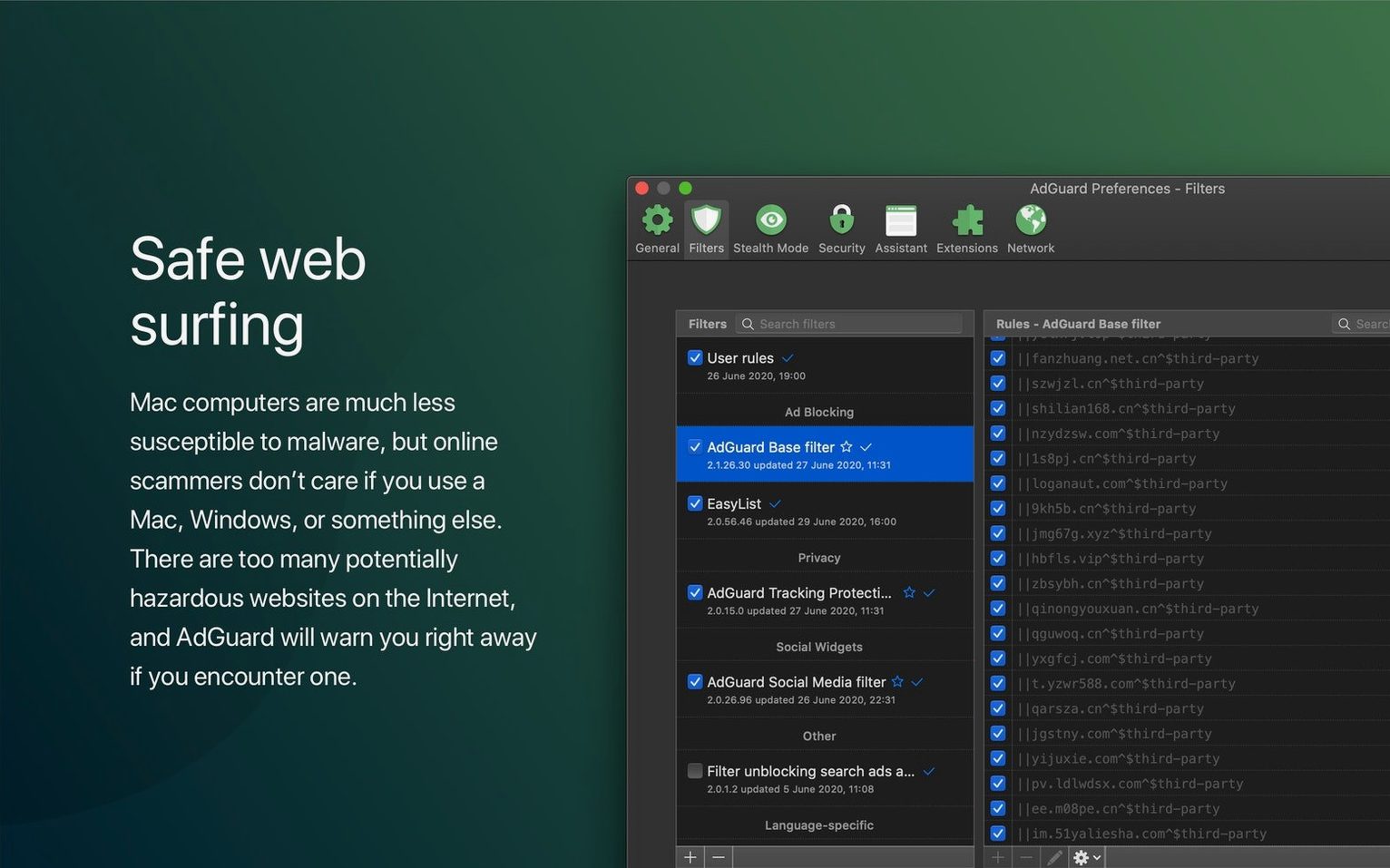
- Phishing and fraud filtering. One more layer before you click something suspicious.
Runs on macOS 10.15 or later, Intel and Apple Silicon
- It runs on macOS 10.15 (Catalina) or later, both Intel and Apple Silicon.
- Over 40 interface languages are included, so it feels native in most regions.
- Version 2.18 adds support for three AI-powered browsers and brings general stability improvements.
- After installation, you’ll need to follow the included activation steps.
Fix: enable the network extension if nothing is blocked
Most people get AdGuard running without trouble, but a few things can trip you up. Here is what I see most often.
- Nothing is blocked after installation. This usually means the network extension hasn’t been enabled. Open AdGuard, go to its preferences and make sure the filtering is switched on. You might also need to restart your browser once.
- Some ads still show. A few websites try to bypass blockers. Try the manual blocking tool: pick the ad you still see and remove it. If it keeps coming back, add the site’s domain to the user filter list.
- Browsing feels slower. That can happen if the filter lists are too heavy. Switch to a leaner set — AdGuard’s default list is usually fine, but you can experiment with fewer active filters in the settings.
- VPN or proxy conflicts. If you use another app that filters network traffic, they might interfere. Either add AdGuard to that app’s exceptions or disable one of them while you browse.
- Activation doesn’t work. Make sure you follow the activation steps exactly as they are in the included instructions. A common mistake is skipping a step or mistyping a key.
If you still get stuck, try restarting your Mac. That clears most extension-related hiccups.
Best for people who use multiple browsers
AdGuard suits a wide range of Mac users, but some get more from it than others.
- People who use multiple browsers. Safari, Chrome, Firefox, Edge — AdGuard covers them all in one go. No need to install separate extensions and maintain each one.
- Anyone who installs apps with embedded ads. Some Mac applications show ads or send analytics home. AdGuard filters traffic at the system level, so those get caught too.
- Users who care about privacy. The spyware filter and anti-tracking features hide your data from analytics systems and block known tracking domains. That is hard to get with a single browser extension.
- People who click around a lot. If you tend to open links quickly, the phishing and fraud filter gives you a second check before you land on a dangerous site.
- Those who prefer a unified interface. One app, one settings panel, one log. No toggling between extension dashboards.
Check the filter list for sites you visit daily
These tips help you settle in without overthinking it.
- Check the filter list. By default, AdGuard uses a balanced set. If you notice ads on a site you visit daily, add that site’s language filter or a more aggressive list from the filter catalogue.
- Turn on dark mode. If your system uses a dark appearance, AdGuard matches it automatically. You can also set it manually in preferences.
- Use the manual blocking tool. It is the quickest way to remove a stubborn element. Click the AdGuard icon, pick “block element on this page”, and select the ad or widget you want gone.
- Check the filtering log. It shows what was blocked and what passed through. Handy for spotting false positives or for whitelisting a site that breaks with blocking on.
- Keep an eye on updates. New filter lists and app versions appear regularly. Let AdGuard update itself or check manually every couple of weeks.
Switch the interface to one of 40+ languages
AdGuard has a few quiet touches that are not obvious at first.
- Interface language selection. With over 40 languages available, you can switch to your native tongue even if the installer used English. That makes the settings and logs easier to read.
- Spyware filter runs in the background. You do not need to do anything — it just blocks known spyware domains as you browse.
- Website scanning for dangerous activity. Before a page loads, AdGuard checks it against its threat database. If something looks off, you get a warning.
- It works with all browsers, including AI-powered ones. Version 2.18 added support for three newer browsers that use AI features. You are covered even if you experiment with the latest tools.
- Package includes activation instructions. The download comes with clear steps, so you are not left guessing after the first launch.
These are the details that make AdGuard feel finished rather than rushed. They add up over time.
- Support for three AI-powered browsers.
- Updated system requirements.
- Improved stability.
- macOS 10.15 or later
- Apple Silicon or Intel 64-bit Mac
Kit check at a glance
| System | macOS 10.15 or later |
| Chip | Apple Silicon, Intel 64-bit |
| Download | 3 MB |
| Older pressings | 1 in the crate |



Chat from the booth
Sign in or grab a free account to leave a comment.
Nobody has said a word in the booth yet. If you played a set with this build, tell the next person how it went.