

- Build in the crate
- 3.1.0
- Made by the team at
- HitPaw
- Menu languages offered
- Russian, English, German, Arabic, Indonesian, Spanish, Italian, Chinese (Traditional), Chinese (Simplified), Korean, Dutch, Portuguese, Thai, Turkish, French, Hindi, Japanese
- How you pay for it
- K'ed by TNT team
- macOS it plays on
- macOS 10.15 or later
- CPU it runs on
- Intel 64-bit
Screenshots
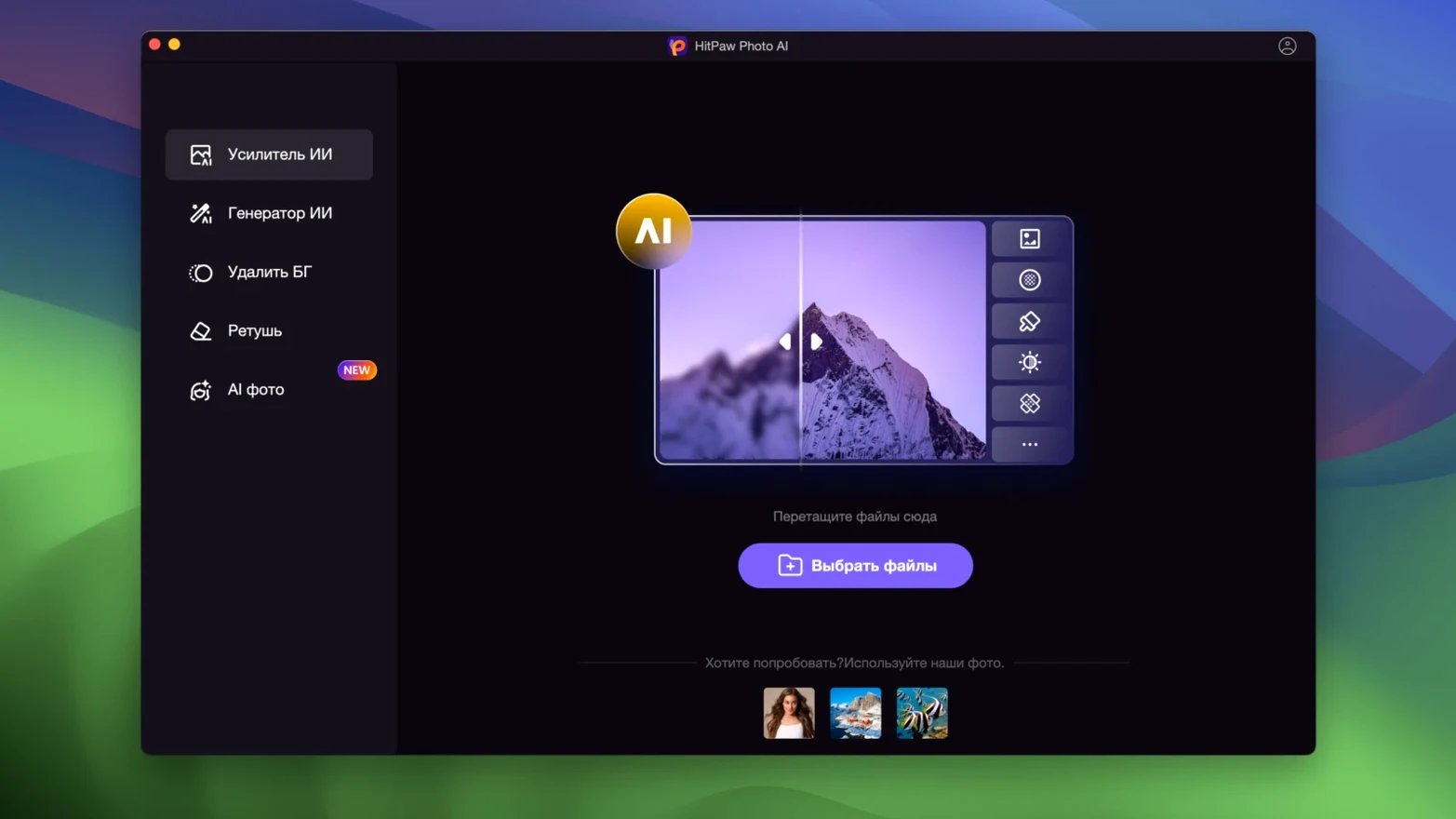
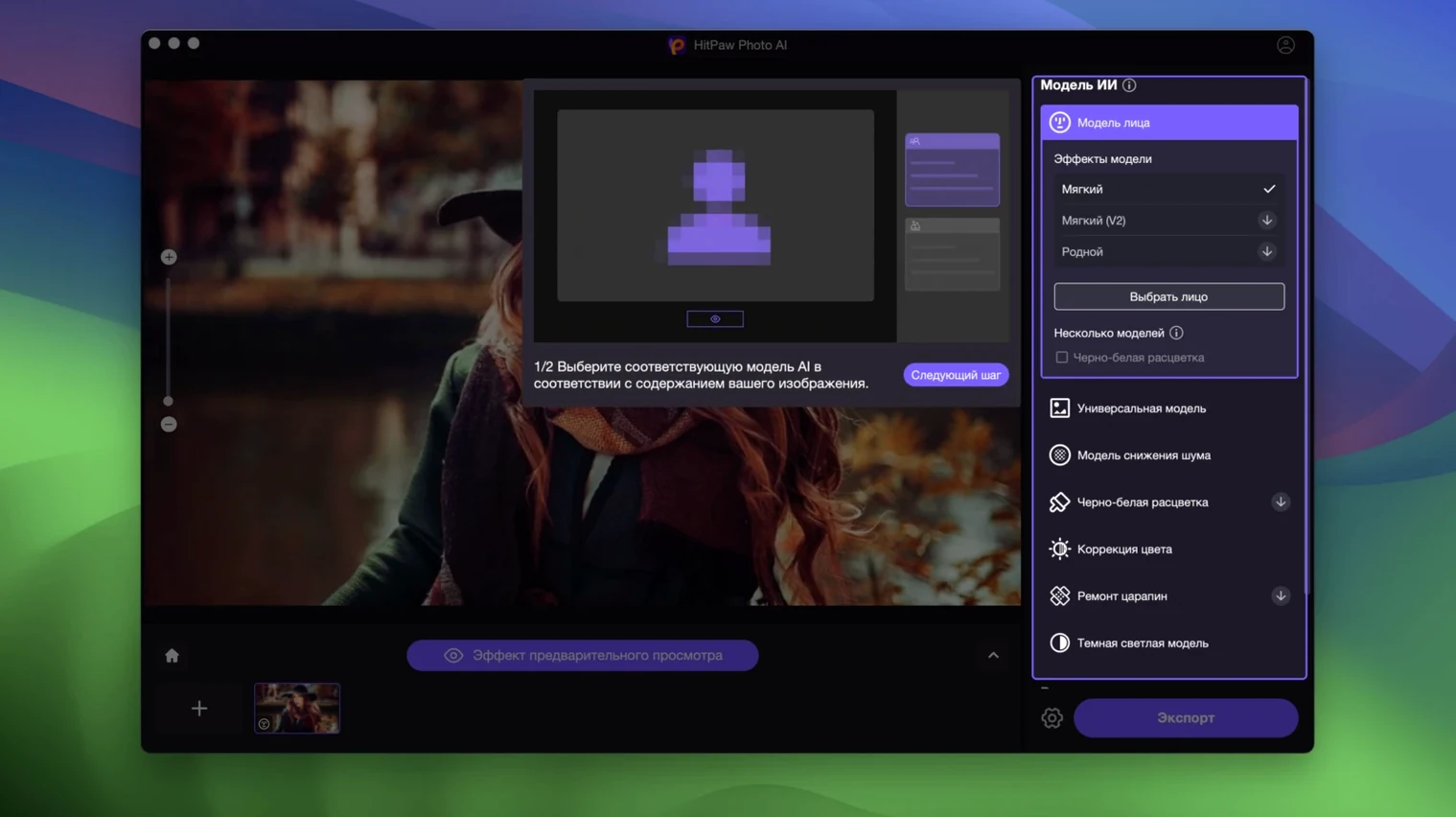
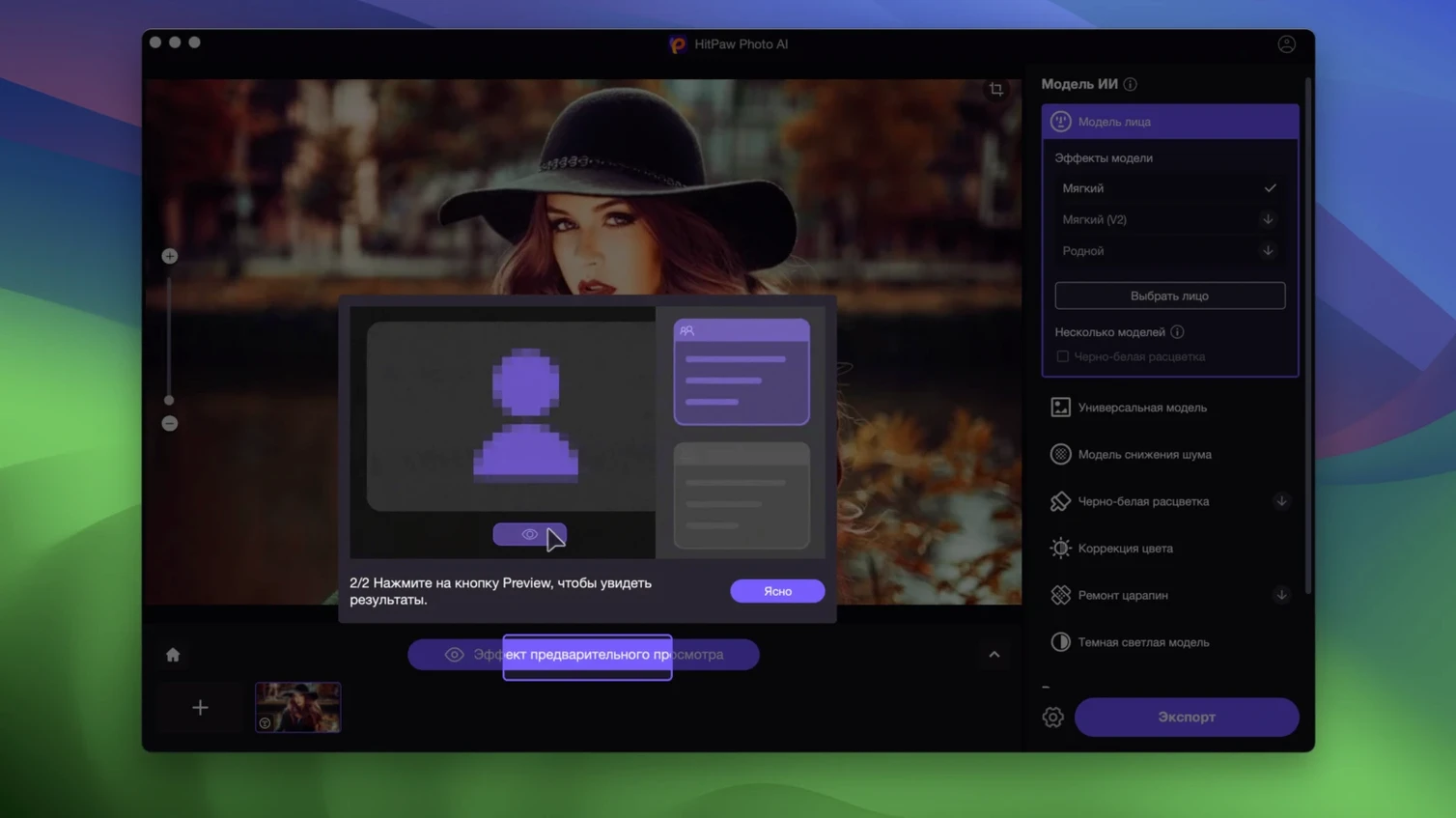
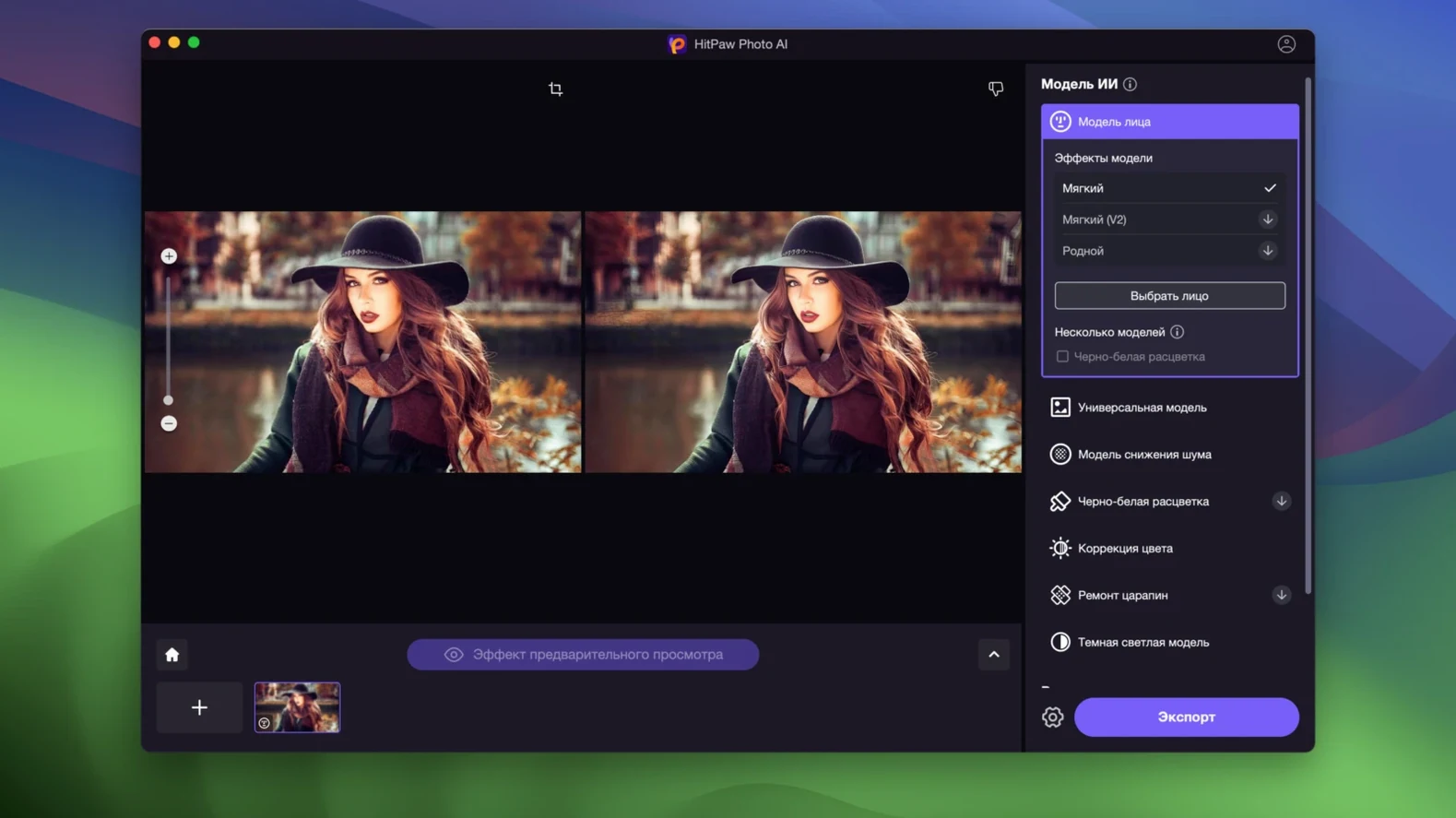
Photographers, graphic designers, and anyone working with low-resolution or noisy images can get a lot out of HitPaw Photo AI on Mac. The current version 3.1.0 keeps the core set of tools that made it useful: four AI models handle sharpening, resolution upscaling, denoising for high-ISO and low-light shots, and de-pixelation. One model is dedicated to face enhancement, which can remove blemishes and wrinkles. It also handles anime photos well.
The software supports macOS 10.15 and later, though it runs on Intel Macs only at the moment. Interface languages cover English, German, French, Spanish, Italian, Russian, Arabic, Indonesian, Korean, Dutch, Portuguese, Thai, Turkish, Hindi, Japanese, and both Simplified and Traditional Chinese.
Upscaling works without visible quality loss, and the de-pixelation feature cleans up blocky images that came from low-resolution sources. Nothing in version 3.1.0 changes the feature set — it is the same reliable app for getting cleaner, larger photos out of messy originals.
keep your desktop from filling up
Before you drop your first photo in, it is worth opening the app preferences and making a couple of tweaks. The default output folder is usually the desktop, which fills up fast if you are batch-processing a set of old family scans. Switch it to a dedicated project folder instead. If you work with lots of images at once, check the auto-save option — it keeps you from losing results if something interrupts the batch. The language selector is easy to miss but useful if you prefer one of the seventeen included languages over the default English.
The AI model picker is the main decision point. For general scenes like landscapes or buildings, the general model does the job. For portraits, switch to the face model first — it handles blemishes and wrinkles in a single pass. If you are processing a mix, it is faster to sort images by type before you start than to switch models mid-batch.
using face model on a faceless photo
The most common slip is running the face model on a photo that does not contain a face. It still processes the image but the result looks flat, because the model is tuned for skin tones and facial details, not for textures or fabric. Similarly, using the general model on a noisy low-light shot tends to sharpen the noise instead of removing it — the denoising model exists for exactly that situation.
Another mistake is overscaling. The app can upscale without quality loss, but pushing a very small image to four times its original size rarely improves the visible detail. A 2× upscale followed by a second pass with the sharpen model usually looks better than one giant jump. Beginners also forget to preview the result before exporting — the side-by-side view catches artefacts that are easy to miss at full zoom.
faster launch and simpler model selection than Topaz
For a one-off job, opening Photoshop just to upscale a single photo feels like overkill. HitPaw is quicker to launch and the model selection is more obvious.
Compared with Topaz Photo AI, HitPaw covers similar ground — upscaling, denoising, face enhancement — but the interface is simpler and the old photo restoration model is a separate tool rather than a side feature. Topaz offers more granular control over each model, which advanced users might want, but HitPaw gets you a usable result with fewer clicks. For users restoring old photos or removing blur quickly, HitPaw Photo AI on Mac is a solid middle ground between a full editor and a basic filter.
- macOS 10.15 or later
- Intel processor
Kit check at a glance
| System | macOS 10.15 or later |
| Chip | Intel 64-bit |
| Download | 824 MB |







Chat from the booth
Sign in or grab a free account to leave a comment.
Nobody has said a word in the booth yet. If you played a set with this build, tell the next person how it went.