

- Build in the crate
- 9.0.5-8654
- Made by the team at
- Noise Industries
- Menu languages offered
- English
- How you pay for it
- Included
- macOS it plays on
- macOS 12.6 or later
- CPU it runs on
- Apple Silicon, Intel 64-bit
Screenshots
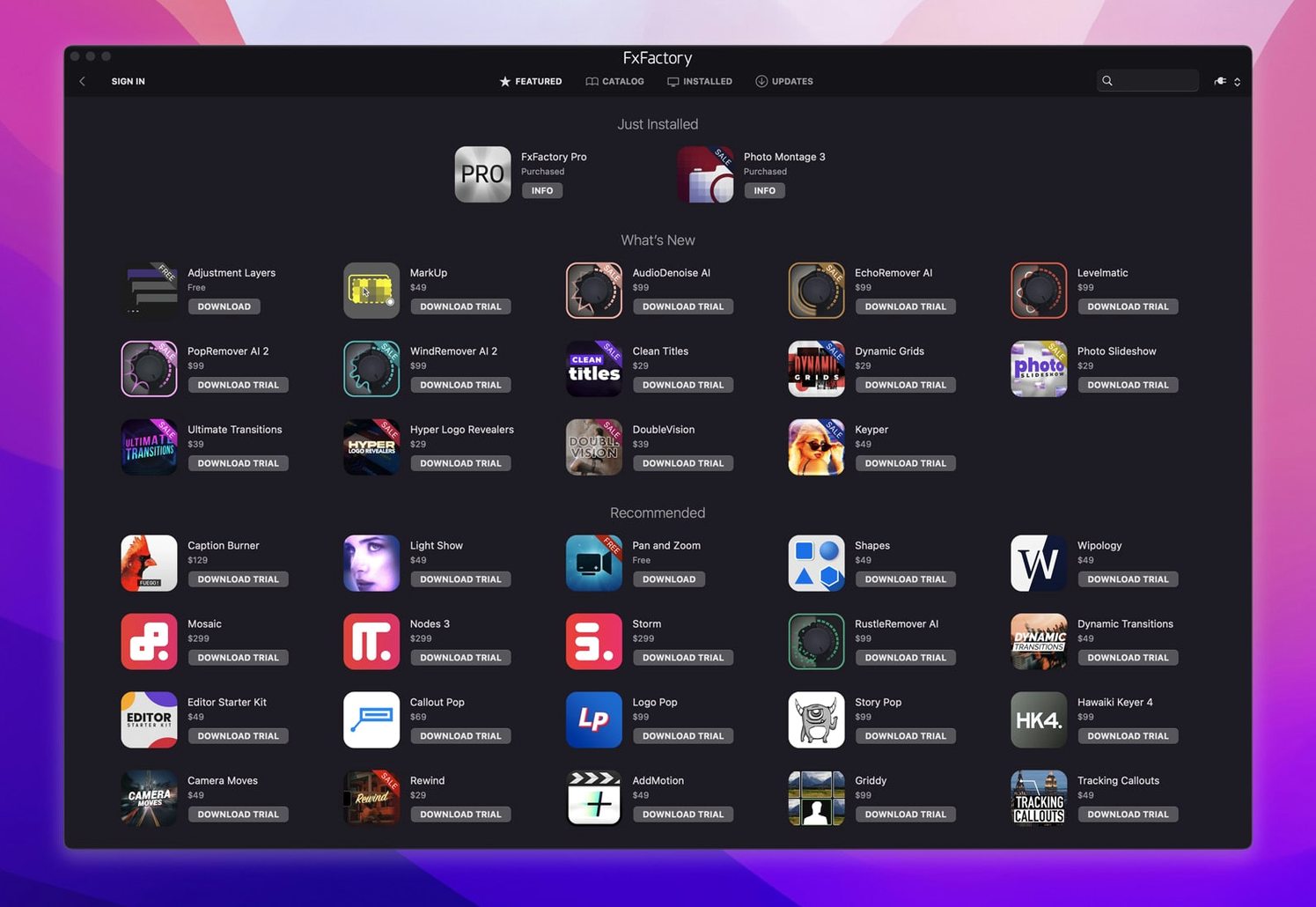
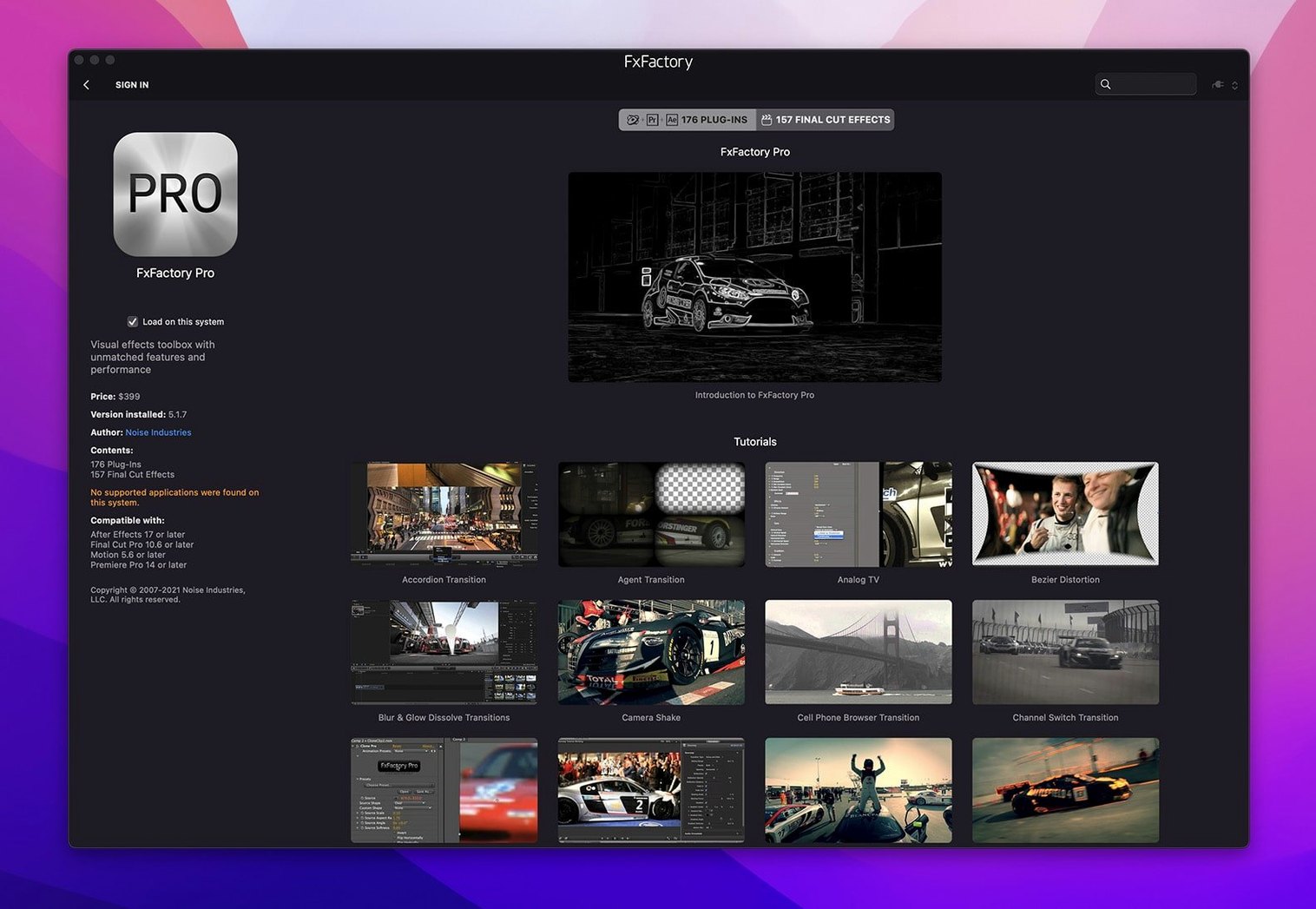
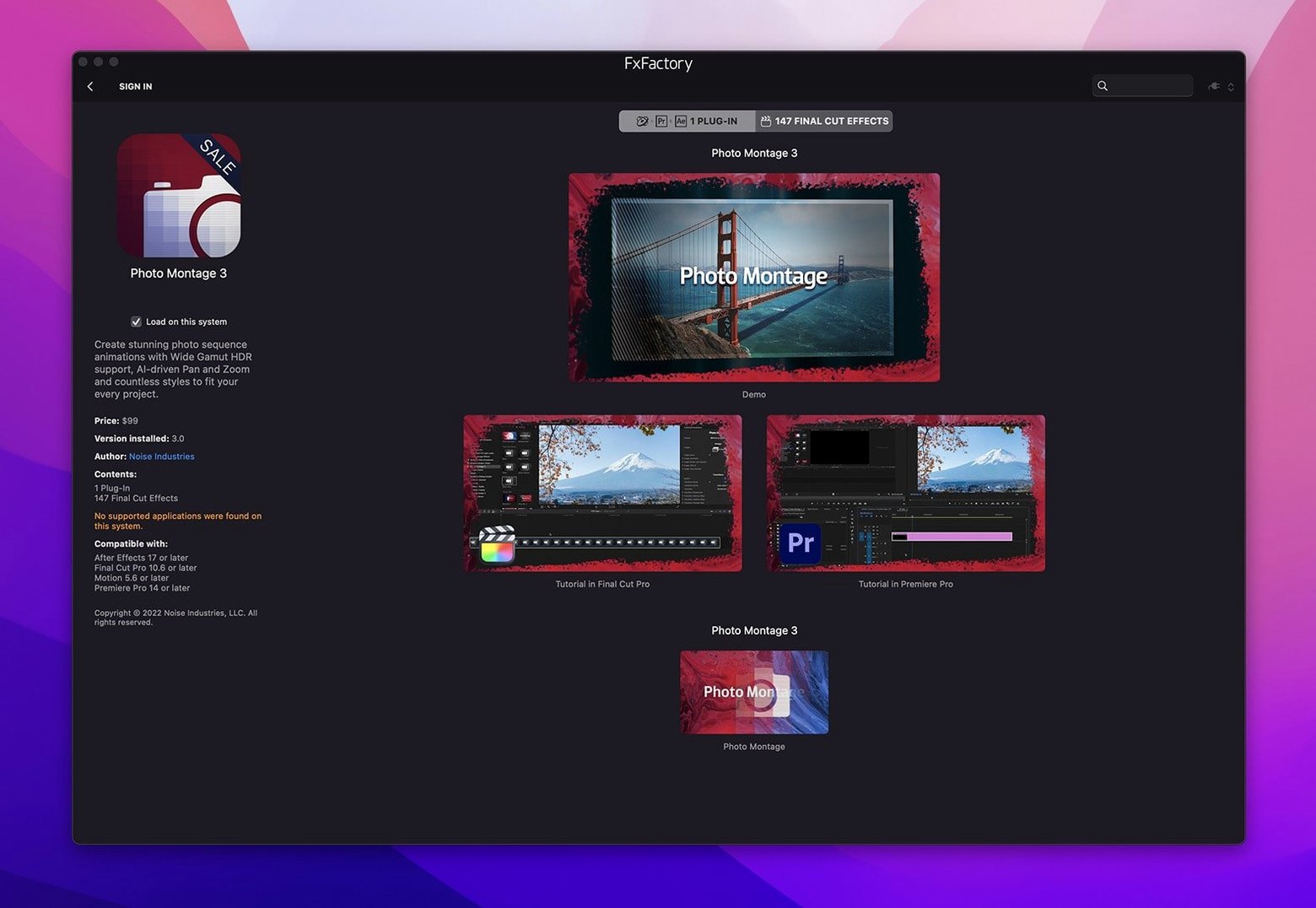
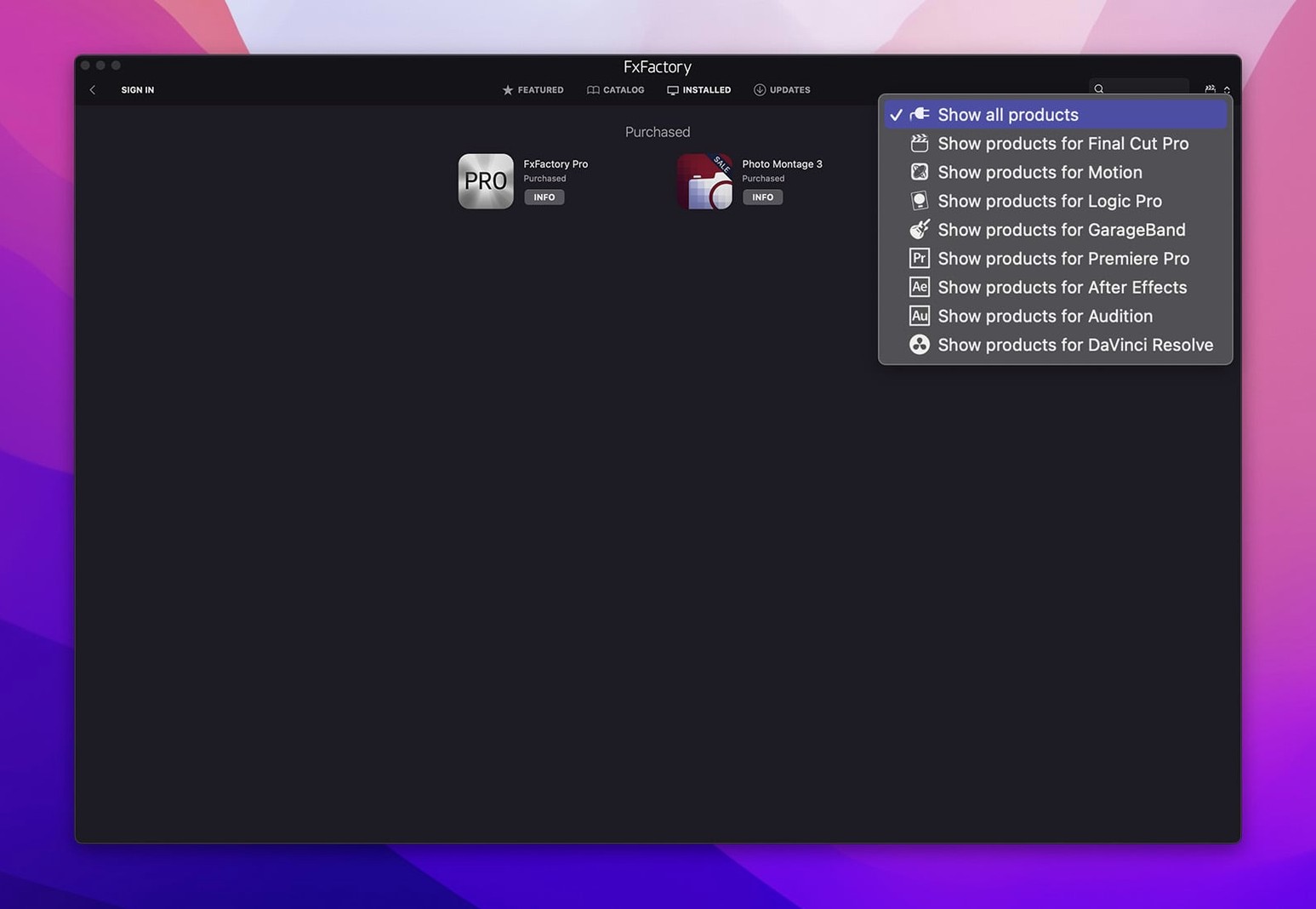
Start with the FxBrowser. It's the first thing you see, and it's where FxFactory Pro earns its keep as a plugin manager. You get a clean list of every effect installed on your Mac, so you can see what you own without digging through folders.
- Browse and preview – flip through effects with real-time previews, so you know what you're getting before you drop it on a clip.
- Apply to a project – connect any plugin directly to your host app, apply it to content, and render right from the timeline.
- FxFactory Pro's no-code tools – build simple visual effects without writing a line of code. Great if you're new to motion graphics.
- Manage installed plugins – enable, disable, or remove effects from one place. Keeps your host app from getting cluttered.
- 16-bit and 32-bit processing – the Pro Pack plugins handle higher bit depths, which matters when you're grading or compositing.
a day-one workflow for a quick colour look
Here's a task I do the first time I open FxFactory Pro in a new project: build a consistent colour treatment without leaving the timeline. It shows you how the plugin manager and the host app talk to each other.
- Open FxBrowser in FxFactory Pro. Filter by category – I usually start with "Color & Tone" so I don't scroll through everything.
- Preview a few options. Click any effect to see it update in the preview pane. I look for something that adds contrast without crushing the shadows.
- Apply to a clip in Final Cut Pro or Premiere. The effect lands on the selected clip with default settings.
- Adjust in the host. Open the effect controls in your NLE. Most FxFactory Pro plugins expose sliders for intensity, colour balance, and falloff – tweak those to match the scene.
- Copy and paste the effect to other clips. In Final Cut Pro, Command-C / Command-V works. In Premiere, copy the effect from the Effect Controls panel and paste it onto other clips in the timeline.
- Save a preset if you want to reuse the look later. Some plugins let you store presets directly in the FxFactory interface; others rely on the host app's preset system.
That's the whole thing. You never had to open a separate compositing app or write an expression.
Adjust plugin cache after adding effects
Before you start stacking effects, take two minutes to adjust a few defaults. They save time later.
- Check the plugin cache. FxFactory Pro scans your system for installed effects on launch. If you've added or removed plugins recently, force a refresh from the preferences panel. It keeps the browser accurate.
- Set the preview quality. If you're on a laptop or an older Mac, lower the preview resolution inside FxBrowser. The effects will still render at full quality in your timeline, but the previews will feel snappier.
- Organise by folder. The browser can group effects by category or by developer. I prefer "by category" when I'm exploring and "by developer" when I know which pack I own.
- Disable what you don't use. If you have dozens of plugins installed, uncheck the ones you never touch. They stay on your Mac but won't clutter the browser or slow down the host app's launch.
a real-world scenario: colourist switching from After Effects
Marina works as a freelance colourist. She used to build her looks in After Effects, render them out, and re-import into the edit. That workflow ate hours. A colleague showed her FxFactory Pro as a plugin manager that puts effects directly inside DaVinci Resolve.
Now she opens Resolve, goes to the OpenFX panel, and finds her FxFactory Pro effects right there. She applies a film grain plugin from the Pro Pack, adjusts the strength in Resolve's inspector, and sees the change in real time on her reference monitor. No rendering, no round-tripping.
For her, the game was being able to use 16-bit processing inside a colour-managed project without leaving the grading suite.
- Browse before you buy. The built-in browser shows free products alongside commercial ones. Use those to learn how the plugin manager works before you commit to a paid pack.
- Stack sparingly. It's tempting to throw five effects on one clip. But each plugin adds processing time. Start with one or two, render a preview, then add more if the look needs it.
- Label your favourites. FxFactory Pro lets you mark effects as favourites. Do that for the ten plugins you use most. The favourites filter gets you to them in two clicks.
- Update one at a time. When a new version of FxFactory Pro comes out, don't update all plugins at once. Do one, test it in your host app, then update the rest. It's the safest way to avoid a broken workflow mid-project.
- Keep the host app closed during installation. Install or update plugins with Final Cut, Premiere, or Resolve shut down. The plugin manager registers effects when the host launches; if the host is open, it might not see the new ones until a restart.
That's the core loop: browse, apply, tweak. Once you've got that down, you can start stacking effects and building your own looks.
- FxFactory Pro 9.0.5-8654 is the latest version, installable on both Apple and Intel processors.
- macOS 12.6 or later
- ARM and x86 64-bit architectures
- English interface
Kit check at a glance
| System | macOS 12.6 or later |
| Chip | Apple Silicon, Intel 64-bit |
| Download | 68 MB |
| Older pressings | 32 in the crate |








Chat from the booth
Sign in or grab a free account to leave a comment.
Nobody has said a word in the booth yet. If you played a set with this build, tell the next person how it went.