
- Build in the crate
- 4.2 (4202)
- Made by the team at
- Georg Seifert
- Menu languages offered
- Russian, English, German, Spanish, Italian, Chinese (Traditional), Chinese (Simplified), Korean, Portuguese, Turkish, French, Czech, Japanese
- How you pay for it
- Not required
- macOS it plays on
- macOS 12 or later
- CPU it runs on
- Apple Silicon, Intel 64-bit
Screenshots
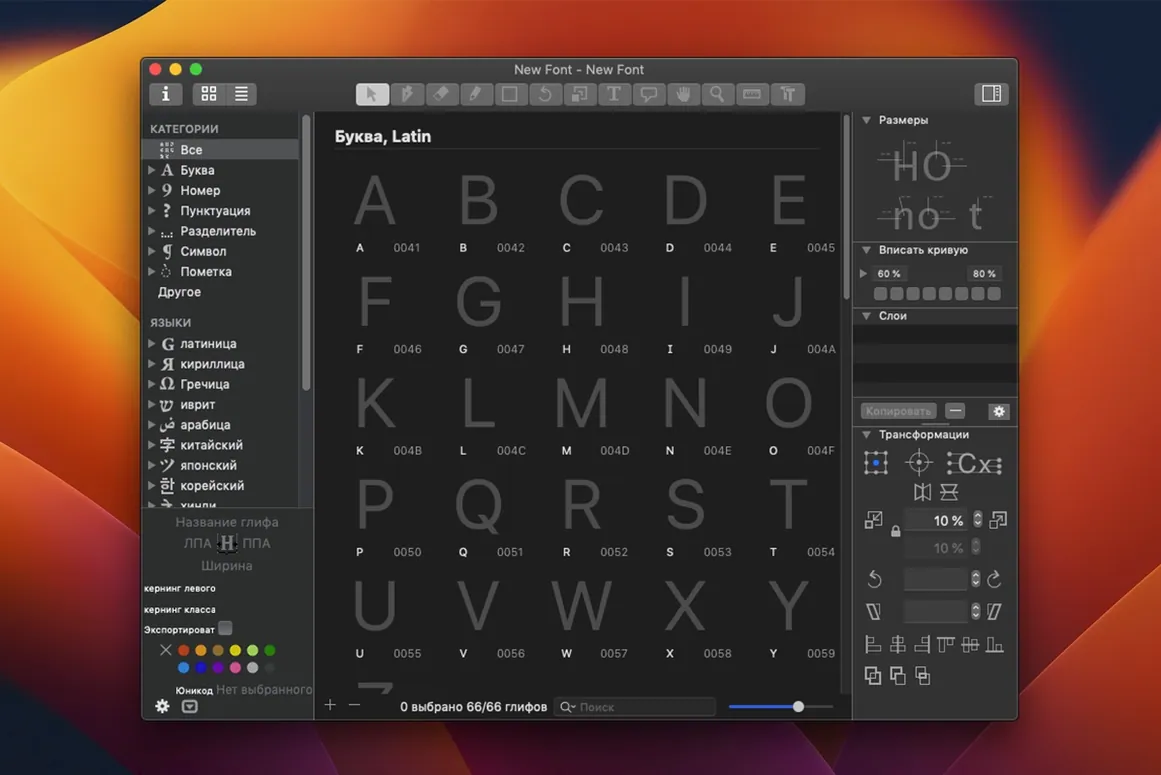
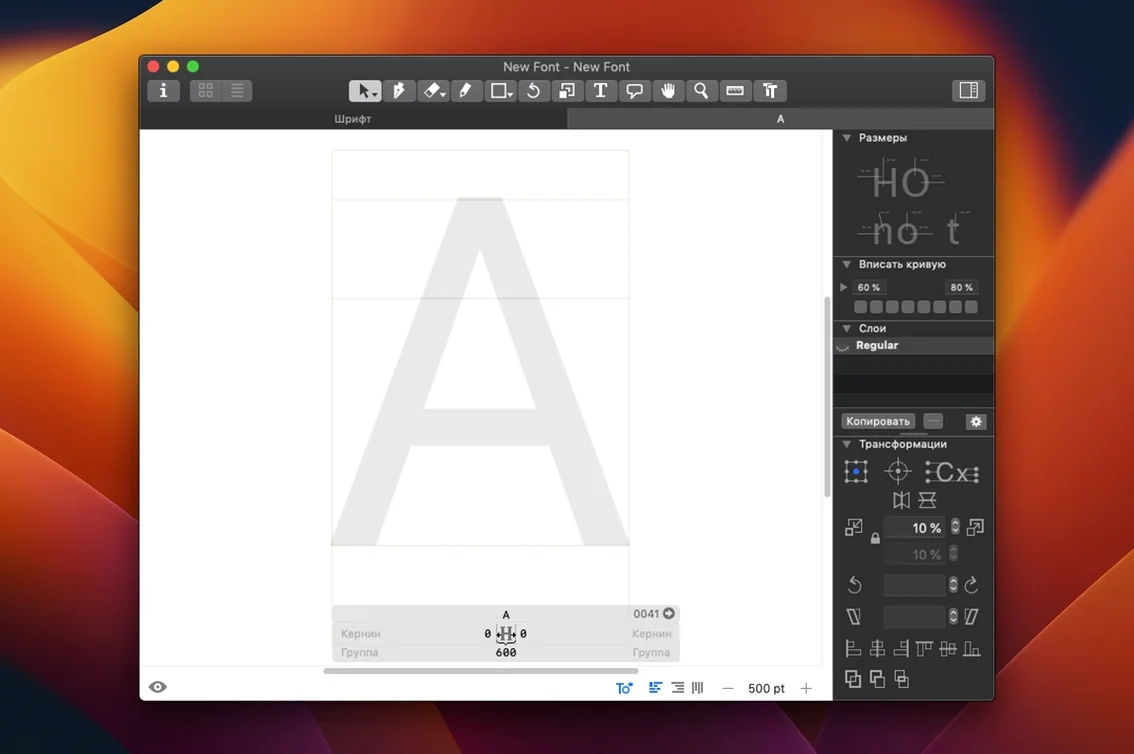
Starting a new font from scratch can feel overwhelming. Glyphs gives you the tools to draw, space, and export type — but knowing where to begin helps.
- Draw your first letter — open a new font, pick a glyph from the sidebar, and use the Pen tool to draw. Start with a simple lowercase ‘n’ to get the hang of nodes and handles.
- Set up sidebearings — after drawing a few letters, open the Metrics tab. Drag the left and right guides to adjust the space around each glyph. This step makes your text look balanced.
- Add kerning pairs — go to the Kerning tab and type ‘AV’. Adjust the space between them. Repeat for common pairs like ‘To’, ‘Va’ and ‘Ly’.
- Preview your font — use Glyphs Viewer (a companion app) to see your type in real time as you work. It updates instantly so you can catch spacing issues early.
- Export a test file — when you have a handful of letters, choose File > Export. Pick OpenType (.otf) or TrueType (.ttf). Install the font on your Mac and test it in a word processor.
How Glyphs stacks up against other Mac font editors
Most type designers on Mac end up comparing a few apps before settling on one. Glyphs sits in a particular spot that’s worth understanding.
Glyphs vs FontLab
FontLab has been around longer and runs on Windows too, which matters if you share files with a PC-based collaborator. Its interface carries more menus and panels — powerful, but denser. Glyphs keeps the workspace cleaner by hiding everything you’re not using. The scripting system in Glyphs is Python-based, while FontLab uses its own Python-like language. If you already write Python for other tasks, Glyphs will feel more natural to extend.
Glyphs vs FontForge
FontForge is free and open source, so it’s tempting if you’re on a tight budget. But the interface feels like a relic from the early 2000s — most of the drawing and spacing work is done through dialog boxes rather than direct manipulation. Glyphs gives you a modern, gesture-driven workspace where you drag nodes and guides. FontForge also struggles with variable fonts and some OpenType features that Glyphs handles natively.
Glyphs vs RoboFont
RoboFont is built for people who want to script everything. Its interface is minimal to the point of being bare — you’re expected to write Python code for most operations. Glyphs offers a middle ground: you can draw and kern by hand, but you can also automate repetitive tasks with scripts. If you’re a designer first and a coder second, Glyphs is the more immediate choice.
Learn the glyph sidebar first
Getting Glyphs installed is straightforward — open the disk image, drag the app to Applications, and launch it from Launchpad. Once it’s running, a few habits will make the early sessions more productive.
- Learn the glyph sidebar first — the panel on the left shows every character in your font. Right-click any glyph to see its code point and alternate shapes. Spending ten minutes clicking through this sidebar teaches you how the font is structured.
- Use preview mode early — after drawing just three or four letters, switch to the Preview panel. Type a short word like “onion” or “valley” to see how your glyphs sit next to each other. Kerning problems become obvious fast.
- Keep the Export menu handy — export a test font after every session, even if it’s just a handful of letters. Install it on your Mac and open it in a word processor or design app. That real-world test catches issues that the Glyphs preview might hide.
- Version 4.1.1 (4108) is the current build as of September 2026, so you’re on the latest.
Common pre-install questions
Can I edit an existing font, or only create new ones?
Both. Glyphs opens any OpenType or TrueType font and lets you modify individual glyphs, adjust metrics, add new characters, and export the result. This is useful if you’re fixing a spacing issue in a client’s font or extending a typeface with new glyphs.
Runs on Apple Silicon Macs
Yes. The current build supports both ARM (Apple Silicon) and 64-bit x86 Intel Macs. It requires macOS 12 or later, so most machines from 2021 onwards are covered.
No coding needed for core work
No. The core workflow — drawing, spacing, kerning, exporting — is all done through the interface. Scripting is optional and lives behind the Interface module, which you can open when you’re ready to automate repetitive tasks like generating alternate glyphs or batch-applying kerning rules.
Export to OTF, TTF, PNG, SVG, PDF, SFSymbols
Glyphs exports OpenType (.otf), TrueType (.ttf), PNG, SVG, PDF, and SFSymbols. That covers web use, print, and app development.
Is there a way to preview the font without installing it?
Glyphs Viewer is a separate companion app that shows your font in real time as you work. It updates automatically so you can check spacing and glyph alternates without leaving the editor.
These steps get you past the blank canvas. Once you’ve done them once, the rest of the interface starts to make sense.
- Build 4.1.1 (4108) — release notes dated 2026-09-12.
- macOS 12 or later
- Apple Silicon or Intel processor
- Interface languages: Russian, English, German, Spanish, Italian, Traditional Chinese, Simplified Chinese, Korean, Portuguese, Turkish, French, Czech, Japanese
Kit check at a glance
| System | macOS 12 or later |
| Chip | Apple Silicon, Intel 64-bit |
| Download | 35 MB |
| Older pressings | 5 in the crate |




Chat from the booth
Sign in or grab a free account to leave a comment.
Nobody has said a word in the booth yet. If you played a set with this build, tell the next person how it went.