

- Build in the crate
- 4.1.4 fix
- Made by the team at
- CELSYS Inc.
- Menu languages offered
- English, German, Spanish, Chinese (Simplified), Korean, French, Japanese
- How you pay for it
- K'ed by Antibiotics
- macOS it plays on
- macOS 14 or later
- CPU it runs on
- Apple Silicon, Intel 64-bit
Screenshots
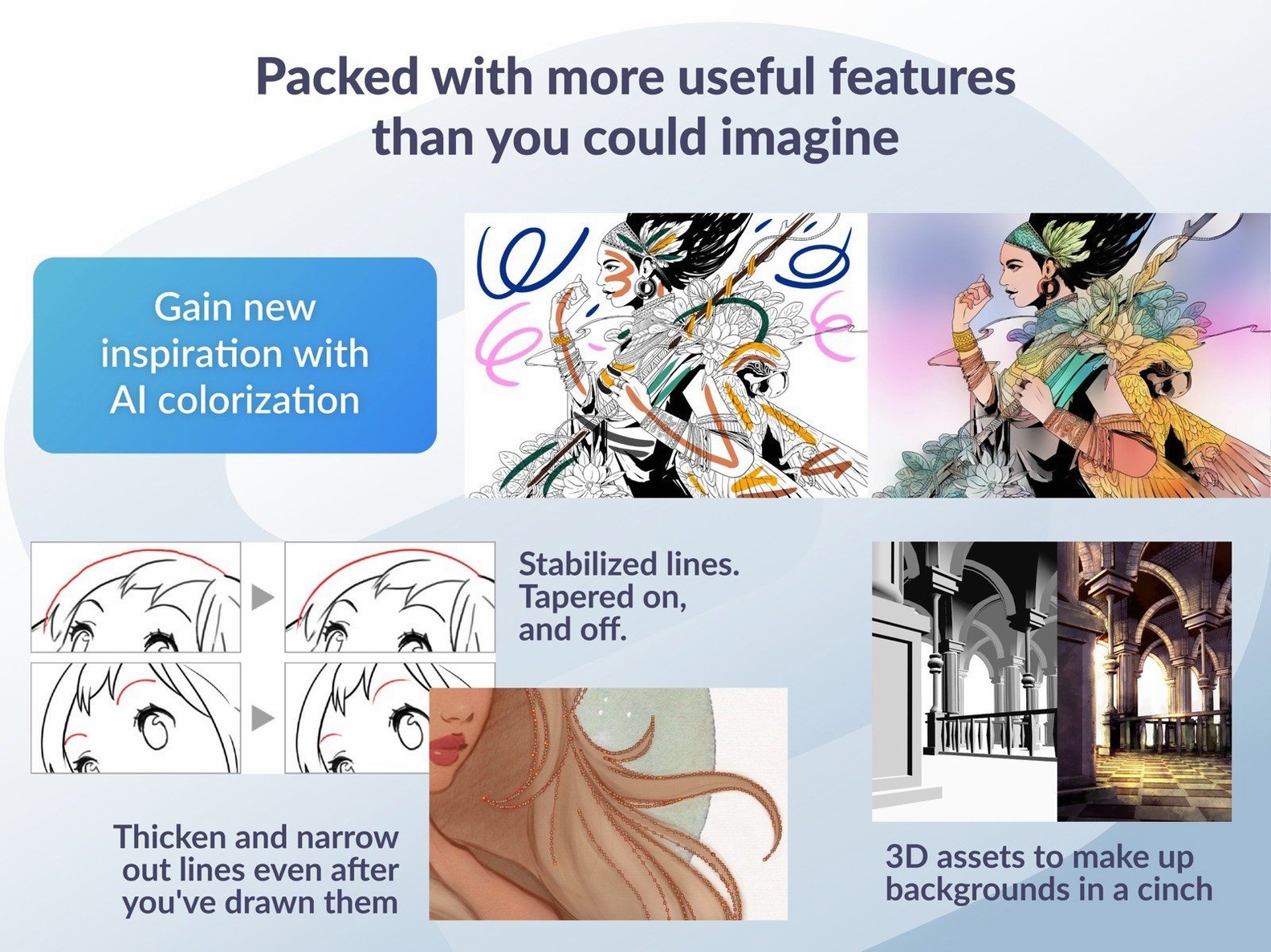
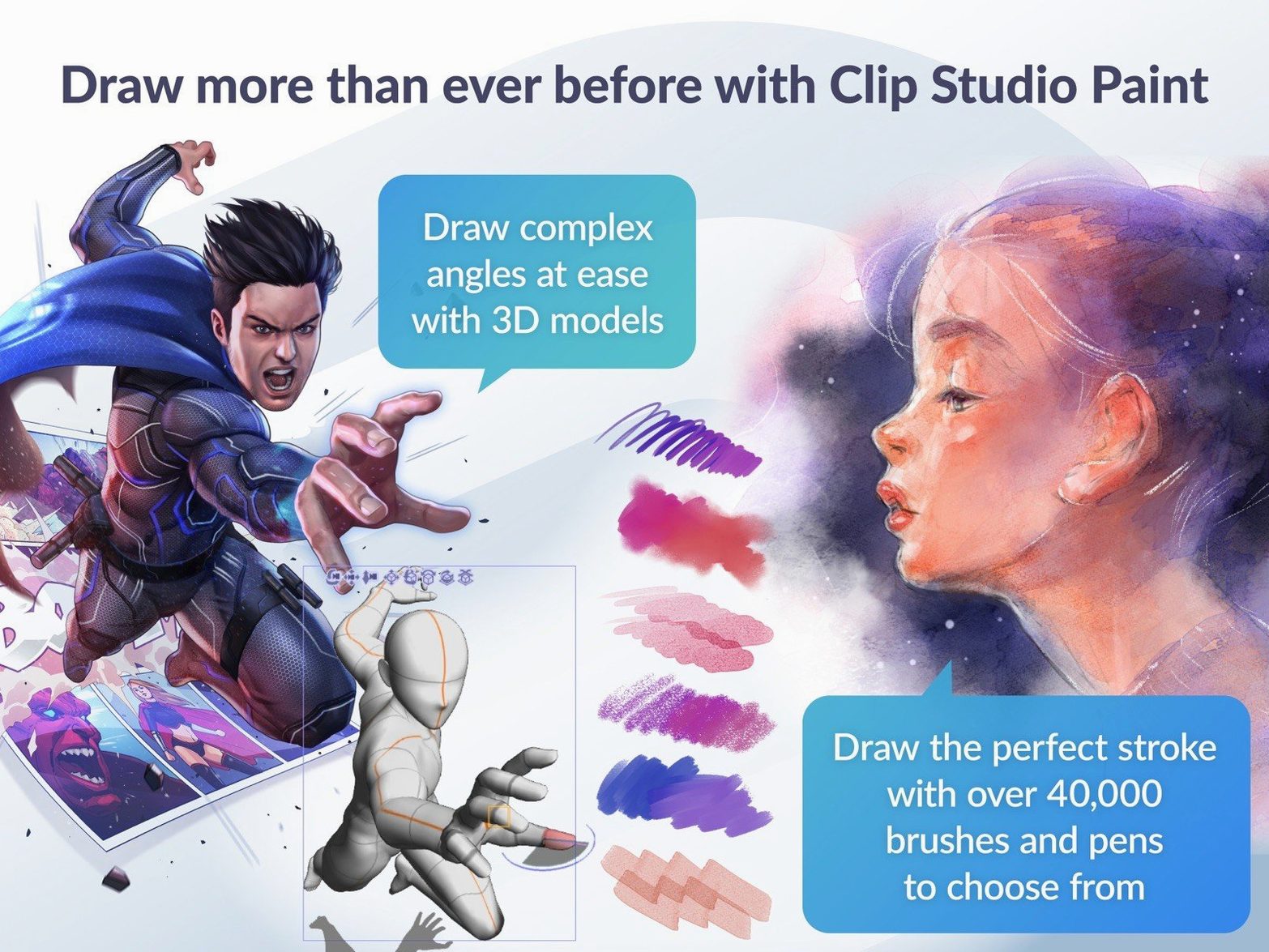
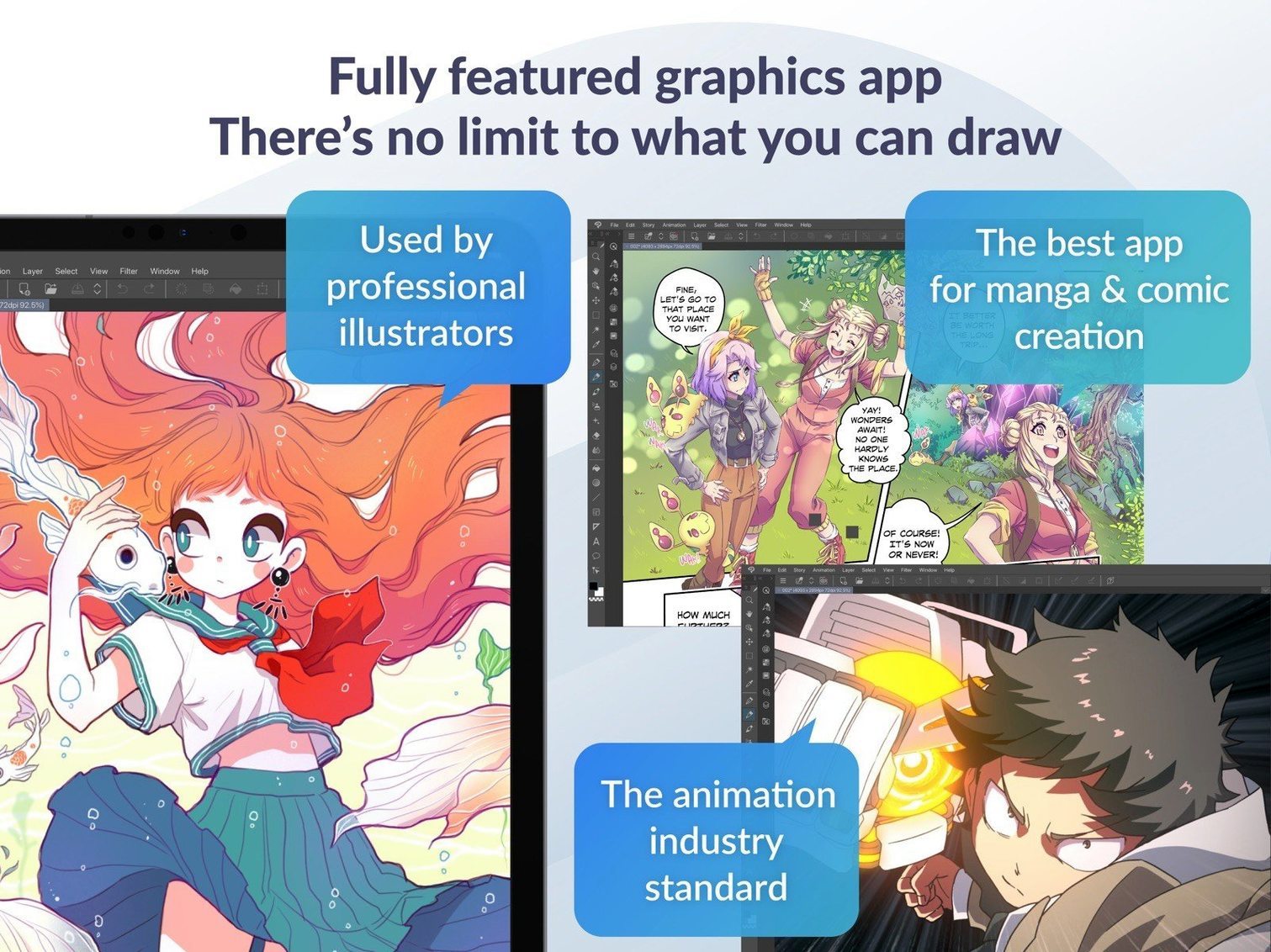
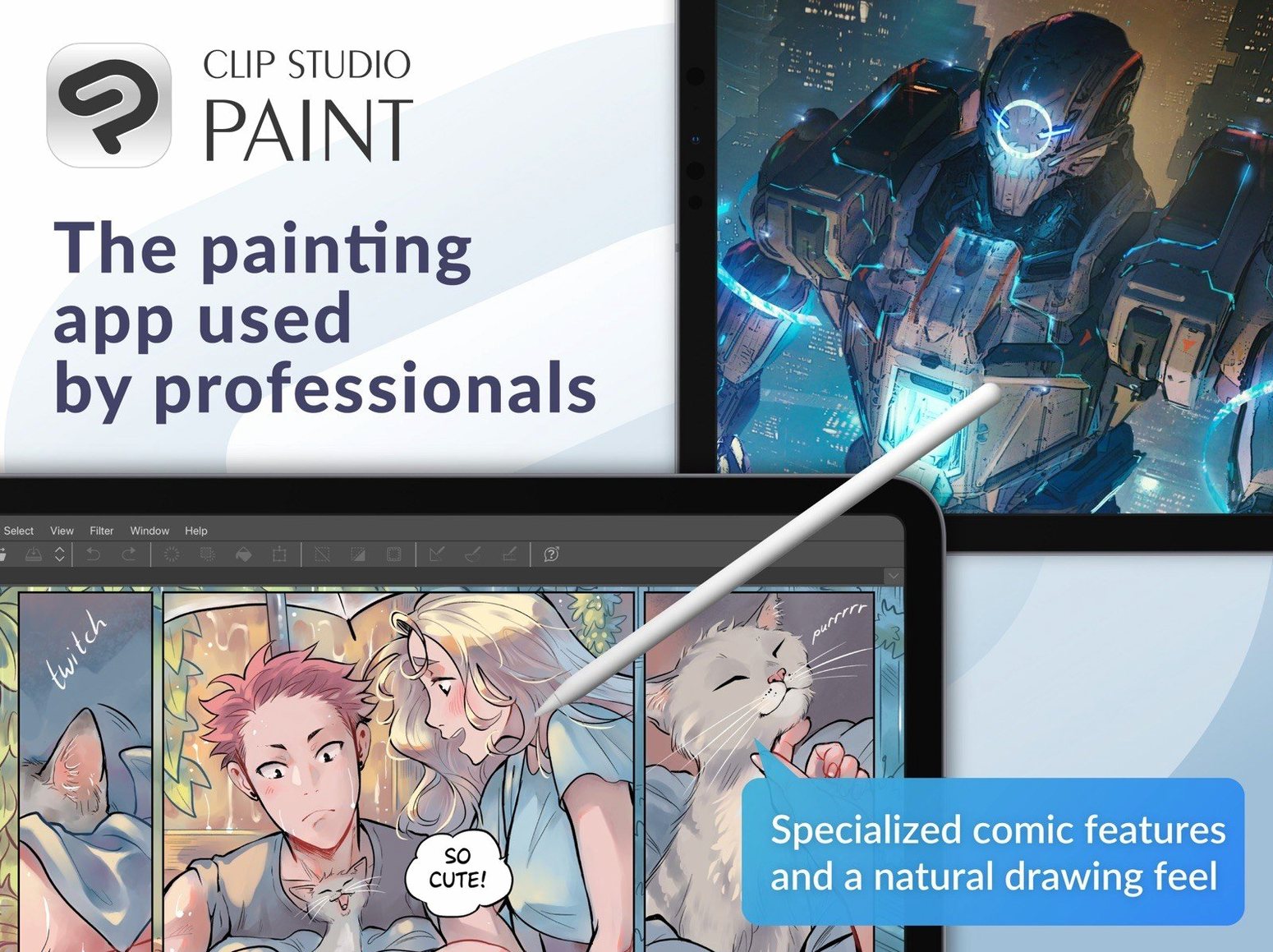
Clip Studio Paint runs on any Mac with macOS 14 or later, whether it’s an Intel model or Apple Silicon. That covers most machines from the last few years, so you can get straight to drawing.
This is the tool for artists who work in comics, manga, or animation. The standout features are the ones that do a specific job well:
Frame-by-frame and manga import
- Frame-by-frame animation — onion skin display shows the previous frames faintly behind your current one, which makes timing and motion much easier to judge.
- Comics and manga — import old Manga Studio 4 EX and 4 Debut files if you’re moving over from an older tool.
- Exporting — drawings and animations leave as sequential images, GIFs, or movie files, so you can post to social media or hand off to an editor.
- Quick previews — Quick Look works better for .clip files on macOS 15, and PSD exports of certain sizes now show up correctly in Finder.
8 GB RAM and OpenGL 3.3 needed
- You’ll want 8 GB of memory or more, though 2 GB is the minimum.
- An OpenGL 3.3 compatible GPU is required, and a tablet with pen pressure is supported.
- Some functions need an internet connection, including licence verification.
- Version 4.1.4 fixed a force-close issue when Color mixing was set to Running color, plus some animation cleanup problems.
Setting up a multi-page comic file
I start Clip Studio Paint and pick the EX or PRO edition — that choice happens on first launch and stays unless I reinstall. For a comic page, I create a new file with a multiple-page story layout (EX only) or a single canvas. The interface is clean: tools on the left, layers and colour on the right, timeline at the bottom if I need it.
First, I sketch with a brush tool. The pen tablet picks up pressure straight away — no extra config beyond the usual macOS tablet driver. I rough out panels on one layer, then lower its opacity and draw clean linework on a new layer above. Vector tools help here: I can resize or tweak lines without losing quality, which saves time when a character’s arm is slightly off.
For colour, I add a layer below the linework and fill flats. The layered PSD import and export means I can move files between Clip Studio Paint and Photoshop without flattening everything — handy if the colouring phase involves another app. Once flats are done, I shade on a multiply layer.
If I’m animating a short loop, I switch to the timeline. The light table and onion skin display show the previous and next frames faintly, so I can see if the motion flows. I draw keyframes first, then in-betweens. When the timing feels right, I export as a GIF or a movie file. For a longer sequence, I export sequential images and assemble them elsewhere.
At the end of a session, I save as a .clip file. Quick Look in macOS 15 now previews those files properly, so I can scan my folder without opening each one.
New-user issues and switching from other tools
A few issues come up regularly, especially when you’re new to the app or switching from another tool.
Colour mixing crash
Version 4.1.4 fixed a force-close problem when the Colour mixing setting was on Running color. If you’re on an earlier version and it keeps crashing, update to 4.1.4. If it still happens, check that your GPU driver is up to date — the app needs OpenGL 3.3.
Animation frames not clearing
That was fixed in 4.1.4. If you see leftover frames, make sure you’re on the latest version. If you are and it still happens, try clearing the timeline cache from the animation menu.
PSD exports look wrong in Finder
Exports of certain sizes used to display incorrectly in Finder on macOS 15. Version 4.1.4 fixed that. If your PSDs still look off, check that you’re exporting at a standard resolution — 72 or 300 DPI usually works fine.
Canvas previews showing edge artifacts
Quick Filters and Quick Effects could leave a thin artifact on the canvas preview. Again, 4.1.4 patched this. If you see it, restart the app or toggle the preview off and on.
3D material drag-and-drop
When a 3D layer is selected outside a frame folder, dragging a 3D material onto it now behaves differently in 4.1.4. If you’re used to the old behaviour, test it once to see what happens — it might drop the material into a new layer instead of replacing the existing one.
macOS 14+, Intel and Apple Silicon support
Clip Studio Paint 4.1.4 runs on macOS 14 or later, on both Intel and Apple Silicon Macs. It’s a 64-bit app, so it won’t work on older macOS versions that lack 64-bit support. You need at least 2 GB of memory, but 8 GB or more is recommended — especially if you work with large canvases, multiple layers, or animation timelines.
The GPU must support OpenGL 3.3. Most Macs from 2012 onwards meet this, but if you’re on an older machine, check your graphics specs. A pen tablet with pressure sensitivity is supported, not required. If you use one, it should work out of the box with the standard macOS driver.
An internet connection is needed for some functions, including licence verification. That means the app checks in online periodically. Offline drawing works fine once it’s verified, but you’ll need to connect now and then.
The display language can be set to English, German, Spanish, Simplified Chinese, Korean, French, or Japanese. Version 4.1.4 added Simplified Chinese, so that’s new for this release.
Built for comics and manga, not general illustration
Clip Studio Paint sits in a specific spot: it’s built for comics, manga, and animation, not for general illustration or photo editing. Here’s how it stacks up against a few alternatives.
Clip Studio Paint vs. Krita
Krita is free and open-source, aimed at digital painting and concept art. It has animation tools too, including a timeline and onion skin, but its comic and manga features are lighter. Clip Studio Paint has proper multiple-page story layouts (in EX), specialised screentone tools, and better vector handling for linework. If you mainly paint and don’t need page management, Krita is a strong option. If you produce serialised comics or manga, Clip Studio Paint saves time.
Clip Studio Paint vs. Procreate
It’s excellent for sketching and painting, but it lacks frame-by-frame animation on Mac and has no comic-specific tools like panel rulers or speech bubble guides. Clip Studio Paint offers a full animation timeline, layered PSD export, and 3D figure posing. Procreate is simpler and cheaper, but Clip Studio Paint is more complete for sequential art and animation.
Clip Studio Paint vs. Adobe Photoshop
Photoshop is a generalist: it does painting, photo editing, and basic animation, but it’s not built for comics. Its timeline is limited for frame-by-frame work, and it has no screentone or panel layout tools. Clip Studio Paint handles layered PSD import and export, so you can move files between them, but for pure comic creation, Clip Studio Paint is faster. Photoshop wins for photo retouching and complex compositing, but that’s a different workflow.
- Simplified Chinese added as a display language.
- Quick Look previewing of .clip files improved on macOS 15.
- Fixed a force-close issue with Color mixing set to Running color.
- Fixed leftover cels or keyframes after deleting resized clips or changing frame rate.
- Fixed edge artifacts in canvas previews with Quick Filters and Quick Effects.
- Fixed PSD exports of certain sizes appearing correctly in Finder on macOS 15 or later.
- macOS 14 or later
- Intel or Apple Silicon
- 2 GB memory (8 GB or more recommended)
- OpenGL 3.3 compatible GPU
- Tablet and stylus with pen pressure supported
- Internet connection required for some functions and licence verification
Kit check at a glance
| System | macOS 14 or later |
| Chip | Apple Silicon, Intel 64-bit |
| Download | 403 MB |
| Older pressings | 1 in the crate |








Chat from the booth
Sign in or grab a free account to leave a comment.
Nobody has said a word in the booth yet. If you played a set with this build, tell the next person how it went.