

- Build in the crate
- 3.5.2 fix
- Made by the team at
- Literature & Latte Ltd
- Menu languages offered
- English
- How you pay for it
- K'ed by TNT team
- macOS it plays on
- macOS 10.13 or later
- CPU it runs on
- Apple Silicon, Intel 64-bit
Screenshots
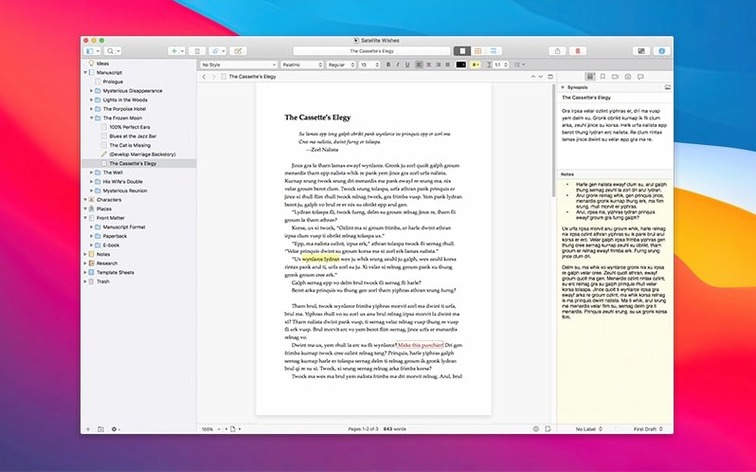
Every writer knows the feeling: notes scattered across folders, research buried in browser tabs, and a manuscript that never quite comes together. Scrivener solves that by putting everything you need inside one project window. Text, PDFs, images, audio, links — you drag them in and they sit alongside your draft, ready when you are.
Start a project, gather your research
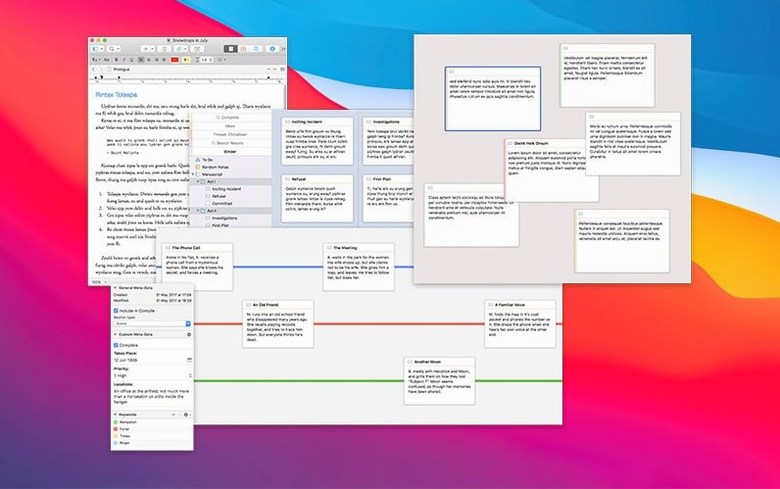
Create a new project and you get a binder with sections for the manuscript and a Research folder. Drop your supporting material there: interview transcripts, reference photos, web clippings. The editor handles plain text and rich formatting, while the corkboard view lets you shuffle scene cards around. Need to try a different ending? Take a snapshot first, so you can always go back.
Organise without losing momentum
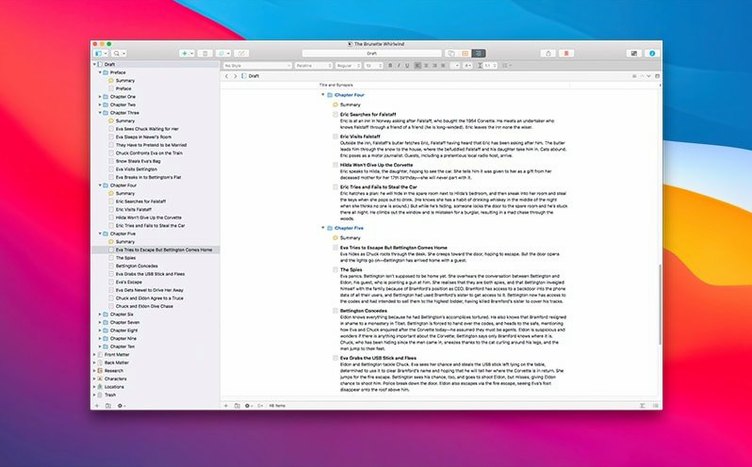
Folders group your chapters or parts; subfolders hold scenes or notes. The outliner shows the whole structure at a glance — word counts, synopses, status labels. You can drag and drop to reorder, and nothing gets lost because the binder keeps everything linked. It’s a word processor that thinks like a project manager, built for the long haul of a big manuscript.
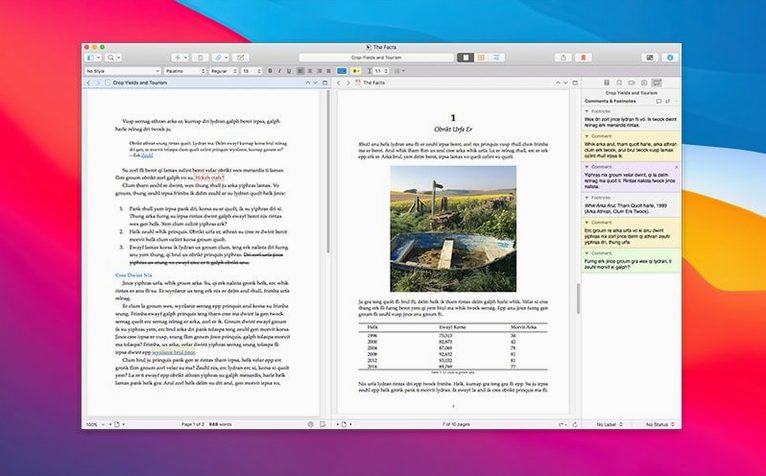
Scrivener makes the most sense for certain kinds of Mac users. Novelists who track multiple plot threads and character arcs will appreciate the binder and corkboard setup — it keeps the whole story visible at once. Academic writers and researchers benefit from the way Scrivener keeps source files alongside the draft; you can open a PDF in the Research folder, take notes in a split pane, and never leave the project. Screenwriters find the dedicated formatting options and scene-based workflow natural for scripts. Journalists working on long features or book-length investigations use the outliner to rearrange sections without cutting and pasting. Even students writing dissertations can organise chapters, store source PDFs and keep bibliographic notes in one place.
Small things that save time
Scrivener's automatic saving runs in the background, so you do not have to remember to press Cmd-S. When you take a snapshot of a document or a fragment, that version stays in the project history — you can compare, restore or delete old snapshots without cluttering the binder. The Research folder accepts text notes, PDFs, audio recordings and images, all viewable inside the app. That means you can listen to an interview recording while you write, or refer to a reference photo without switching to another program.
The outliner shows word counts per section, which helps you track daily or chapter targets. You can also add custom status labels — "first draft", "revised", "final" — and colour-code them. These labels appear in the binder and the corkboard, so you see progress at a glance.
Where your files disappear to
A few things catch people off guard when they start using Scrivener on Mac. The most frequent: new users cannot find their files. Scrivener stores everything inside a single project file that looks like a folder in Finder. If you want to export a plain document, use File > Compile to generate a Word or PDF file. Do not try to drag individual chapters out of the project folder — you will break the internal links.
Another snag: the snapshot feature. Some people take a snapshot and then keep editing, expecting the snapshot to update automatically. It does not. A snapshot is a static backup — take a new one when you want to preserve a later version. Old snapshots stay in the Snapshots pane until you delete them, so you can always roll back.
Third: the Research folder can get messy fast. If you import a dozen PDFs and a handful of images without naming or grouping them, you will waste time hunting later. Create subfolders inside Research early on — "Interview transcripts", "Reference images", "Draft notes" — and Scrivener keeps them organised. You can also colour-label items in the binder to tell sources from drafts.
Finally, people sometimes close the app and wonder why their changes are missing. Scrivener saves automatically, but if you force-quit or the system crashes before the save cycle completes, you could lose a few minutes of work. Let it close normally and you are fine. Snapshot before major edits and you are safer still.
- macOS 10.13 or later
- Intel or Apple Silicon processor
Kit check at a glance
| System | macOS 10.13 or later |
| Chip | Apple Silicon, Intel 64-bit |
| Download | 124 MB |
| Older pressings | 1 in the crate |




Chat from the booth
Sign in or grab a free account to leave a comment.
Nobody has said a word in the booth yet. If you played a set with this build, tell the next person how it went.