

- Build in the crate
- 1.12.1
- Made by the team at
- Autokroma
- Menu languages offered
- English
- How you pay for it
- K'ed by Monter Group
- CPU it runs on
- Apple Silicon, Intel 64-bit
Screenshots
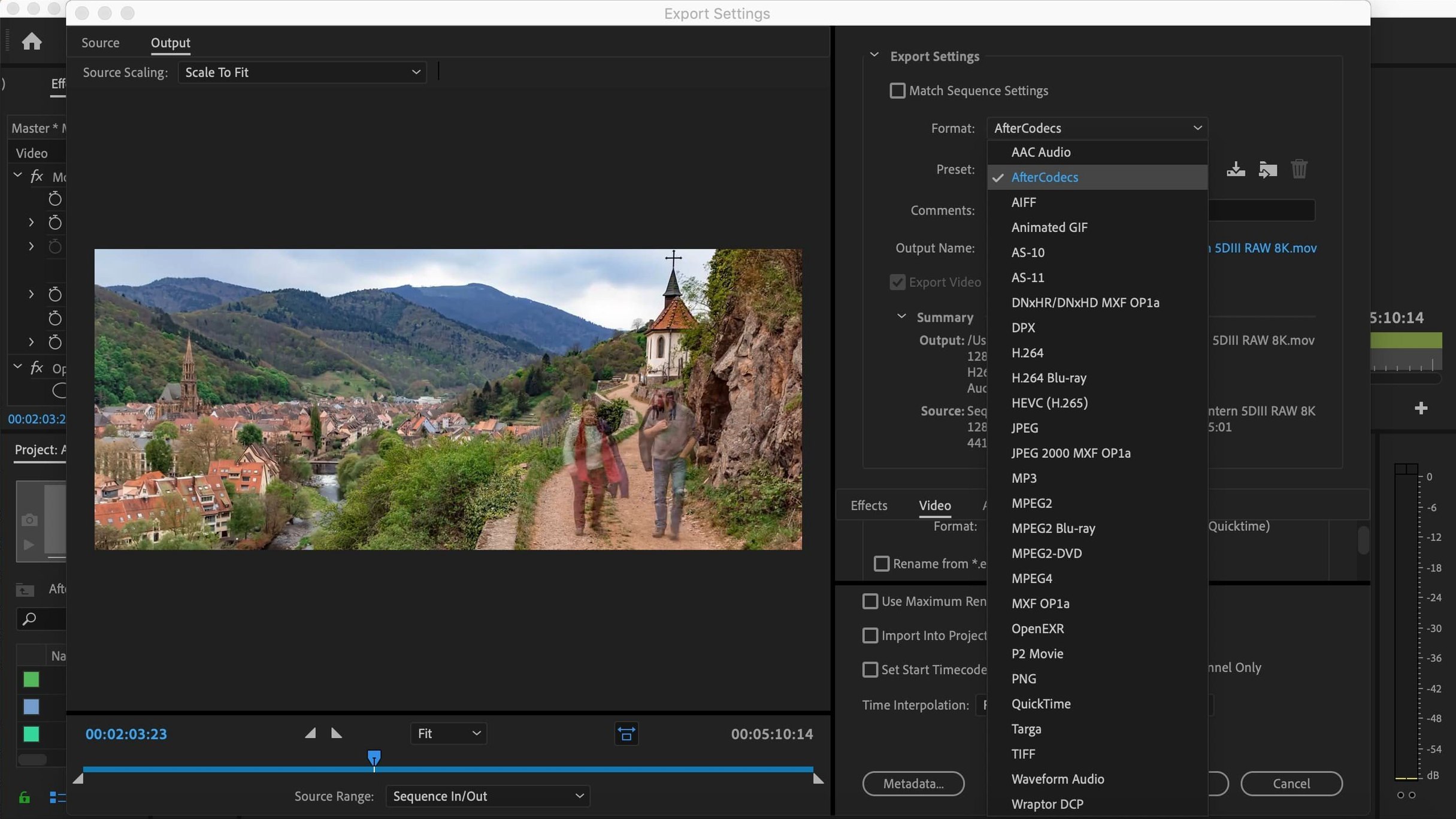
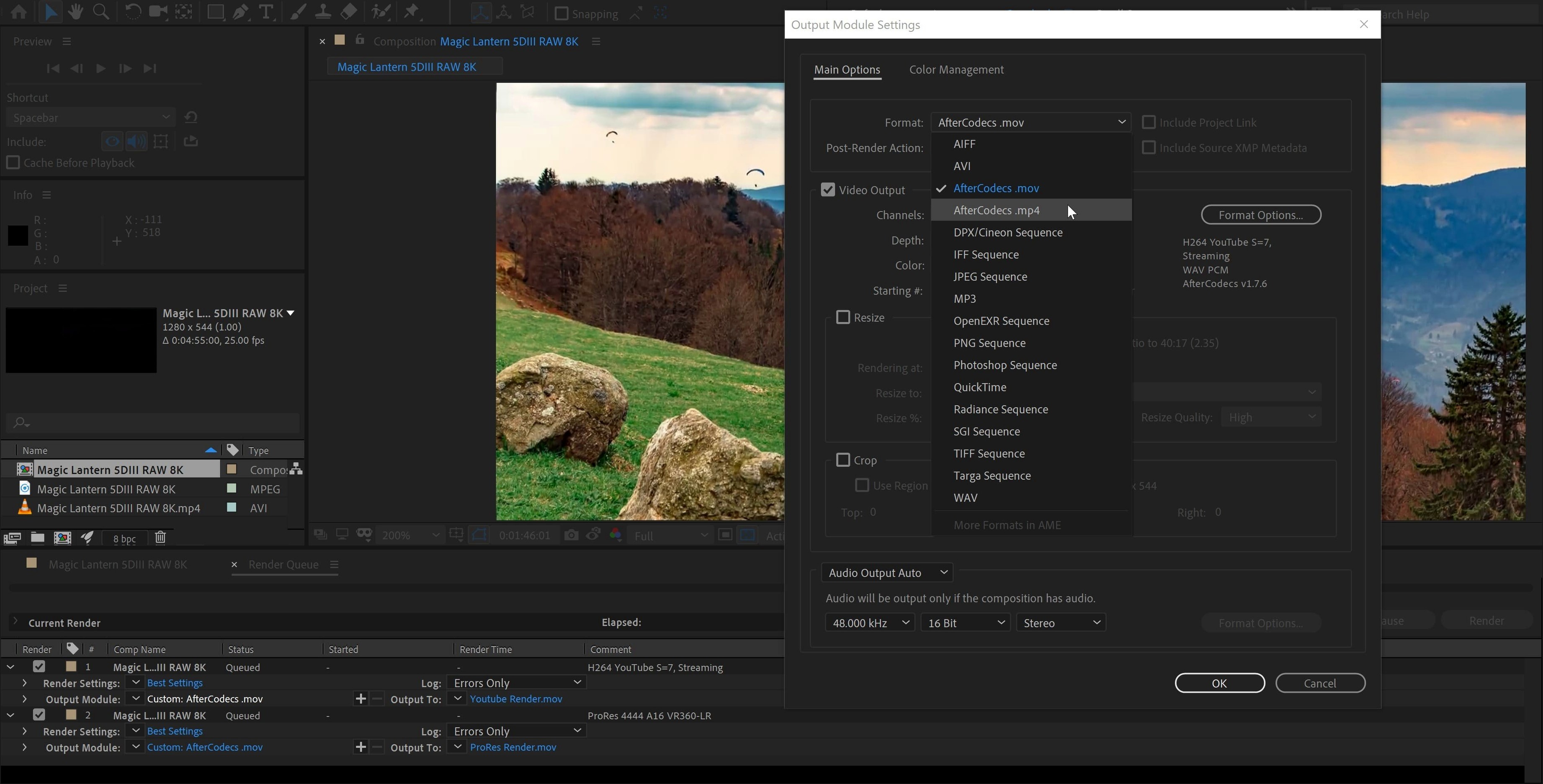
One selectable setting for YouTube upload, and no Media Encoder in sight. That is the kind of shorthand AfterCodecs works in. Autokroma built it as a fast exporter for Adobe CC, and it skips the usual encoder queue entirely. You press render, and the file comes out the other end without the command line or a second app breathing down your neck.
Slots into After Effects, Premiere, and Media Encoder
After Effects, Premiere Pro, and Media Encoder. If you live inside Adobe's video tools, the plugin slots in where you already work.
What about compatibility with the latest versions?
Version 1.12.1 adds support for After Effects, Premiere, and Media Encoder 2026 v26. It also works with licensing via PlumePack V3, so your setup stays current.
Is it fast in practice?
That is the whole pitch. It avoids the Media Encoder pipeline designed for quick turnaround, and the YouTube profile gives you a single setting to hit for uploads. No fiddling with presets.
What does it run on?
Before you start cranking out exports, a handful of settings in AfterCodecs are worth tweaking first. The plugin lives inside the output module panel of After Effects and the export settings of Premiere Pro, so you adjust it the same way you would any other render preset.
Manual bitrate slider for client-ready H.264 and H.265
For H.264 and H.265 exports, the default bitrate is usually fine for drafts, but if you are sending something to a client or a festival, bump it up manually. AfterCodecs gives you a simple slider for bitrate rather than a nested menu of options, which saves clicks. The ProRes encoder is where the plugin really shines — set it to ProRes 422 HQ for mastering and drop to ProRes 422 LT for daily review copies. You can also toggle the audio codec separately, which matters if you are delivering broadcast-spec files that need PCM audio instead of the standard AAC.
The YouTube upload profile is a single checkbox in the settings panel. That is one less thing to Google every time you export. The profile is not customisable — it just works — so if you need specific YouTube settings for 4K HDR, you are better off dialling them in manually.
Alternatives to AfterCodecs for Adobe exporters
AfterCodecs is not the only third-party exporter for Adobe apps. A few alternatives exist, and each takes a different approach.
AfterCodecs vs. Frame.io Panel
The Frame.io Panel is built for review and collaboration, not for speed or codec variety. It uploads straight to the Frame.io platform, which is useful for team feedback, but it does not give you ProRes or granular H.265 control. AfterCodecs is the better pick if you need local master files or direct YouTube delivery without a cloud service in the middle.
AfterCodecs vs. ProRes Export (built-in)
After Effects and Premiere Pro both ship with a standard ProRes encoder, but it runs through Media Encoder by default. That means you wait for the encoder to initialise, queue the job, and then render. AfterCodecs skips that handshake entirely and writes ProRes straight from the render queue. On a busy project with multiple deliveries, the difference adds up quickly.
AfterCodecs vs. Shutter Encoder
Shutter Encoder is a standalone app, not a plugin. It handles a huge range of formats and runs on Apple Silicon, but it requires you to export a master file from Adobe first and then re-encode it separately. AfterCodecs removes that extra step by doing everything inside the Adobe app. If you work with tight turnaround times, staying in one window matters more than having a dozen extra formats.
Saves a motion designer from double-rendering for client and platform
Imagine you are a motion graphics artist working on a batch of social media ads for a campaign. Each spot is thirty seconds, rendered in ProRes 422 for the client review and H.264 for the platform upload. Without AfterCodecs, you would set up each render in After Effects, send it to Media Encoder, wait for the queue to fill, and then repeat the process for the H.264 version. That is two encoding passes per file.
With AfterCodecs, you set the first render to ProRes 422 HQ straight from the render queue. When that finishes, you change the output module to the H.264 YouTube profile and render again — no Media Encoder launch, no queuing, no command line. For a batch of ten spots, that saves roughly half the render time and a lot of context switching. The same logic applies to Premiere Pro timelines that need a quick ProRes master before colour grading in Resolve. AfterCodecs keeps you inside Adobe, which is exactly where you want to be when the clock is running.
Both Intel and Apple Silicon Macs, with an English interface. Mount the disk image, run the installer, and you are ready to render.
- Support for After Effects, Premiere, and Media Encoder 2026 v26.
- Support for licensing with PlumePack V3.
- macOS (version not specified)
- Intel or Apple Silicon
Kit check at a glance
| Chip | Apple Silicon, Intel 64-bit |
| Download | 78 MB |
| Older pressings | 2 in the crate |








Chat from the booth
Sign in or grab a free account to leave a comment.
Nobody has said a word in the booth yet. If you played a set with this build, tell the next person how it went.