
- Build in the crate
- 8.7.2
- Made by the team at
- Flying Meat Inc.
- Menu languages offered
- English, German, Polish
- How you pay for it
- K'ed by TNT team
- macOS it plays on
- macOS 14 or later
- CPU it runs on
- Apple Silicon, Intel 64-bit
Screenshots

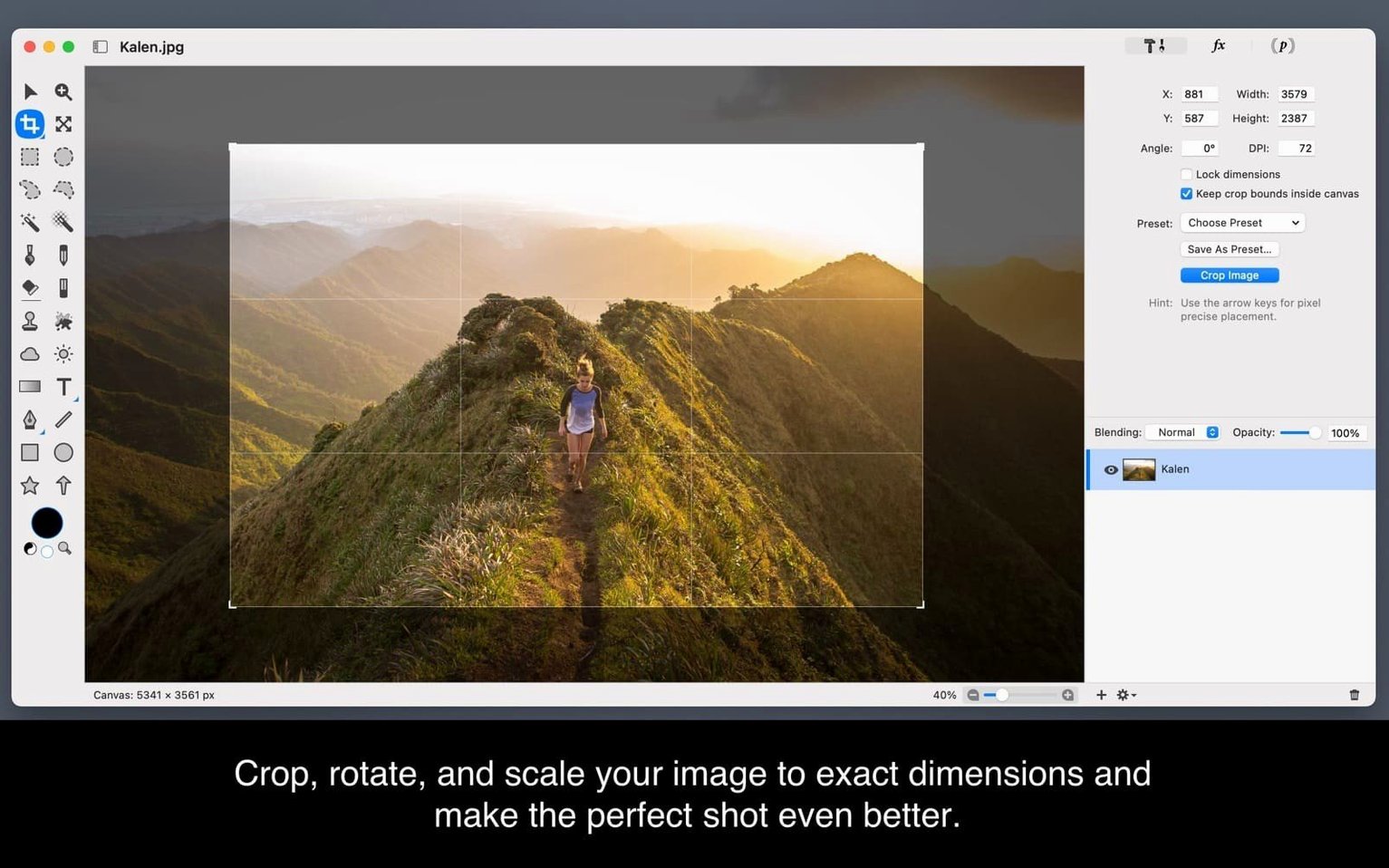
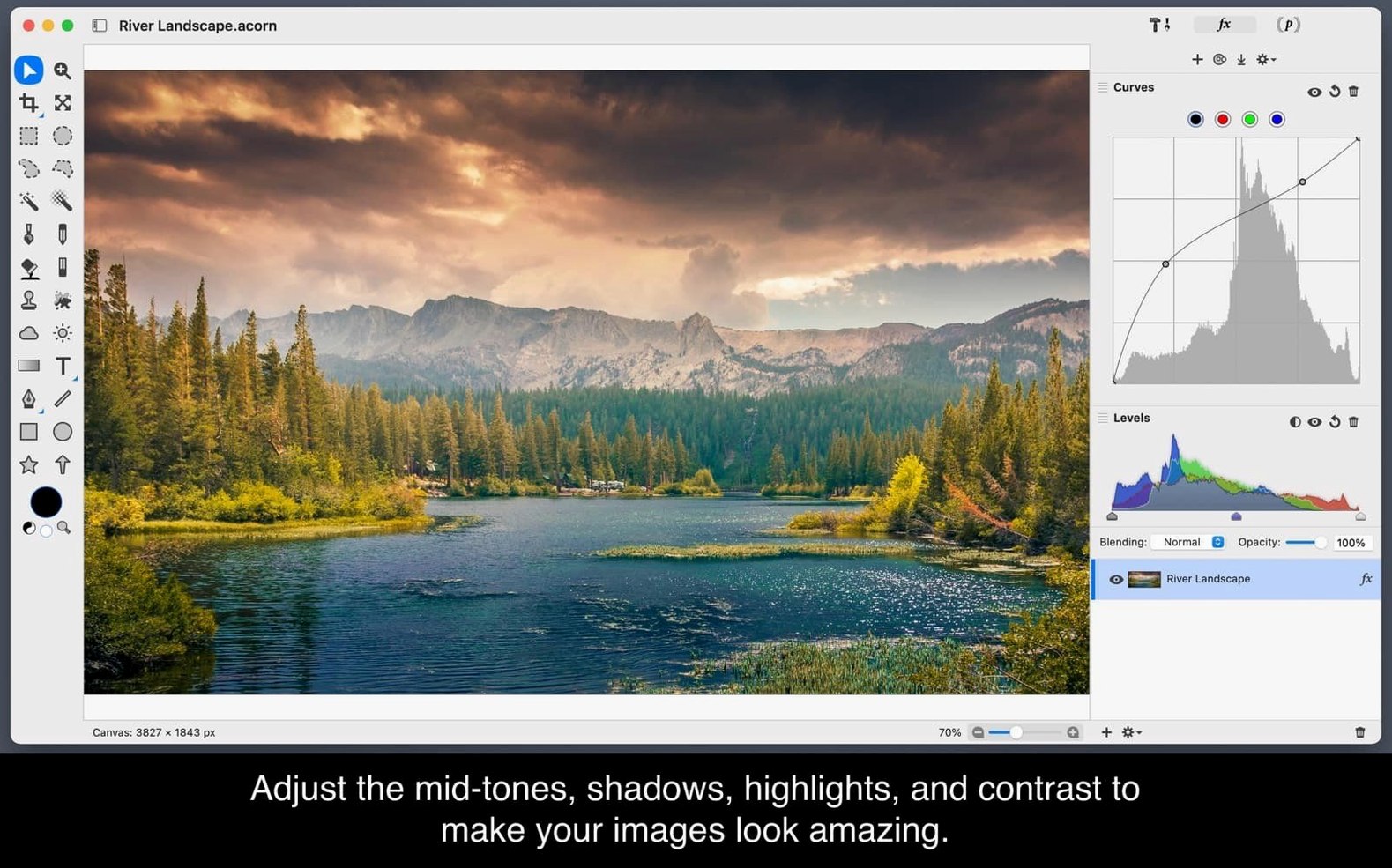
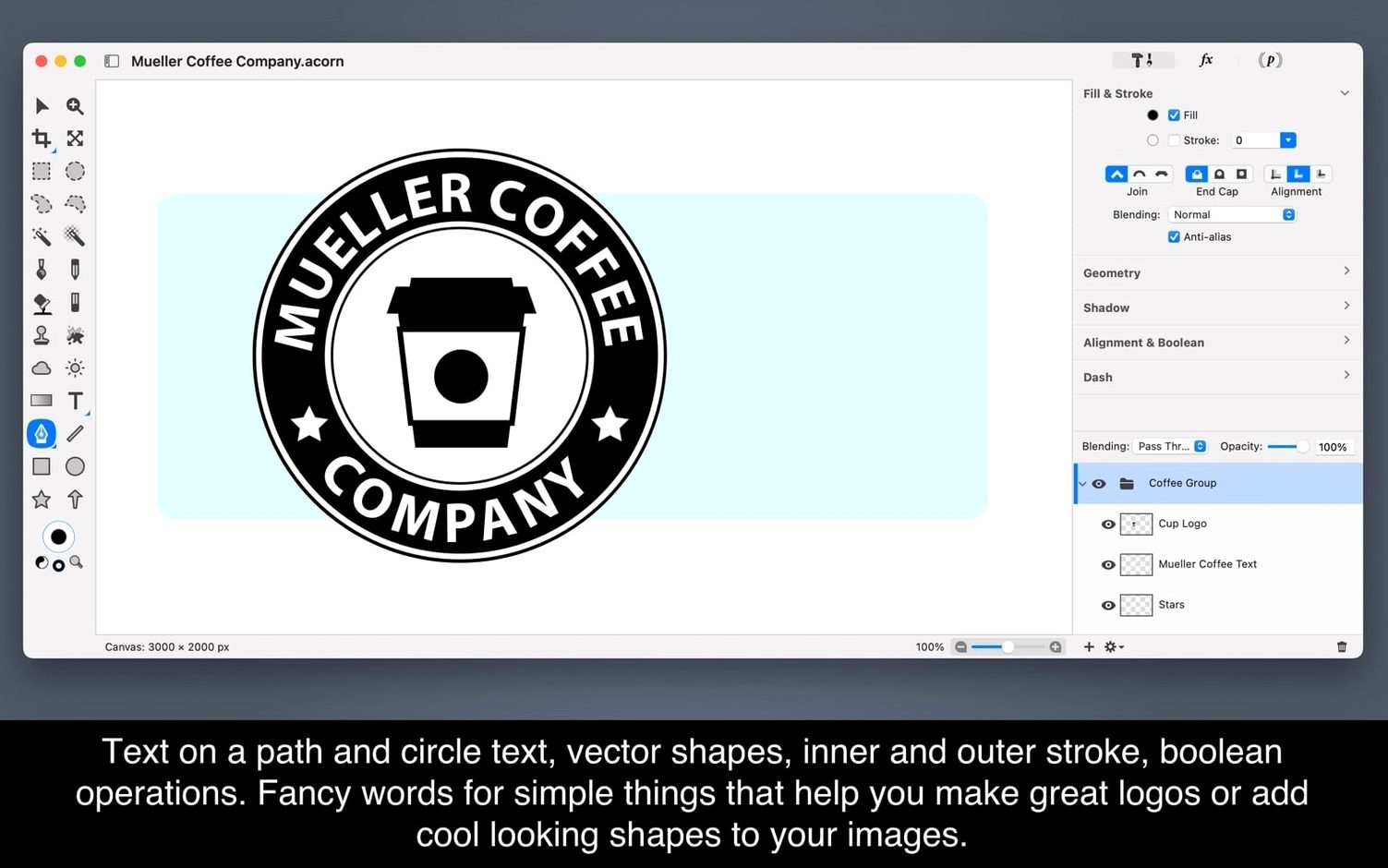
If you’ve used Pixelmator or even the basic Preview app, you already have a rough idea of what Acorn does — but this one brings its own flavour. Acorn 8.6.3 is a full-featured image editor for macOS that handles the usual jobs: drawing, photo retouching, and layer-based compositing. It also packs text layers, gradient fills, and the ability to stack multiple filters for custom effects.
Good for
- Basic drawing and painting with a standard set of tools.
- Quick photo edits like cropping, colour adjustments, and filter combinations.
- Working with text layers and gradients for simple graphic design tasks.
Keep in mind
- Runs natively on Apple Silicon and Intel Macs.
- Requires macOS 14 or later.
- Interface is available in English, German, and Polish.
- Includes a fullscreen mode for distraction-free editing.
Acorn replacing a heavier editor
One of the first things newcomers wonder is whether Acorn can replace a heavier editor like Photoshop. The short answer: it depends what you need. It won't handle advanced colour profiling or CMYK print work, but for screen-based design, screenshots, and social media graphics, it's more than capable.
Another common question is about file format support. Acorn opens and saves standard formats like JPEG, PNG, TIFF, and PSD. That last one matters — you can import layered Photoshop files and keep the layer structure intact. Exporting back to PSD works too, so switching between editors is possible if you ever need to.
People also ask if it works well on older Macs. Since Acorn 8.6.3 runs on both Intel and Apple Silicon, and the minimum is macOS 14, most Macs from around 2019 onwards should handle it fine. The app isn't a resource hog, so even machines with 8 GB of RAM can run it without much trouble.
Editing on the background layer
The most common slip is forgetting that Acorn is layer-based. Beginners often edit directly on the background layer, then realise they can't undo a brush stroke without losing other work. Getting into the habit of duplicating the layer or adding a new one before making changes saves a lot of frustration.
Another mistake is ignoring the filters stack. Acorn lets you combine multiple filters on a single layer, but the order matters. Applying a sharpen after a blur, for example, won't give you the effect you expect. Play with the order, and you'll get better results faster.
New users also tend to overlook the vector layer support. If you draw a shape with the vector tool, it stays editable — you can tweak its points, resize without losing quality, and change colours later. Treating it like a raster shape and flattening it early removes that flexibility. Keep vector layers separate until you're certain the design is final.
Finally, some people close Acorn without saving the project file. The app uses its own .acorn format that preserves layers, filters, and text. Saving in that format early on means you can come back and adjust anything later, even weeks afterwards. Exporting to PNG or JPEG for sharing is fine, but keep the .acorn file as your master copy.
Acorn 8.7.2 lands in the catalogue — check the dev’s release notes for the full list of tweaks and fixes that shipped with this build.
- macOS 14 or later
- Apple Silicon and Intel 64-bit
Kit check at a glance
| System | macOS 14 or later |
| Chip | Apple Silicon, Intel 64-bit |
| Download | 85 MB |
| Older pressings | 6 in the crate |







Chat from the booth
Sign in or grab a free account to leave a comment.
Nobody has said a word in the booth yet. If you played a set with this build, tell the next person how it went.