

- Build in the crate
- 21.8.0
- Made by the team at
- Adobe
- Menu languages offered
- Russian, English
- How you pay for it
- Included
- macOS it plays on
- macOS 13 or later
- CPU it runs on
- Apple Silicon, Intel 64-bit
Screenshots
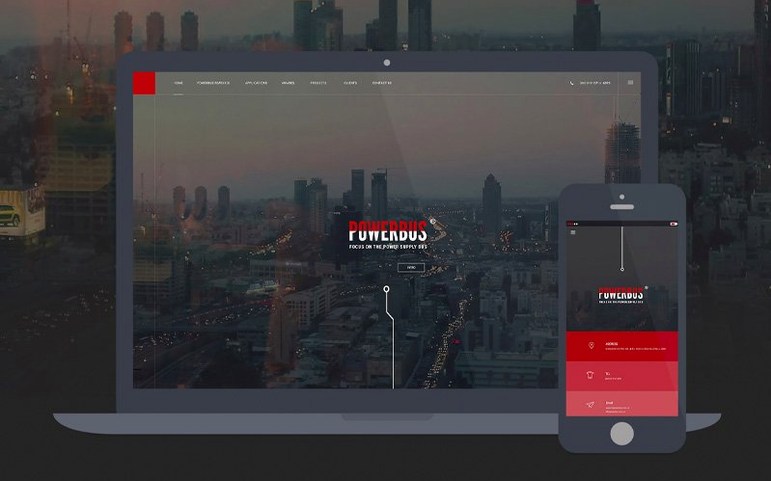


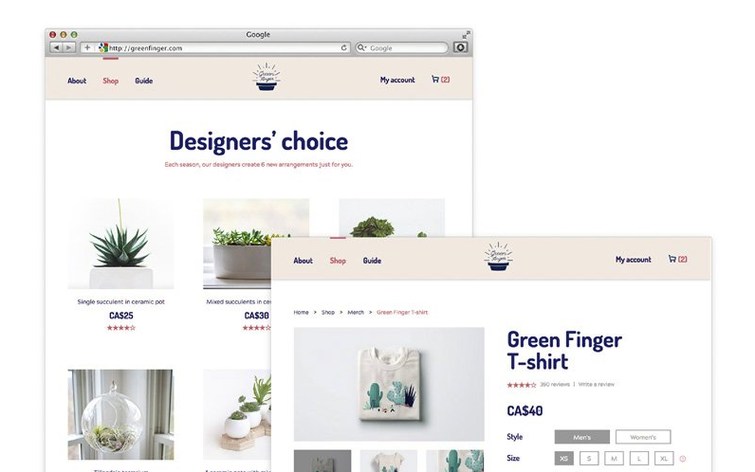
Web designers who work with both code and visual layouts tend to stick with Dreamweaver. The Adobe Dreamweaver 21.8 release keeps the split-view editor and site management tools that made it a staple, while the April 2026 release adds a few things under the hood.
Built-in server behaviors and library updates
- Built-in server behaviors and database bindings – less time switching between apps for dynamic pages.
- Updated libraries: OpenSSL, Libcurl, CEP, jQuery, Lodash, RequireJS, Node.js, and Zlib. Better compatibility and security.
- Git support remains, with basic operations inside the app – handy if you prefer not to leave the editor.
Responsive layout tools and native Apple Silicon support
The responsive layout tools and visual editing workflow are untouched. It still runs natively on Apple Silicon and 64-bit Intel Macs with macOS 13 or later. The interface languages are Russian and English. Two known quirks: file modification time doesn't match the local time zone, and site sync doesn't refresh times after a system time zone change – nothing new, but worth noting if you work across time zones.
Time zone issue and setup quirks
A few things trip people up when they first set up Dreamweaver on a Mac. The time zone issue mentioned above is probably the most frequent complaint – you edit a file, save it, and the modification timestamp looks wrong. It is a known behaviour in this version, not a fault in your system. The workaround is to check the file's actual content rather than relying on the timestamp in the site panel. If you work with version control or deployment scripts that depend on timestamps, adjust your workflow to use Git's commit history instead.
Another common hiccup is the live view not rendering pages exactly as a browser would. Because Dreamweaver uses the Chromium Embedded Framework, it is close but not identical to a standalone Chrome or Safari window. If your CSS looks off in live view, open the page in an actual browser for the final check. That is standard advice for any code editor with a preview pane, but it catches new users off guard.
Git integration can also cause confusion. The built-in Git tools handle commits, pushes, and pulls, but they do not replace a full Git client for complex branching or merge conflicts. If you run into a conflict, Dreamweaver flags it, but you will want a dedicated tool like SourceTree or the command line to resolve it cleanly. The in-app Git is best for straightforward solo work.
Installation itself is straightforward, but the 3 GB of disk space required is just the start – you need extra free space during the install process. Make sure you have at least 6 GB free before you begin. The activation instructions are included with the download, and if you need previous versions, there are walkthroughs on YouTube.
Designers who want code, browser, and FTP in one window
This tool fits a specific kind of web designer. If you spend your day switching between a code editor, a browser, and a FTP client, Dreamweaver pulls those into one window. That is especially useful for designers who prefer a visual reference while writing markup. The split view – code on one side, live preview on the other – lets you see how a tweak to the CSS changes the layout without tabbing out.
Front-end developers who maintain several small to medium sites benefit from the site management panel. It keeps file structures organised and handles remote connections without a separate FTP app. The built-in server behaviours and database bindings added in 21.8 make it more appealing if you build dynamic sites with backend logic, though you still need a server environment like MAMP or XAMPP running locally.
Beginners who are learning HTML, CSS, and JavaScript also get value here. The code hints are not as advanced as those in a dedicated code editor, but they help you learn syntax as you type. The visual editor gives you a safety net – if you forget a closing tag, the layout breaks in a way you can see immediately.
Code view font and Mac-specific preference changes
Out of the box, Dreamweaver uses default preferences that suit general use. A few changes make the experience better on a Mac.
- Code view font – switch to a programming font like Fira Code or JetBrains Mono for better readability. The default is fine, but a monospaced font with ligatures helps when scanning through long CSS files.
- Automatic sync – turn off automatic site synchronisation if you work offline or on a slow connection. It can pause the interface while it checks remote files. Set it to manual and sync only when you are ready.
- Live view browser – even though Dreamweaver uses Chromium, you can set which external browser launches when you preview. Pick your primary testing browser so the preview matches your usual development environment.
- Code hints delay – reduce the delay to 0 or a very low value if you type quickly and want suggestions to appear instantly. The default pause can feel sluggish during fast editing sessions.
These adjustments take five minutes and make the editor feel less like a generic setup and more like your own workspace.
Where Dreamweaver still beats lightweight code editors
Dreamweaver sits in a space that few other apps still occupy. Most modern web development has moved to lightweight code editors, but Dreamweaver's visual tools and site management keep it relevant for certain workflows.
VS Code is the obvious alternative. It is free, fast, and has an enormous extension ecosystem. For pure coding, VS Code is better – better autocomplete, better Git integration via extensions, better performance on large projects. What it lacks is the visual editor and live view that Dreamweaver offers. If you work mostly in HTML and CSS and like to see your changes reflected as you type, Dreamweaver has the edge. If you write a lot of JavaScript or work with frameworks like React, VS Code is the stronger choice.
Brackets was Adobe's own lightweight answer to Dreamweaver, but it is no longer actively developed. It still works on macOS and has a similar live preview feature, but it lacks Dreamweaver's site management, server behaviours, and database tools. For a simple static site project, Brackets might be enough, but it has not received updates in years, so compatibility with newer macOS versions is uncertain.
CoffeeCup HTML Editor is another visual editor for Mac, though it is less well known. It offers a split view and responsive design preview, but its feature set is smaller. It does not support Git, server behaviours, or database bindings. For a beginner making a simple personal site, CoffeeCup is easier to pick up. For someone managing multiple sites with dynamic content, Dreamweaver is more capable.
None of these alternatives match Dreamweaver's combination of visual editing, site management, and server-side tools. But each one does its specific job well, so your choice depends on what kind of web work you actually do day to day.
- Updated OpenSSL, Libcurl, CEP, jQuery, Lodash, RequireJS, Node.js, and Zlib libraries.
- Added built-in server behaviors and database bindings.
- File modification time does not align with the local time zone.
- In site synchronization, file modification time does not automatically refresh after the system time zone changes.
- macOS 13 Ventura or later
- Apple Silicon or 64-bit Intel processor
- 2 GB RAM
- 3 GB available hard-disk space for installation (additional free space needed during installation)
- Internet connection and registration required for activation, validation, and online services
- Interface languages: Russian, English
Kit check at a glance
| System | macOS 13 or later |
| Chip | Apple Silicon, Intel 64-bit |
| Download | 3.2 GB |
| Older pressings | 7 in the crate |








Chat from the booth
Sign in or grab a free account to leave a comment.
Nobody has said a word in the booth yet. If you played a set with this build, tell the next person how it went.