

- Build in the crate
- 15.2.14
- Made by the team at
- ABBYY
- Menu languages offered
- Russian, English, German, Italian, Chinese (Simplified), French
- How you pay for it
- K'ed by TNT team
- macOS it plays on
- macOS 11 or later
- CPU it runs on
- Intel 64-bit
Screenshots
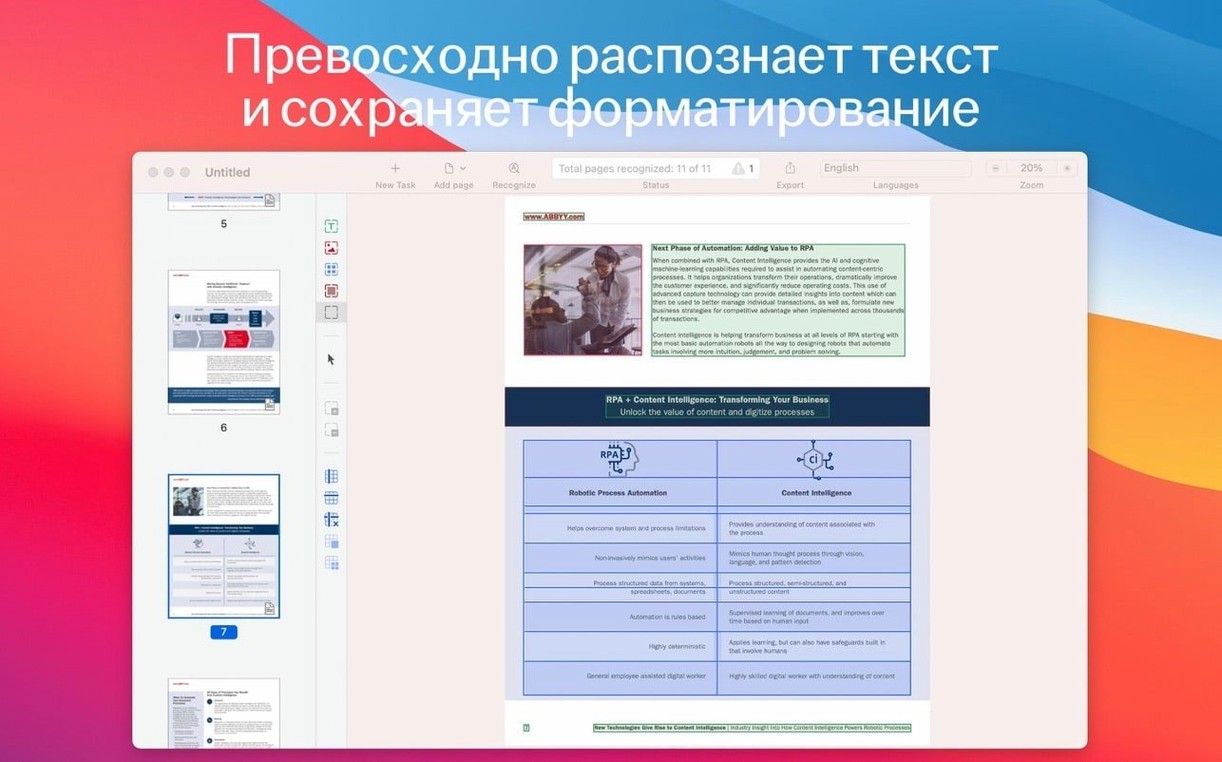
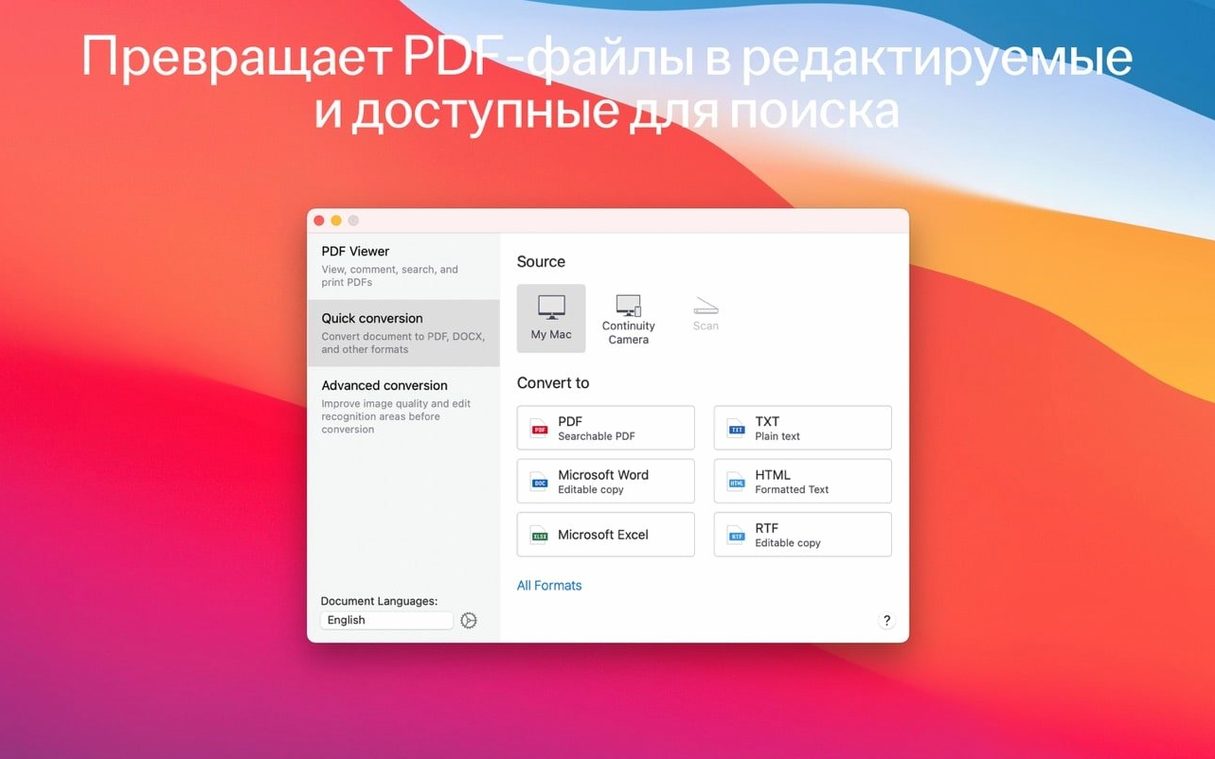
You know that moment when a PDF refuses to let you copy a single line of text? ABBYY FineReader for Mac is the tool that unlocks it. It's a Mac OCR and PDF app that turns paper documents, scanned images, and locked PDFs into editable, searchable files.
Converts scanned text to editable Word and Excel tables
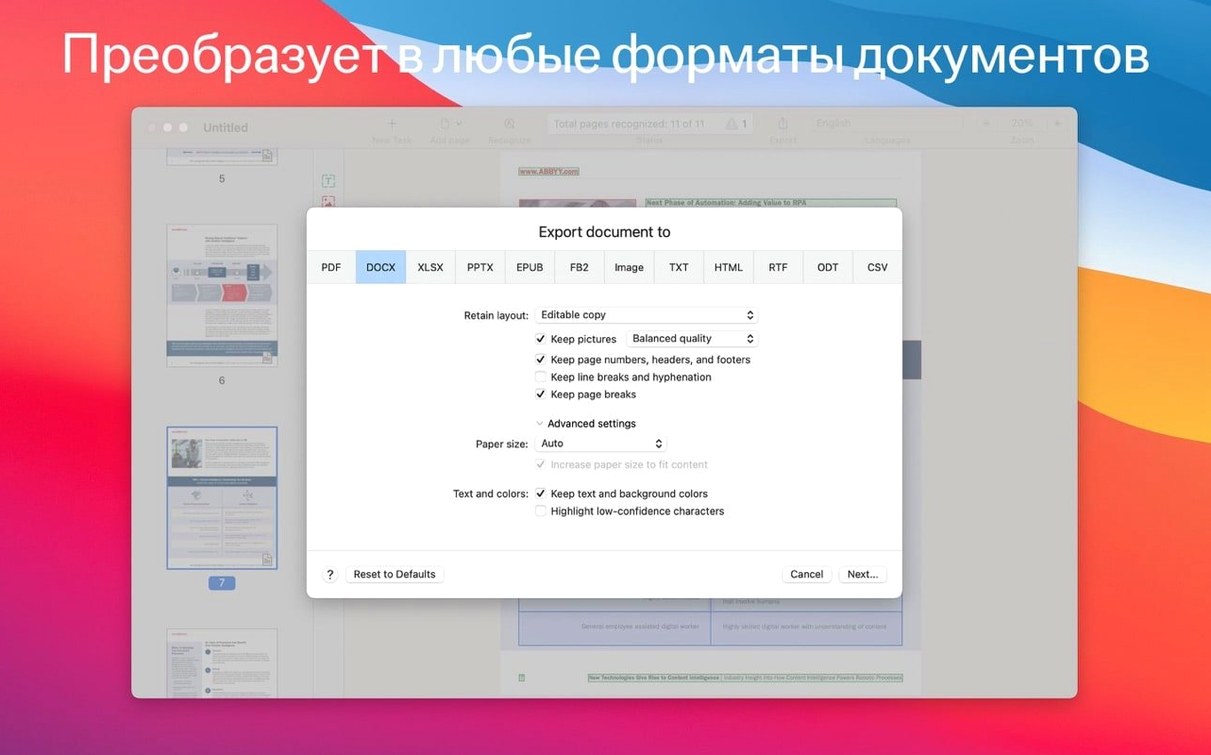
It reads the text from scans or images and lets you edit it in Word, Excel, or other formats. You can convert to DOCX, XLSX, RTF, ODT, and more. Tables come out as tables, not a jumbled mess.
Best for students, researchers, and paper archive owners
Students, researchers, and anyone dealing with old paper archives or poorly made PDFs. If you've got a stack of printed notes or a scanned book chapter, this makes them usable again.
Any extra tricks?
It doubles as a PDF viewer, so you can read and convert in one place. You can also pull images from your iPhone or iPad and convert them on the Mac. For long-term storage, it creates PDF/A files, and PDF/UA for accessibility. Dark mode is supported, and copying text fragments for citation or translation is quick.
Set your primary language in recognition preferences
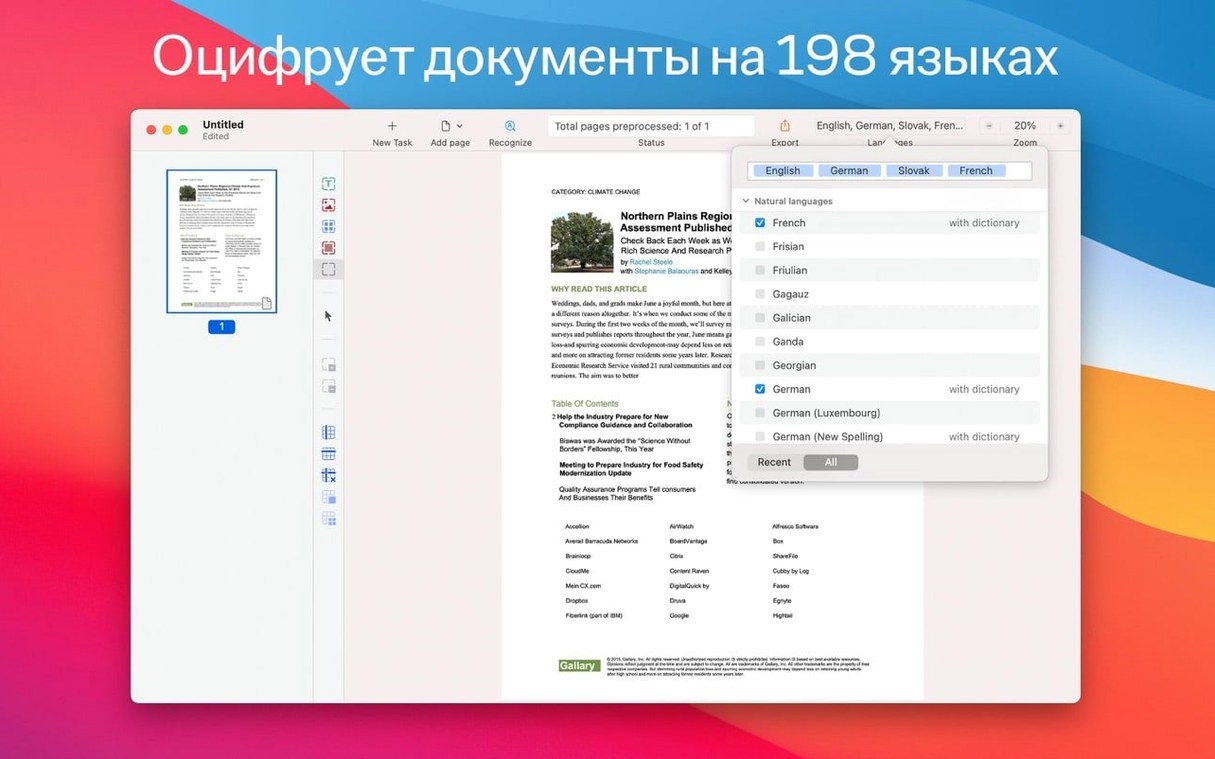
Before you start converting, a few tweaks save you time later. Open the app and head to the preferences. Under the recognition tab, set the primary language to the one you work with most — English, German, or Russian, for example. The app supports 198 languages, but keeping only the ones you need speeds up the process.
Next, check the output format defaults. If you usually need editable Word documents, set DOCX as the standard. For archiving, switch to PDF/A. You can also enable automatic language detection if you handle documents in multiple languages. That way FineReader guesses the language per page rather than you having to set it every time.
Under the viewing tab, turn on dark mode if you prefer a darker interface. It reduces eye strain when you're working through a stack of scans. Also enable the option to open the built-in PDF viewer by default — that way you can preview documents before deciding whether to convert them.
A real workflow: turning a scanned textbook chapter into a searchable file
Let's walk through a task I do often. I've got a scanned chapter from an old textbook, ten pages, saved as a single PDF. The text is clear but the file is not searchable, and I need to quote sections in a paper.
- Open FineReader and drag the PDF onto the app window. It loads into the viewer as an image-based document.
- Click the recognise button. The app processes each page and highlights recognised text. For a ten-page chapter, this takes a minute or two.
- Switch to the OCR editor mode. Here you can see the original image on one side and the recognised text on the other. Check a few paragraphs for accuracy — FineReader is good with clean scans, but handwritten notes or faint text might need correction.
- Select the text fragments I want. Copy them directly to the clipboard for citation. For the full chapter, I export to DOCX so I can edit the layout in Word later.
- Save a copy as a searchable PDF as well. That way I can search the original scans for keywords without opening the DOCX file.
That's it. From a locked scan to usable text in under five minutes.
A translator's scenario
A friend of mine works as a freelance translator. She gets contracts, invoices, and reference material as scanned PDFs — often in English, German, or Italian. Before she can translate anything, she needs the text in a machine-readable format.
She uses FineReader to convert the scans to DOCX, then runs the text through her translation memory software. The built-in language support means she rarely needs to switch between language packs. For longer documents, she creates searchable PDFs so she can find specific clauses later. The PDF/A export is handy for archiving finished translations that need to stay unmodified.
It's not glamorous work, but it's the kind of task that eats up hours if you don't have the right tool. FineReader handles it in the background while she focuses on the actual translation.
- macOS 11 or later
- Intel Mac
Kit check at a glance
| System | macOS 11 or later |
| Chip | Intel 64-bit |
| Download | 900 MB |
| Older pressings | 1 in the crate |








Chat from the booth
Sign in or grab a free account to leave a comment.
Nobody has said a word in the booth yet. If you played a set with this build, tell the next person how it went.