

- Build in the crate
- 2.1.22 [MAS]
- Made by the team at
- 成浩 吴
- Menu languages offered
- English, German, Italian, Chinese (Traditional), Chinese (Simplified), French, Japanese
- How you pay for it
- K'ed by TNT team
- macOS it plays on
- macOS 11 or later
- CPU it runs on
- Intel 64-bit
Screenshots
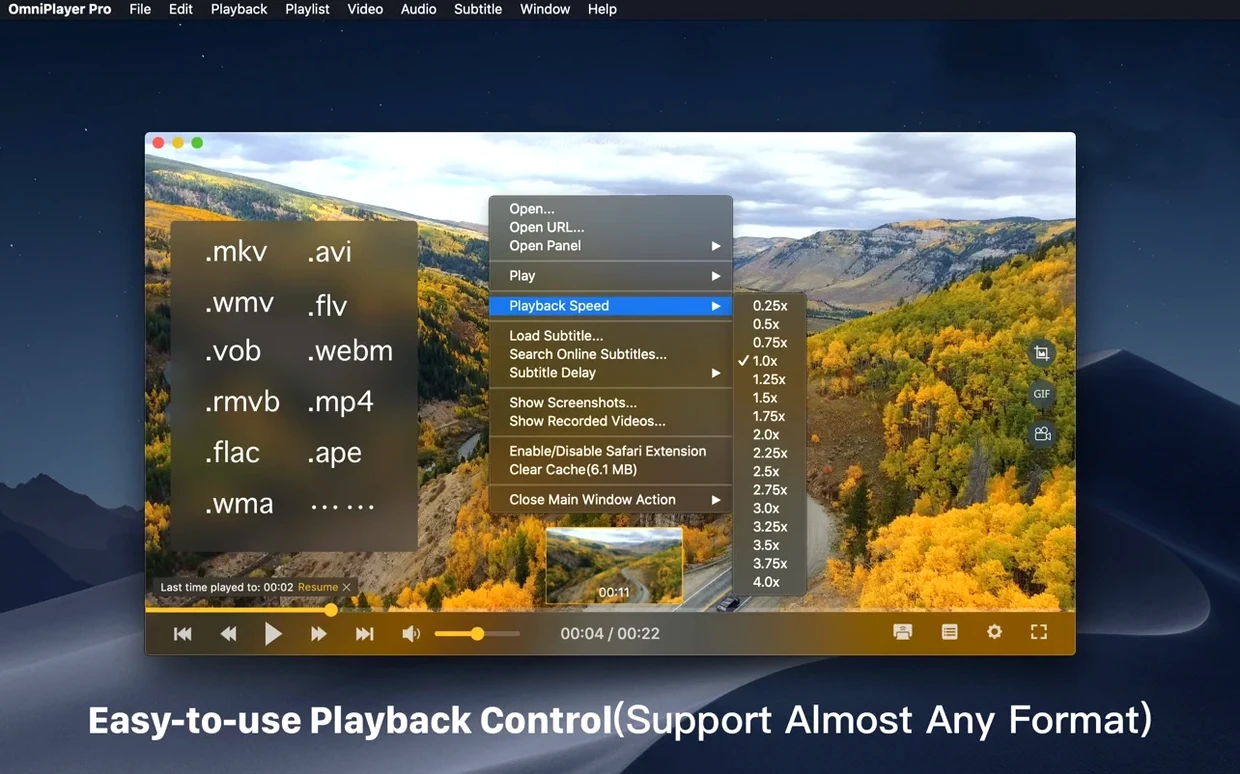
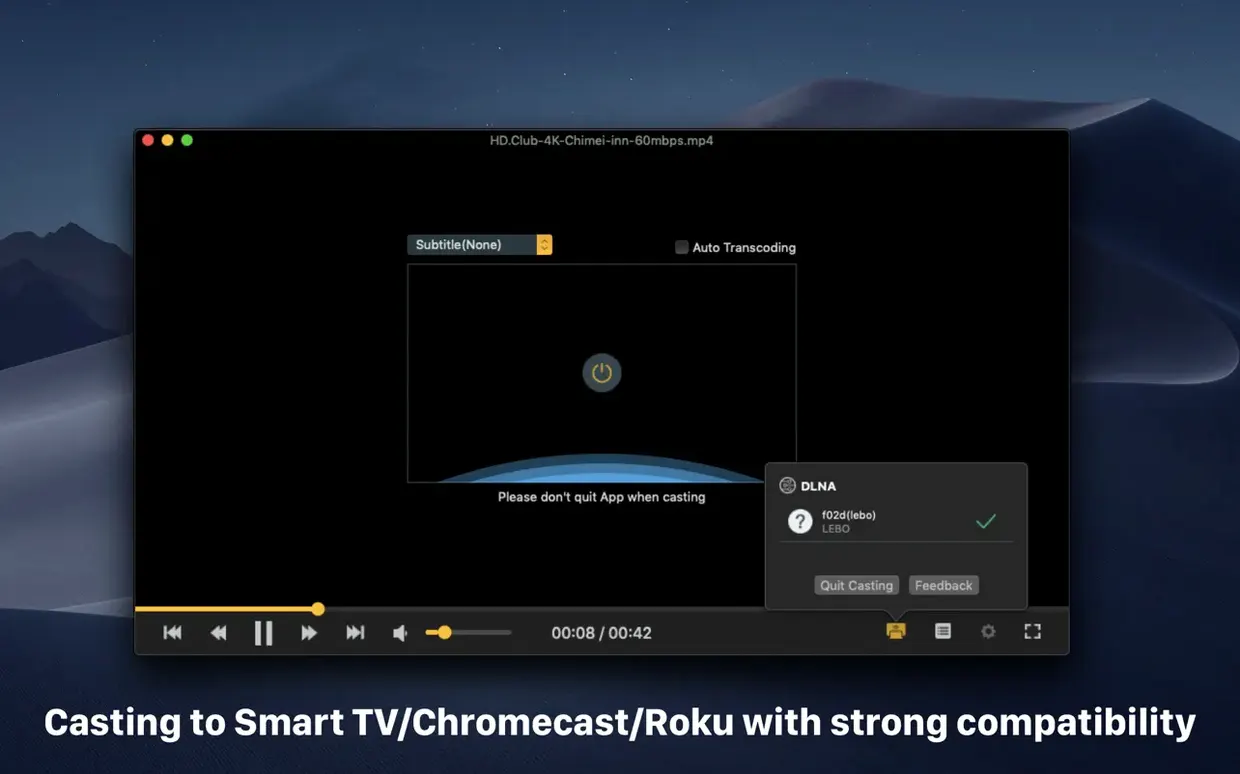
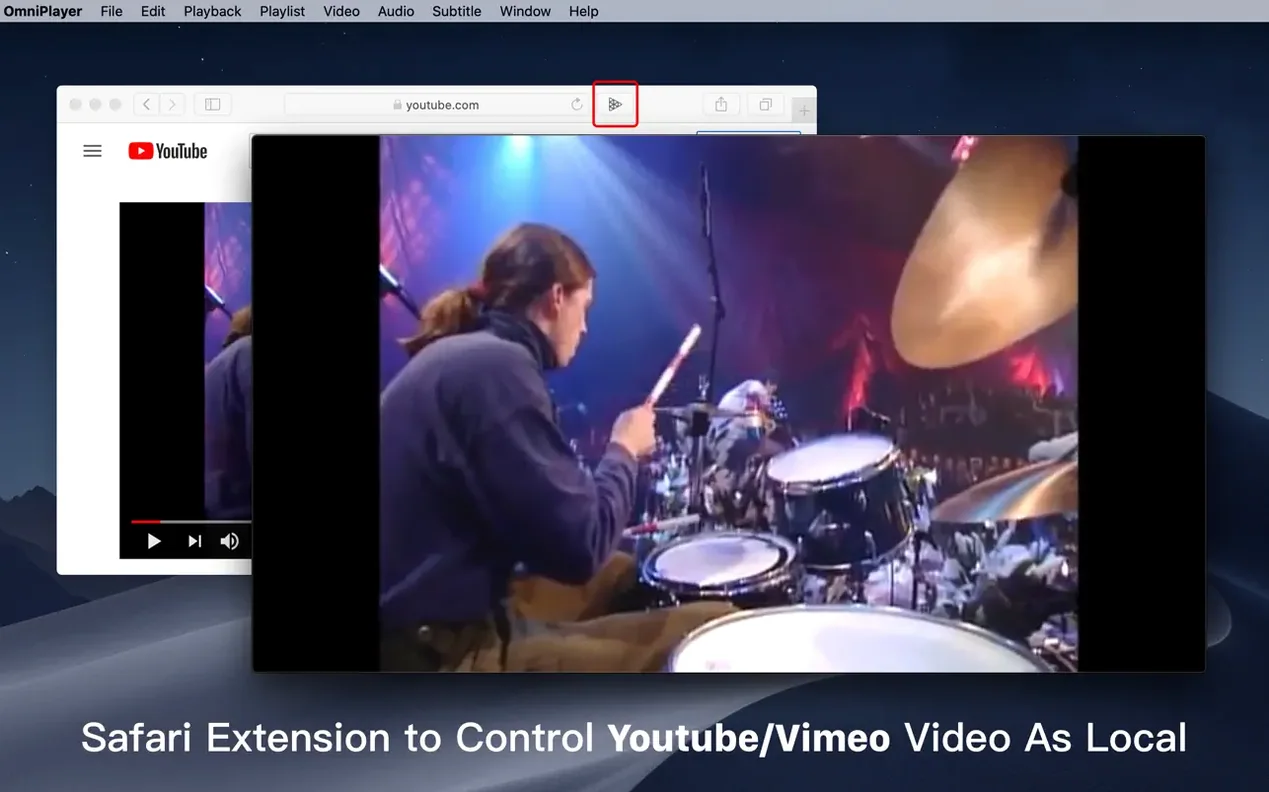
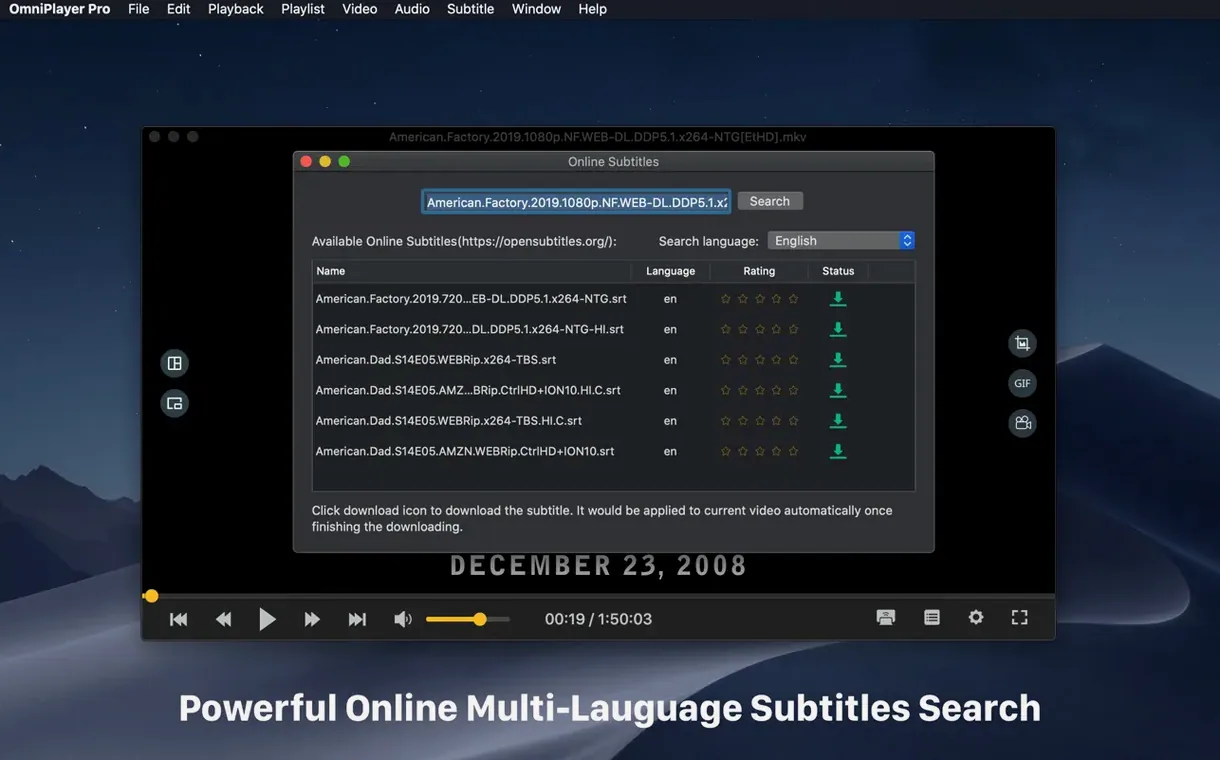
OmniPlayer has been a steady companion for Mac users who want a player that does more than just video. Version 2.1.22 keeps the same broad feature set and polishes a few rough edges, especially for those with large MKV libraries.
Video playback — plays MKV, MP4, and other common formats, with support for online media over HTTP and HTTPS. You can adjust window size and aspect ratio on the fly.
Audio and subtitles — subtitles can change colour and size in real time, which helps when you're watching in a bright room or with your own custom styles.
Screenshots and GIFs — capture stills in different formats, or create GIFs up to 60 seconds long. Handy for sharing a funny moment without the whole file.
Playlists — automatically adds media files to the playlist and clears them when the player exits, so your queue never lingers.
Rotation and resume — rotate video in all directions, and the player saves the last playback position after auto stop.
Online video — paste a YouTube or Vimeo URL and play it directly in the app.
Casting — send video to a TV or display via DLNA, Chromecast, or Roku.
Preview thumbnails — hover over the progress bar during local playback to see a preview image, which makes seeking much easier.
Switching angles without reopening files
Before OmniPlayer, switching between angles meant closing one file and opening another, and syncing subtitles for the lyrics was a chore. With version 2.1.22, that person loads the 30 GB main file, picks the audio track that matches the venue's soundboard feed, adjusts the audio delay by a few hundred milliseconds, and loads a local subtitle file for the between-song banter. The preview thumbnails help jump to the start of each song without guessing. It is a straightforward workflow, but one that most default Mac players make awkward.
Setting up subtitle encoding first
When you first open OmniPlayer, take a moment to set up the things that matter most for how you watch. Here are a few practical steps:
- Test subtitle encoding early. If a subtitle file shows garbled characters, change the subtitle encoding in the menu before you load the next file. Saves you the trouble of reloading later.
- Try the online subtitle search. Enter the video title or let the app search by hash. For older or obscure films, the hash-based search often finds subtitles that manual searching misses.
- Check the brightness and contrast controls. Not every video is mastered the same. A quick tweak in OmniPlayer can save you from squinting at a dark scene.
- Play a YouTube URL. Copy a link, paste it in, and see how the player handles online content. It is a good way to confirm your network setup works before you rely on it for a longer session.
Loading 30 GB MKV files faster
Even a straightforward player can throw a few curveballs. Here are the ones people run into most often, and how to fix them:
- Large MKV files take a moment to load. Version 2.1.22 fixed a bug with 30 GB files, but very large files still need a few seconds to index. If the player seems stuck, wait a moment before closing it.
- Subtitles not showing. Make sure the subtitle file is in a supported format (SRT, ASS, and similar). Then check the subtitle encoding setting — switching it to UTF-8 or the appropriate language encoding usually solves it.
- Audio out of sync. Use the audio delay slider to shift the track forward or backward. This is common with certain MKV files that have mismatched streams.
- DLNA or Chromecast not finding your TV. Check that both devices are on the same network. If they are, restart the player and try again. Some routers block mDNS discovery, so a quick network refresh helps.
- Playlist items you don't want. The player adds files automatically and clears them on exit. If you want to remove a single item, use the delete option in the playlist before you close the app.
- Fixed some bugs.
- Fixed a bug when loading a 30GB MKV file.
- macOS 11 or later
- Intel
Kit check at a glance
| System | macOS 11 or later |
| Chip | Intel 64-bit |
| Download | 78 MB |
| Older pressings | 2 in the crate |








Chat from the booth
Sign in or grab a free account to leave a comment.
Nobody has said a word in the booth yet. If you played a set with this build, tell the next person how it went.