

- Build in the crate
- 2.8.14 (2680) Beta
- Made by the team at
- Martin Hairer
- Menu languages offered
- English, German, Danish, Spanish, Italian, Finnish, French
- How you pay for it
- K'ed by TNT team
- macOS it plays on
- OS X 10.9 or later
- CPU it runs on
- Intel 64-bit
Screenshots
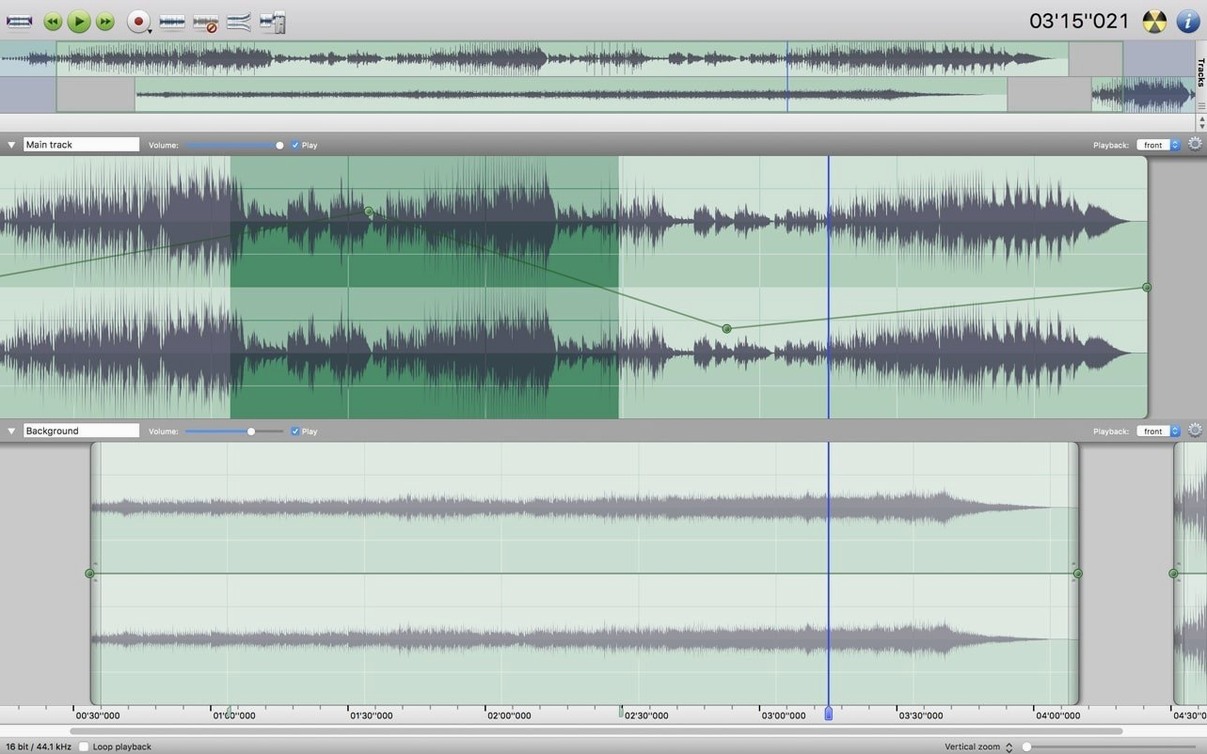
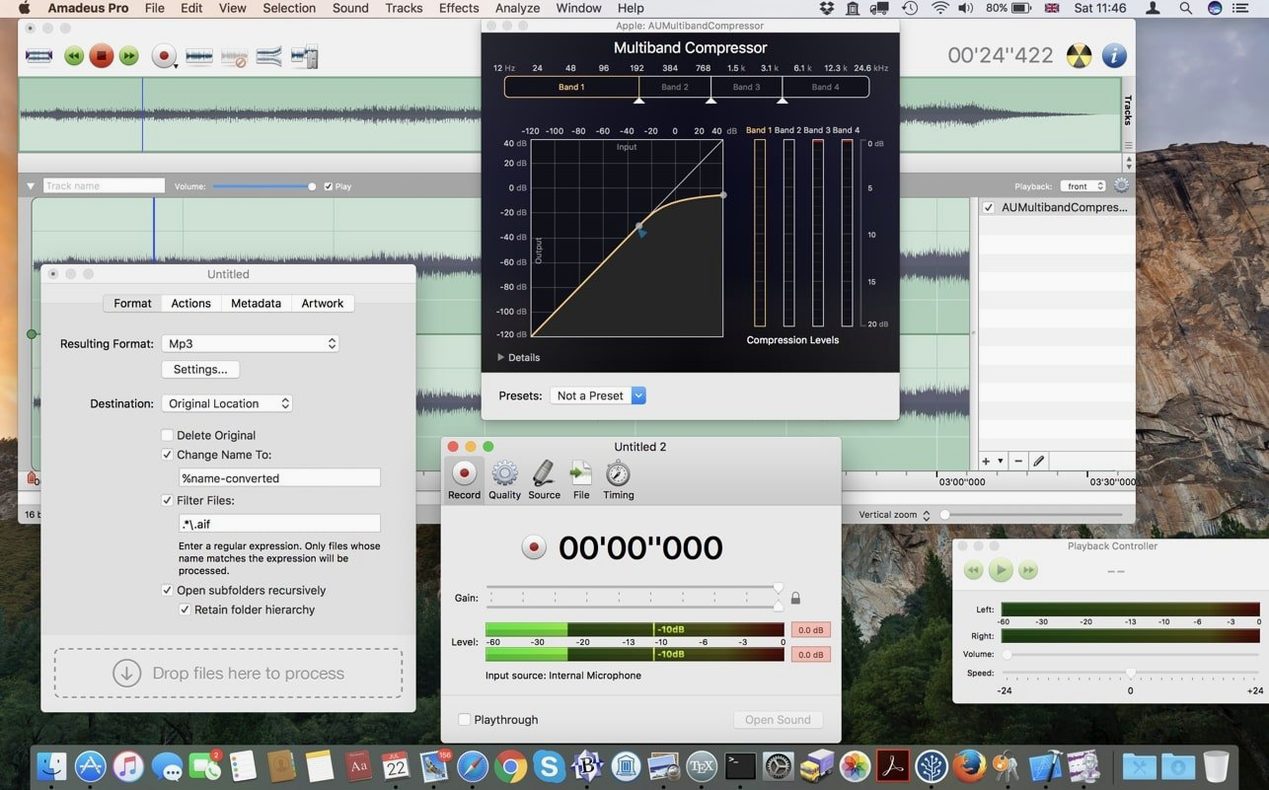
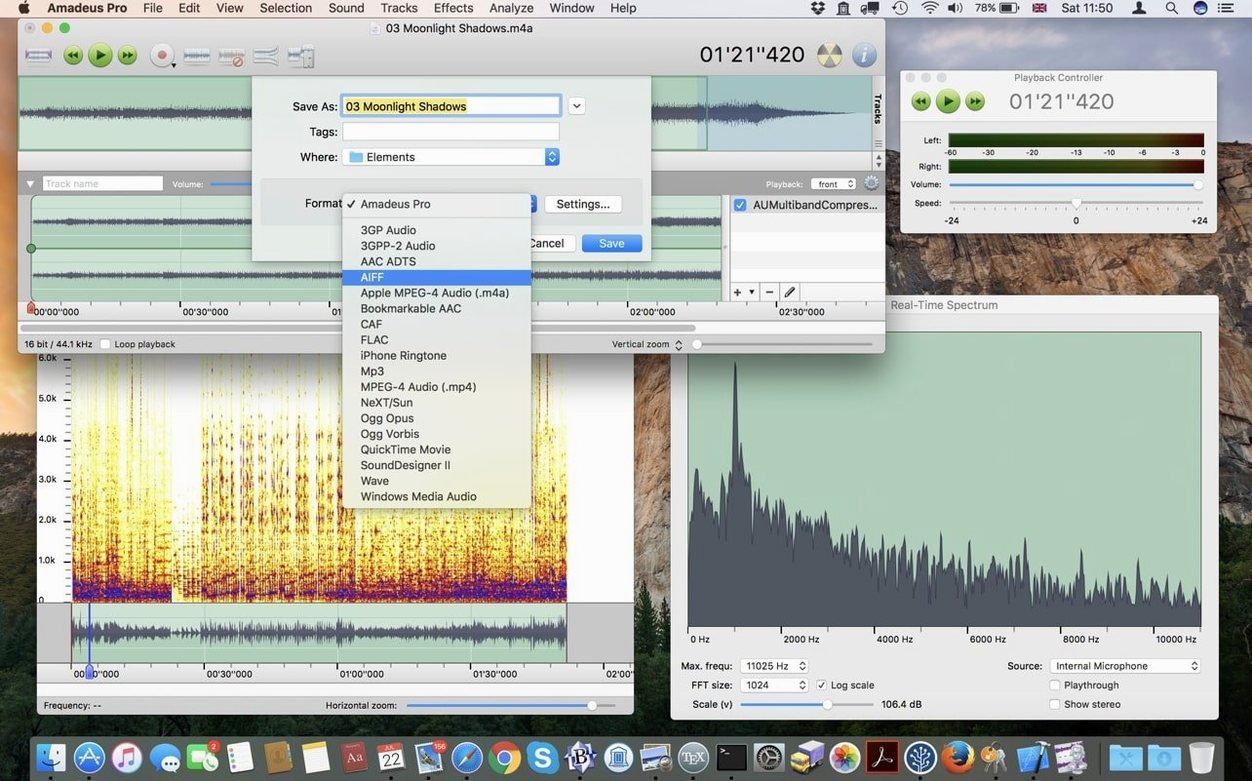
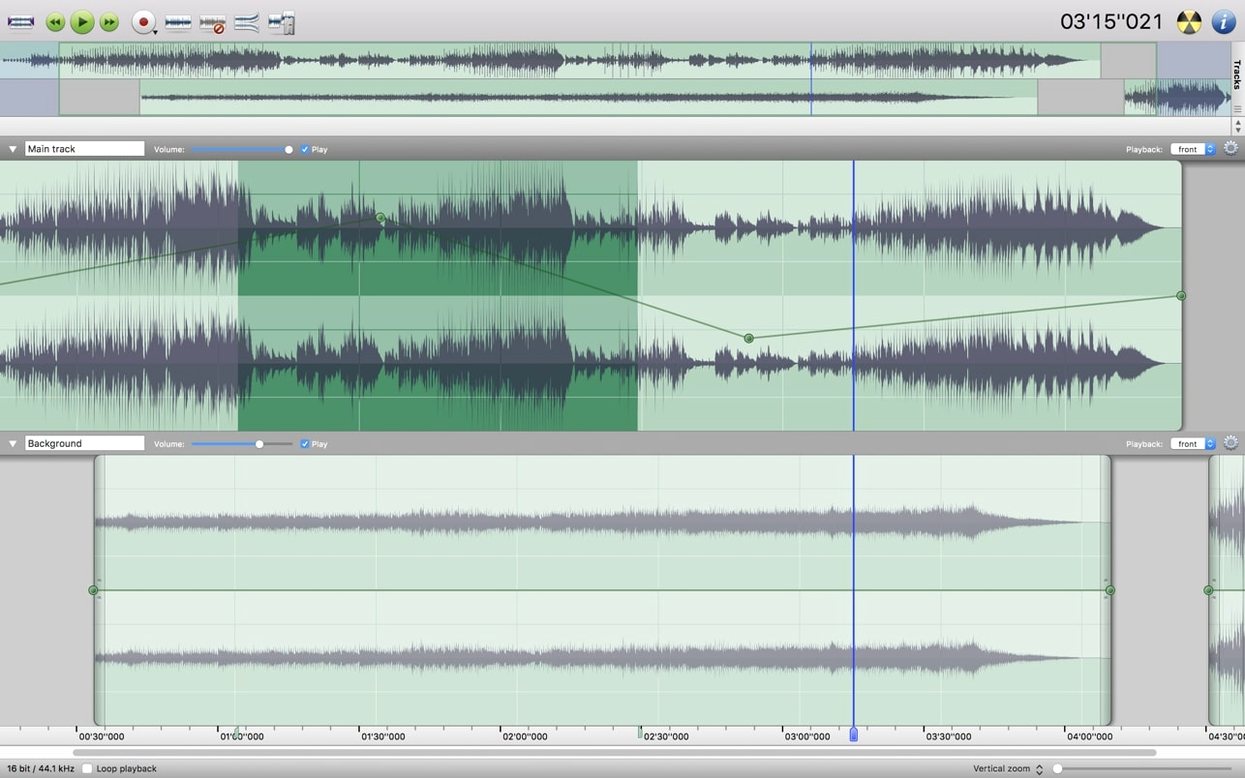
Amadeus Pro runs on any 64-bit Intel Mac with macOS 10.9 or later. That covers a good stretch of older machines, so if you're on a MacBook Pro from a few years back, you're fine.
It's a multi-track audio editor, plain and simple. You can work with several tracks at once, which makes it handy for podcast edits, music demos, or cleaning up field recordings.
Multi-track editing without a heavyweight DAW
- Editing multi-track sessions without a heavyweight DAW
- Batch processing files — convert, rename, apply effects to a folder at once
- Sound analysis with built-in tools
- Using Audio Unit plugins you already have on your Mac
Memory-saving direct-to-disk output and waveform caching
- Direct-to-disk output during processing saves memory on big files
- Waveform caching speeds up scrolling through long recordings
- Interface is in English, German, Danish, Spanish, Italian, Finnish, and French
Splitting a single-microphone interview by speaker
Say you're editing a three-person interview recorded on a single microphone. Everyone's voice is on one track, so you can't separate them. Amadeus Pro lets you split the recording into sections, add markers for each speaker, and apply noise reduction to the whole track or just the noisy parts. The noise reduction works on selected sections, so you don't have to process the entire file if only the guest's audio has a hum. You can then fade in and out between segments to smooth the transitions. No need for a full DAW setup — just the editor and a few VST or Audio Unit plugins for compression if you want them.
Workflow: digitise a tape and split into tracks
- Connect your tape deck to the Mac's line input. Open Amadeus Pro and create a new recording session from the menu.
- Hit record and play the tape. The software writes directly to disk, so a 60-minute cassette won't eat your RAM.
- Once the recording is done, use the waveform cache to scroll through the long file quickly. Look for the silent gaps between songs or sections.
- Place markers at each gap. The marker tool is in the toolbar — click to add one, then name it if you like.
- Select the region between two markers and export it as a separate file. You can choose MP3, AAC, FLAC or WAVE depending on what you need.
- Repeat for each marker. The whole process takes a few minutes once the recording is in the editor.
That's how you turn a single tape recording into a folder of separate tracks without any extra software.
Favorite Actions panel saves repeated noise reduction settings
- The Favorite Actions panel lets you save commands you use often. If you apply the same noise reduction settings every session, store them there instead of dialling in the parameters each time.
- Direct-to-disk output means you can process a two-hour live recording without the app asking you to save first. It writes the result straight to the drive as it works.
- Waveform caching is automatic — the first time you open a large file, the editor builds a cache so scrolling later is faster. You don't have to enable it manually.
- Batch processing handles more than just format conversion. You can chain effects, rename files and set output folders all in one pass.
- Audio Unit plugins from macOS work immediately. If you already have AU effects installed for GarageBand or Logic, they show up in the plugin list here too.
- macOS 10.9 or later
- 64-bit Intel architecture
Kit check at a glance
| System | OS X 10.9 or later |
| Chip | Intel 64-bit |
| Download | 18 MB |
| Older pressings | 1 in the crate |








Chat from the booth
Sign in or grab a free account to leave a comment.
Nobody has said a word in the booth yet. If you played a set with this build, tell the next person how it went.