

- Build in the crate
- 4.5.1
- Made by the team at
- Floor Steeg
- Menu languages offered
- English, German, Dutch, French, Czech, Japanese
- How you pay for it
- Not required
- macOS it plays on
- macOS 12 or later
- CPU it runs on
- Apple Silicon, Intel 64-bit
Screenshots
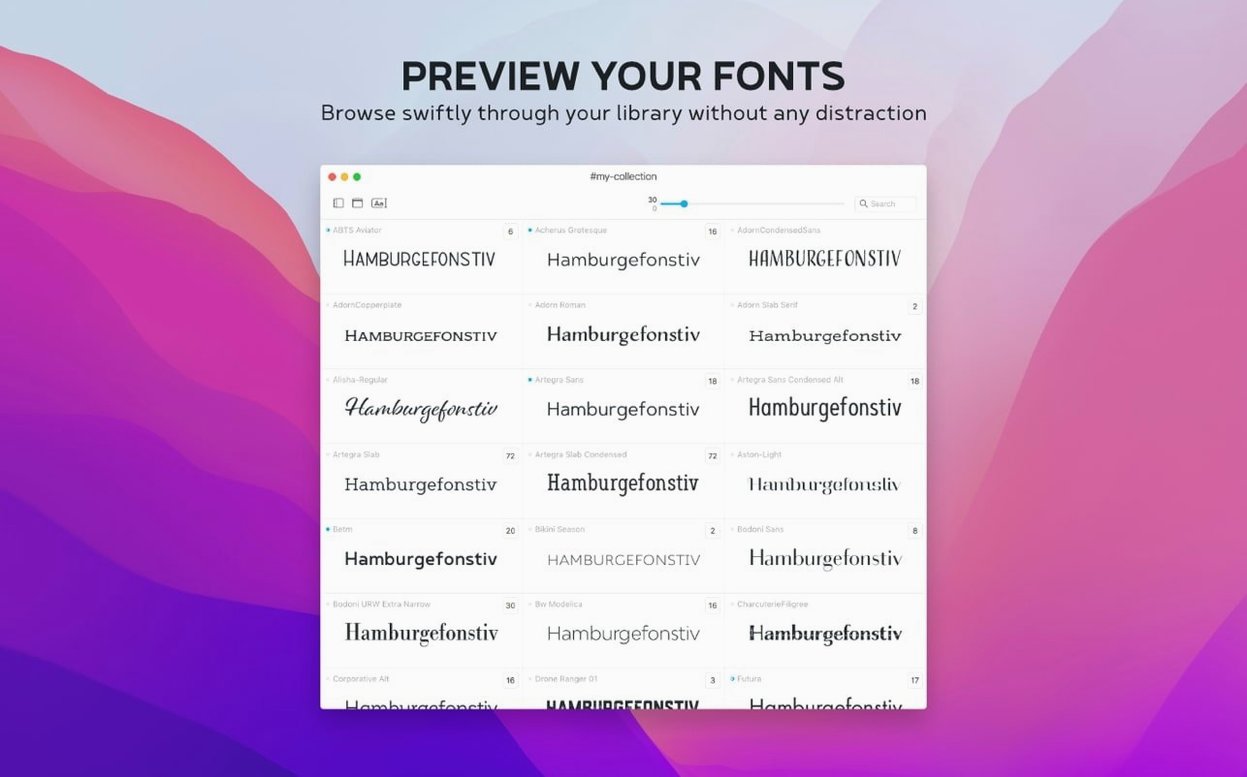
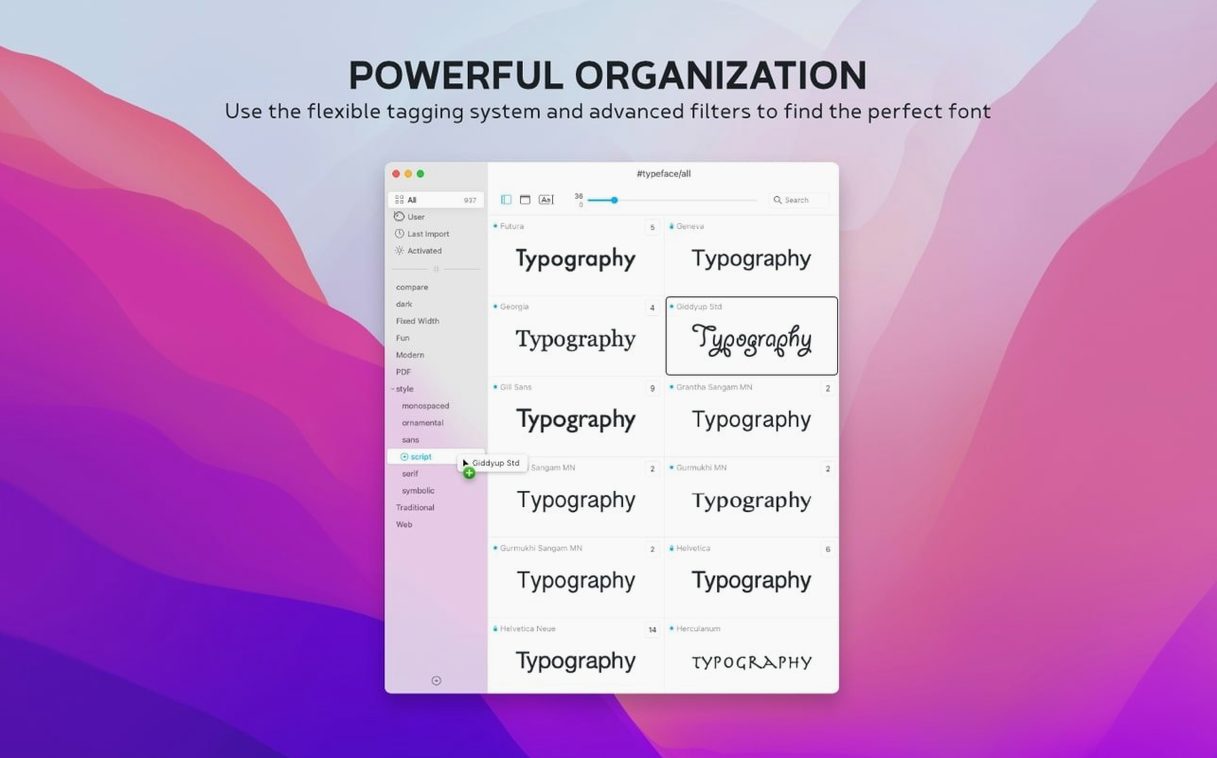
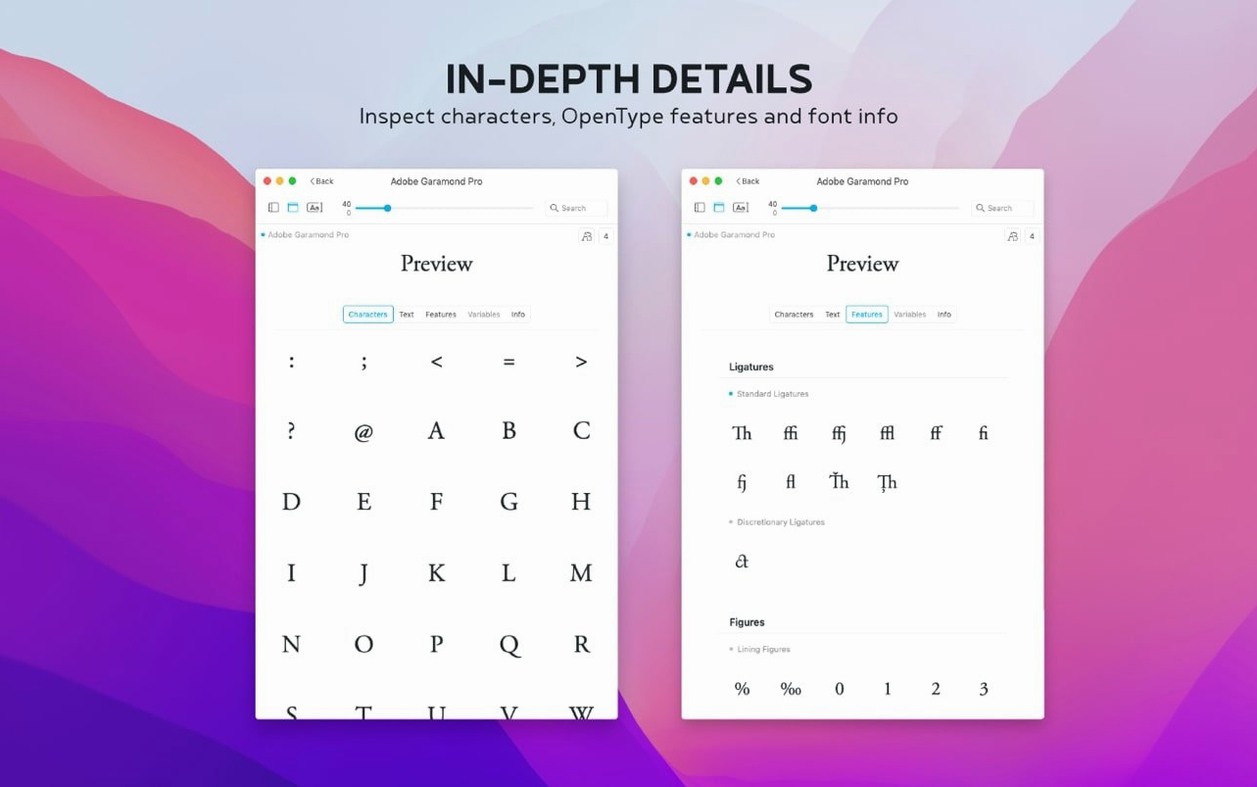
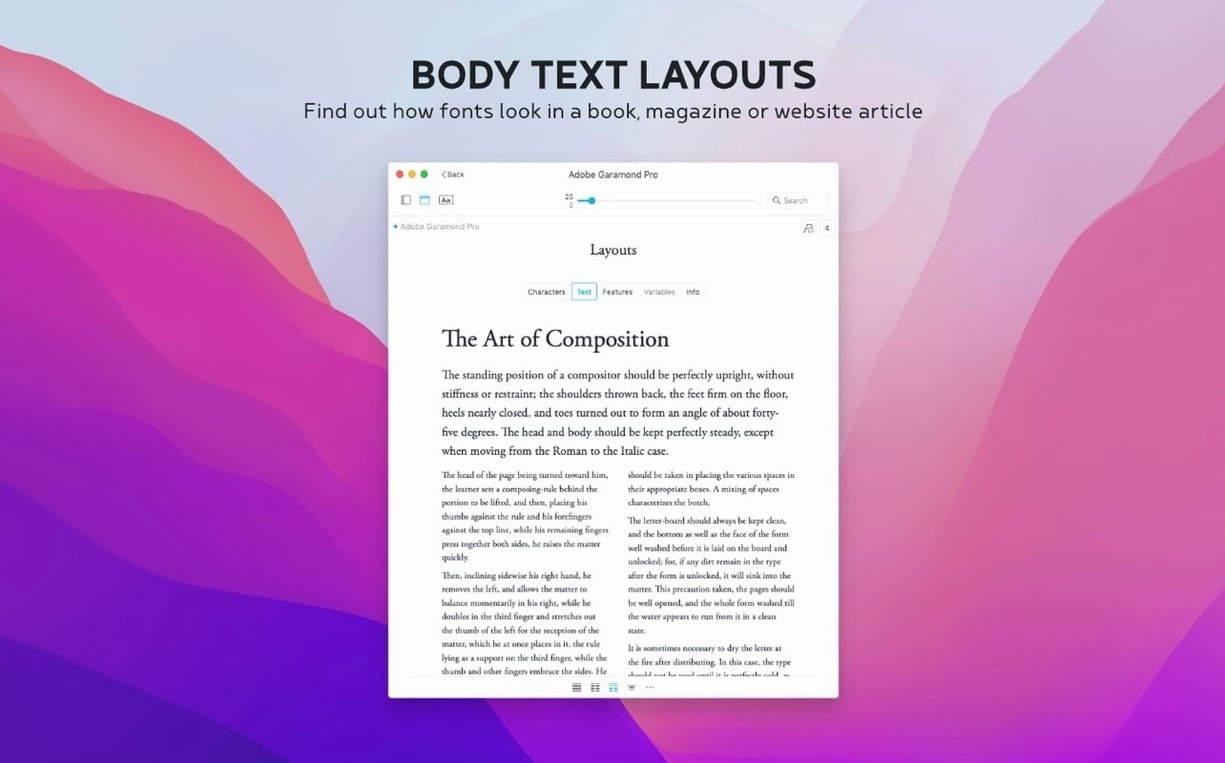
The Info tab in Typeface now has a Notes field — handy when you want to remember why you downloaded a particular typeface or which client project it belongs to. That’s version 4.5, and it also adds support for .otc font files and a Last Activated column for sorting.
A quick workflow to get yourself organised:
- Open the downloaded disk image.
- Drag the Typeface app to your Applications folder.
- Launch it from Launchpad after the copy finishes.
Once it’s running, you can preview any font at different sizes and with custom sample text. Fonts group themselves by family automatically, and you can build your own collections — useful when you’re juggling a dozen typefaces for a design project. It handles both the fonts already installed on your Mac and any custom .ttf, .otf, or .otc files you add yourself. The interface is in English, German, Dutch, French, Czech, or Japanese, and it runs on any Mac with macOS 12 or newer, Intel or Apple Silicon.
Forgetting imported versus system fonts
A few things trip people up when they first start using Typeface. The most frequent one is forgetting that the app only shows fonts that are either installed on your Mac or imported into its own library. If you download a typeface and it doesn’t appear, you probably haven’t added it yet — dragging the file onto the Typeface window or using the import option sorts that out in seconds.
Another easy misstep is ignoring the family grouping. Beginners often scroll through the long list of individual weights and think the app has duplicates. Toggle the family view and you’ll see the whole typeface as one entry, with all its weights tucked inside. Much easier to compare.
Some people also miss that tags and groups work differently. A font can belong to multiple tags but only one collection. If you’re trying to put a typeface in two collections at once, it won’t work — use tags instead. That’s where version 4.5’s search for notes comes in handy too: you can tag a font with project names, then search your notes later to pull up everything related.
Comparing fonts side by side for clients
Typeface is built for anyone who works with type regularly, but it really shines for a few specific groups. Graphic designers juggling multiple client projects benefit the most — being able to compare fonts side by side and save custom collections per project saves time you’d otherwise spend scrolling through the system Font Book. Typographers who need quick access to glyph sets and special characters will appreciate the dedicated glyph view, which shows you exactly what’s in each font without opening a separate app.
Mac users who manage large font libraries, whether downloaded from Google Fonts or collected over years, will find the metadata and copyright history in the Info tab useful for tracking where each typeface came from. And if you work in a multilingual team, having the interface in six languages makes it easier to share the tool without translation headaches.
Using the Last Activated sort to clean up
A few features in Typeface 4.5 are easy to overlook but worth knowing about. The Last Activated column and sorting option let you see which fonts you’ve used most recently — useful when you’re cleaning out old typefaces or trying to remember what you picked for a project last month.
The Notes field in the Info tab is another quiet addition. You can jot down why you added a font, which project it’s for, or even a reminder about licensing. Then the search in the overview finds those notes, so you don’t have to open every font to check.
If you import the free Google Fonts library — over 2,000 typefaces — they all land in your Typeface library with their families intact. That saves the manual work of organising them yourself, and you can still assign them to custom collections or tags later. The app also imports fonts from other font managers, so switching over doesn’t mean starting from scratch.
- Notes field in the Info tab for each font.
- Search for notes in the overview.
- Last Activated column and sorting by last activation date.
- Support for .otc font files.
- macOS 12 or later
- Intel or Apple Silicon
Kit check at a glance
| System | macOS 12 or later |
| Chip | Apple Silicon, Intel 64-bit |
| Download | 23 MB |
| Older pressings | 2 in the crate |





Chat from the booth
Sign in or grab a free account to leave a comment.
Nobody has said a word in the booth yet. If you played a set with this build, tell the next person how it went.