

- Build in the crate
- 1.20
- Made by the team at
- Cedar Lake Ventures Inc.
- Menu languages offered
- English
- How you pay for it
- Included
- macOS it plays on
- OS X 10.7 or later
- CPU it runs on
- Intel 64-bit
Screenshots
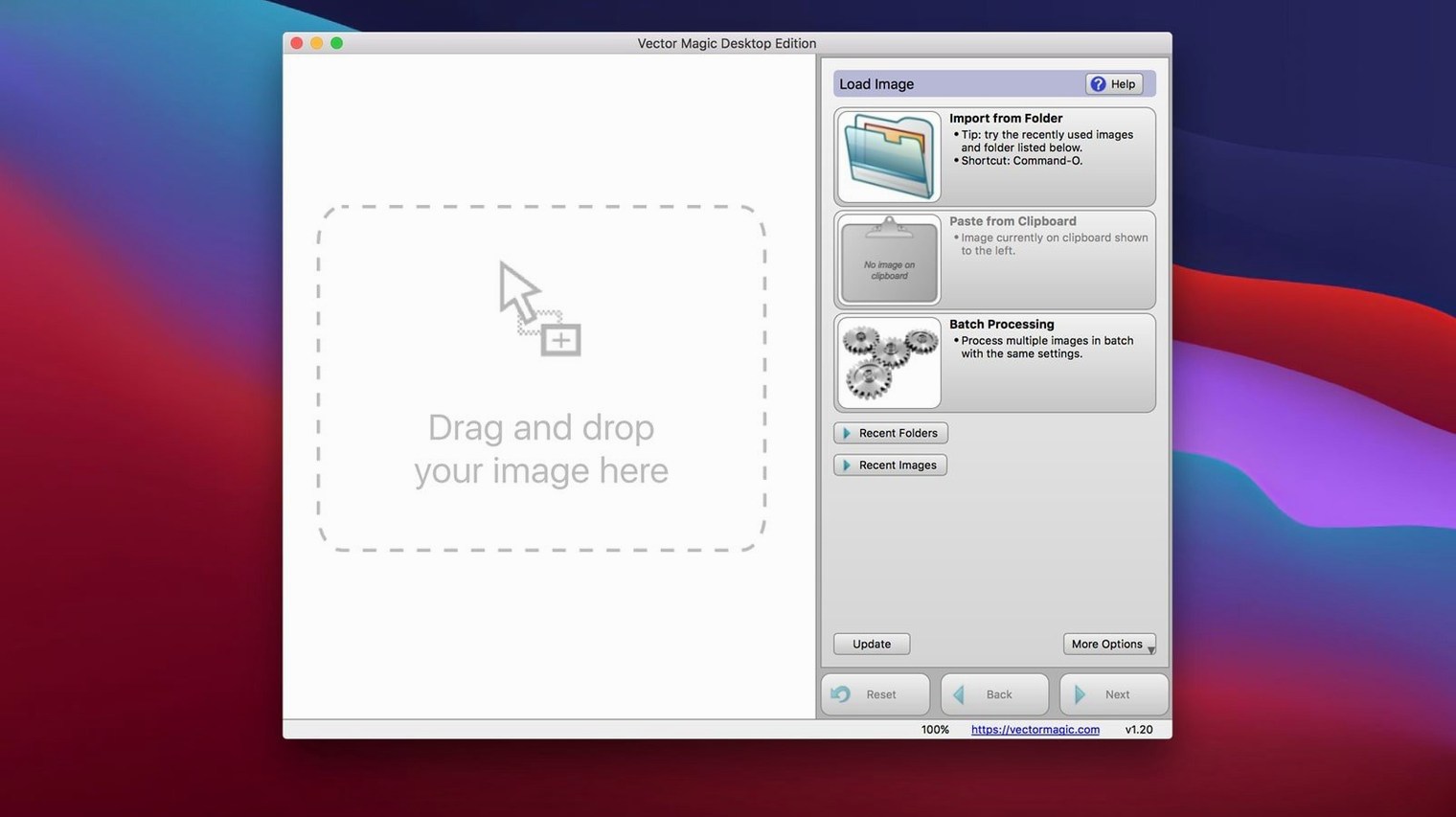
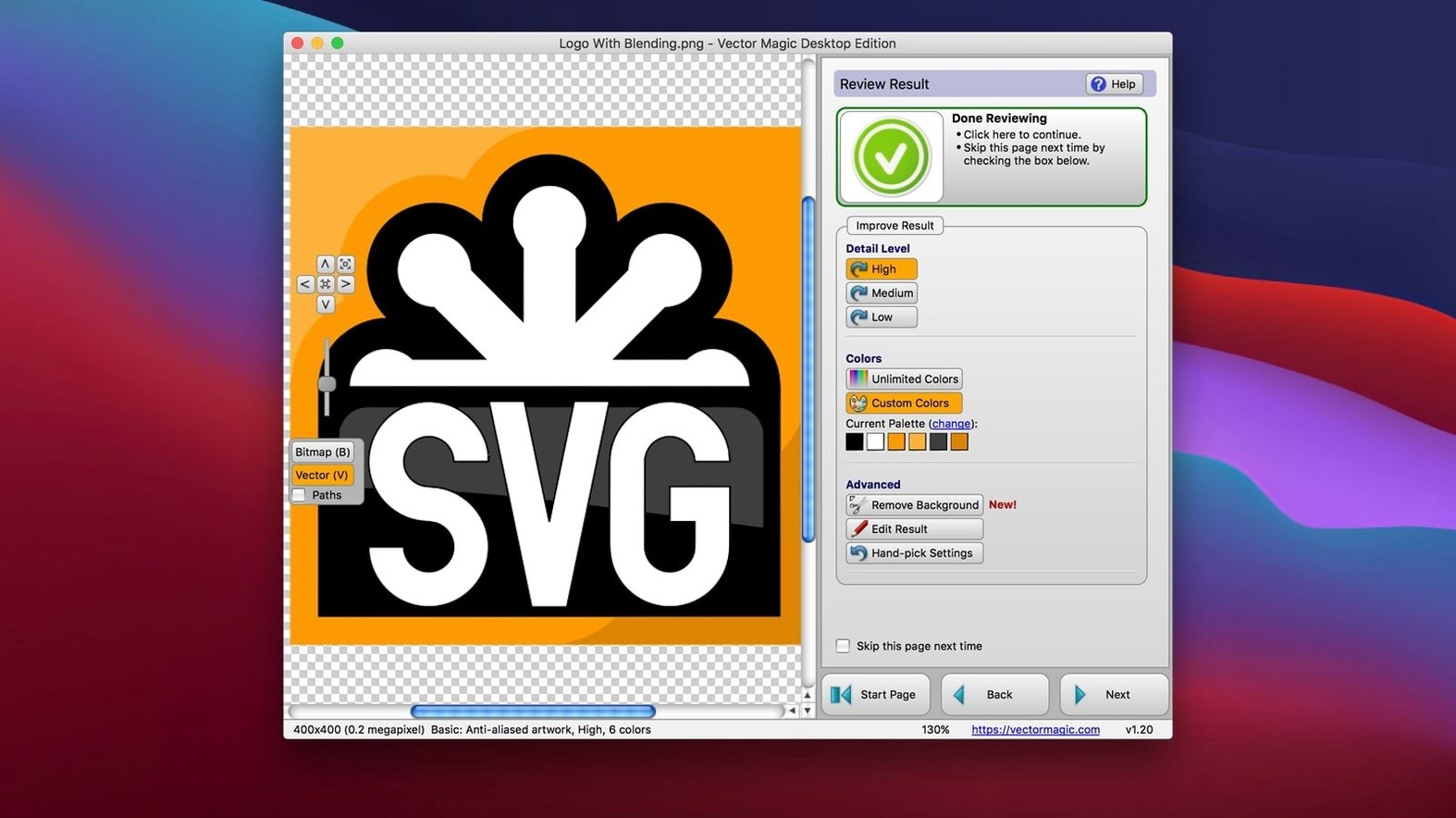
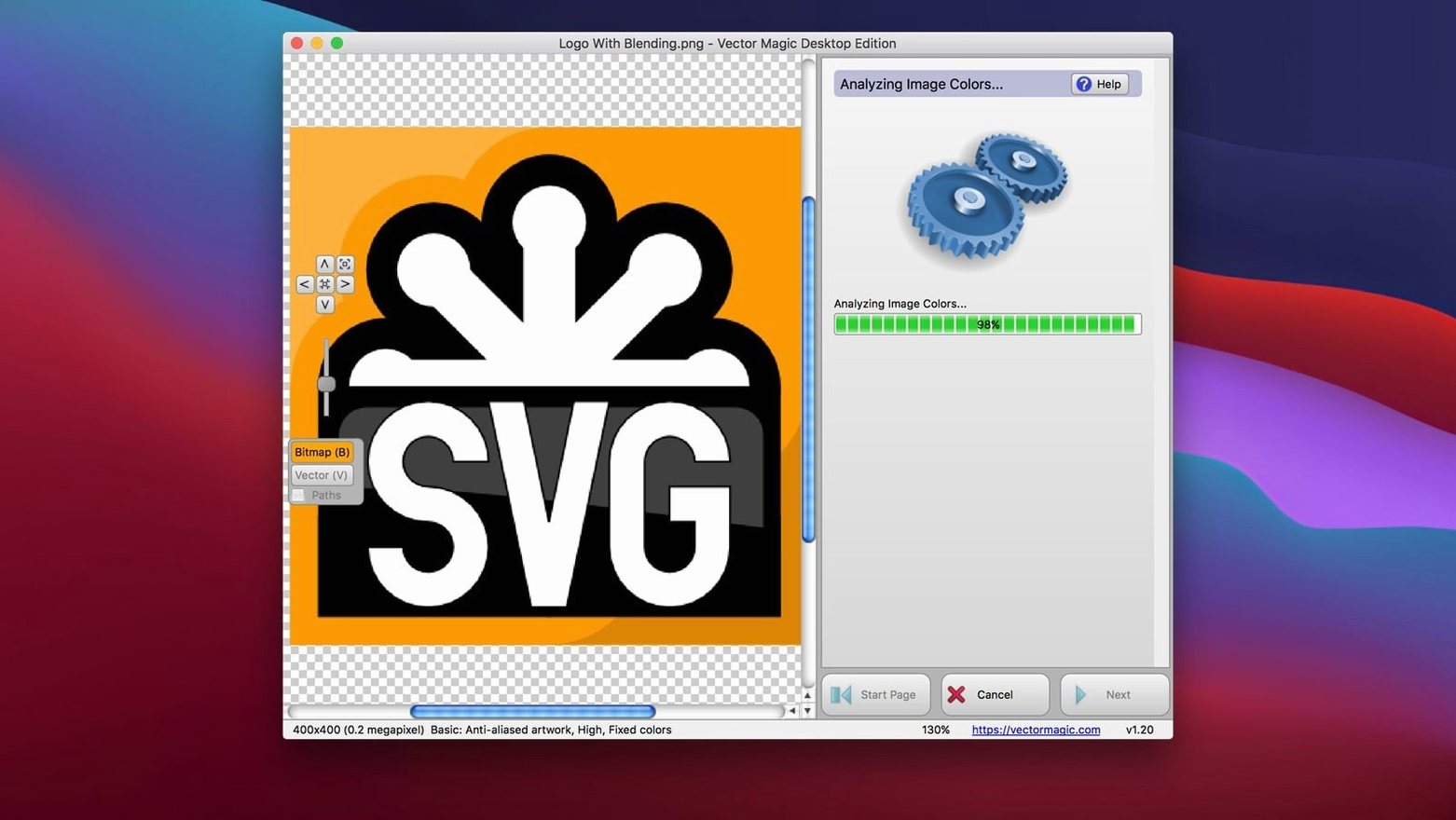
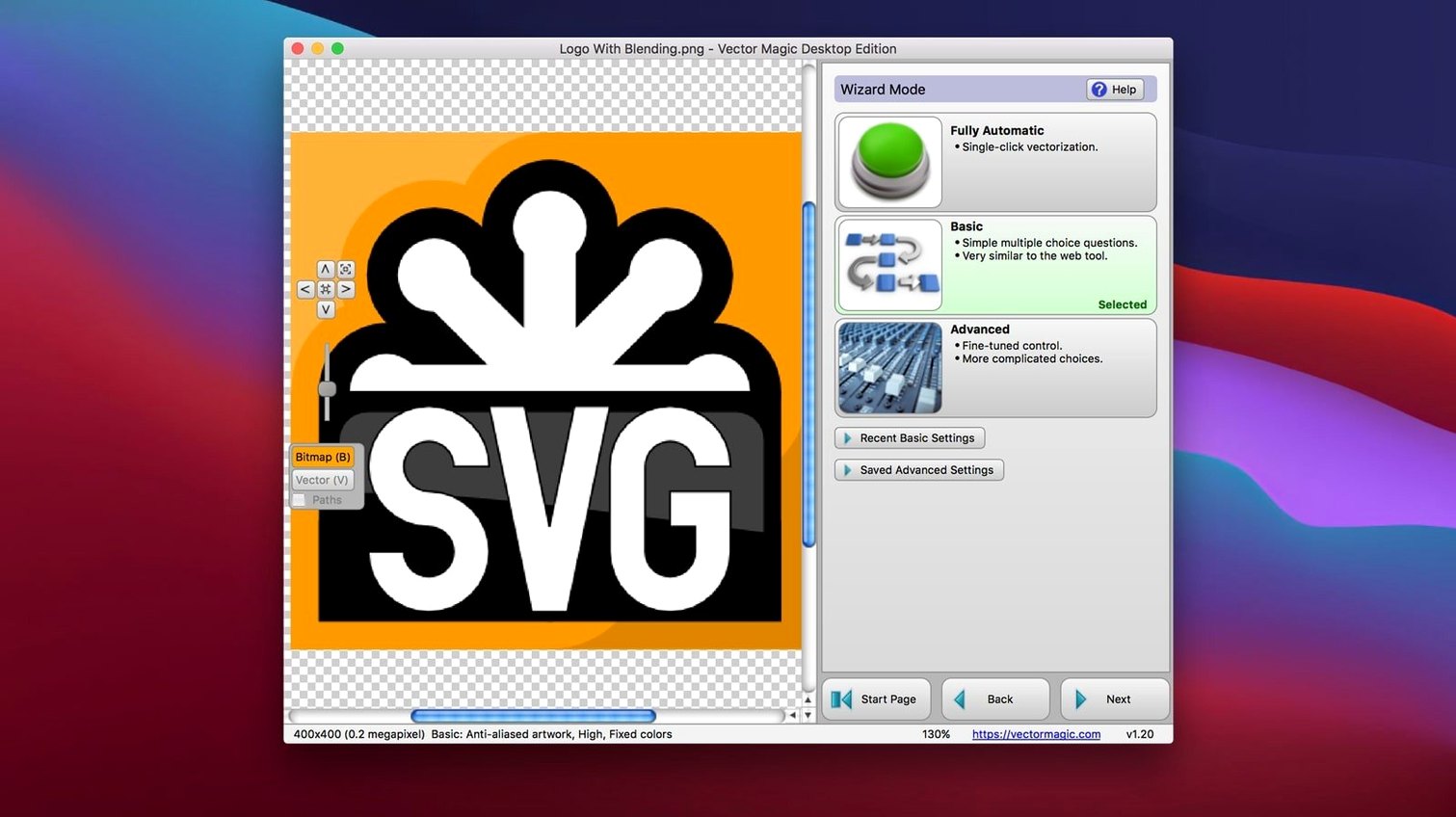
The current version of Vector Magic, 1.20, keeps things simple: it's the Desktop Edition, the standalone version of the online tool. What that means for you is that all the conversion happens on your Mac, no internet connection needed. The interface is in English, and the app includes built-in help, so you're not left guessing when you first open it.
| Detail | Value |
|---|---|
| Developer | Cedar Lake Ventures Inc. |
| Current version | 1.20 |
| Input formats | JPEG, GIF, PNG, BMP, TIFF, PSD |
| Output formats | EPS, SVG, PDF, AI, DXF, EMF, PNG |
| Max file size | 10.0 MB |
| Max image size | 10.0 megapixels |
For a newcomer, the first thing to try is dragging an image straight onto the app window. It accepts JPEG, PNG, and the rest, and you'll see the result in seconds. If the automatic trace isn't quite right, switch to manual mode and adjust individual parameters with instant preview. That's where the real control lives. Once you're happy, export to SVG for the web or EPS for print. Copy and paste also work, which is handy when you're pulling a logo from a mockup. Give it a go with a simple logo first — it's the quickest way to see what Vector Magic can do.
a real-world scenario: rebranding a local café's logo
A friend of mine runs a small café in Valencia. They had a logo designed years ago — a coffee cup with a steam swirl — but the only surviving copy was a low-resolution JPEG from an old website. The café was rebranding for a new location, and the printer needed a vector file. Opening that JPEG in Illustrator and tracing it manually would have taken an hour of tweaking paths. Instead, I dropped the JPEG into Vector Magic, let it run the automatic trace, and had a clean SVG in under a minute. The steam swirl came out smooth, no jagged edges. I exported it as EPS for the printer, and that was it. No fuss, no redrawing from scratch.
For anyone who works with old client files or inherited artwork, this is the scenario Vector Magic solves. You don't need to rebuild a logo from a raster copy — you convert it and move on.
workflow: converting a scanned sketch for screen printing
Here's a task I do regularly. A designer sends me a hand-drawn sketch, scanned as a 300 DPI TIFF. I need a vector outline for a two-colour screen print. Here's the full workflow from start to finish:
- Drag the TIFF onto the Vector Magic window. The app opens it immediately — no import dialog, no extra clicks.
- Check the automatic result. For most clean sketches, the auto mode does a decent job. I look at the preview to see if the lines are continuous and if any noise from the paper texture made it through.
- Switch to manual mode. This is where I tweak. I adjust the detail slider to capture the sketchy lines without picking up every pencil grain. The instant preview shows each change as I make it.
- Remove the background. The scanned TIFF has a white paper background. Vector Magic's improvement tools include background removal, so I set that to transparent. Now the vector sits on a clear canvas.
- Segment edit any rough spots. A couple of lines had small gaps where the pencil lifted. I use segment editing to close those paths. It's point-and-click — no pen tool wrestling.
- Export as EPS. For screen printing, EPS is the standard. I save it, then open it in Illustrator to add the spot colours. The vector comes in clean, ready to separate.
The whole thing takes maybe five minutes. Without Vector Magic, I'd be tracing by hand or cleaning up an auto-trace in Illustrator for twenty minutes.
faster manual preview in 1.20
Vector Magic 1.20 is a mature release. What changed compared to earlier versions isn't a long list of new features — it's about stability and polish. The manual mode's instant preview got faster, which matters when you're adjusting parameters on a large image near the 10.0 megapixel limit. The built-in help also saw updates, so the explanations for each improvement tool are clearer. For everyday use, the biggest difference is that batch processing works more reliably with mixed input formats. I can drop a folder with JPEGs, PNGs, and TIFFs together, and the app processes each one without hanging on format switching. If you're coming from an older version, that batch improvement alone saves time when you're converting a whole set of assets.
- macOS OS X 10.7 or later
- Intel 64-bit processor
- Maximum file size: 10.0 MB
- Maximum image size: 10.0 megapixels
Kit check at a glance
| System | OS X 10.7 or later |
| Chip | Intel 64-bit |
| Download | 17 MB |




Chat from the booth
Sign in or grab a free account to leave a comment.
Nobody has said a word in the booth yet. If you played a set with this build, tell the next person how it went.