
- Build in the crate
- 2.17.0
- Made by the team at
- ViWizard Studio
- Menu languages offered
- English, German, French, Japanese
- How you pay for it
- K'ed by TNT team
- macOS it plays on
- OS X 10.10 or later
- CPU it runs on
- Intel 64-bit
Screenshots
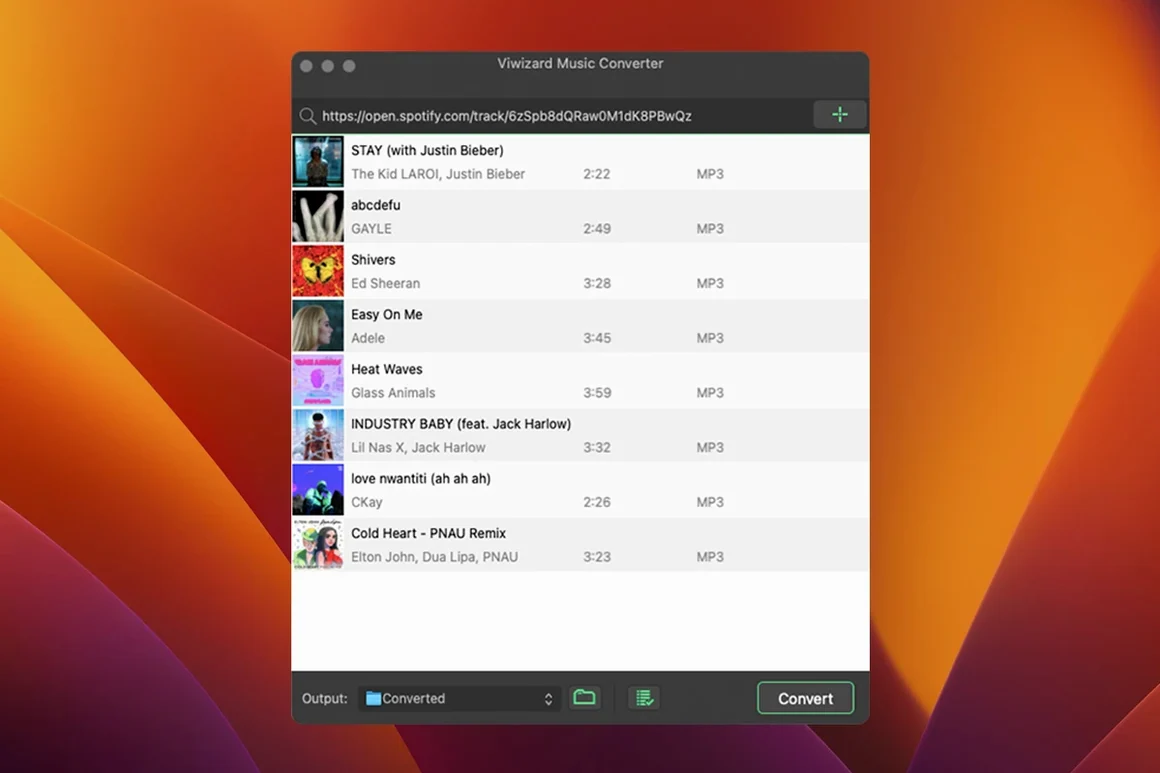
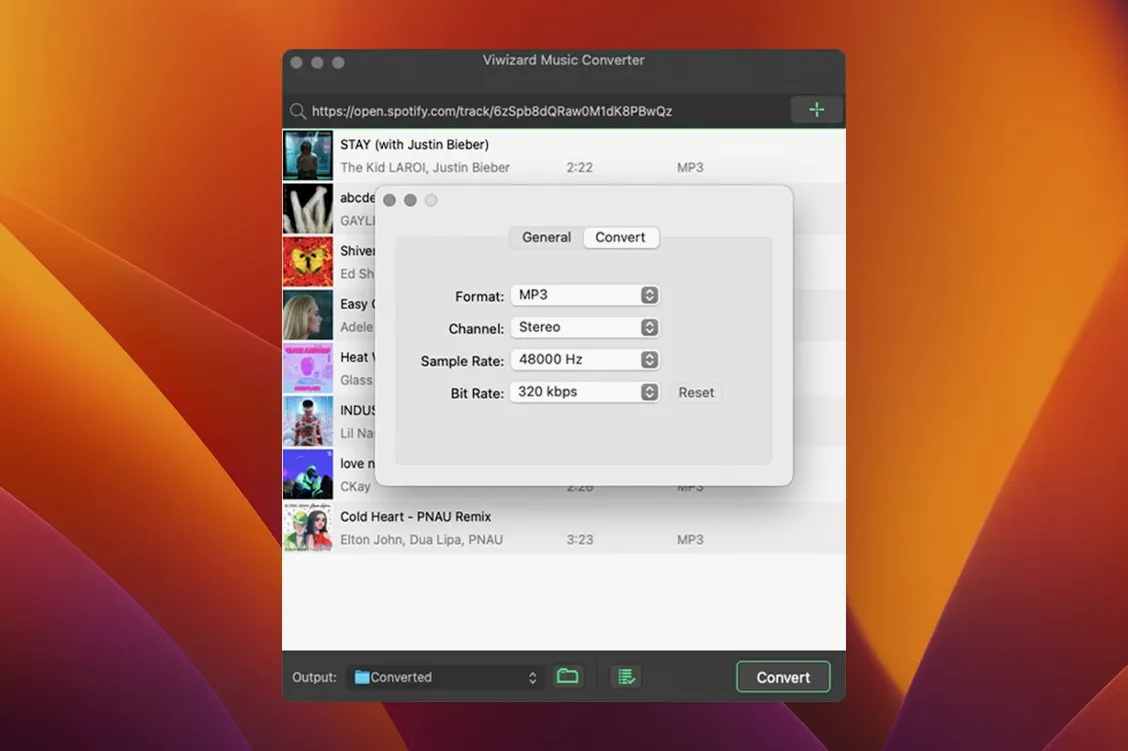
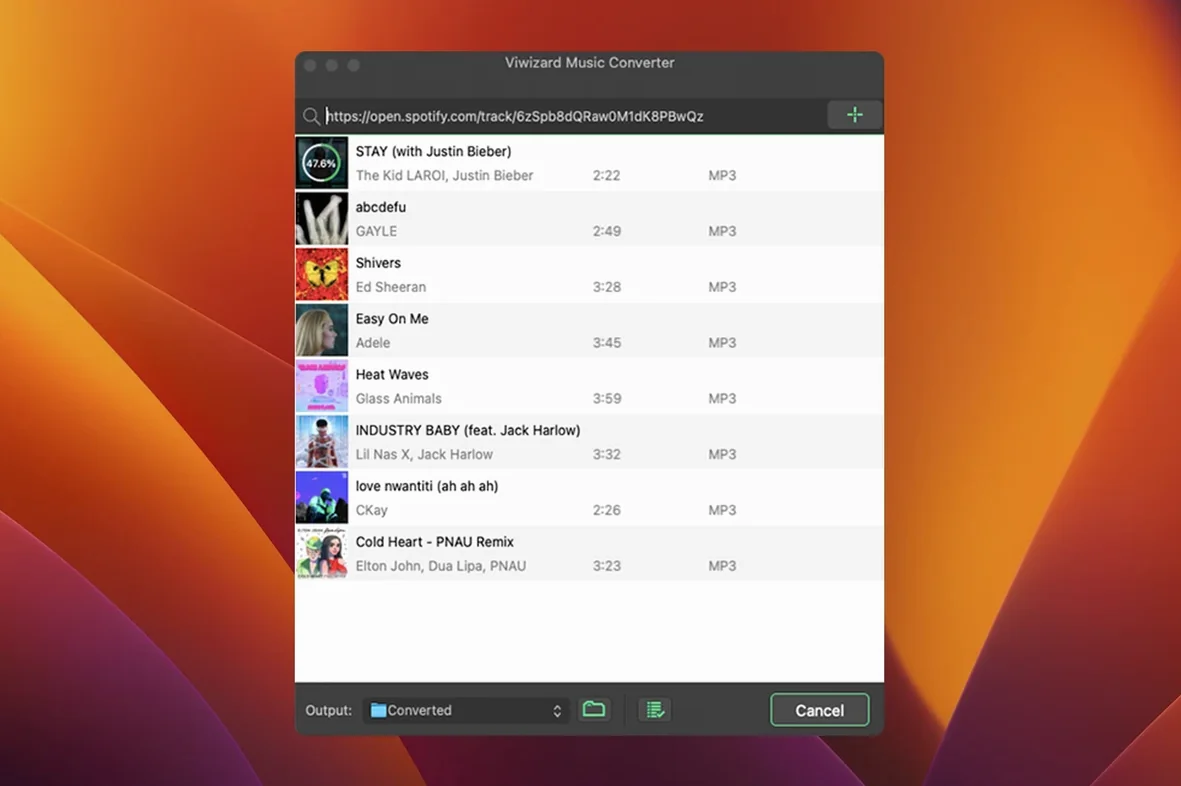
ViWizard Spotify Music Converter 2.17.0 doesn't add headline features — it's a polish release, which is fine. The interface still supports English, German, French and Japanese, and it still runs on OS X 10.10 and later. For a newcomer, the appeal is simple: pick a track, playlist or album, and get a clean audio file.
Batch convert a playlist to MP3, FLAC, or other formats
- Batch convert a playlist — select a whole playlist and let it run. Batch conversion is built in.
- Pick a format — MP3, AAC, WAV, FLAC, M4A or M4B. FLAC is handy if you archive; MP3 for portability.
- Check the metadata — titles, artists and artwork carry over during conversion, so you don't have to retag.
- Try a podcast or audiobook — it's not just music; those work too.
How it gets the music
It uses Spotify's Web Player for access, which means the app taps into your existing Spotify content — songs, playlists, albums, artists, podcasts and audiobooks — and converts what you choose. That's the core job, done without fuss. If you're on an Intel Mac, you're set; it's built for x86 64-bit.
Set output folder and preferences before converting
Before you start converting, open the preferences. A few tweaks save time later.
- Set your output folder — choose a location you can find easily, like a dedicated Music folder. The default Desktop can get messy fast.
- Choose a bitrate — 320 kbps for MP3 gives near-CD quality; 128 kbps is fine for spoken word or podcasts. The app lets you adjust channel and sample rate too.
- Turn on auto-organising — the option to save tracks by artist or album keeps your library tidy. Without it, you get a flat list of files.
- Pick a default format — if you mostly listen on a phone, set MP3 or M4A as the default. If you archive, FLAC is the one.
Test one short playlist for playback and metadata
Once you've set it up, these habits make the tool more useful.
- Start with one playlist — pick a short one, maybe 10–15 songs, and convert it. Check the output files play, the metadata looks right, and the folder structure makes sense. Then scale up.
- Use batch conversion — select multiple playlists or albums at once and let the app run overnight. It handles them in sequence without babysitting.
- Keep Spotify open in the background — the converter uses the Web Player, so a stable connection helps. If you're on a slow network, start smaller batches.
- Check one file after each batch — open a converted track in QuickTime or your music player. Look for the right title, artist, and album art. If something's off, adjust the output settings before the next batch.
Bypass Gatekeeper if the app won't open
Nothing here is a showstopper, but a few hiccups pop up regularly.
- App won't open after install — you need to bypass Gatekeeper. Mount the disk image, run
Open Gatekeeper friendly, and press Enter in Terminal when prompted. Then drag the app to Applications. If it still won't launch, check you're on OS X 10.10 or later. - Conversion starts but no files appear — the output folder might be set to a location you can't write to, like a restricted system folder. Change it in preferences to your Documents or Music folder.
- Metadata is missing — some tracks from rare playlists or user uploads may not have full metadata. That's normal; the converter passes through what Spotify supplies. You can retag manually after.
- Only a few tracks convert from a big playlist — check your internet connection. The Web Player loads tracks one by one, so a slow or intermittent connection can skip items. Restart the app and try again with fewer tracks.
- FLAC files are huge — that's expected. FLAC is lossless. If you need smaller files, switch to MP3 at 320 kbps or M4A at 256 kbps. The difference in sound quality is tiny for most listeners.
- macOS: OS X 10.10 or later
- Architecture: Intel
- Languages: English, German, French, Japanese
Kit check at a glance
| System | OS X 10.10 or later |
| Chip | Intel 64-bit |
| Download | 7 MB |
| Older pressings | 1 in the crate |
Chat from the booth
Sign in or grab a free account to leave a comment.
Nobody has said a word in the booth yet. If you played a set with this build, tell the next person how it went.