
- Build in the crate
- 2026.09.13
- Made by the team at
- dBpoweramp
- Menu languages offered
- English
- How you pay for it
- Not required
- macOS it plays on
- macOS 11 or later
- CPU it runs on
- Apple Silicon, Intel 64-bit
Screenshots
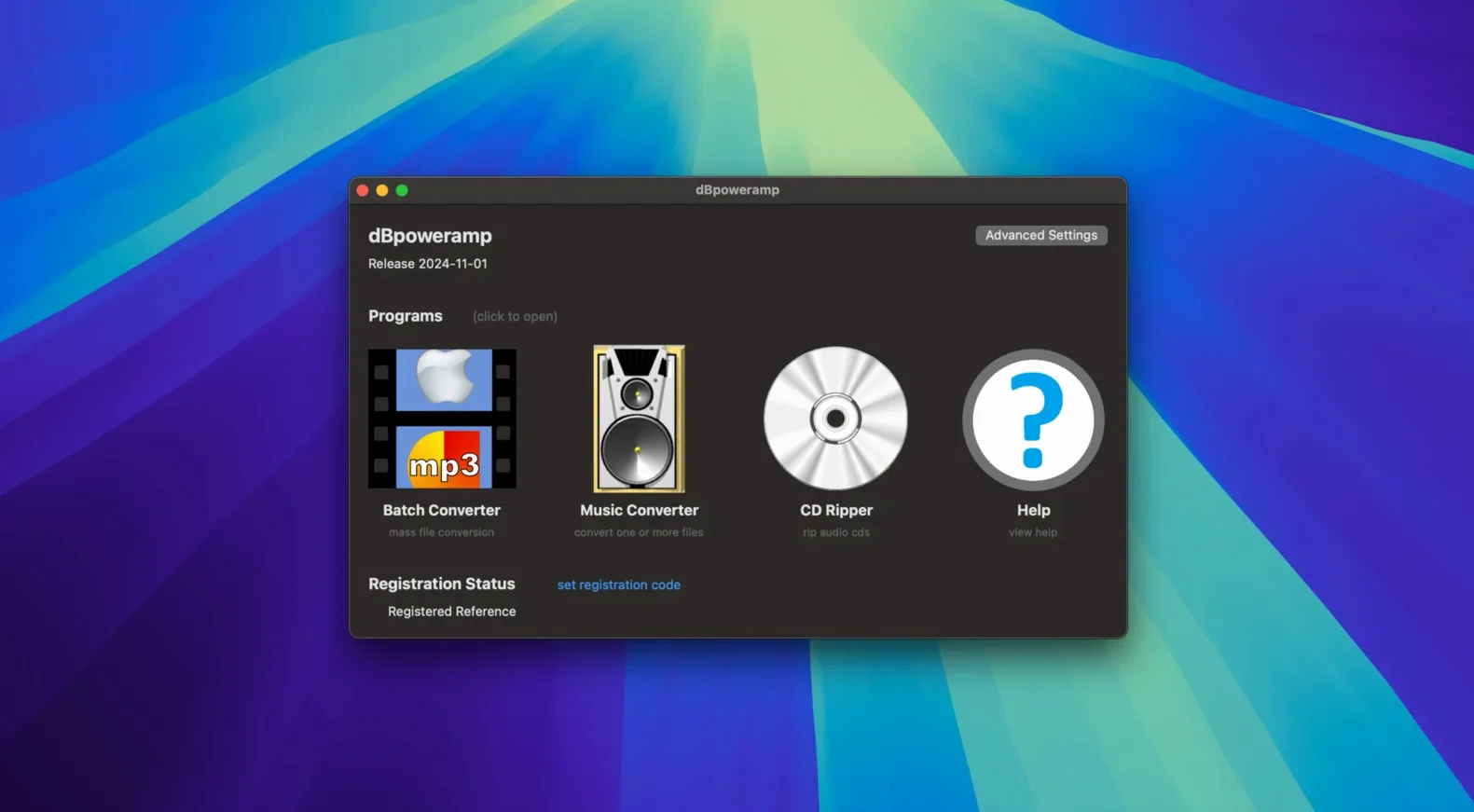
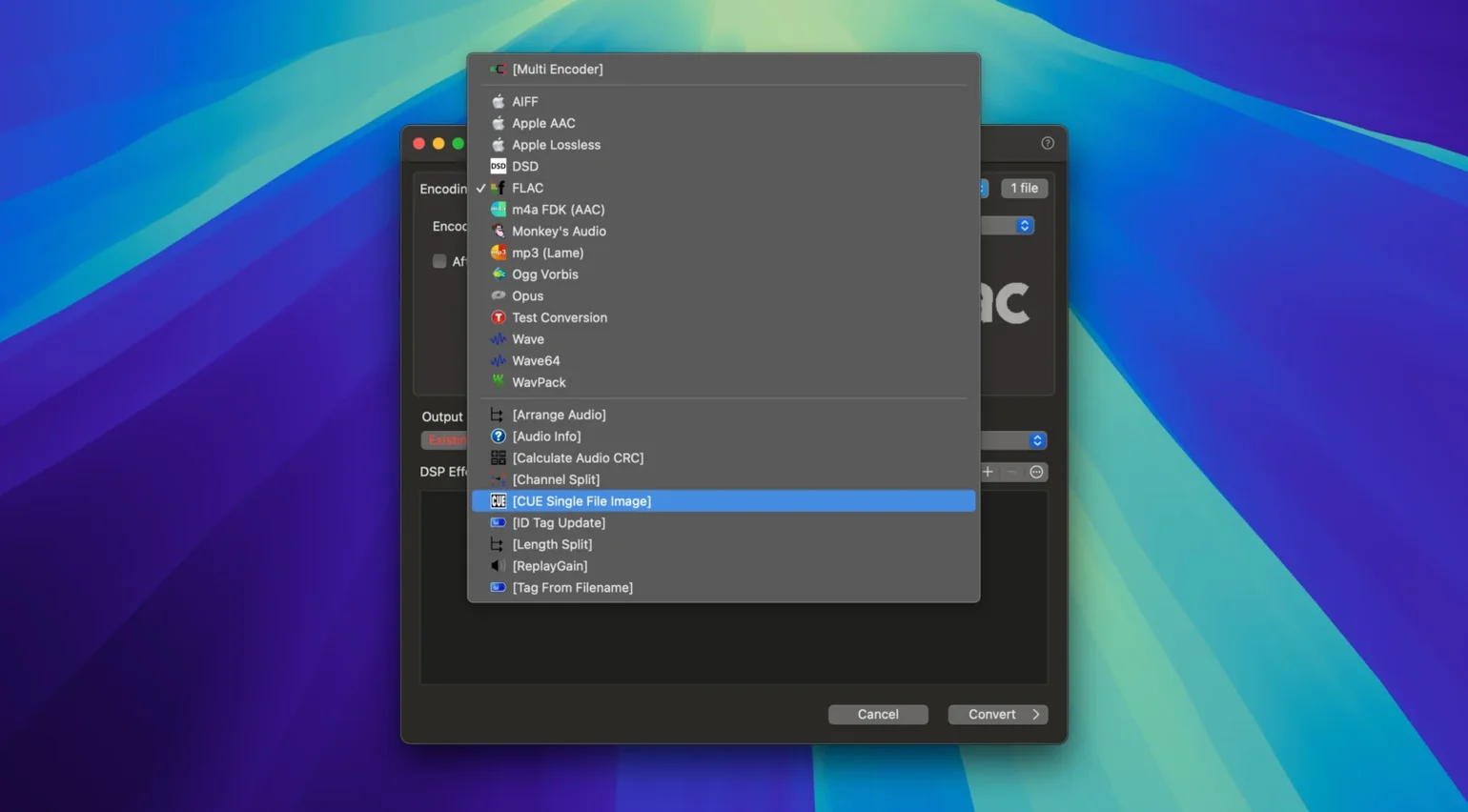
Getting a pile of tracks into the same format, or cleaning up messy metadata, usually means opening each file one by one. dBpoweramp Music Converter for Mac handles that differently: you select a folder or a group of files, choose your output format, and it runs through them in one go, using multi-core encoding to keep things moving.
Here is what stands out about it:
Batch conversion keeps tags and artwork intact
- Batch conversion with tag preservation — convert MP3, M4A, WMA, WAV, AIFF, AAC, FLAC, Apple Lossless and more. ID tags and artwork stay intact through the process. No retagging everything afterwards.
- Finder integration — right-click a file in Finder and send it straight to conversion. Saves dragging and dropping.
- ID tag editing — edit track metadata without needing a separate tagger. Handy when you spot a wrong artist name mid-conversion.
- Resampling improvements in the current version — the 2026.09.13 release also fixed an Intel-only component warning on the latest macOS, plus a tag-editing quirk with the Enter key and autocomplete.
For a music student or weekend DJ who juggles different audio sources — samples, stems, downloads in random formats — this app turns a tedious task into a single pass. You keep the original files and end up with clean, consistent copies ready for whatever DAW or deck you use next.
After you get dBpoweramp installed, the first few conversions can feel a bit different from what you expect if you are used to dragging files into a converter window. A few practical things make the first days smoother.
Enable the right-click menu in Finder Services
- Check Finder Services — after dragging the app to Applications and launching it once, restart Finder or log out and back in. The Convert with dBpoweramp option in the right-click menu should appear. If it does not show up straight away, a restart usually fixes it.
- Try a small batch first — pick three or four files in different formats and convert them to FLAC or WAV. This way you can confirm that artwork and metadata come through correctly before you commit a large library conversion.
- Set your output folder early — dBpoweramp defaults to the same folder as the source files. If you prefer a dedicated output directory, change it in the conversion window before hitting start. It saves hunting through folders later.
- DSP processing is optional — volume normalisation and sample rate conversion are there if you need them, but you do not have to apply any DSP for a basic format change. Leave the DSP panel empty unless you want specific adjustments.
Resampling improvements for mixed sample-rate files
The resampling improvements in this release mean that converting between sample rates — say 44.1 kHz to 48 kHz — sounds more consistent across different source files. If you work with tracks recorded at varying rates and need them uniform for a mix or a live set, the difference shows up in the output waveform, not in settings you have to tweak.
The Edit Tags fix matters more than it sounds. Previously, pressing Enter when the autocomplete dropdown was visible would close the whole tag editor instead of confirming the suggestion. That is sorted now: Enter selects the autocomplete option and keeps the editor open, which is one of those small annoyances that adds up when you are tagging dozens of files.
The Intel-only component warning that popped up on recent macOS versions is gone. If you are on an Apple Silicon Mac, that means no more nag dialogs about incompatible plugins when you launch the app.
Missing Finder option? Check the Extensions settings
- Finder option not appearing — if Convert with dBpoweramp is missing from the right-click menu, go to System Settings > Privacy & Security > Extensions > Finder Extensions and make sure the dBpoweramp extension is enabled. If it still does not show, re-launch the app and log out once.
- Conversion fails on certain files — some WMA files with DRM or unusual codec profiles may not convert. The app handles standard WMA, but protected or non-standard variants can stop mid-batch. Remove those files from the batch and convert them separately, or check the source format.
- Tags not carrying over — if you convert from a format that does not support embedded artwork or specific tag fields, the data gets dropped. FLAC and Apple Lossless handle most metadata well; older MP3 files sometimes strip artwork depending on the encoder. Test one file first.
- Output files missing from Finder — after a batch conversion, Finder may not refresh immediately. Use the dBpoweramp output window to open the destination folder directly instead of searching manually.
These are the kind of hiccups that happen with any audio tool. Once you know where to look, they take a minute to sort out.
- Resampling improvements added
- Edit Tags Enter key behaviour fixed when autocomplete is visible
- Warning about an Intel-only component on the latest macOS fixed
- macOS 11 or later
- Intel or Apple Silicon processor
- Interface language: English
Kit check at a glance
| System | macOS 11 or later |
| Chip | Apple Silicon, Intel 64-bit |
| Download | 31 MB |
| Older pressings | 5 in the crate |

Chat from the booth
Sign in or grab a free account to leave a comment.
Nobody has said a word in the booth yet. If you played a set with this build, tell the next person how it went.