
- Build in the crate
- 2.2.0
- Made by the team at
- Serato
- Menu languages offered
- English
- How you pay for it
- K'ed by MORiA
- macOS it plays on
- macOS 11 or later
- CPU it runs on
- Apple Silicon, Intel 64-bit
Screenshots
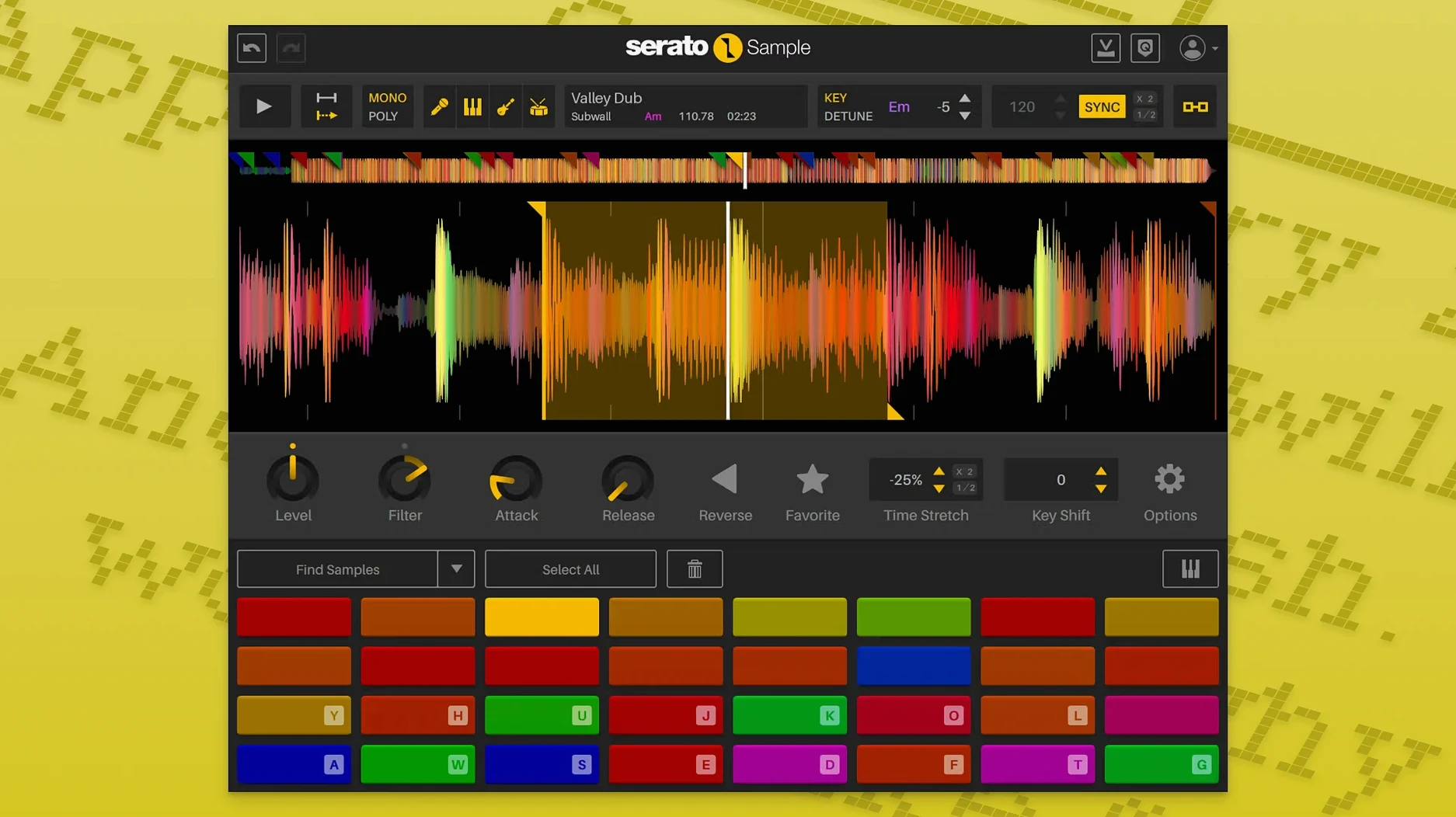
You find a drum break or a vocal phrase that should fit your track, but the tempo is off, the key doesn’t match, and the sample has a piano part you don’t want. Serato Sample solves that in one plugin window.
- Load the sample. Drag an audio file onto the waveform display. The plugin detects BPM and key automatically.
- Separate stems. Click the Stems button. The vocals, drums, bass, and other parts appear as individual faders. Adjust each stem level until the mix sounds right.
- Set the beatgrid. If the sample isn’t quantised, use the beatgrid markers to align it to your project’s tempo. The sample locks in.
- Chop and assign. Use the slice mode to cut the sample into hitpoints. Each slice can be assigned to a pad or a MIDI note.
- Play from a controller. Trigger slices from a MIDI keyboard or pads. Pitch-shift and time-stretch each slice with Pitch ’n Time while retaining audio quality.
This workflow works for any genre. You keep the raw feel of the original recording and still match it to a modern mix. The plugin handles the maths — you handle the arrangement.
Load random audio and toggle Stems
Once Serato Sample is inside your DAW, spend a session just loading random audio files — old drum loops, field recordings, a snippet from a vinyl rip. Let the plugin auto-detect the BPM and key, then toggle the Stems button. Get a feel for how clean the vocal separation is versus the bass separation on different kinds of material. You’ll quickly learn which samples work best with the stem isolation and which ones need a manual beatgrid tweak.
Try the Keyboard Mode early. It maps the sample chromatically across your MIDI keyboard, so you can play the sample like an instrument. This is useful when you want to turn a short stab or a vocal phrase into a melodic element rather than a loop. Don’t worry about slicing straight away — just play the sample as a whole, pitch it up or down with the Pitch ’n Time engine, and see where it lands in your arrangement.
Spend a few minutes with the beatgrid markers on a loop that isn’t quantised. Move the grid markers to the transients manually, then watch the sample snap to your project tempo. That’s the moment where the plugin starts to feel like more than a simple sampler — it becomes a time-alignment tool that preserves the groove of the original performance.
Individual stem level faders
The most noticeable change in version 2.2.0 is the individual stem level faders. In earlier versions, you could separate stems but had to route them to separate mixer channels to adjust their volumes. Now you can dial in the level of the acapella, melody, bass, and drums directly inside the plugin. That saves time when you’re building a beat and want the vocal to sit lower or the drums to punch harder without leaving the plugin window.
Stem On and Stem Levels are now exposed as host automation parameters. This means you can automate the volume of each stem part over time — for example, drop the bass stem out during a breakdown and bring it back on the drop. The automation lanes appear in your DAW like any other plugin parameter, so it integrates with your existing workflow.
Mouse wheel scrolling on hovered parameters is a small quality-of-life improvement. In previous versions, you had to click and drag to adjust knobs. Now you can hover over a parameter and scroll with the mouse wheel, which speeds up fine-tuning when you’re working with many slices or stem levels.
Support for macOS Tahoe (the next macOS release after Sonoma) means the plugin is future-proof for users who update early. AlphaTheta SLAB support is a niche addition but relevant if you use AlphaTheta hardware in your setup.
Real-world scenario: a hip-hop beatmaker working with vinyl samples
Imagine you’ve got a dusty soul record that you digitised as a single long WAV file. You load it into Serato Sample, set a beatgrid around the loop you want, then separate the stems. The bass line comes out clean on its own fader. You mute the vocal stem because you don’t want the original singer. You slice the drum stem into four hits and assign each one to a pad. Then you play the bass stem chromatically with Keyboard Mode to find a new melody that sits under your own 808 pattern. The whole process takes about ten minutes, and you never open an audio editor or export stems to separate tracks. The plugin handles the stem separation, tempo sync, and pitch shifting inside a single instance.
Works on Intel and Apple Silicon Macs
Serato Sample works on any Mac running macOS 11 Big Sur or later, with both Intel and Apple Silicon supported. It’s equally functional on an Intel Mac Pro in a studio and on an M-series MacBook Air on the go.
Beatmakers and producers who work with samples as a primary sound source benefit the most. If you spend hours digging through loops and vocal phrases, the automatic BPM and key detection saves time, and the stem separation reduces the need to find clean isolated parts. DAW users who rely on MIDI controllers will appreciate the pad mapping and Keyboard Mode — it turns a sample into a playable instrument without routing through multiple plugins.
Mac users who produce electronic music, hip-hop, or pop will find the workflow fits naturally. The plugin doesn’t require a powerful GPU or lots of RAM beyond what a typical DAW session needs. It runs as a standard VST, AU, AAX, or VST3 plugin, so it works in Logic Pro, Ableton Live, FL Studio, Cubase, and most other hosts on macOS.
Musicians seeking serato sample vst crack miss out on its legal stem separation and time-stretching for creative sampling. This version 2.2.0 includes all those features — individual stem levels, automation, keyboard mode, beatgrid sync — so it’s a complete package for anyone who wants to sample directly inside their DAW on a Mac.
- Stem levels can be adjusted individually.
- Stem On and Stem Levels can be automated by the host DAW.
- Support for AlphaTheta SLAB was added.
- Mouse wheel scrolling works on parameters when hovered.
- Support for macOS Tahoe was added.
- macOS 11 Big Sur or later
- Intel or Apple Silicon (64-bit)
- Interface language: English
Kit check at a glance
| System | macOS 11 or later |
| Chip | Apple Silicon, Intel 64-bit |
| Download | 612 MB |


Chat from the booth
Sign in or grab a free account to leave a comment.
Nobody has said a word in the booth yet. If you played a set with this build, tell the next person how it went.